Create Easy Visual Paths Into Your Store
Use image cards to introduce popular collections, product categories, services, or brand stories while giving homepage visitors clear destinations to explore.

Showcase collections, products, campaigns, or brand stories with linked image cards, supporting text, flexible columns, and responsive layouts across your Shopify store.
 Flexible Image Grid
Linked Content Cards
Responsive Columns
Flexible Image Grid
Linked Content Cards
Responsive Columns 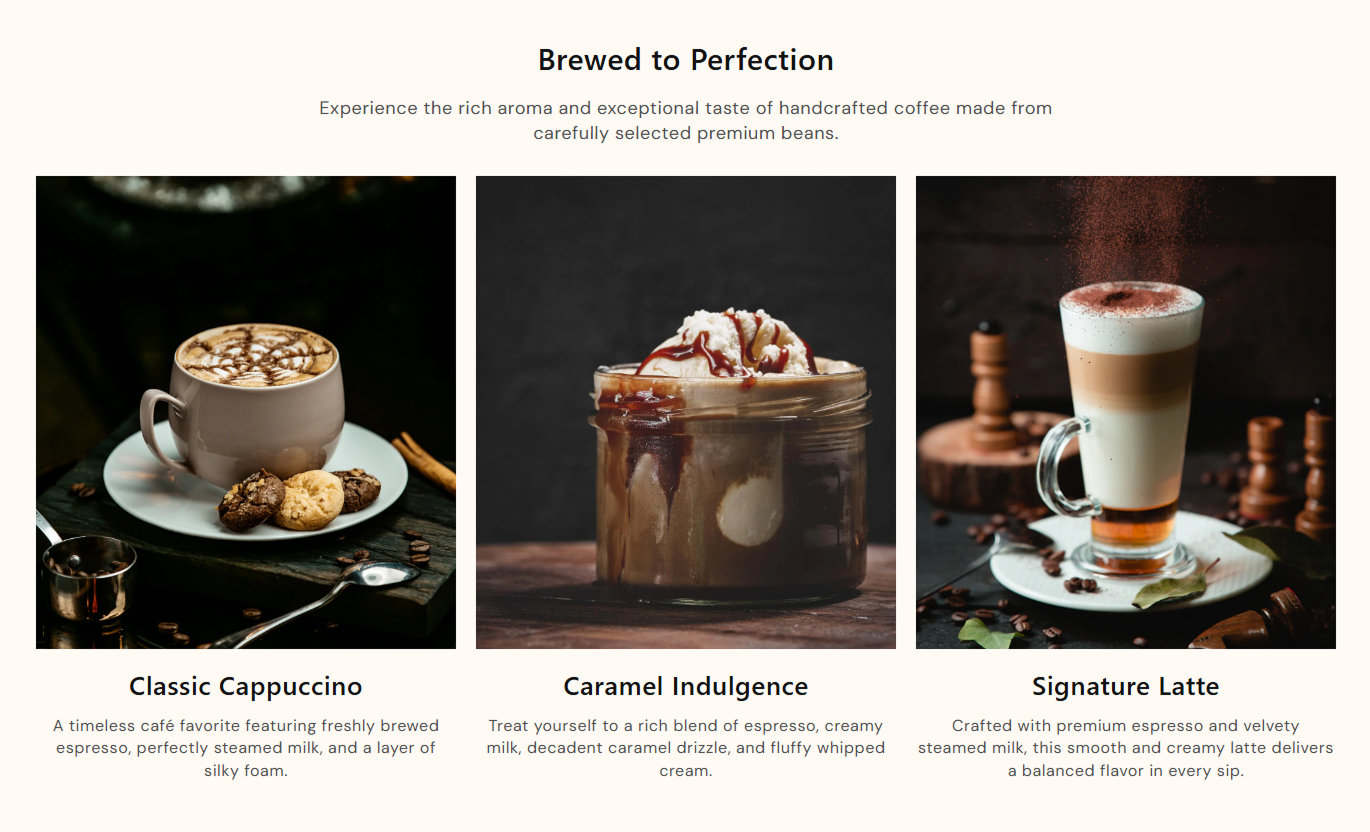
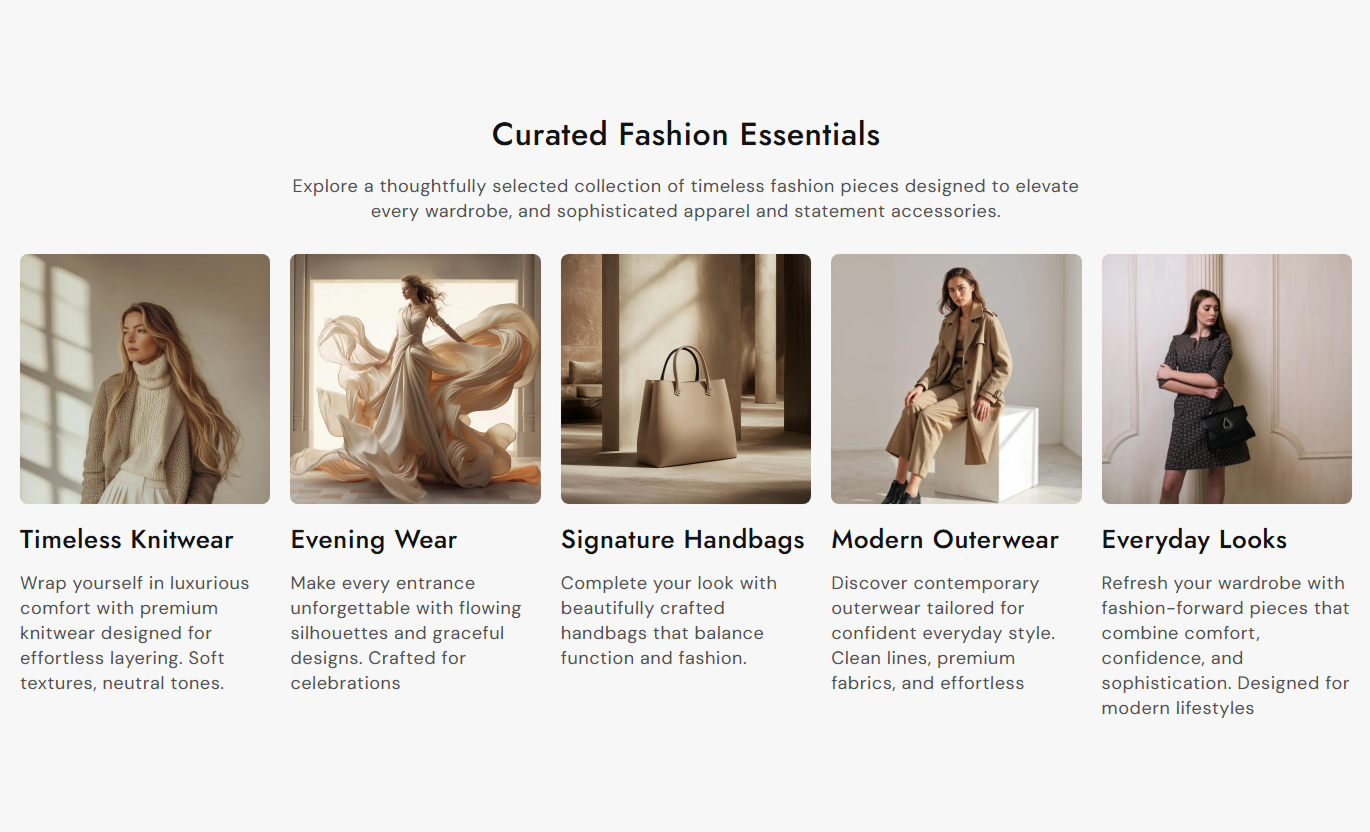


Build visual content grids with linked images, card headings, rich text, responsive columns, flexible image sizing, alignment, and styling controls.

Add a destination link to each card so shoppers can click the image or heading and continue to a relevant store page.

Give every image card its own heading and rich text to explain collections, categories, products, services, or brand stories.

Choose 2, 3, 4, or 5 columns on the desktop to control how much content appears in each row.

Display cards in either one or two columns on mobile screens to balance readability, image size, and browsing speed.

Choose Small, Medium, Large, or Auto image sizing to create landscape, square, portrait, or natural image proportions.

Images gently scale up when visitors hover over them, adding subtle visual feedback without changing the overall layout.

Control the alignment of the main section content and image card content separately for more flexible page compositions.

Adjust image border radius, content colors, background colors, typography sizes, spacing, and overall section width to match your storefront.
Control headings, grid columns, image sizing, alignment, typography, colors, spacing, and section width from the theme editor.

Applies to the whole section
Add the main heading displayed above the image grid.
Section HeadingAdd supporting rich text below the main heading.
Section ContentChoose the alignment of the heading and introductory content.
Section Text AlignmentSet the alignment of content inside each image card independently.
Grid Content AlignmentChoose between 2 and 5 columns for desktop displays.
Desktop ColumnsChoose between one or two columns for mobile displays.
Mobile ColumnsSet the image height to Small, Medium, Large, or Auto.
Image HeightAdjust the corner radius applied to the card images.
Image Border RadiusControl typography sizes and text colors for the section and image cards.
Typography & ColorsAdjust responsive spacing and choose between full-width or contained layouts.
Section Layout Controls
Applies to each image card
Choose the main visual displayed inside the card.
ImageAdd a heading displayed below the card image.
Card HeadingAdd supporting rich text below the card heading.
Card ContentLink the card image and heading to a relevant destination.
Card LinkUse this flexible image grid to organize visual content, improve discovery, and guide shoppers toward important products, collections, or store pages.
Use image cards to introduce popular collections, product categories, services, or brand stories while giving homepage visitors clear destinations to explore.
Guide visitors toward important collections with visual cardsFeature several store categories in one organized sectionUse supporting text to explain what each card representsAdjust desktop columns to suit your homepage structureKeep browsing clearly with one or two mobile columnsUse image cards around the product grid to showcase related collections, subcategories, themes, or shopping paths that help customers continue browsing.
Promote related collections beyond the current product gridShow subcategories through clear image-led navigationAdd context with headings and supporting card contentUse different image proportions for varied collection visualsHelp visitors discover more relevant areas of your storeUse image cards to show related categories, complementary collections, product stories, care guides, or other useful destinations around product details.
Direct shoppers toward complementary collections or pagesAdd supporting product information in a visual formatLink cards to guides, categories, or related contentKeep supporting content organized in a responsive gridUse card text to explain why each destination mattersUse the grid to structure campaign collections, featured categories, editorial stories, or linked content into a clean, easy-to-scan layout.
Divide campaign content into clear visual destinationsGive every card its own heading, text, and destinationAdjust grid density with flexible desktop columnsUse consistent image sizing to keep campaigns polishedCreate direct paths from campaign content to store pagesCombine images, supporting copy, and clickable destinations in a flexible card grid that makes important store content easier to browse and understand.
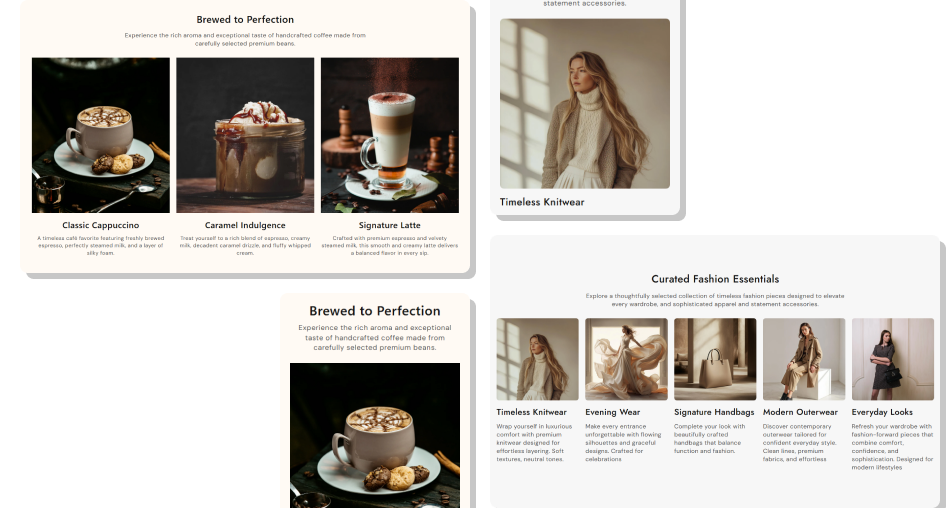
Create structured image cards with responsive columns, flexible image proportions, and linked content to guide shoppers through your store.
Present multiple destinations without building separate sectionsCombine visual merchandising with useful supporting contentAdjust grid density for different page layouts and content needsKeep card layouts responsive across desktop and mobile screensChoose image proportions that suit different visual assetsLink images and headings directly to relevant store destinationsMatch the grid to your theme with colors and radius controls Use high-quality images with a consistent visual direction
Keep card headings short and easy to understand quickly
Link each image to a page that matches the card content
Choose column counts that keep images large enough to scan
Use similar content lengths to keep card rows visually balanced
Use high-quality images with a consistent visual direction
Keep card headings short and easy to understand quickly
Link each image to a page that matches the card content
Choose column counts that keep images large enough to scan
Use similar content lengths to keep card rows visually balanced  Don't mix unrelated topics in the same image grid
Don't use long card copy that overwhelms the visual layout
Don't link images to destinations unrelated to their content
Don't use too many desktop columns for detailed card content
Don't mix image ratios randomly without a clear design reason
Don't mix unrelated topics in the same image grid
Don't use long card copy that overwhelms the visual layout
Don't link images to destinations unrelated to their content
Don't use too many desktop columns for detailed card content
Don't mix image ratios randomly without a clear design reason You can add up to five image grid blocks. Each card can include its own image, heading, rich text content, and destination link.
Yes. The desktop column setting allows you to display between two and five cards per row, depending on your preferred layout.
Yes. Mobile layouts can use either one or two columns, allowing you to balance image size and content density on smaller screens.
You can choose Small, Medium, Large, or Auto. These options provide different image proportions, including landscape, square, portrait, and natural image sizing.
Yes. Each card includes its own Link setting, and the selected destination applies to both the card image and its heading.
Yes. You can adjust the image's border radius and height, and the section also provides a hover zoom effect for visual interaction.
For Support or any Questions Email Us: [email protected]
Install SectionHub and add the Visual Image Grid Showcase section to your theme in minutes - no coding required.
