Create a Strong Visual Brand Introduction
Use video with supporting text to introduce your brand, highlight featured products, promote collections, or share an important store message.

Pair a Shopify video with a heading, supporting content, and a call-to-action button to highlight products, collections, promotions, services, or brand stories.
 2.0 Compatible
Video & Text Layout
Responsive Design
2.0 Compatible
Video & Text Layout
Responsive Design 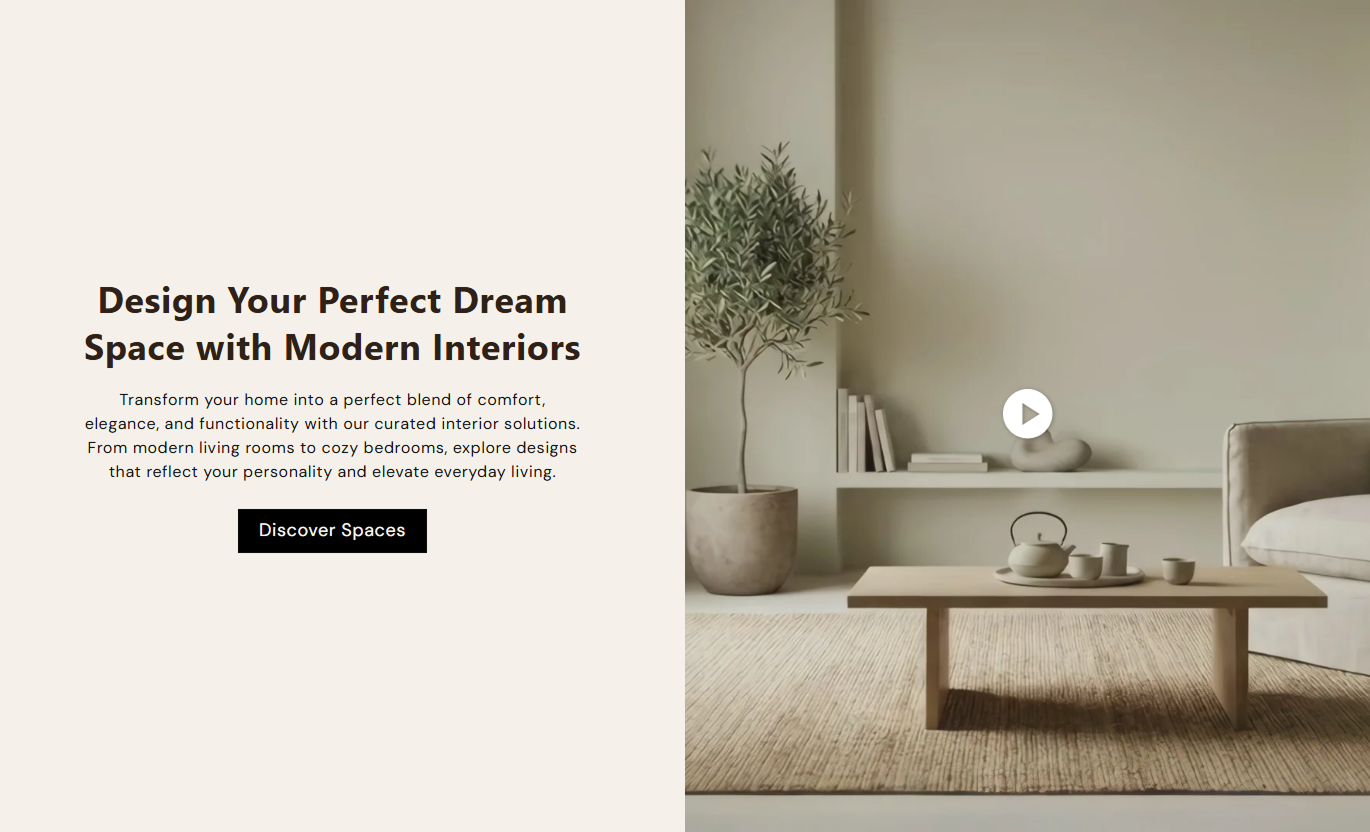
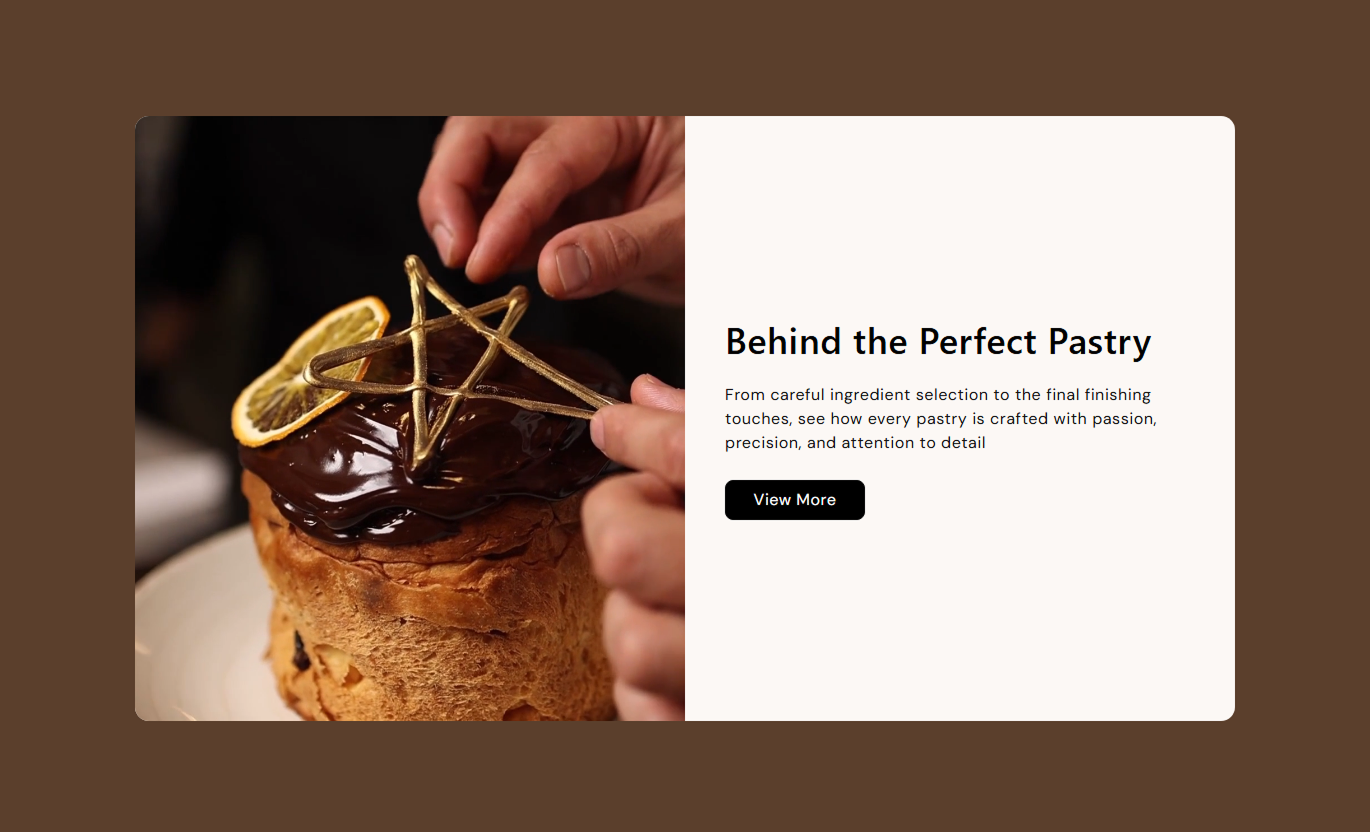


Combine video with customizable text, buttons, alignment, sizing, colors, and responsive settings to create focused content sections for your Shopify store.

Add a Shopify-hosted video as the section's main visual element.

Control autoplay, looping, sound, and video controls from the theme editor.

Show an interactive play and pause button when video controls are disabled.

Choose whether the video appears on the left or right side of the content.

Add a heading and rich text to explain your product, collection, promotion, or brand message.

Add a button with your own label and destination link.

Choose Small, Medium, Large, or Auto for video height.

The video and text stack neatly on mobile devices for a better browsing experience.
Control the video, text, button, colors, spacing, alignment, and section width from the Shopify theme editor.

Applies to the whole section
Video displayed as the main visual content.
VideoStart the video automatically when the section loads.
AutoplayRepeat the video continuously after it ends.
Loop VideoShow native playback controls on the video.
Video ControlsPlay the video without sound.
Mute VideoShow a custom play and pause button over the video.
Play / Pause ButtonChoose whether the video appears on the left or right.
Video AlignmentChoose the video height for different layouts.
Video HeightSet the rounded corners of the main content area.
Section RadiusAdd the main heading for the text area.
HeadingAdd supporting rich text below the heading.
ContentChoose the alignment of the text content.
Text AlignmentSet the text section background color.
Content BackgroundSet the heading and content colors.
Text ColorsCustomize the call-to-action button styling.
Button StylingSet desktop and mobile section spacing.
Section PaddingMake the section span the available screen width.
Full WidthSet the maximum width for a contained section.
Section WidthUse video alongside focused text and a clear call to action to explain products, highlight collections, promote campaigns, or tell your brand story.
Use video with supporting text to introduce your brand, highlight featured products, promote collections, or share an important store message.
Introduce your brand visuallyHighlight featured productsPromote important collectionsGuide visitors with a CTAUse video and text to introduce a collection, explain its style, highlight selected products, or share useful information before shoppers browse.
Introduce collection themesExplain product categoriesHighlight collection benefitsGuide shoppers to productsUse video alongside text to demonstrate product features, explain benefits, share product stories, or direct customers toward a relevant destination.
Explain product featuresShowcase products visuallyShare product benefitsAdd a focused CTACombine video, messaging, and a CTA to present promotions, product launches, services, or campaign stories in a focused layout.
Capture visitor attentionSupport campaign storytellingHighlight key promotionsDrive visitors to relevant pagesPair engaging video with focused text and a clear call to action to explain your products, collections, promotions, or brand story in one section.
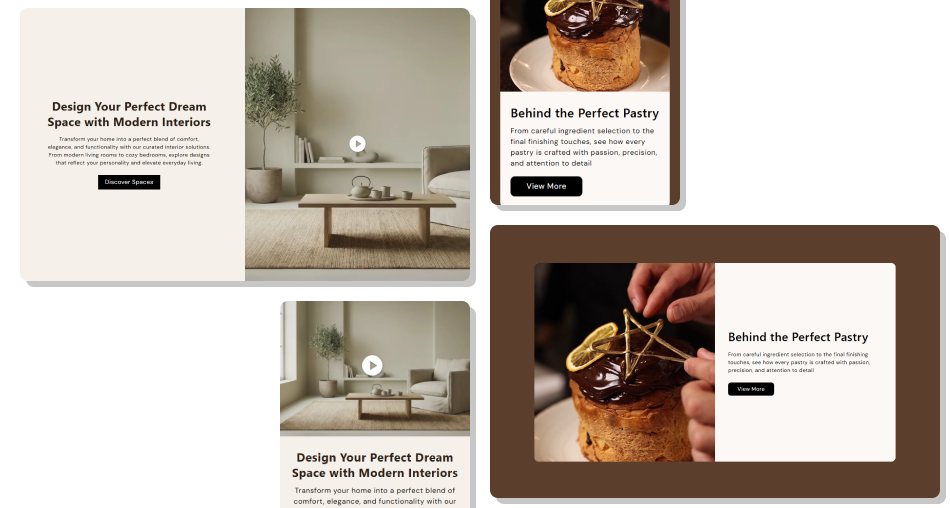
Use flexible video placement, playback controls, text alignment, button styling, and responsive layouts to create sections that fit your store design.
Combine video and text in one layoutChoose left or right video placementControl video autoplay and loopingAdd custom headings and rich textInclude a clear call-to-action buttonChoose different video height optionsCustomize text and section colorsCreate responsive desktop and mobile layouts Use a high-quality and relevant video
Keep the heading short and clear
Match the text with the video message
Use a relevant CTA link
Choose a video height that suits your content
Use a high-quality and relevant video
Keep the heading short and clear
Match the text with the video message
Use a relevant CTA link
Choose a video height that suits your content  Use unrelated video content
Add overly long text
Use unclear CTA labels
Choose video settings that distract from the message
Overload the section with too much content
Use unrelated video content
Add overly long text
Use unclear CTA labels
Choose video settings that distract from the message
Overload the section with too much content Yes. You can select a Shopify-hosted video to display alongside the text.
Yes. You can enable or disable Autoplay and Loop Video from the section settings.
Yes. The Mute Video setting lets you control whether the video plays without sound.
Yes. You can enable native video controls from the Video Controls setting.
Yes. You can enable the custom Play / Pause Button when video controls are disabled.
Yes. Use the Video Alignment setting to place the video on the left or right side.
Yes. You can add a button label and destination link, with an option to use an outline button style.
Yes. On mobile screens, the video and text areas stack vertically for a better responsive layout.
Yes. You can choose Small, Medium, Large, or Auto video height.
Yes. You can customize background colors, text colors, button colors, desktop and mobile padding, and the section width.
For Support or any Questions Email Us: [email protected]
Install SectionHub and add the Video with Text section to your theme in minutes - no coding required.
