Build an Engaging Homepage Video Showcase
Use the carousel on your homepage to feature product demonstrations, campaign clips, customer stories, tutorials, or short-form brand content in one visual section.

Show portrait videos in a responsive coverflow carousel with poster images, linked titles, playback controls, navigation arrows, autoplay, and flexible styling.
 Coverflow Video Slider
Interactive Video Cards
Responsive Video Browsing
Coverflow Video Slider
Interactive Video Cards
Responsive Video Browsing 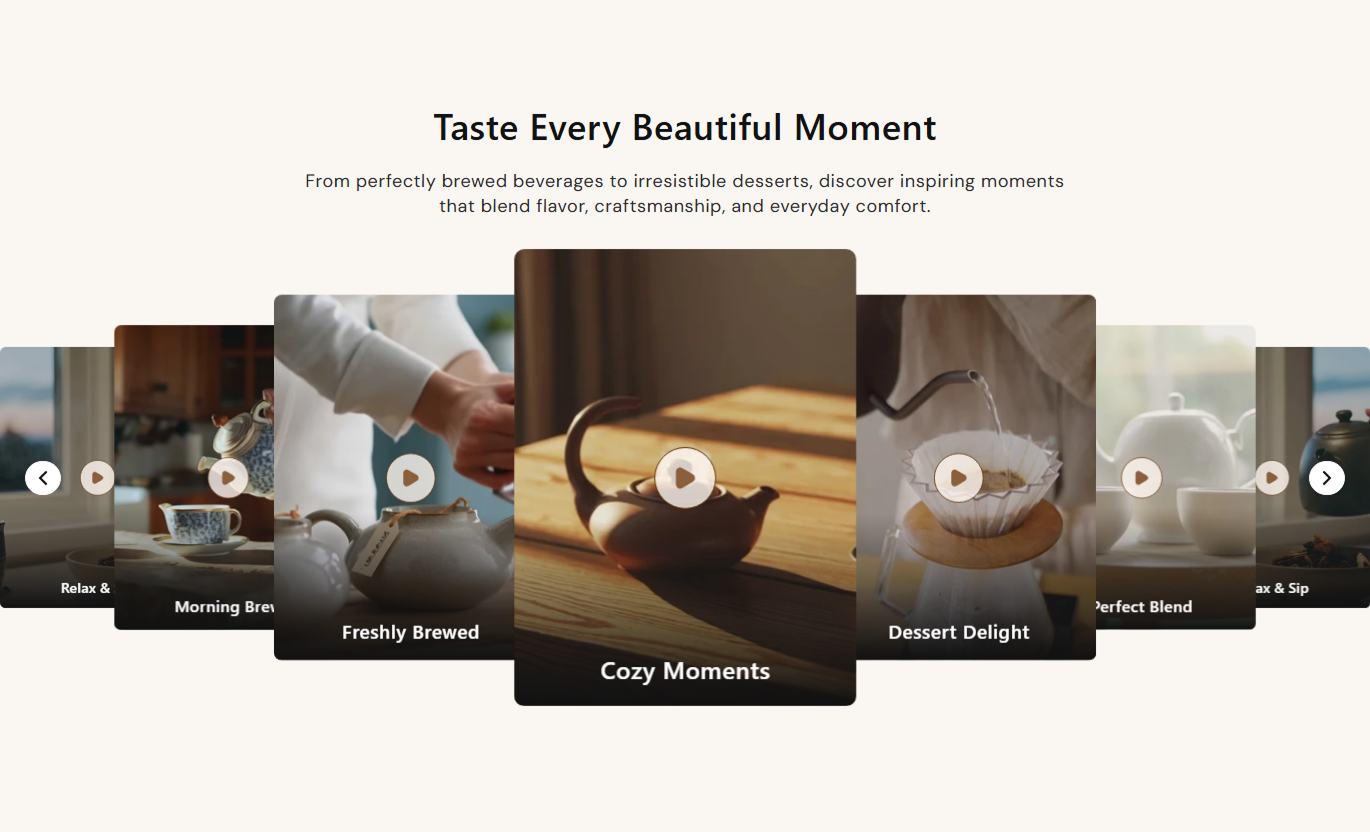
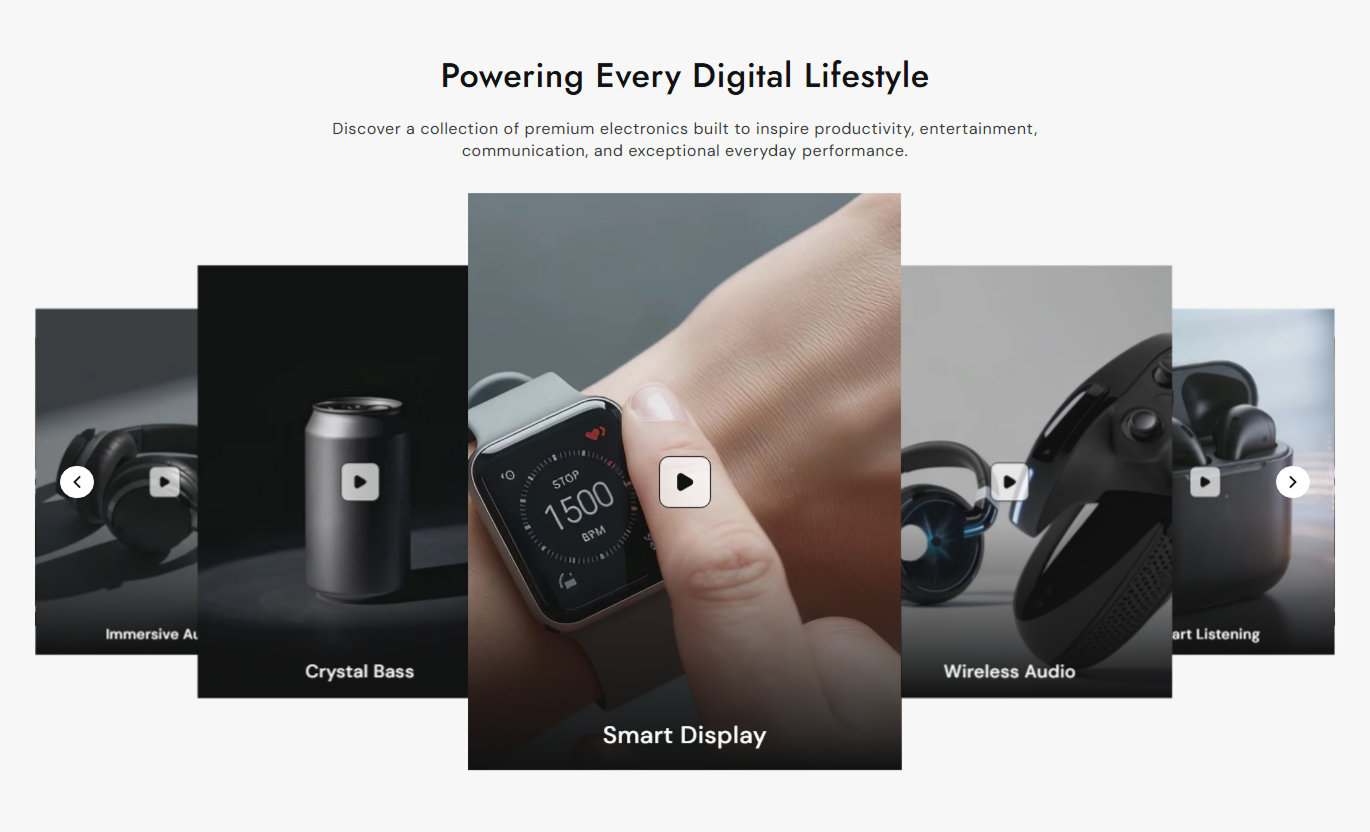


Create a polished video showcase featuring portrait cards, cover flow movement, custom previews, linked titles, playback controls, and responsive navigation.

Display videos in a centered coverflow carousel that keeps the active card prominent while nearby slides remain partially visible.

Add up to ten individual video blocks, each with its own Shopify-hosted video, poster image, title, and optional destination link.

Upload a separate preview image for every video so each slide looks polished before the shopper starts video playback.

Shoppers can play or pause the active video directly inside its card without opening a separate modal or leaving the current page.

Add a title beneath each video and optionally link it to a relevant product, collection, page, campaign, or other store destination.

Enable automatic carousel movement and choose a delay of 1 to 5 seconds, while keeping actual video playback user-controlled.

Show three or four slides on large desktops, three at tablet widths, and a centered 1.2-slide presentation on smaller screens.

Adjust video card radius, play button design, gradient overlay, arrows, typography, colors, section spacing, and overall width.
Control slider behavior, video cards, playback controls, navigation, typography, colors, responsive spacing, and overall section width.

Applies to the whole section
Add the primary heading displayed above the carousel.
Section HeadingAdd supporting rich text below the main section heading.
Section ContentChoose left, center, or right alignment for section content.
Content AlignmentChoose whether the desktop displays three or four video slides.
Desktop Slide CountEnable or disable automatic carousel movement.
Slider AutoplaySet the carousel autoplay delay from one to five seconds.
Autoplay DelayShow or hide previous and next navigation arrows.
Navigation ArrowsAdjust the corner radius used around all video cards.
Video Card RadiusControl play button size, radius, opacity, border, and colors.
Play Button StyleUse full width or enter a custom contained section width.
Section Width
Applies to each video slide
Upload the Shopify-hosted video displayed in the slide.
Slide VideoChoose an optional preview image shown before playback.
Poster ImageAdd the text displayed at the bottom of the video card.
Slide TitleAdd an optional destination link to the slide title.
Title LinkUse this interactive video carousel across key Shopify pages to showcase products, tutorials, campaigns, testimonials, launches, or visual brand stories.
Use the carousel on your homepage to feature product demonstrations, campaign clips, customer stories, tutorials, or short-form brand content in one visual section.
Show multiple videos without creating a long homepage layoutKeep the active video centered and visually prominentUse poster images to create stronger video previewsLink video titles to useful storefront destinationsMake video discovery easy across desktop and mobile screensPlace the carousel near collection content to show styling ideas, product demonstrations, category stories, tutorials, or videos related to the displayed range.
Add visual context around products in a collectionDemonstrate product usage through short portrait videosConnect videos to relevant store destinations with linksKeep multiple videos organized inside one carouselSupport mobile browsing with a focused centered layoutUse Video With Slider Gallery on product pages to present demonstrations, tutorials, customer clips, styling ideas, or related videos without heavily extending the page.
Show product usage beyond standard product imagesPresent multiple videos inside one compact sectionLet shoppers play and pause videos directly in each cardUse linked titles to guide visitors toward related contentKeep supporting video content responsive on smaller devicesUse the coverflow carousel on landing pages to combine launch videos, testimonials, demonstrations, campaign clips, or branded storytelling in one focused area.
Create a strong visual centerpiece for campaign pagesCombine several short videos inside one interactive sectionUse titles and links to support campaign navigationEnable slider autoplay for automatic carousel movementCustomize colors and controls to match campaign stylingOrganize several portrait videos in a responsive carousel that keeps previews clear, playback simple, and supporting links easy for shoppers to explore.
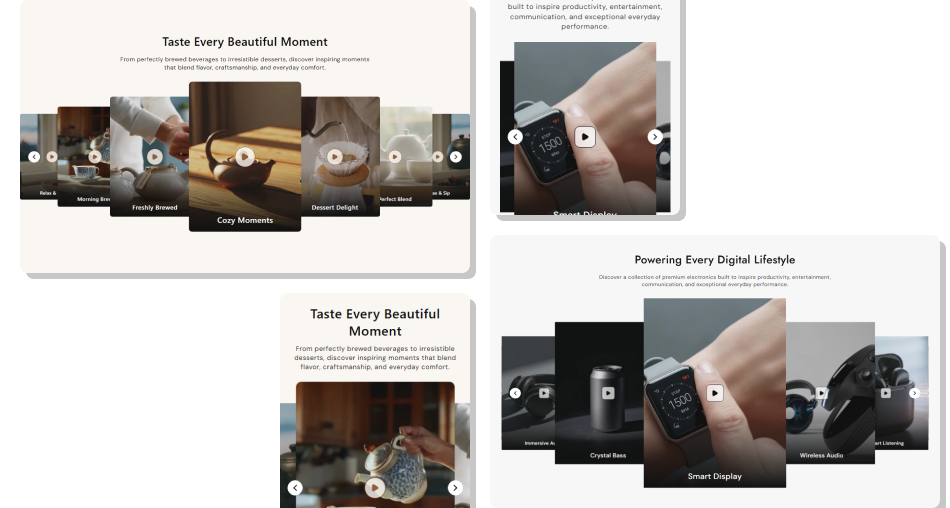
Use a centered coverflow layout to organize multiple videos while giving shoppers clear previews, playback controls, and optional links.
Display up to ten portrait video slides in one sectionUse custom poster images for stronger video previewsPlay and pause the active video directly inside its cardLink each slide title to a relevant store destinationChoose between three or four visible desktop slidesEnable carousel autoplay without forcing video playbackCustomize arrows, play controls, colors, radius, and spacing Use portrait videos that fit the vertical card format naturally
Choose poster images that accurately represent each video
Keep slide titles short enough to remain easy to scan
Link titles only when the destination adds useful context
Test slider autoplay and video playback on mobile devices
Use portrait videos that fit the vertical card format naturally
Choose poster images that accurately represent each video
Keep slide titles short enough to remain easy to scan
Link titles only when the destination adds useful context
Test slider autoplay and video playback on mobile devices  Do not upload unrelated videos simply to fill the carousel
Do not use poster images that misrepresent the video content
Do not write long titles that get cut off inside the card
Do not set carousel autoplay too fast for comfortable browsing
Do not rely on video alone for essential purchase information
Do not upload unrelated videos simply to fill the carousel
Do not use poster images that misrepresent the video content
Do not write long titles that get cut off inside the card
Do not set carousel autoplay too fast for comfortable browsing
Do not rely on video alone for essential purchase information You can add up to ten Video blocks. Each block includes its own Shopify-hosted video, an optional poster image, a title, and a destination link.
No. Video playback is controlled by the shopper. The carousel can autoplay, but individual videos start only after the play button is pressed.
The selected slide first moves into the active centered position. The shopper can then use the play button to start the video.
Yes. Every Video block includes a Poster Image setting, allowing each slide to have its own preview before playback begins.
Yes. Each Video block has its own Link setting, so individual titles can point to different relevant pages or storefront destinations.
Large desktops can show three or four cards, tablet-sized layouts show three, and smaller screens use a centered view with about 1.2 slides.
Yes. The Show Navigation setting lets you enable or disable the carousel arrows without affecting looping or optional autoplay behavior.
Yes. You can change the play button size, radius, opacity, background, border, and icon colors, as well as arrow size, colors, borders, and hover states.
For Support or any Questions Email Us: [email protected]
Install SectionHub and add the Video With Slider Gallery section to your theme in minutes - no coding required.
