Showcase Multiple Visual Categories on Home
Create a homepage visual section that lets shoppers switch between content groups and explore expandable images for collections, campaigns, products, or brand highlights.

Showcase grouped images through interactive tabs and expandable image cards with custom titles, links, colors, typography, buttons, responsive layouts, and flexible spacing.
 Interactive Image Tabs
Expandable Visual Cards
Responsive Tab Layout
Interactive Image Tabs
Expandable Visual Cards
Responsive Tab Layout 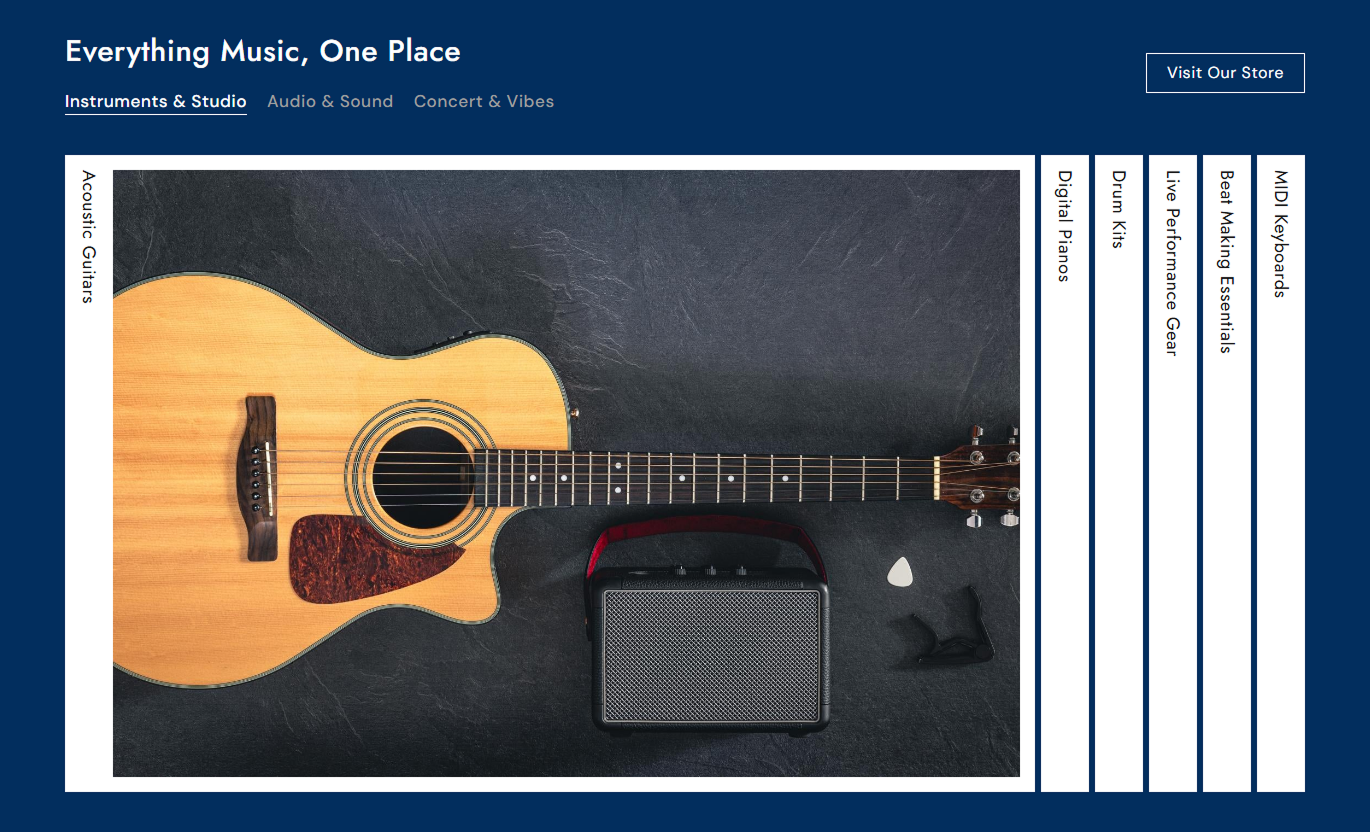
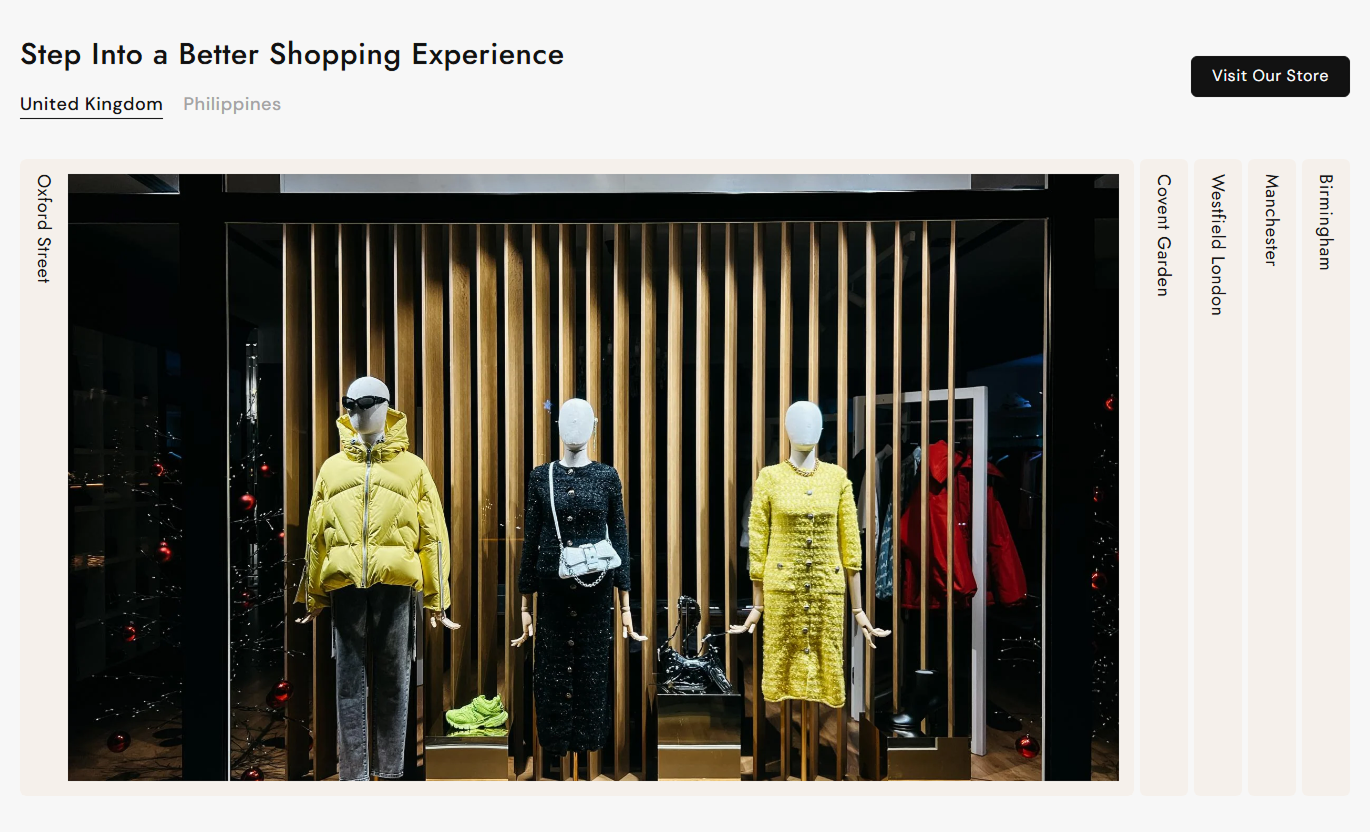


Create organized visual sections with multiple tabs, expandable image cards, clickable links, custom styling, responsive layouts, and optional call-to-action buttons.

Create up to four separate tab groups, allowing shoppers to switch between different sets of visual content.

Add up to 10 image items to each tab, with a title and an optional link for each visual card.

Let shoppers click image cards to expand the selected visual while other cards remain compact within the layout.

Add a unique URL to each image item so shoppers can navigate directly to related pages or content.

The selected tab uses a separate active color and underline to make the current content group easy to identify.

Add an optional button with a custom label, a destination link, an outline style, colors, hover effects, and a border radius.

Customize headings, tabs, image titles, backgrounds, buttons, borders, colors, typography, and corner radius settings.

The layout adapts for mobile with stacked image cards, adjusted typography, spacing, button placement, and responsive image presentation.
Customize tabs, image cards, buttons, typography, colors, spacing, borders, and section width from the Shopify theme editor.

Applies to the whole section
Add a heading above the tabs to introduce the visual content.
Main Section HeadingAdd the text displayed inside the optional section button.
Button Label SettingChoose the destination URL for the section call-to-action button.
Button Link SettingSwitch the CTA button between filled and outline styles.
Outline Button StyleAdjust the corner radius of the section button.
Button Border RadiusControl the corner rounding applied to expandable image cards.
Tab Border RadiusAdjust heading, tab, and image title font sizes.
Typography ControlsCustomize backgrounds, tabs, active states, image titles, and button colors.
Color ControlsSet separate desktop and mobile top and bottom padding values.
Section SpacingUse full width or define a custom maximum section width.
Section Width
Applies to individual tab blocks
Set the name displayed in the main tab navigation.
Tab HeadingChoose the image displayed inside an individual image card.
Image SelectionAdd the title shown with each expandable image item.
Image TitleAdd a destination URL for the selected image card.
Image LinkUse interactive image tabs across storefront pages to organize collections, products, services, campaigns, categories, or visual content into clear and engaging groups.
Create a homepage visual section that lets shoppers switch between content groups and explore expandable images for collections, campaigns, products, or brand highlights.
Group multiple visual themes inside separate tabs.Highlight important collections with large images.Link every image to a relevant storefront destination.Keep homepage content organized without long sections.Create an interactive visual browsing experience.Use tabs to organize collection-related imagery into groups, allowing shoppers to switch between categories and open individual image cards linked to relevant storefront pages.
Separate collection visuals into clear categories.Add multiple images without creating separate sections.Link images directly to relevant collection pages.Make category browsing more interactive and visual.Keep related imagery organized in one section.Present product imagery in grouped tabs and expandable cards, giving shoppers a visual way to explore related products, product categories, or supporting content.
Display related product imagery in organized groups.Create visual categories using separate tabs.Link individual images to product destinations.Highlight selected visuals through expandable cards.Add supporting visual content without extra layouts.Create campaign-focused landing page sections using multiple image groups, clickable visual cards, custom titles, and optional CTA buttons that guide visitors to key destinations.
Present campaign content in organized visual groups.Showcase multiple themes without excessive page length.Add direct links to important campaign destinations.Use custom colors to match campaign branding.Include a CTA button for stronger navigation.Organize visual content into focused groups while giving shoppers an interactive way to explore images, switch tabs, open cards, and visit linked destinations.
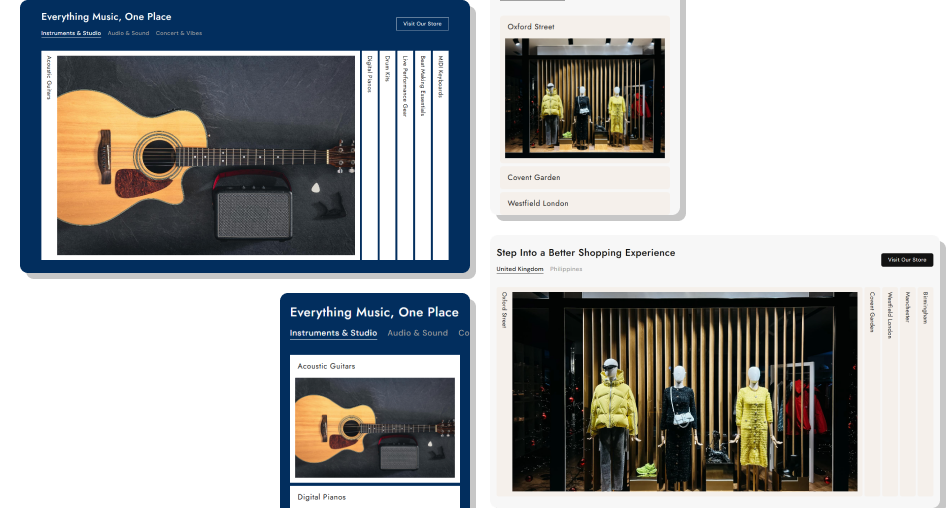
Group related images into tabs so shoppers can browse focused content without overwhelming the page with multiple separate sections.
Organize large amounts of visual content into focused tab groups.Give shoppers an interactive way to explore multiple images.Keep related content together while reducing page clutter.Connect every image with a relevant destination link.Use custom styling to match your store's visual identity.Maintain a clean experience across desktop and mobile screens. Use clear tab names that describe each content group.
Choose high-quality images that match the section purpose.
Add short titles that are easy to understand.
Link images to relevant products, collections, or pages.
Keep each tab visually consistent with the others.
Use clear tab names that describe each content group.
Choose high-quality images that match the section purpose.
Add short titles that are easy to understand.
Link images to relevant products, collections, or pages.
Keep each tab visually consistent with the others.  Avoid using unclear or unrelated tab names.
Don’t add low-quality images that weaken the visual experience.
Avoid overly long titles that are difficult to scan.
Don’t link images to unrelated or confusing destinations.
Avoid inconsistent imagery that makes groups feel disconnected.
Avoid using unclear or unrelated tab names.
Don’t add low-quality images that weaken the visual experience.
Avoid overly long titles that are difficult to scan.
Don’t link images to unrelated or confusing destinations.
Avoid inconsistent imagery that makes groups feel disconnected. You can add up to four Tab blocks. Each tab works as a separate content group that shoppers can select from the main tab navigation.
Each Tab block supports up to ten image items, and every image item can have its own image, title, and destination link.
Yes. Every image item includes a Link setting that lets you send shoppers to a specific product, collection, page, or other destination.
Yes. Image cards are interactive. Clicking a card makes it active and expands its visual area while other cards remain compact.
Yes. You can add a button label and link, then choose between a filled or outline style and customize its colors and border radius.
Yes. You can adjust tab colors, active tab color, image title color, background colors, border radius, and several typography settings.
Yes. The section changes to a stacked layout on mobile, with adjusted heading sizes, image titles, spacing, and button positioning for smaller screens.
Yes. Enable Full width to use the available page width, or keep it disabled and set a custom maximum width for the section.
For Support or any Questions Email Us: [email protected]
Install SectionHub and add the Vertical Tab Wise Image section to your theme in minutes - no coding required.
