Tell Your Brand Story in a Visual Timeline
Use Timeline Journey on your homepage to introduce your brand history, key milestones, product journey, or growth story through images and structured content.

Create a visual Shopify timeline with images, milestone icons, text, and an animated progress bar that guides shoppers through your story, process, or journey.
 Animated Scroll Progress
Flexible Timeline Layout
Responsive Timeline Design
Animated Scroll Progress
Flexible Timeline Layout
Responsive Timeline Design 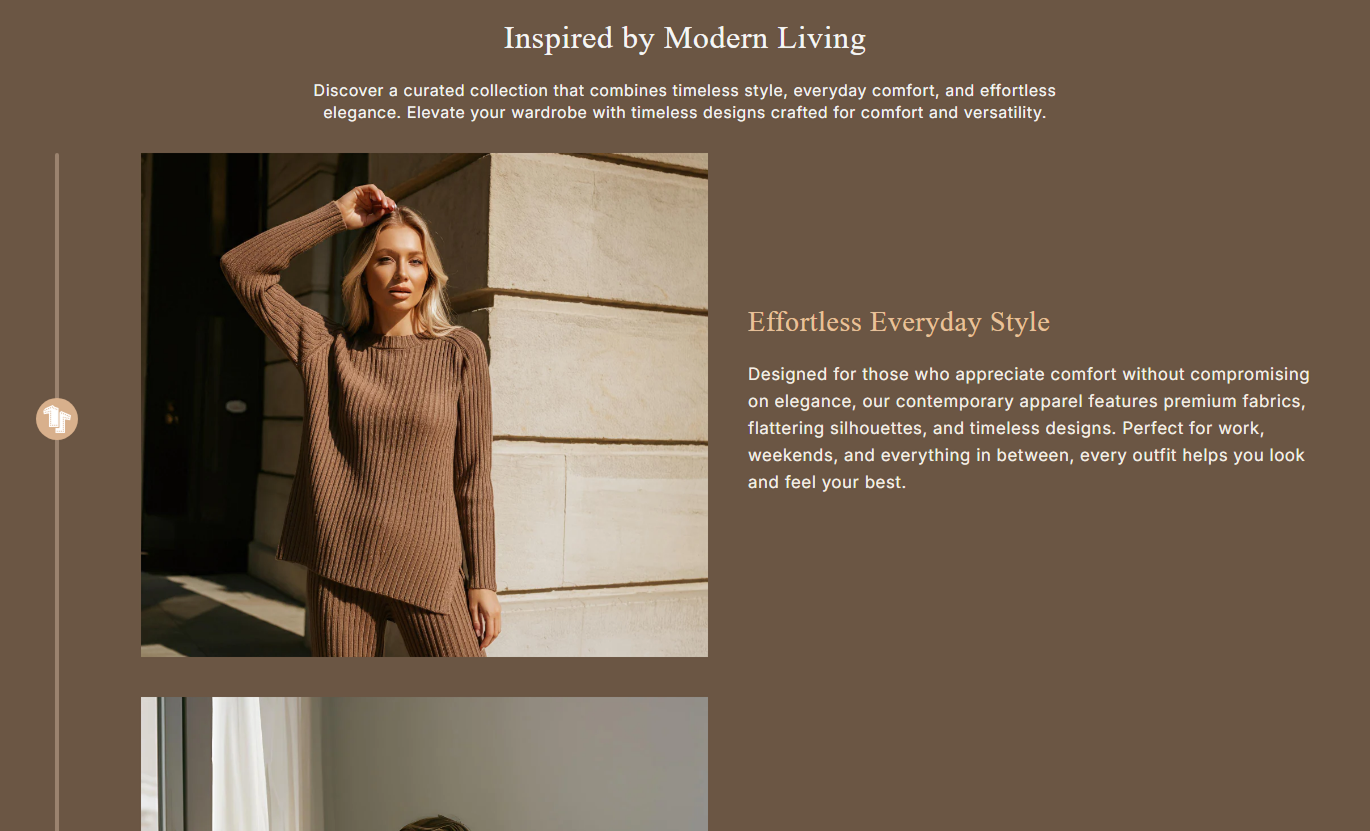
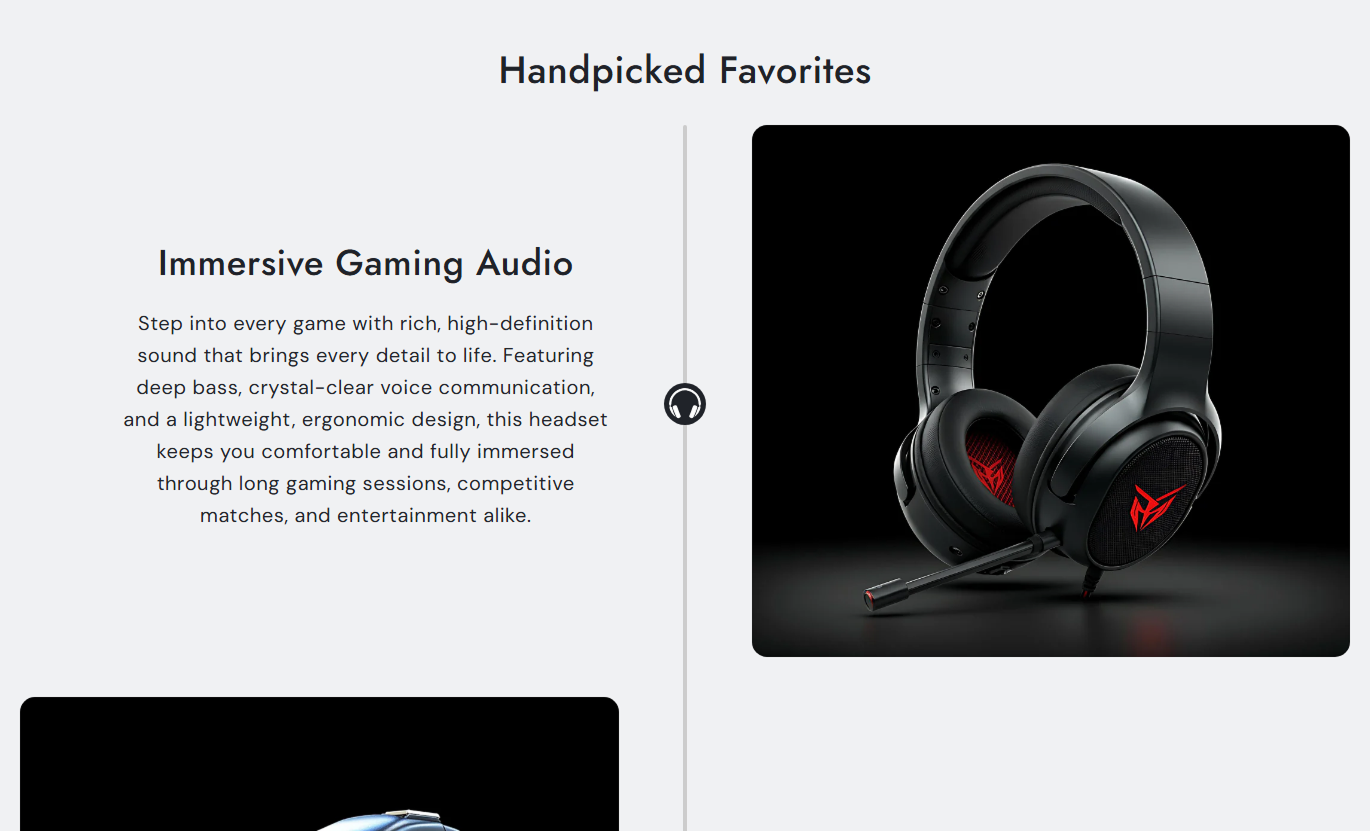


Build an engaging timeline with images, milestone icons, scroll progress, flexible positioning, responsive layouts, and customizable styling.

The vertical progress bar fills as visitors scroll, making it easier to follow each stage of the timeline naturally.

Add a custom icon to every timeline block so each step has a clear visual marker along the progress line.

Place each timeline image on the left or right to create alternating layouts and a more balanced visual flow.

Add an individual heading and rich text description to each timeline step for clear, structured storytelling.

Choose Small, Medium, Large, or Auto image height to control how timeline visuals appear throughout the section.

Timeline images smoothly enlarge when hovered, adding a subtle interactive effect to desktop browsing.

Position the timeline progress bar on the left, center, or right on the desktop, with separate left or right controls for mobile.

Timeline content and images stack vertically on smaller screens while maintaining clear progress navigation and spacing.
Control timeline content, image styling, progress design, colors, spacing, and responsive layout from the Shopify theme editor.

Applies to the whole section
Add the main title displayed above the timeline.
Section HeadingAdd supporting rich text below the main title.
Section ContentChoose how the main heading and text are aligned.
Text AlignmentChoose Small, Medium, Large, or Auto image sizing.
Timeline Image HeightControl how rounded timeline images appear.
Image Border RadiusSet the progress bar position for desktop layouts.
Desktop Progress PositionChoose whether the progress line sits left or right on mobile.
Mobile Progress PositionAdjust heading, content, and timeline text font sizes.
Timeline Font SizesCustomize section text, timeline text, and progress colors.
Section Color ControlsSet desktop and mobile spacing and choose the section width.
Width & Spacing Controls
Applies to each timeline step
Choose the main visual displayed for the timeline step.
Timeline ImagePlace the step image on either the left or right side.
Image PositionChoose the icon displayed on the timeline progress marker.
Milestone IconAdd a title that explains the current stage of the timeline.
Timeline HeadingAdd supporting rich text for the individual timeline step.
Timeline ContentChoose how the text inside the timeline step is aligned.
Text AlignmentUse Timeline Journey across important Shopify pages to explain your story, process, product journey, milestones, or campaigns in a clear visual sequence.
Use Timeline Journey on your homepage to introduce your brand history, key milestones, product journey, or growth story through images and structured content.
Introduce your brand history without using long text sectionsShow important milestones in a clear chronological sequenceCombine images and content to make your story easier to followUse milestone icons to separate important stages visuallyCreate an engaging storytelling section for new visitorsAdd a visual timeline to collection pages to explain design inspiration, sourcing, production, craftsmanship, or the process behind the collection.
Explain the journey behind a specific product collectionShow design, sourcing, or production stages visuallyAdd useful background information without cluttering product gridsHelp shoppers understand the work behind the collectionUse images to make collection storytelling more engagingUse a timeline on product pages to explain how an item is designed, made, tested, sourced, finished, or prepared before reaching the customer.
Explain important stages in the product creation processShow craftsmanship, sourcing, testing, or manufacturing stepsAdd detailed product context without one large text blockUse images to support information about each production stageHelp shoppers understand the process behind the final productUse Timeline Journey on landing pages to explain a campaign, launch process, service journey, event schedule, or other information that follows a sequence.
Break complex campaign information into clear visual stagesGuide visitors through information in a logical sequenceUse milestone icons to make important steps easier to identifyCombine images and copy for more engaging campaign storytellingCreate a structured visual section for longer landing pagesTurn long stories and multi-step information into a visual timeline that helps shoppers understand your brand, products, and processes more easily.
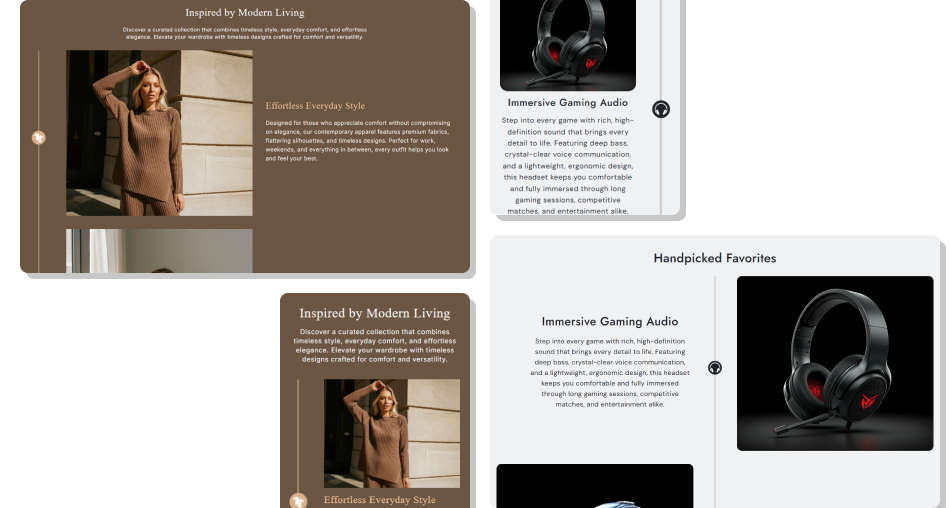
Organize connected information into clear stages with images, milestone icons, supporting text, and scroll-based visual progress.
Present long stories as easy-to-follow visual timeline stepsShow progress through the section with an animated vertical barGive every timeline stage its own image, heading, and contentUse milestone icons to make important stages easy to recognizeAlternate image positions to create a more dynamic page layoutCustomize typography, colors, spacing, images, and progress stylingKeep timeline content readable across desktop and mobile screens Arrange timeline steps in a clear and logical sequence.
Use relevant images that support each timeline milestone.
Keep timeline headings short, clear, and easy to scan.
Choose milestone icons that match the timeline step.
Keep supporting content focused on one stage at a time.
Arrange timeline steps in a clear and logical sequence.
Use relevant images that support each timeline milestone.
Keep timeline headings short, clear, and easy to scan.
Choose milestone icons that match the timeline step.
Keep supporting content focused on one stage at a time.  Don’t add unrelated steps that interrupt the timeline's flow.
Avoid using images that provide no context for the milestone.
Don’t overload timeline steps with lengthy descriptions.
Avoid unclear headings that make the sequence difficult to follow.
Don’t add unnecessary steps just to make the timeline longer.
Don’t add unrelated steps that interrupt the timeline's flow.
Avoid using images that provide no context for the milestone.
Don’t overload timeline steps with lengthy descriptions.
Avoid unclear headings that make the sequence difficult to follow.
Don’t add unnecessary steps just to make the timeline longer. Yes. Timeline Journey uses individual timeline blocks, allowing you to add multiple stages with their own image, icon, heading, content, and alignment.
Yes. The progress line fills as visitors move through the timeline, while milestone markers become active when their positions are reached.
Yes. Each timeline block includes its own icon setting, so you can upload a different visual marker for every stage in the timeline.
Yes. Each timeline block lets you choose a left or right image position, allowing you to create alternating or consistent timeline layouts.
Yes. You can choose Small, Medium, Large, or Auto for the section's image height, and adjust the image border radius.
Yes. On the desktop, the progress bar can appear on the left, center, or right. Mobile includes separate settings for left or right placement.
Yes. You can control section and timeline text colors, progress colors, font sizes, image radius, spacing, and other visual settings.
For Support or any Questions Email Us: [email protected]
Install SectionHub and add the Timeline Journey section to your theme in minutes - no coding required.
