Keep Important Messages Visible on Home
Add a scrolling message bar to your homepage to highlight key offers, store benefits, announcements, or brand messages without taking up much space.

Keep important store messages visible with a scrolling text marquee. Highlight offers, product benefits, shipping details, or brand messages in a lively format.
 Theme Editor Controls
Scrolling Text Layout
Custom Icon Support
Theme Editor Controls
Scrolling Text Layout
Custom Icon Support 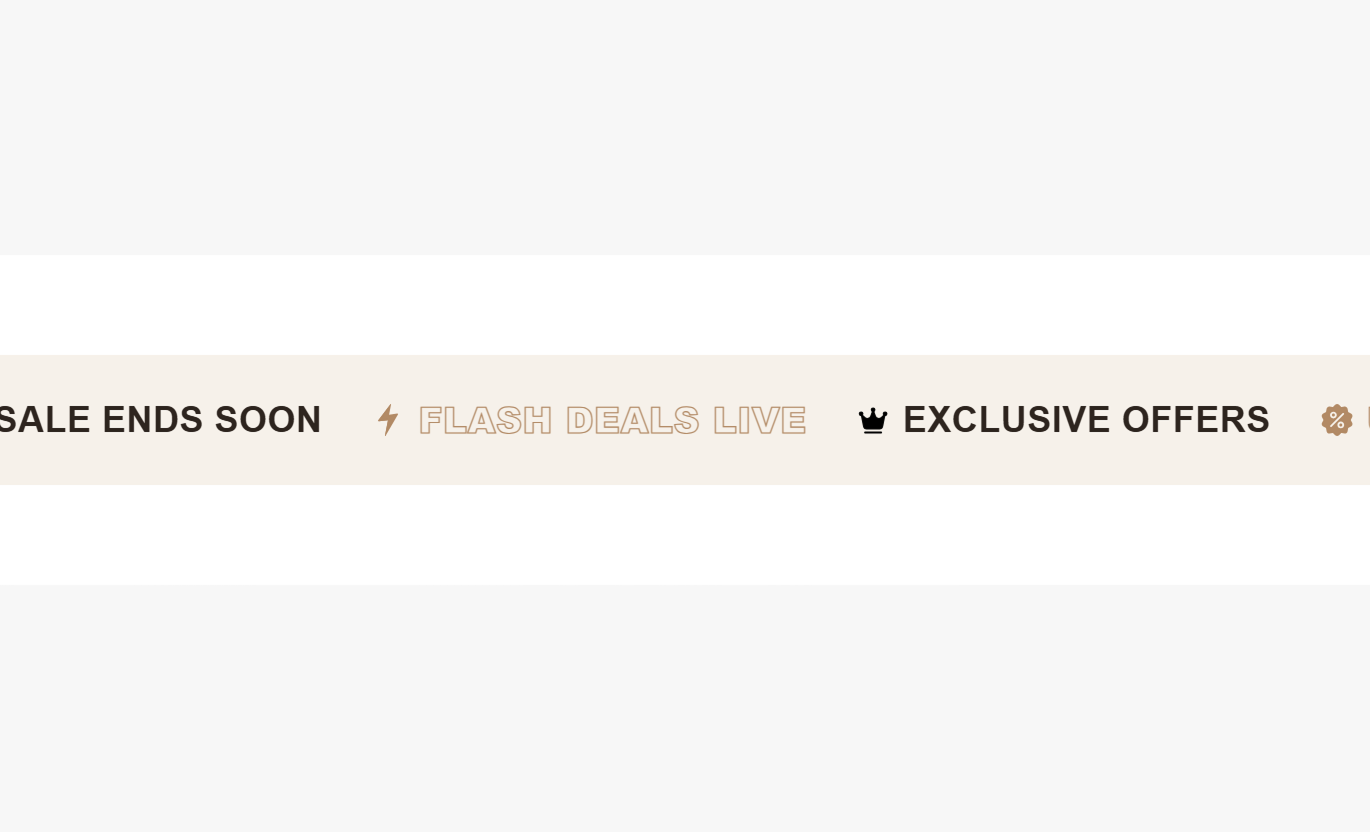
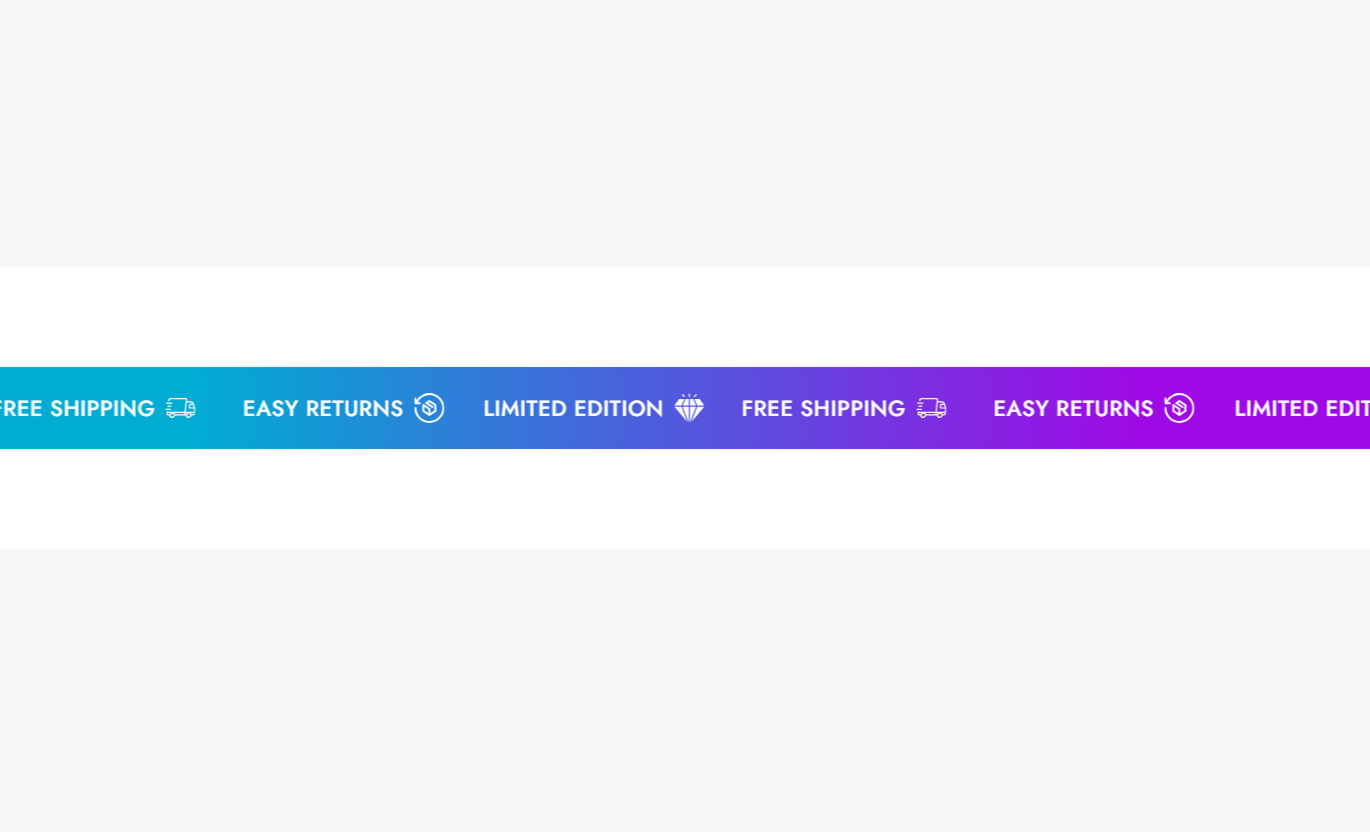

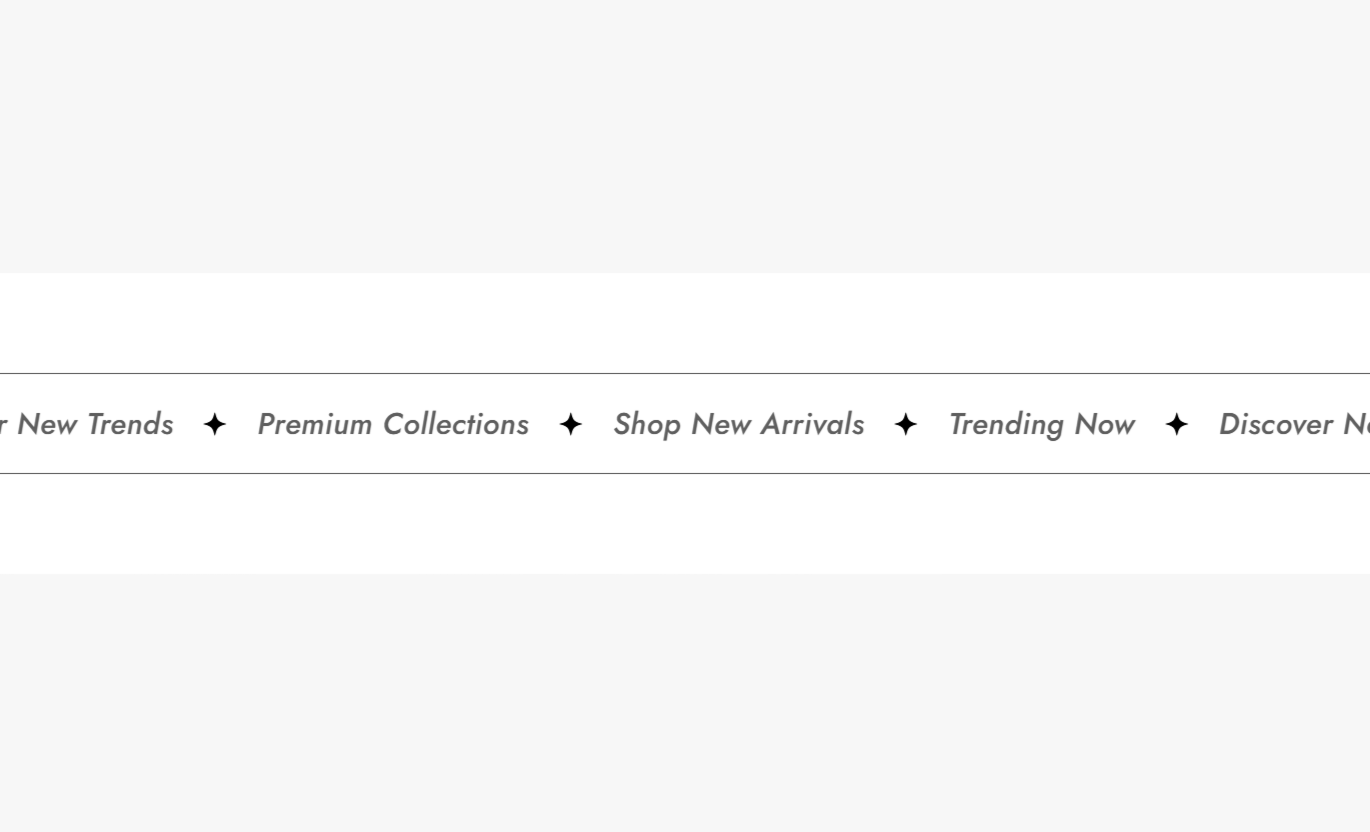


Create a scrolling message bar with custom text, icons, animation controls, spacing, colors, and responsive settings for your Shopify store.

Add short messages to the marquee blocks and keep important store information visible as shoppers browse.

Use an uploaded image or SVG code next to each message for a more visually engaging scrolling announcement.

Choose from multiple animation speeds to control how quickly your marquee messages move across the store.

Set the animation direction so the marquee moves left or right to suit your store layout.

Let shoppers pause the moving content when they hover over the marquee and want more time to read.

Place the icon before or after the text to create the visual arrangement that fits your design.

Set separate text sizes for desktop and mobile so your scrolling messages stay easy to read.

Adjust background, gradient, border, text, and highlighted text colors to match your store branding.
Control the marquee content, animation, icons, colors, spacing, and section width from the theme editor.

Applies to the whole section
Add an image behind the scrolling message bar.
Background ImageChoose how quickly the marquee text moves.
Marquee SpeedSet the weight of the scrolling text.
Text Font WeightChoose the direction of the marquee movement.
Animation DirectionPause the marquee when shoppers hover over it.
Pause On HoverSet the space between repeated marquee items.
Marquee Item SpacingChoose whether icons appear before or after text.
Icon PositionSet the size of the icons used in the marquee.
Icon SizeAdjust the gap between icons and text.
Icon Text SpacingSet separate text sizes for desktop and mobile.
Text Size Controls
Applies to each marquee item
Choose an uploaded image or SVG icon.
Icon TypeAdd an image for the marquee icon.
Icon ImagePaste custom SVG code for the icon.
SVG IconAdd the message displayed in the marquee.
Marquee TextUse the Text Marquee to keep short, useful messages moving across key store pages. Highlight offers, benefits, shipping details, or brand messages.
Add a scrolling message bar to your homepage to highlight key offers, store benefits, announcements, or brand messages without taking up much space.
Highlight important store messages quicklyAdd movement to your homepage layoutKeep announcements easy to noticeReinforce key customer benefits visuallyCreate a stronger first impressionUse a moving text bar around collection content to share useful shopping information, promotions, product benefits, or short category messages.
Highlight collection-specific informationPromote relevant offers and messagesKeep shoppers informed while browsingAdd visual interest between page sectionsSupport product discovery with useful contextPlace a scrolling message near product content to reinforce shipping details, store benefits, promotions, or other short messages that support shopping decisions.
Reinforce useful product-related informationHighlight important shopping benefitsKeep key messages close to product detailsSupport purchase decisions with clear messagingAdd movement without heavy page contentUse the Text Marquee on landing pages to repeat important campaign messages, promotional points, or brand statements throughout a focused page experience.
Strengthen campaign messaging visuallyRepeat important points without long copyAdd motion to focused landing pagesHighlight promotional messages clearlyKeep visitors engaged with moving contentKeep short messages visible with a moving text bar that adds useful information and visual movement without taking over your store layout.

Turn short announcements, offers, benefits, and brand messages into moving content that stays noticeable as shoppers browse your store.
Keep important messages easy to noticeHighlight offers without adding large sectionsAdd movement to otherwise static layoutsSupport brand messaging with visual motionCustomize icons to match your contentAdjust spacing for different layoutsCreate a better fit across screen sizes Keep each message short and easy to scan.
Use icons that support the message.
Choose a comfortable scrolling speed.
Highlight important words when useful.
Use spacing that keeps messages readable.
Keep each message short and easy to scan.
Use icons that support the message.
Choose a comfortable scrolling speed.
Highlight important words when useful.
Use spacing that keeps messages readable.  Don't add long sentences to moving text.
Don't use icons unrelated to the message.
Don't make the animation too fast.
Don't repeat the same message unnecessarily.
Don't overload the marquee with too many details.
Don't add long sentences to moving text.
Don't use icons unrelated to the message.
Don't make the animation too fast.
Don't repeat the same message unnecessarily.
Don't overload the marquee with too many details. Yes. Add multiple Marquee blocks, each with its own text and icon. The section is designed to display content that scrolls repeatedly.
Yes. Each block can use an uploaded image or custom SVG code as its icon.
Yes. Choose from several speed options, ranging from very fast movement to a much slower crawl.
Yes. You can set the animation to move either left or right based on your preferred layout.
Yes. Enable Pause on Hover to stop the marquee while a shopper hovers over the moving content.
Yes. The Icon Position setting lets you place the icon on the left or right side of the marquee text.
Yes. The section includes separate controls for mobile text sizing, spacing, and section padding on smaller screens.
Yes. You can adjust the background, gradient, border, text, and highlighted text colors from the theme settings.
For Support or any Questions Email Us: [email protected]
Install SectionHub and add the Text Marquee section to your theme in minutes - no coding required.
