Highlight Key Brand Stories on Your Homepage
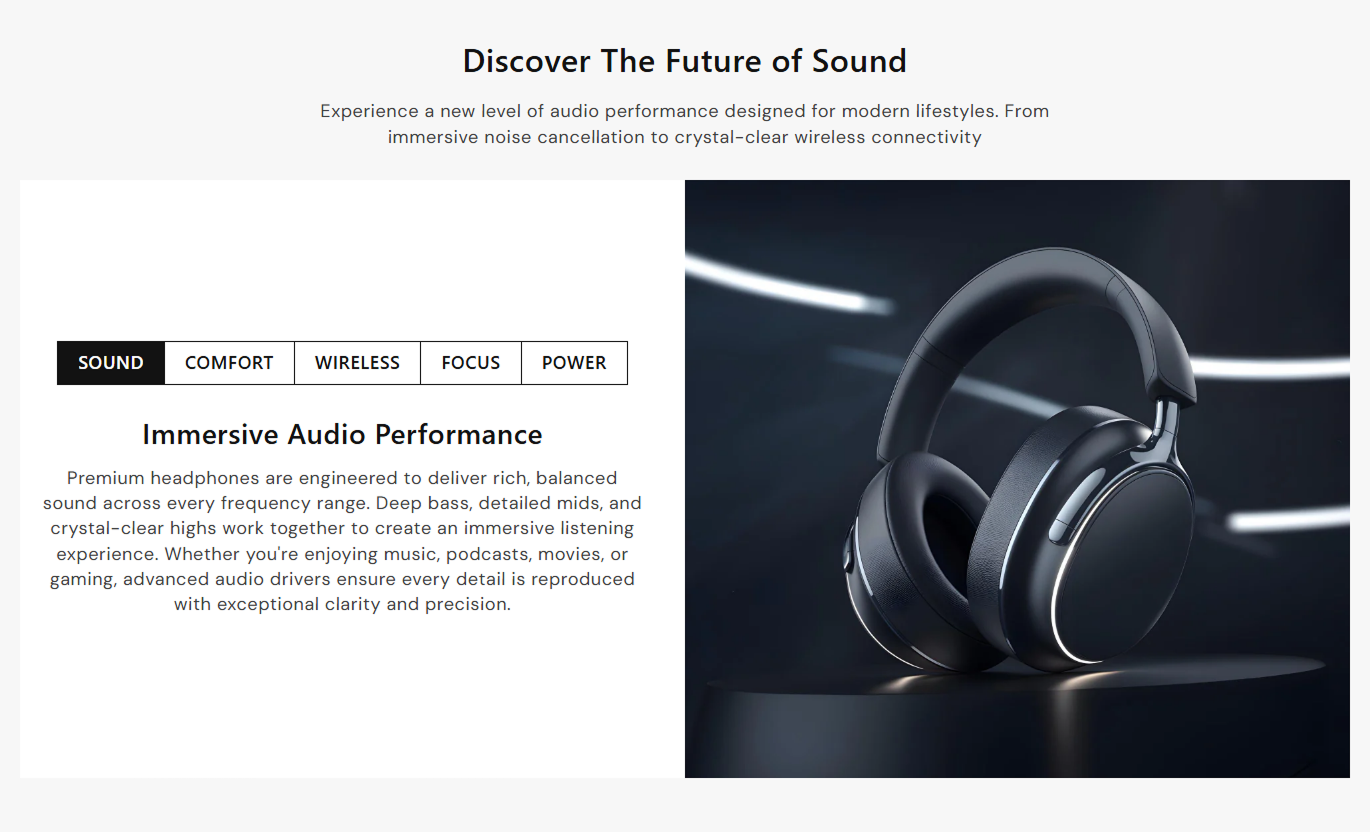
Use featured imagery or video with organized tabs to introduce your brand, explain key benefits, showcase services, or highlight important store features.

Combine a featured image or video with clickable tabs to present multiple content highlights in one flexible, responsive section for your Shopify store.
 Interactive Tab Experience
Image and Video Support
Responsive Store Design
Interactive Tab Experience
Image and Video Support
Responsive Store Design 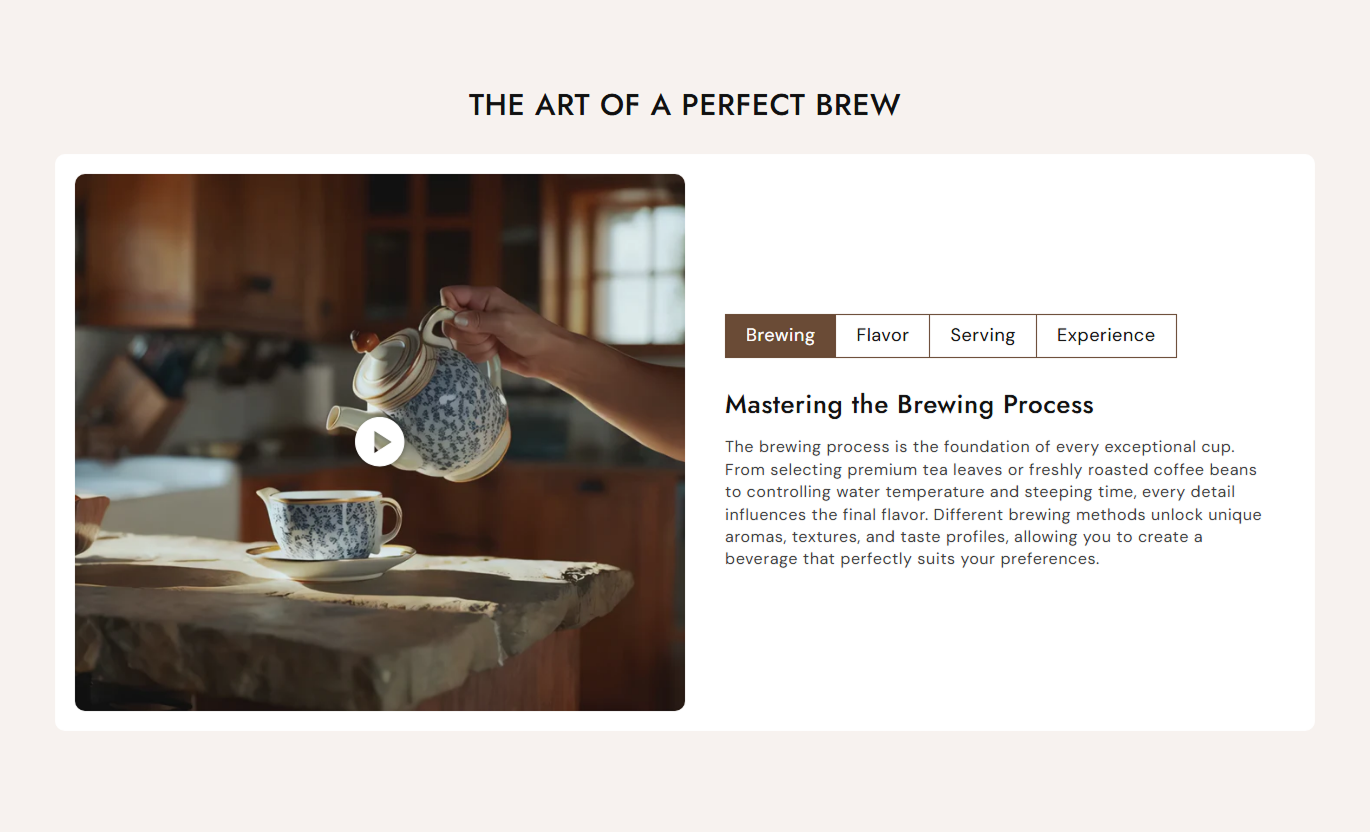


Create engaging content sections with image or video media, clickable tabs, flexible alignment, custom styling, responsive layouts, and built-in video controls.

Display a featured image or Shopify-hosted video alongside your tab content for a richer visual experience.

Let visitors switch between multiple content blocks using clear and interactive tab navigation.

Place the featured media on the left or right side to create different visual compositions.

Control autoplay, looping, mute behavior, native controls, and optional play or pause buttons.

Choose small, medium, large, or automatic media height to match your content and design requirements.

Adjust horizontal and vertical content alignment to create balanced layouts for different store designs.

Allow tab navigation to scroll horizontally on smaller screens so multiple tabs remain accessible.

Automatically stack media and content areas on mobile for a cleaner, easier browsing experience.
Customize media, tabs, layout, colors, spacing, and content for a flexible Shopify section.

Applies to the whole section
Main heading displayed above the media and tabs.
Section HeadingSupporting text displayed below the main heading.
Section ContentChoose the alignment of the section heading and content.
Text AlignmentChoose which side the featured media appears on.
Media PositionChoose the height of the featured media area.
Media HeightSet the background color for the entire section.
Background ColorAdjust the corner roundness of the content container.
Container RadiusControl the top and bottom spacing of the section.
Section SpacingMake the section span the available screen width.
Full WidthSet the maximum width of the content section.
Section Width
Applies to each tab
Add the label visitors click to switch between tabs.
Tab TitleAdd the heading displayed inside the selected tab.
Tab HeadingAdd rich-text content to the selected tab.
Tab ContentAdd an image displayed alongside the tab content.
ImageChoose the text alignment within the tab content.
Content AlignmentSet the text color for the individual tab.
Content ColorUse this image, video, and tab combination to explain products, collections, services, features, or campaigns across key pages of your Shopify store.
Use featured imagery or video with organized tabs to introduce your brand, explain key benefits, showcase services, or highlight important store features.
Present several brand messages in one sectionCombine storytelling with strong visual mediaKeep homepage content organized and focusedHighlight important benefits without extra sectionsCreate an interactive browsing experienceAdd collection imagery or video alongside tabs that explain materials, themes, product benefits, shopping guides, or other useful category information.
Explain collection details in an organized formatSupport category content with relevant visualsHighlight multiple shopping benefits togetherKeep collection pages visually engagingMake useful information easier to exploreUse product imagery or video with separate tabs for features, materials, benefits, specifications, or usage information to support customer decisions.
Highlight important product features clearlyPair product information with strong visualsOrganize detailed information into simple tabsExplain product benefits without clutterImprove product storytelling across devicesCreate focused landing page content using featured media and clickable tabs to explain campaigns, launches, services, offers, or key promotional messages.
Create a stronger visual campaign storytellingPresent multiple promotional messages clearlyCombine video or imagery with campaign contentKeep landing page sections focused and organizedCreate a modern interactive page experienceGive customers a richer way to explore important information by combining featured images or videos with organized, clickable content tabs.
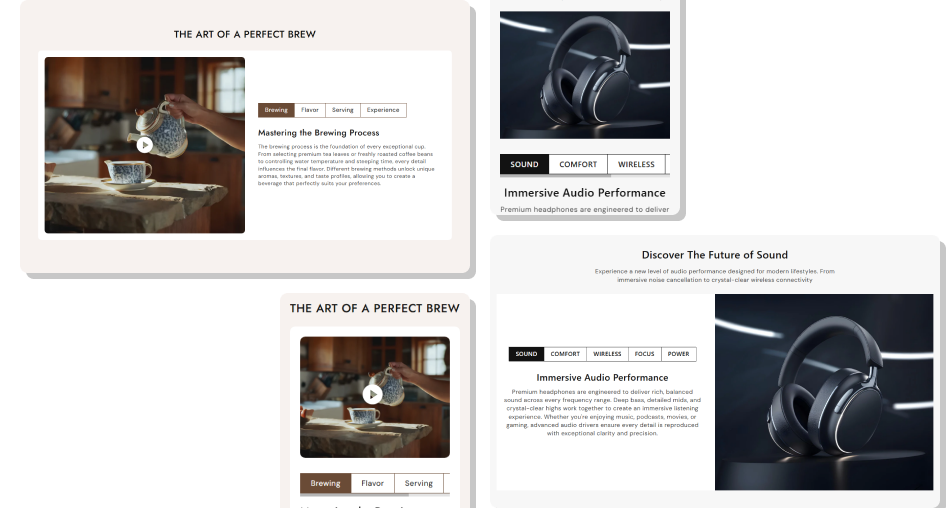
Create flexible content sections that combine visual media, tabbed information, video controls, and responsive layouts in one polished experience.
Combine images and videos with contentOrganize multiple messages into tabsHighlight important information clearlyCreate interactive product storytellingKeep layouts clean and structuredDeliver a better mobile experienceMatch your store branding easily Use high-quality images that support the tab content.
Keep tab titles short and easy to understand.
Use concise content for each individual tab.
Choose video settings that suit your store experience.
Check the complete layout on mobile devices.
Use high-quality images that support the tab content.
Keep tab titles short and easy to understand.
Use concise content for each individual tab.
Choose video settings that suit your store experience.
Check the complete layout on mobile devices.  Avoid using unrelated or low-quality media.
Don’t create overly long tab titles.
Avoid adding too much content inside each tab.
Don’t autoplay videos when they distract visitors.
Don’t ignore mobile tab navigation and spacing.
Avoid using unrelated or low-quality media.
Don’t create overly long tab titles.
Avoid adding too much content inside each tab.
Don’t autoplay videos when they distract visitors.
Don’t ignore mobile tab navigation and spacing. Yes. You can add a featured image or use a Shopify-hosted video when the image field is left blank.
The image takes priority. The video appears only when the image field is blank, as defined by the section logic.
Yes. Each tab block can have its own tab title, heading, and rich text content. You can add multiple tab blocks as needed.
Yes. The media position setting lets you place the featured image or video on either the left or right side of the content.
Yes. You can control autoplay, looping, mute behavior, and whether native video controls are displayed.
Yes. You can enable a custom play/pause button for supported MP4 videos when native video controls are disabled.
Yes. On mobile, the media and tab content stack vertically, while the tab navigation can scroll horizontally for easier access.
Yes. You can customize inactive tab titles, active tab titles, active backgrounds, borders, tab headings, and tab content colors.
For Support or any Questions Email Us: [email protected]
Install SectionHub and add the Tab Wise Media Text section to your theme in minutes - no coding required.
