Showcase Store Highlights
Present multiple products, features, or categories in one interactive section.

Let shoppers explore different topics through interactive tabs with matching images. Showcase products, features, categories, or content in a clean and visual Shopify layout.
 2.0 Compatible
Interactive Tabs
Responsive Design
2.0 Compatible
Interactive Tabs
Responsive Design 



Connect tab headings with matching images to organize multiple topics into a single, clean section that is easy to explore on desktop and mobile.

Let shoppers switch between different headings to view related images.

Each tab can display its own image, making every content item visually clear.

On the desktop, shoppers can reveal different images by moving over the tab headings.

Tabs switch with a tap on mobile, keeping the experience simple on smaller screens.

Give each tab its own background color for a more distinct visual presentation.

Place the image area on the left or right side of the tab list.

The section automatically adapts its layout for desktop and mobile screens.

Selected images appear with a subtle scale and fade effect for a polished transition.
Control image sizing, tab styling, colors, spacing, width, and responsive settings directly from the Shopify editor.

Applies to the whole section
Add a main heading and supporting content.
Heading & ContentSet the alignment of the section heading and content.
Text AlignmentChoose the image aspect ratio.
Image SizePlace images on the left or right.
Image PositionRound the image corners.
Image Border RadiusAdjust the main heading size.
Heading Font SizeAdjust the main content size.
Content Font SizeSet the tab heading size.
Tab Heading SizeSet the large background heading size.
Background Heading SizeCustomize heading and content colors.
Content ColorsCustomize tab heading and background colors.
Tab ColorsControl regular tab heading opacity.
Tab OpacityControl background heading opacity.
Background OpacitySet desktop section spacing.
Desktop PaddingSet mobile section spacing.
Mobile PaddingStretch the section across the screen.
Full WidthSet a custom content width.
Section Max Width
Applies to each tab
Add the image shown for the tab.
Tab ImageAdd the tab heading.
Tab HeadingChoose the tab background color.
Background ColorUse visual tabs to organize products, features, categories, or other important store content.
Present multiple products, features, or categories in one interactive section.
Highlight multiple topicsConnect headings with visualsKeep the layout cleanImprove content discoveryUse tabs to introduce different collection themes or product groups.
Organize collection highlightsAdd supporting visualsKeep content easy to scanCreate a cleaner layoutShow different product features or visual details through separate interactive tabs.
Highlight key featuresSupport content with imagesKeep information organizedMake details easier to explorePresent features, benefits, services, or campaign content in an engaging tab layout.
Organize key informationAdd visual storytellingGuide visitors through contentKeep the page focusedKeep multiple visual topics organized in a single interactive, easy-to-browse section.
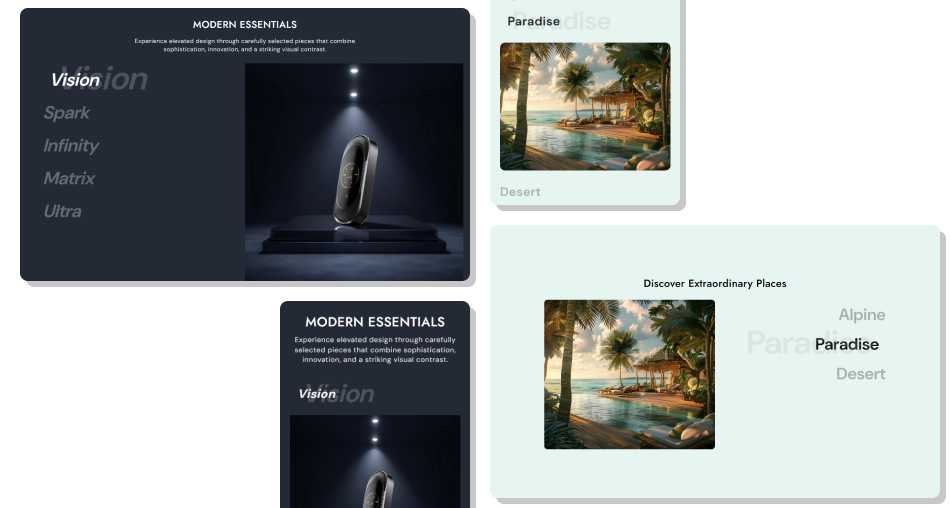
Use clear headings and matching images to guide shoppers through important store content.
Connect each tab with a dedicated imageShow focused visual contentUse hover interaction on desktopUse tap interaction on mobileCustomize individual tab backgroundsPosition images left or rightAdjust image proportionsAdd smooth image transitions Keep tab headings short and clear.
Use relevant images for each tab.
Keep tab content visually consistent.
Use background colors that improve contrast.
Choose images with similar visual styles.
Keep tab headings short and clear.
Use relevant images for each tab.
Keep tab content visually consistent.
Use background colors that improve contrast.
Choose images with similar visual styles.  Don't use long tab headings.
Don't add unrelated images.
Don't overcrowd the section with too many tabs.
Don't use low-contrast colors.
Don't mix inconsistent image styles.
Don't use long tab headings.
Don't add unrelated images.
Don't overcrowd the section with too many tabs.
Don't use low-contrast colors.
Don't mix inconsistent image styles. It connects tab headings with matching images in an interactive layout.
Shoppers can hover over a tab heading to change the displayed image.
Shoppers can tap a heading to switch between images.
Yes. Every tab block has its own image setting.
Yes. You can set a background color for every tab.
Yes. The image position can be set to left or right.
Yes. Choose Small, Medium, Large, or Auto.
Yes. Separate controls are available for tab and background heading sizes.
Yes. The section adapts its layout and interaction for mobile screens.
Yes. You can control full width, maximum width, and desktop/mobile padding.
For Support or any Questions Email Us: [email protected]
Install SectionHub and add the Tab Wise Image section to your theme in minutes - no coding required.
