Help Shoppers Discover Your Physical Store Locations
Use Store Details Showcase on your homepage to introduce showrooms, boutiques, pickup points, or branches with clickable location cards and matching store imagery.

Show up to six store locations with clickable address cards, synced store images, active states, scrollable details, flexible media placement, and responsive mobile styling.
 Clickable Store Locations
Synced Store Image Slider
Responsive Location Cards
Clickable Store Locations
Synced Store Image Slider
Responsive Location Cards 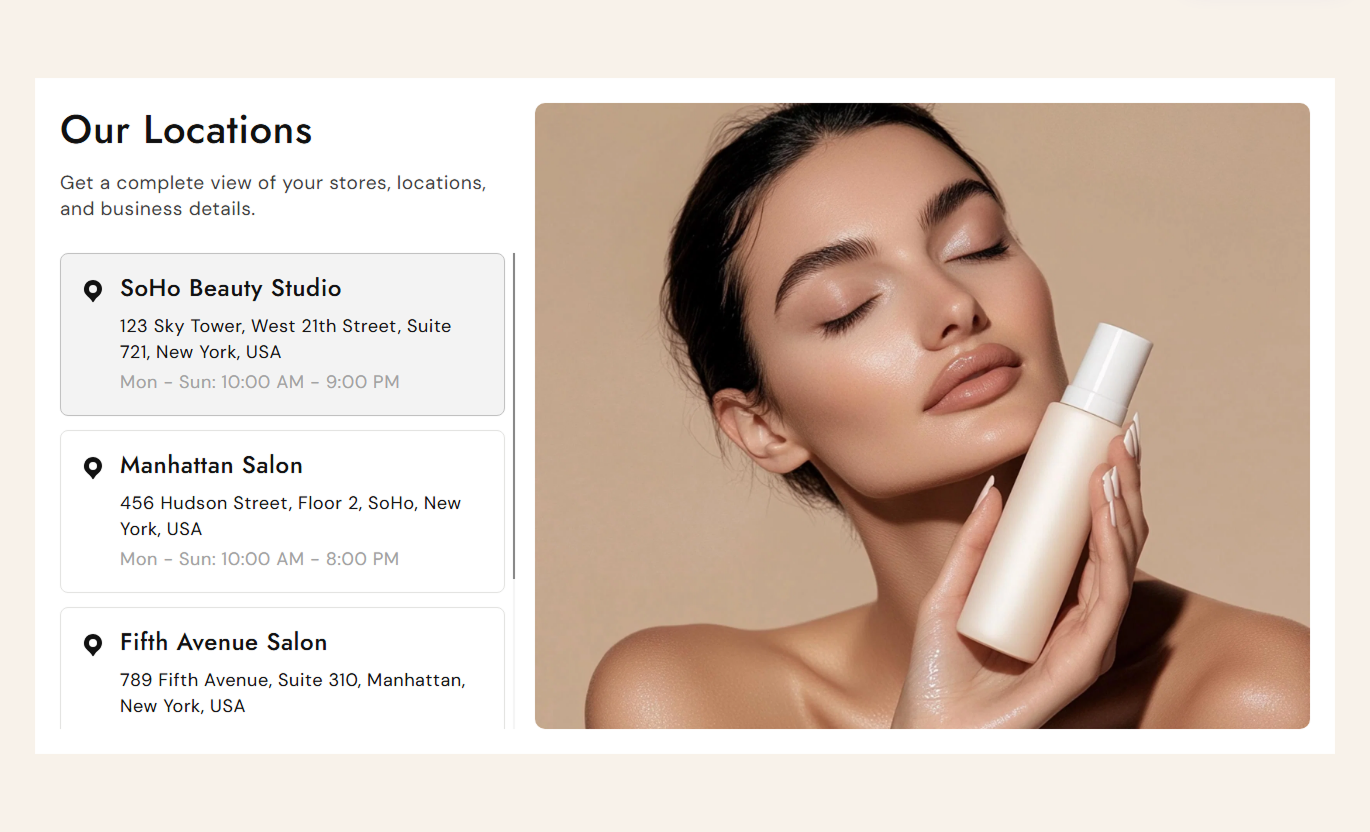
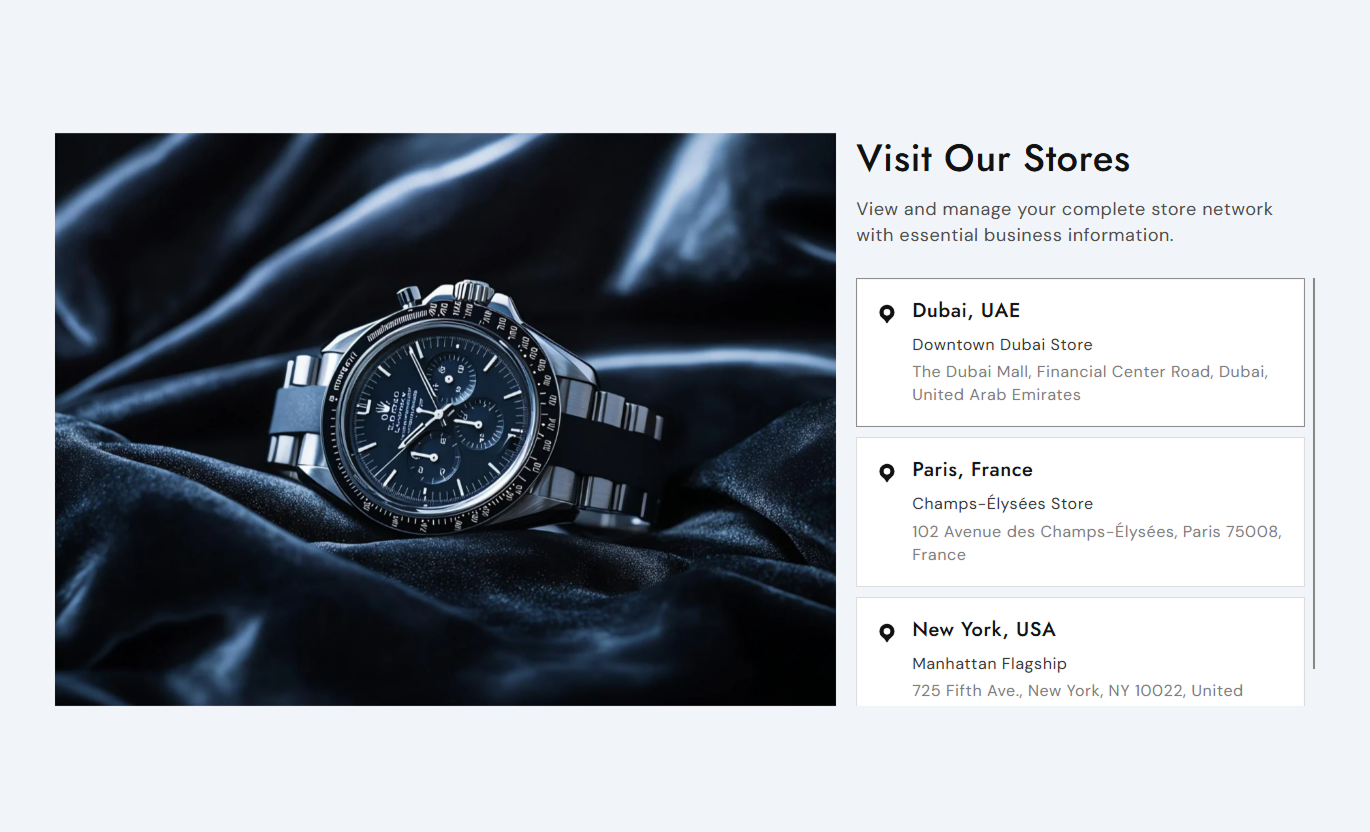
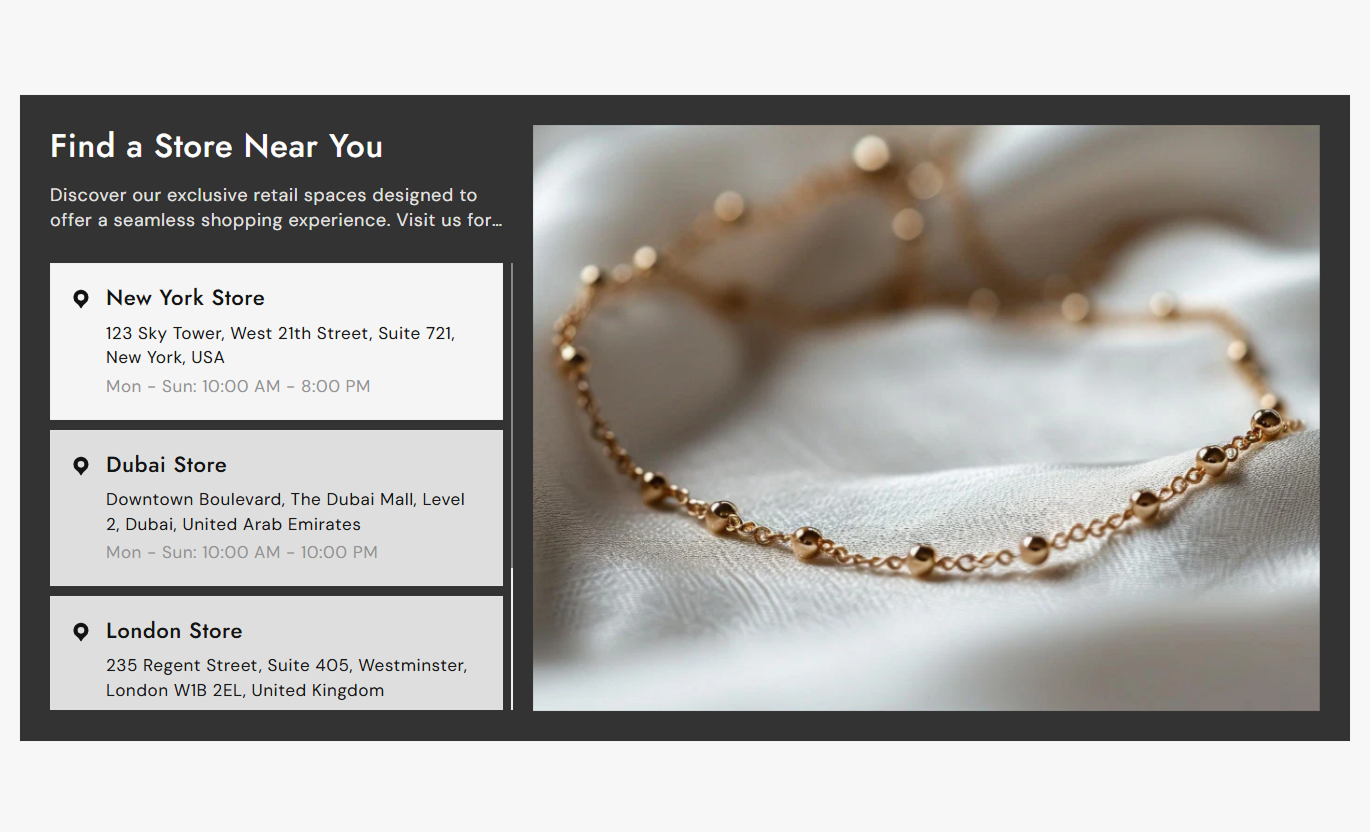


Present store locations with clickable cards, synced imagery, scrollable details, active states, responsive layouts, and flexible visual styling.

Let shoppers click any location card to activate it and switch the synced store image to the corresponding slide.

Each location block has a matching image slide, and clicking a card moves the non-touch Swiper slider to that image.

Keep several store locations inside a fixed-height scroll area with configurable scrollbar width, thumb, and track colors.

Place the store image area on the left or right of the location list using the section-level media position control.

Use separate active background and border colors so shoppers can easily see which store location is currently selected.

Show a location heading, store name, and address for each block, with a built-in location pin icon beside the details.

Below 768px, the content and media stack to full width with smaller typography, compact cards, and shorter store images.

Control typography, card and image radius, colors, container padding, section spacing, scrollbar style, and width.
Control store layout, media placement, typography, card colors, scrollbar styling, spacing, and section width.

Applies to the whole section
Edit the heading, rich text, and responsive alignment.
Heading & AlignmentPlace the store media on the left or right side.
Store Media PositionAdjust container padding for desktop and mobile layouts.
Container PaddingSet heading, content, location, and store info sizes.
Typography ControlsCustomize section, container, card, and active colors.
Color Style ControlsSet card and store image corner radius values.
Border Radius StyleCustomize location icon size plus scrollbar styling.
Icon & Scroll StyleSet desktop and mobile top and bottom section padding.
Responsive SpacingUse full width or define a maximum content width.
Section Width Setup
Applies to each location block
Upload the image shown for this store location.
Store ImageAdd the city, region, or location heading.
Location NameEnter the name of the physical store or showroom.
Store NameAdd the full address shown beneath the store name.
Store AddressUse this store-location section across Shopify pages to help shoppers discover showrooms, boutiques, pickup points, or physical branches with matching imagery.
Use Store Details Showcase on your homepage to introduce showrooms, boutiques, pickup points, or branches with clickable location cards and matching store imagery.
Show several store locations without creating a long pagePair each address with a matching showroom or branch imageKeep the active location obvious with highlighted card stylingUse the scrollable list when you have several physical branchesStack locations and images cleanly for mobile visitorsPlace the section on collection templates to help shoppers find stores that stock featured ranges, offer local pickup, or provide in-person product support.
Promote stores that carry the featured collection or rangeAdd local pickup or showroom context near collection browsingLet shoppers compare store addresses in one compact listPair each branch with a matching interior or location imageKeep store discovery separate from the main product gridUse the section on product pages to show where shoppers can view, collect, or discuss products in person at your physical stores or service locations.
Show branches where shoppers can view products in personSupport local pickup or consultation-focused buying journeysKeep store addresses easy to scan beside product contentUse matching images to build confidence in physical locationsPresent several branches without adding a separate directoryUse Store Details Showcase on landing pages for showroom directories, regional branch campaigns, pop-up locations, or retail expansion announcements with rich imagery.
Create a focused landing experience for physical locationsHighlight multiple branches with synchronized visual contentUse active cards to guide visitors through store optionsAdd regional or campaign-specific store information clearlyAdapt the layout for desktop and mobile visitor journeysTurn a basic address list into an interactive location experience with clickable cards, synced store imagery, active states, and responsive presentation.
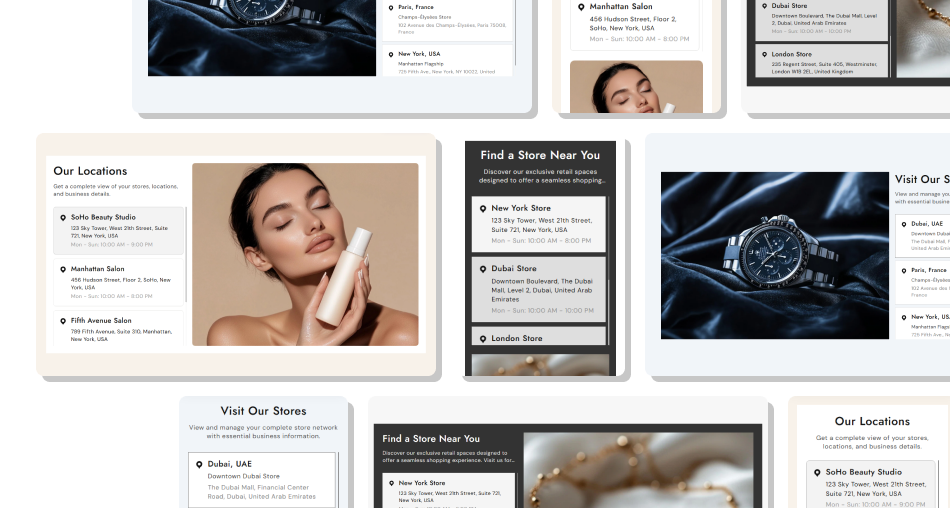
Combine store details, clickable cards, synced imagery, and responsive layouts to make physical locations easier to explore.
Show up to six store locations in one compact sectionSync each location card with a matching store imageHighlight the currently selected store with active stylingKeep long location lists manageable with vertical scrollingPosition store imagery on either side of the detailsCustomize scrollbar, typography, colors, radius, and spacingStack media and store information cleanly on mobile Use a clear location name that shoppers can recognize quickly
Pair every location with a relevant store or showroom image
Keep addresses complete and formatted consistently across cards
Use active colors with enough contrast against card backgrounds
Test the synced card and image behavior before publishing
Use a clear location name that shoppers can recognize quickly
Pair every location with a relevant store or showroom image
Keep addresses complete and formatted consistently across cards
Use active colors with enough contrast against card backgrounds
Test the synced card and image behavior before publishing  Do not use unrelated images that confuse store identification
Do not overload location cards with unnecessary long text
Do not hide essential address details inside vague location names
Do not choose scrollbar colors that disappear into the background
Do not rely on image swiping because touch movement is disabled
Do not use unrelated images that confuse store identification
Do not overload location cards with unnecessary long text
Do not hide essential address details inside vague location names
Do not choose scrollbar colors that disappear into the background
Do not rely on image swiping because touch movement is disabled The schema allows up to six Location blocks. Each block can include its own image, location name, store name, and address.
Clicking a location card removes the previous active state, marks that card active, and moves the Swiper slider to the image with the same block index.
No. The slider sets allowTouchMove to false, so image changes are driven by clicking the matching location cards rather than touch or drag gestures.
That slide displays a neutral placeholder image, so the media area keeps its layout even when a store image has not been configured.
Yes. Media Position can place the image area on the left or right of the store list while mobile layouts stack both areas to full width.
The details column becomes vertically scrollable, with a configurable scrollbar width plus separate thumb and track colors.
Yes. The script only initializes when the global Swiper object exists; this file does not include a Swiper library import.
No. The schema disables this section in Shopify header and footer groups, so use it only in supported page-template section areas.
For Support or any Questions Email Us: [email protected]
Install SectionHub and add the Store Details Showcase section to your theme in minutes - no coding required.
