Showcase Your Physical Stores on the Homepage
Introduce important store locations directly on your homepage so customers can explore addresses, opening details, images, and directions without extra navigation.

Showcase multiple store locations with tabbed details, images, icons, opening information, and direct links for customers to find each store easily.
 Interactive Store Tabs
Location Details Showcase
Responsive Store Layout
Interactive Store Tabs
Location Details Showcase
Responsive Store Layout 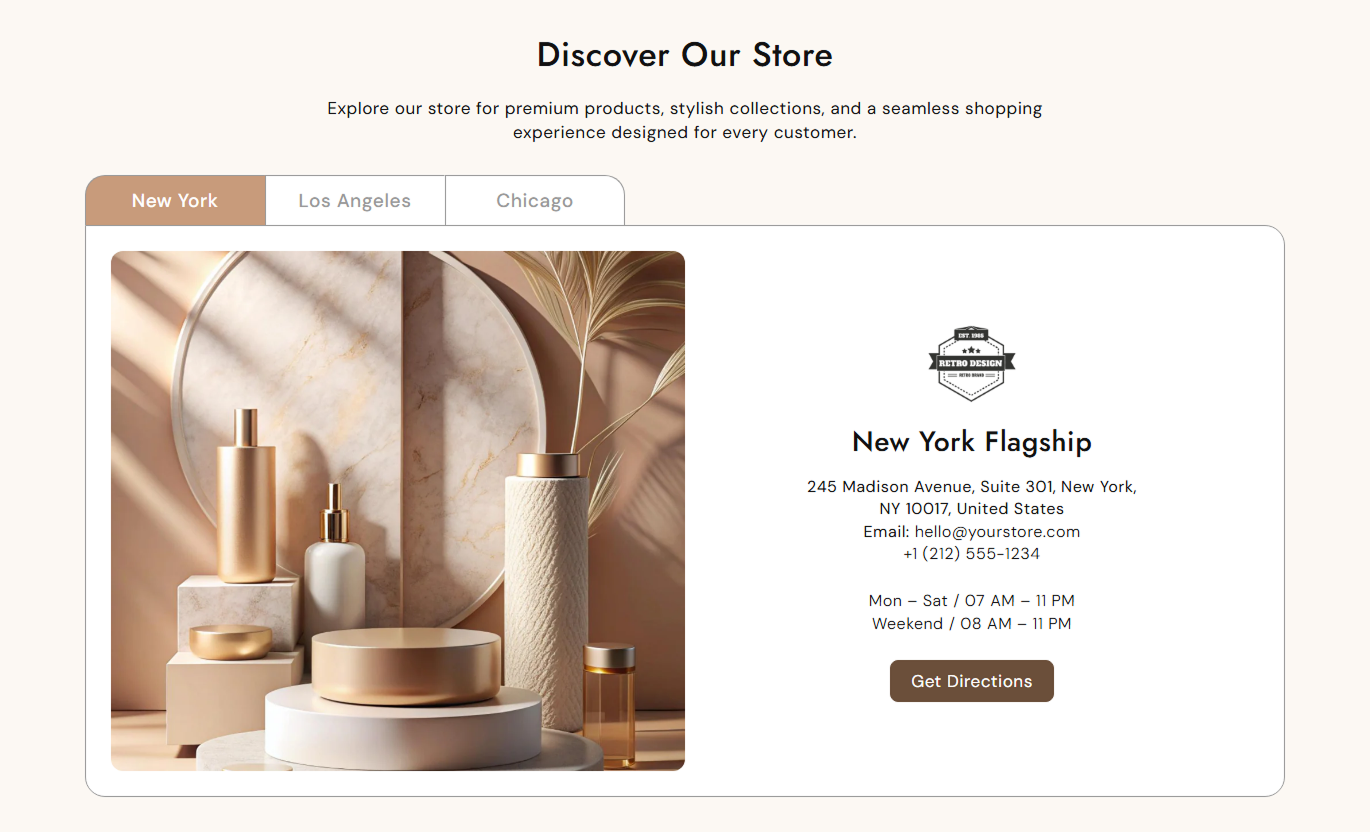
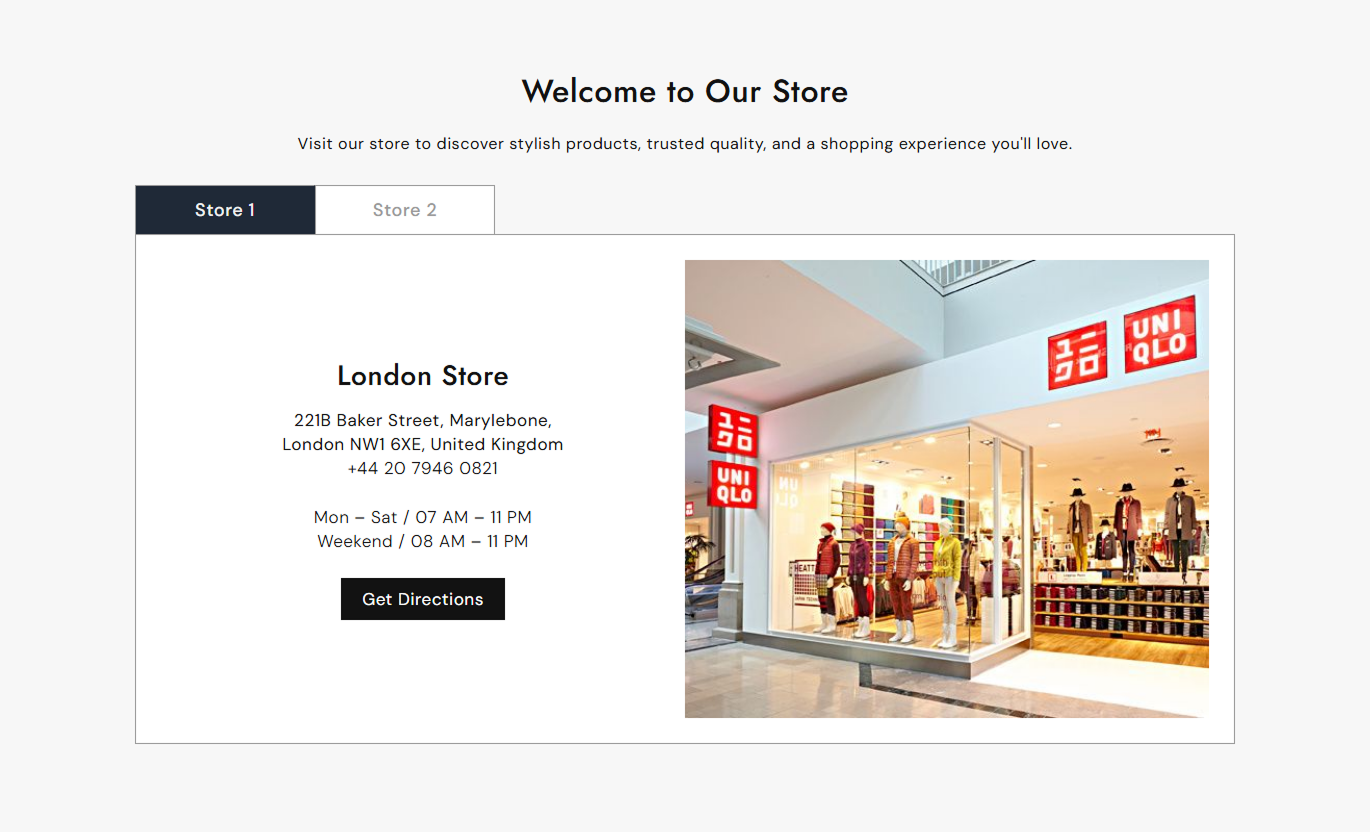


Create a clear store locator experience with location tabs, store images, icons, addresses, rich content, and customizable direction buttons.

Let customers switch between multiple store locations with clear, easy-to-use navigation tabs.

Add a dedicated image for each location to give customers a visual reference for the selected store.

Add an optional icon to each store detail area for branding or visual identification.

Display addresses, opening hours, descriptions, and other location information using rich text content.

Add a custom button and link to help customers access maps, directions, or other location resources.

Place the store image on the left or right side of the detailed location content.

Keep store tabs and location details usable across desktop, tablet, and mobile screen sizes.

Adjust typography, colors, borders, spacing, button styles, image sizing, and section width.
Control store tabs, images, typography, buttons, colors, spacing, alignment, and section width from one place.

Applies to the whole section
Add the main heading displayed above the store tabs.
HeadingAdd supporting rich text below the main heading.
ContentSet the alignment of the main heading and description.
Text alignmentSet the alignment of content inside each store panel.
Content alignmentChoose whether the store image appears left or right.
Image positionChoose the store image aspect ratio.
Image heightSet rounded corners for store images.
Image border radiusSet rounded corners for the store tabs.
Tab border radiusDisplay store buttons with an outlined style.
Use outline buttonChoose the outline button color.
Outline colorSet the store button corner radius.
Border radiusAdjust the desktop button text size.
Size (Desktop)Set the desktop store icon size.
Icon size (Desktop)Choose the main section background color.
Background colorChoose the main heading color.
Heading colorChoose the main description color.
Content colorChoose the active tab background color.
Active tab background colorChoose the active tab text color.
Active tab text colorChoose the default tab background color.
Tab background colorChoose the default tab text color.
Tab text colorChoose the store detail heading color.
Heading colorChoose the store detail content color.
Content color
Applies to each store location
Add the title displayed in the store navigation tab.
Tab headingChoose the main image for the store location.
imageAdd an optional store icon.
IconAdd the store location heading.
HeadingAdd addresses, hours, and location information.
ContentSet the text displayed inside the store button.
Button labelAdd the destination URL for the store button.
Button linkUse this section to present multiple store locations with visual details, addresses, opening information, and direct navigation links in an organized layout.
Introduce important store locations directly on your homepage so customers can explore addresses, opening details, images, and directions without extra navigation.
Highlight your most important store locationsMake physical stores easier to discoverDisplay useful location information clearlyAdd direct links for directionsBuild confidence with visual store detailsAdd store information around collection-focused content to help customers discover where they can visit, browse products, or experience your brand in person.
Connect collections with physical storesHelp customers discover nearby locationsSupport in-store shopping journeysAdd useful store information beside productsCreate a stronger online-to-offline experiencePlace store details alongside product-focused content to help customers find locations to explore your products or visit your physical stores.
Support customers seeking physical locationsConnect products with store experiencesProvide useful location informationEncourage in-store visitsAdd direct direction linksUse the location, retail, or brand landing page section to organize multiple stores with images, details, opening information, and direct navigation buttons.
Build focused store location pagesPresent multiple locations clearlyHighlight important store informationMake navigation easier for visitorsCreate a polished location experienceGive customers a simple way to browse multiple locations through interactive tabs, visual store information, detailed content, and direct navigation links.
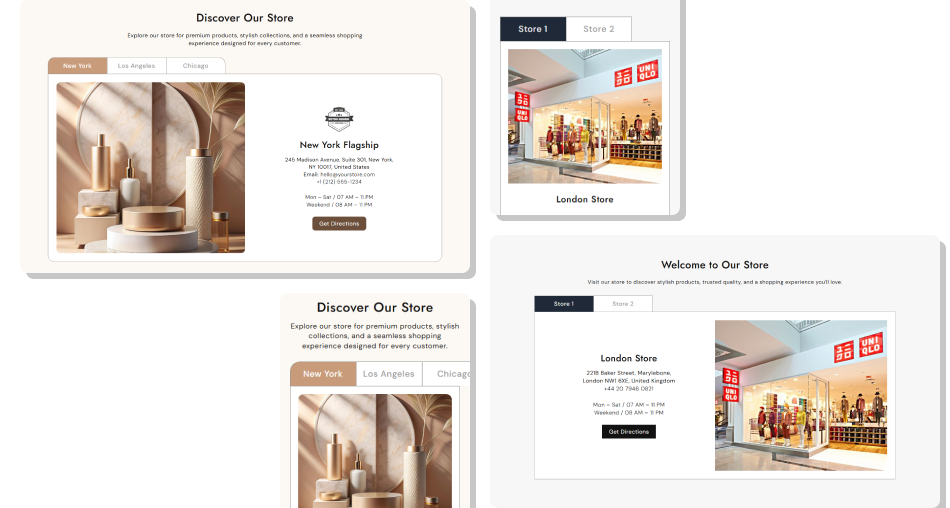
Combine store images, icons, addresses, opening hours, tabs, and customizable buttons into a single responsive section designed for location discovery.
Organize multiple stores with simple tabsShowcase each location with dedicated imageryDisplay addresses and opening informationAdd custom icons for store brandingLink customers directly to directionsKeep location information easy to browseCreate a consistent store experience Use clear names for each store location tab.
Add accurate addresses and opening information.
Choose relevant images for each store.
Use clear button labels, such as "Get Directions."
Check the tab layout carefully on mobile.
Use clear names for each store location tab.
Add accurate addresses and opening information.
Choose relevant images for each store.
Use clear button labels, such as "Get Directions."
Check the tab layout carefully on mobile.  Avoid using unclear or generic store names.
Don't add outdated addresses or opening information.
Avoid unrelated images that confuse customers.
Don't use vague labels for location buttons.
Don't overcrowd store content with unnecessary text.
Avoid using unclear or generic store names.
Don't add outdated addresses or opening information.
Avoid unrelated images that confuse customers.
Don't use vague labels for location buttons.
Don't overcrowd store content with unnecessary text. The section supports up to five detail blocks, allowing you to create individual tabs for different store locations.
Yes. Every store block includes an image setting, so you can display a different visual for each location.
Yes. The rich text Content setting can be used for addresses, opening hours, descriptions, and other location information.
Yes. Each store block has a Button label and Button link setting that can be used for maps or directions.
Yes. The Image position setting lets you display the store image on either the left or right side of the content.
Yes. You can customize tab colors, active tab colors, border colors, text size, and border radius.
Yes. Each store block includes an optional Icon setting for branding or location identification.
Yes. On mobile, the store image and content stack vertically, while the store tabs remain horizontally scrollable for easier navigation.
For Support or any Questions Email Us: [email protected]
Install SectionHub and add the Store Details Location Tabs section to your theme in minutes - no coding required.
