Help Customers Discover Your Stores
Showcase your key showroom and store locations directly on the homepage so customers can quickly find a nearby place to visit and explore your products.

Showcase your showroom locations with images, addresses, opening hours, contact details, and direct links.
 Store Location Showcase
Responsive Slider
Easy Theme Editor
Store Location Showcase
Responsive Slider
Easy Theme Editor 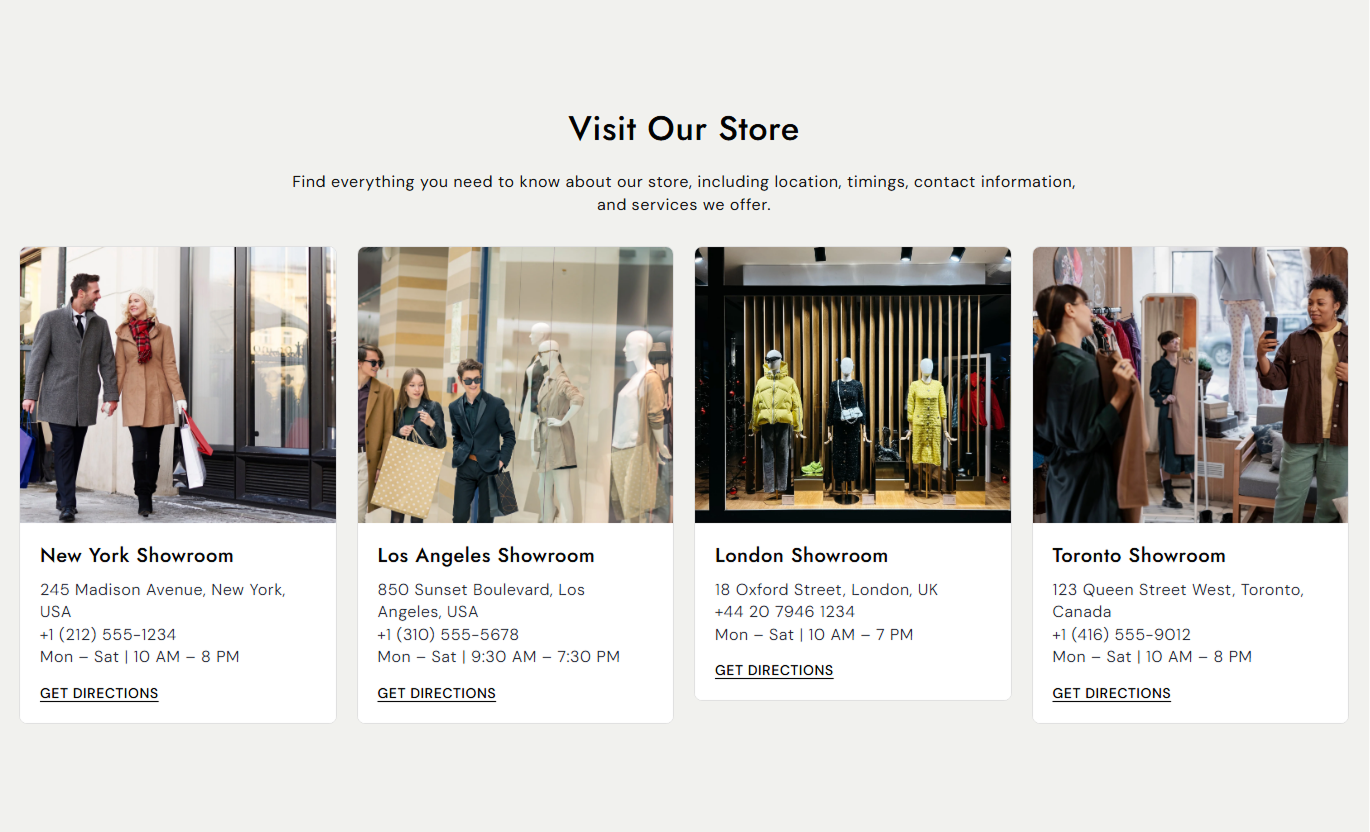
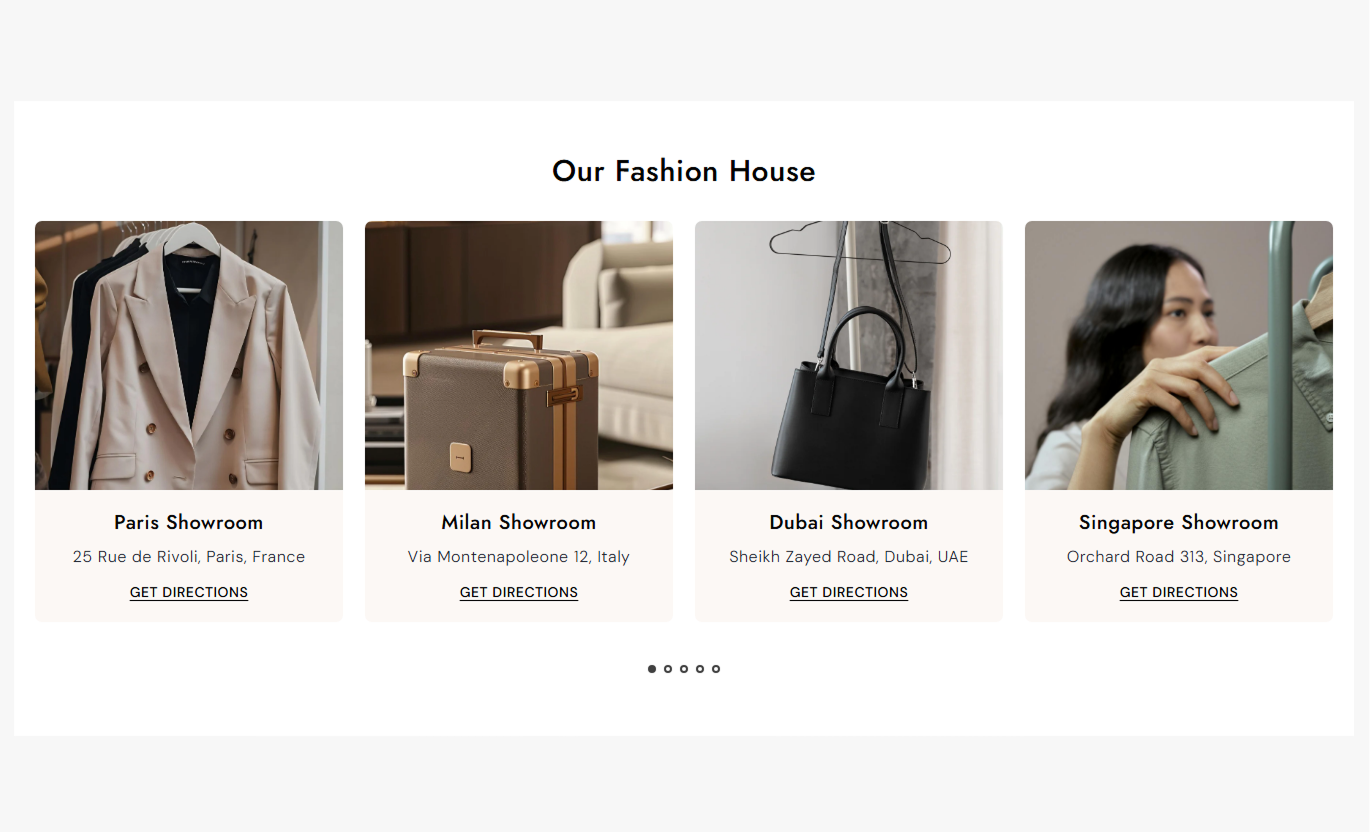


Present multiple showroom locations in a clean slider with images, store information, directions, responsive layouts, and customizable styling.

Add multiple showroom or store locations as individual cards.

Display a dedicated image for each store to help customers recognize the location.

Add addresses, phone numbers, opening hours, and other useful location details.

Add a custom button that connects customers to your preferred directions or location page.

Display store cards in a responsive slider that adapts across desktop, tablet, and mobile.

Choose how many store cards appear across the desktop layout.

Choose between one or two visible store cards on mobile devices.

Adjust borders, corner radius, colors, typography, spacing, and section width.
Control your store content, slider layout, typography, colors, spacing, and section width from one place.

Applies to the whole section
Main heading displayed above the store cards.
HeadingSupporting text displayed below the main heading.
ContentChoose the alignment of the section heading and content.
Text AlignmentChoose the height of store images in each card.
Image HeightSet the corner radius for each store card.
Border RadiusSet the spacing between individual store cards.
Space Between ContentsChoose the number of store cards shown on the desktop.
Columns on DesktopAutomatically move through store cards at set intervals.
Enable AutoplaySet how quickly the store slider changes slides.
Autoplay SpeedDisplay navigation dots below the store slider.
Show PaginationChoose the alignment of store card information.
Content Text AlignmentChoose the number of store cards shown on mobile.
Columns on MobileSet the main heading and content font sizes.
Font SizeCustomize the section, store, border, and pagination colors.
Color SettingsSet the top and bottom spacing for desktop screens.
Desktop PaddingSet the top and bottom spacing for mobile screens.
Mobile PaddingMake the store section span the available screen width.
Full WidthSet the maximum width of the store details section.
Section Width
Applies to each store location
Add an image representing the store or showroom location.
ImageAdd the name or title of the store location.
HeadingAdd the store address and additional location information.
ContentAdd the text displayed on the directions button.
Button LabelAdd the destination opened when customers click the button.
Button LinkUse the Store Details section wherever customers need to discover physical locations, showrooms, addresses, opening hours, or directions.
Showcase your key showroom and store locations directly on the homepage so customers can quickly find a nearby place to visit and explore your products.
Highlight important store locationsDisplay addresses and opening hoursBuild trust with physical locationsMake directions easy to accessGive customers a convenient overview of your store locations with useful contact details, addresses, opening hours, and direct direction links.
Organize multiple locations clearlyProvide essential store informationAdd direct directionsImprove the customer contact experienceUse individual store cards to present multiple locations in a clean slider, helping customers browse your stores and choose the location that works best for them.
Display multiple locationsAdd store-specific informationMake location browsing easierSupport faster store discoveryHighlight physical stores and showrooms on campaign or landing pages to encourage visitors to explore your products in person.
Promote physical showroomsBuild local customer confidenceHighlight selected locationsEncourage in-store visitsIntroduce your stores and showrooms alongside your brand story to give customers a clearer picture of where they can experience your products.
Strengthen brand presenceShowcase physical locationsShare useful store informationCreate a more complete brand experienceGive customers a clear and convenient way to explore your physical locations with store images, detailed information, responsive cards, and direction links.
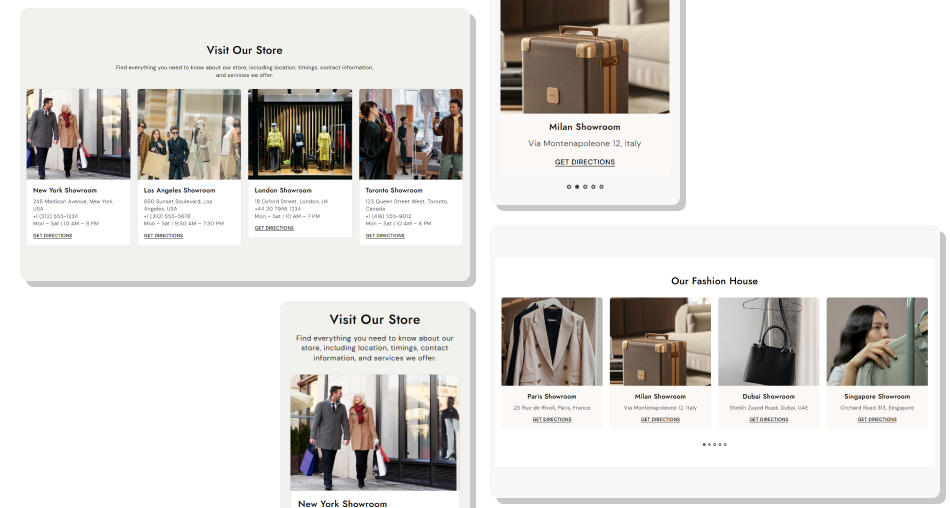
Create a polished store location experience that keeps important information organized and easy to access across every device.
Showcase multiple store locationsAdd images for every showroomDisplay addresses and opening hoursAdd custom direction buttonsCreate responsive store cardsControl desktop and mobile layoutsEnable slider autoplay and paginationCustomize card and section stylingMatch the section to your store branding Use clear and high-quality store images
Add complete and accurate addresses
Include useful opening hours
Use recognizable store or showroom names
Link buttons to the correct location
Keep store information easy to scan
Maintain consistent images across cards
Use clear and high-quality store images
Add complete and accurate addresses
Include useful opening hours
Use recognizable store or showroom names
Link buttons to the correct location
Keep store information easy to scan
Maintain consistent images across cards  Use blurry or unrelated images
Leave important location details incomplete
Add incorrect opening hours
Use unclear store names
Link directions to unrelated pages
Add excessive information to each card
Mix inconsistent image proportions
Use blurry or unrelated images
Leave important location details incomplete
Add incorrect opening hours
Use unclear store names
Link directions to unrelated pages
Add excessive information to each card
Mix inconsistent image proportions Yes. Add multiple Details blocks to showcase different stores, showrooms, or physical locations in the slider.
Yes. Each store block includes an Image setting where you can upload a dedicated store or showroom image.
Yes. Use the Content field to add addresses, phone numbers, opening hours, and other useful store information.
Yes. Each store block includes a Button Label and a Button Link setting to create a custom directions or location button.
Yes. Use Columns on Desktop to choose how many store cards are displayed across the desktop layout.
Yes. You can choose between one or two columns on mobile, and the slider automatically adapts to smaller screens.
Yes. Enable autoplay to move between store locations automatically.
Yes. Enable Show Pagination to display navigation dots below the store slider.
Yes. You can adjust the border radius, border color, store content colors, typography, image sizing, and other styling options.
Yes. Each Details block has its own image, heading, content, button label, and button link settings, allowing every location to have unique information.
For Support or any Questions Email Us: [email protected]
Install SectionHub and add the Store Details section to your theme in minutes - no coding required.
