Sticky Cart Is Not Available on the Home Page
This section is restricted to Shopify product templates and cannot be added to the homepage through the theme editor or used as a general promotional purchase bar.

Keep product purchase controls visible after shoppers scroll past the main form, with live variant syncing, quantity controls, AJAX cart add, and responsive styling.
 Scroll-Triggered Cart Bar
Live Variant Syncing
Responsive Purchase Controls
Scroll-Triggered Cart Bar
Live Variant Syncing
Responsive Purchase Controls 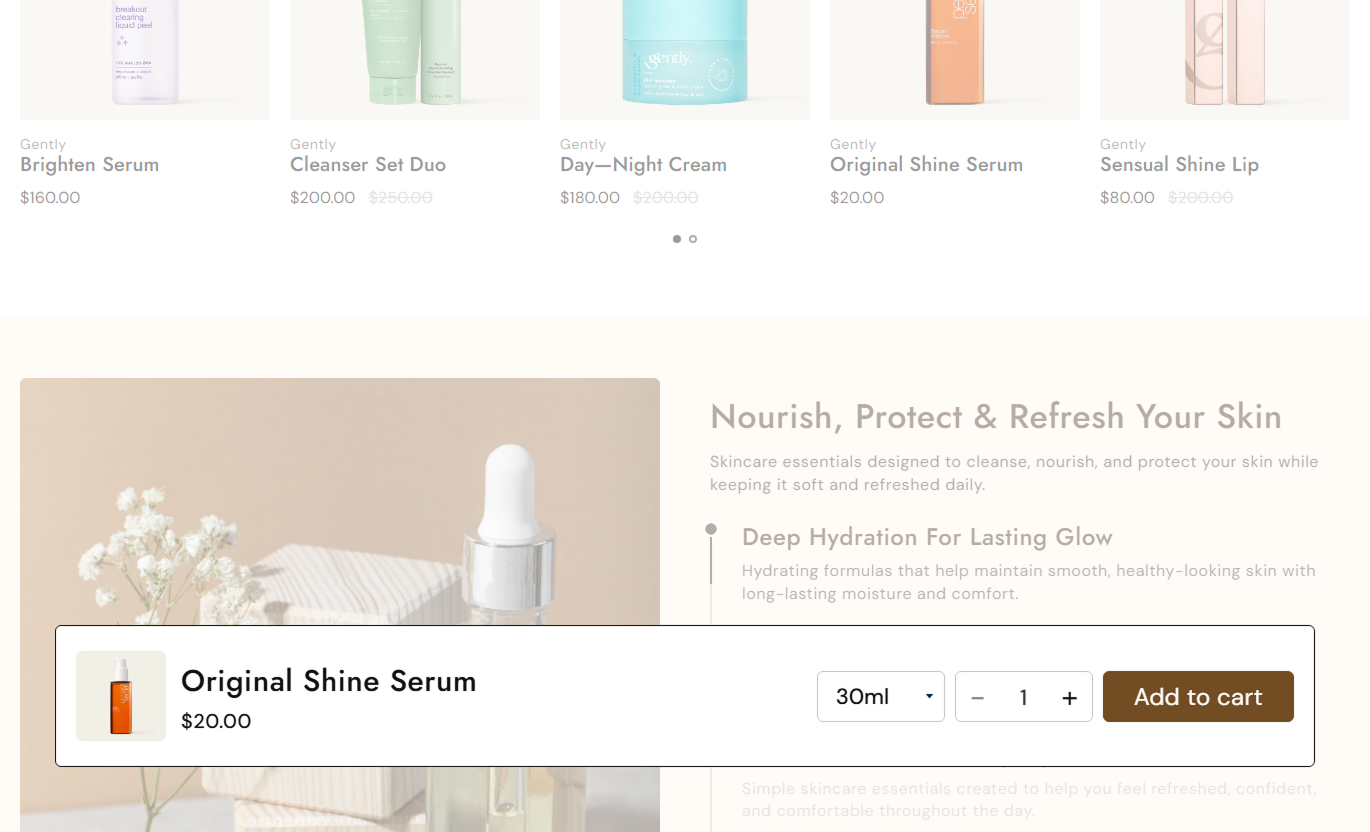


Keep buying actions accessible with a sticky product bar that follows the scroll, syncs variants, updates pricing, controls quantity, and adds items via AJAX.

The bar stays hidden until shoppers scroll past the main product form, then slides into view at the bottom of the page.

Variant changes in the main product form automatically update the sticky selector, price, image, availability, and button state.

Show a variant dropdown for products with multiple variants, or keep the selected variant hidden when the selector is disabled.

Let shoppers adjust the quantity directly in the sticky bar before adding the selected variant to the cart.

Submit the sticky product form through Shopify's cart add endpoint without forcing shoppers to reload or leave the product page.

Show temporary success or error toast messages after add-to-cart requests, with configurable text and background colors.

When a variant changes, the sticky bar refreshes the current price, compare-at price, and featured variant image when available.

Adapt image, typography, selector, quantity controls, button sizing, and toast width for a compact mobile purchase experience.
Control buying controls, variant and quantity options, styling, feedback messages, typography, and section width.

Applies to the whole section
Set the add-to-cart label and choose filled or outline styling.
Cart Button StyleShow or hide the quantity selector beside the cart button.
Quantity ControlsShow or hide the variant selector for multi-variant products.
Variant SelectorAdjust radii for the button, image, selector, and sticky card.
Corner Radius ControlsSet the sticky bar distance from the viewport edges.
Bottom Bar SpacingAdjust title, price, variant, quantity, and button text sizes.
Typography ControlsCustomize bar, text, price, border, and message colors.
Section Color ControlsCustomize button normal, hover, outline, and shadow colors.
Button Color StatesChoose full width or set a maximum contained bar width.
Section Width ControlThis section is enabled only on Shopify product templates, where it keeps essential purchase controls accessible after shoppers scroll beyond the main product form.
This section is restricted to Shopify product templates and cannot be added to the homepage through the theme editor or used as a general promotional purchase bar.
Keep this section reserved for product-specific purchase actionsUse another promotional section for homepage selling messagesAvoid duplicating product-form logic outside product templatesMaintain clearer storefront structure with template-specific toolsUse product cards or featured products for homepage purchasesThe section is not enabled for collection templates, so it cannot appear beside collection grids or category content through normal Shopify section placement.
Keep sticky purchase controls tied to a single product contextUse product cards for collection-level purchase discovery insteadAvoid variant syncing where no primary product form existsPreserve collection browsing without a fixed product purchase barDirect shoppers to product pages for full sticky cart behaviorUse the sticky bar on product templates to keep the selected product, price, variants, quantity, and add-to-cart action accessible after the main form scrolls away.
Keep the product title and current price visible during scrollingSync sticky variants with changes made in the main product formLet shoppers adjust quantity without returning to the main formAdd products through AJAX without reloading the product pageShow sold-out states when the selected variant is unavailableUnless a landing experience uses a Shopify product template, this section is unavailable because its schema and JavaScript depend on the current product and main product form.
Use it only when the landing experience is a product templateAvoid placing product-dependent controls on generic custom pagesKeep variant data tied to the active Shopify product contextUse campaign CTAs on non-product landing pages insteadSend shoppers to product pages for synchronized cart controlsKeep product information and purchase controls within easy reach after shoppers scroll, reducing the need to return to the main product form before buying.
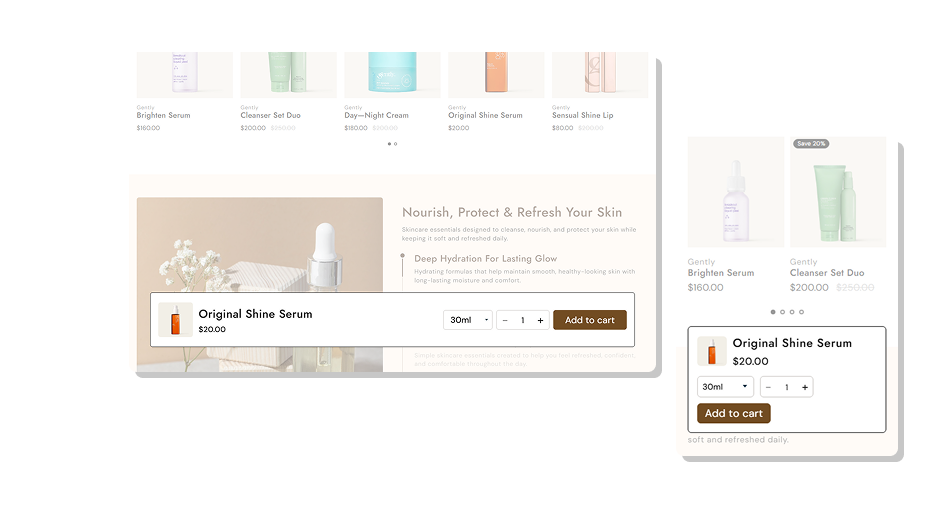
Give shoppers a compact bottom bar with product details, variants, quantity, and cart actions after the main form leaves view.
Keeps essential purchase actions accessible during long product pagesUses the current Shopify product rather than separate manual contentSynchronizes sticky controls with the primary product variant selectionShows updated variant pricing and available featured imagerySupports optional quantity and variant selection controlsAdds products without forcing a full page reloadProvides immediate success or error feedback after submission Keep the sticky bar visually consistent with the main product form
Test variant syncing across every option combination before launch
Keep quantity and variant controls visible only when they add value
Check that sold-out variants correctly disable the purchase button
Review mobile spacing so the fixed bar does not hide key content
Keep the sticky bar visually consistent with the main product form
Test variant syncing across every option combination before launch
Keep quantity and variant controls visible only when they add value
Check that sold-out variants correctly disable the purchase button
Review mobile spacing so the fixed bar does not hide key content  Do not use this section on templates without a main product form
Do not let the sticky bar cover checkout, chat, or accessibility tools
Do not hide variant controls when shoppers must choose an option
Do not use oversized spacing that consumes too much mobile screen
Do not publish before testing AJAX success and error feedback
Do not use this section on templates without a main product form
Do not let the sticky bar cover checkout, chat, or accessibility tools
Do not hide variant controls when shoppers must choose an option
Do not use oversized spacing that consumes too much mobile screen
Do not publish before testing AJAX success and error feedback The bar stays hidden while the main product form is visible. After shoppers scroll past that form, it slides into view at the bottom of the product page.
No. The schema enables this section only on product templates because it uses the current product object and synchronizes with the page's main product form.
Yes. Enable the variant box to show a dropdown for products with multiple variants. Products with only the default variant use a hidden variant input.
Yes. The script observes the main product form's variant input and updates the sticky selector, current price, image, availability, and button state.
Yes. When the quantity box is enabled, shoppers can use minus and plus controls before adding the item. The interface prevents decreasing below one.
No. The sticky form sends the selected variant and quantity to Shopify's cart add endpoint via AJAX, then shows a temporary success or error toast.
The Add to Cart button becomes disabled and its text changes to Sold Out. When an available variant is selected, the configured button label returns.
The mobile layout reduces the sizes of images, text, selectors, quantities, and buttons while keeping the bar fixed and using a wider toast area for feedback.
For Support or any Questions Email Us: [email protected]
Install SectionHub and add the Sticky Add to Cart section to your theme in minutes - no coding required.
