Feature Shoppable Video Stories on Your Homepage
Use Shoppable Video on your homepage to highlight featured products, demonstrations, lifestyle clips, or campaign videos with direct product links and pricing.

Show product-linked videos in a responsive slider with autoplay, play/pause controls, product pricing, custom buttons, flexible columns, and mobile-friendly shopping.
 Product-Linked Videos
Built-In Play Controls
Responsive Video Slider
Product-Linked Videos
Built-In Play Controls
Responsive Video Slider 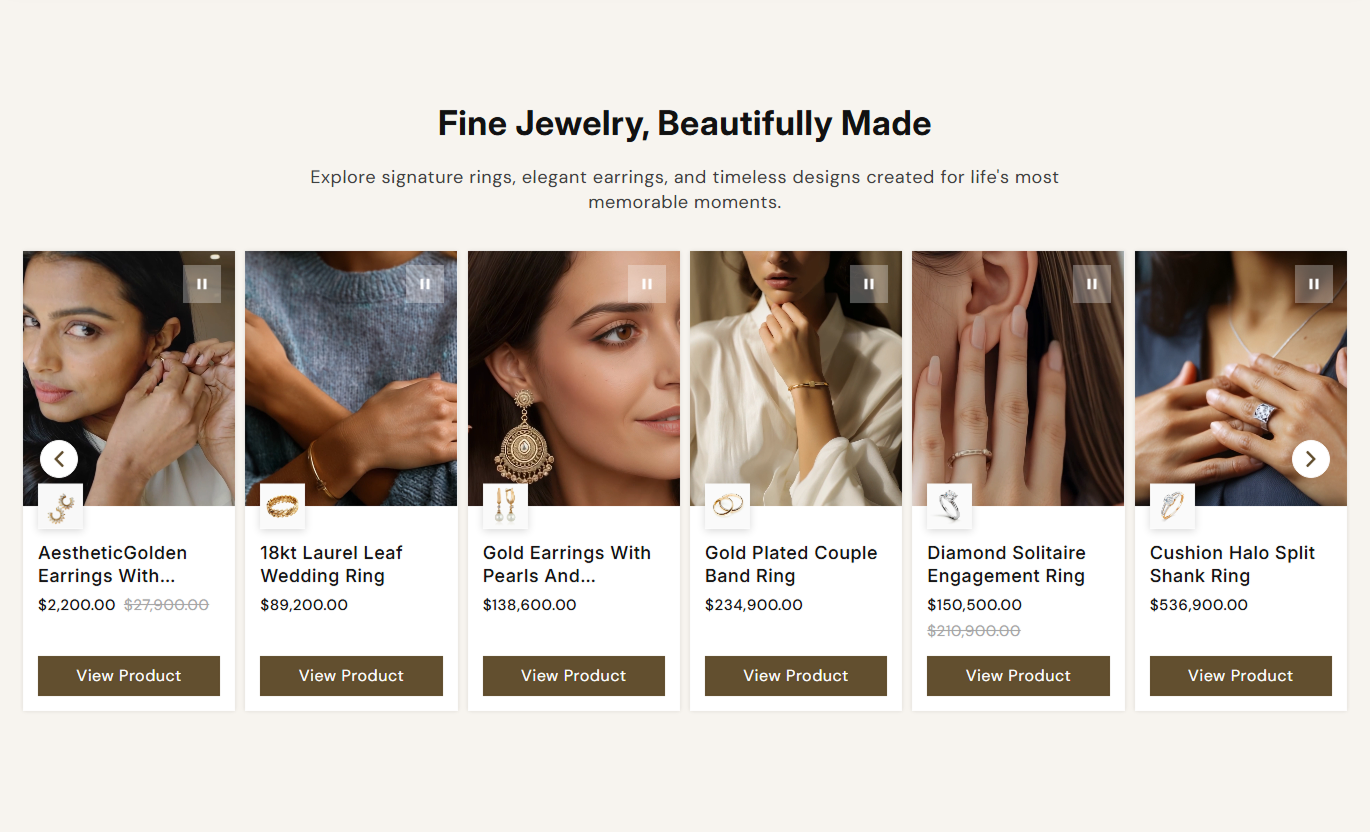
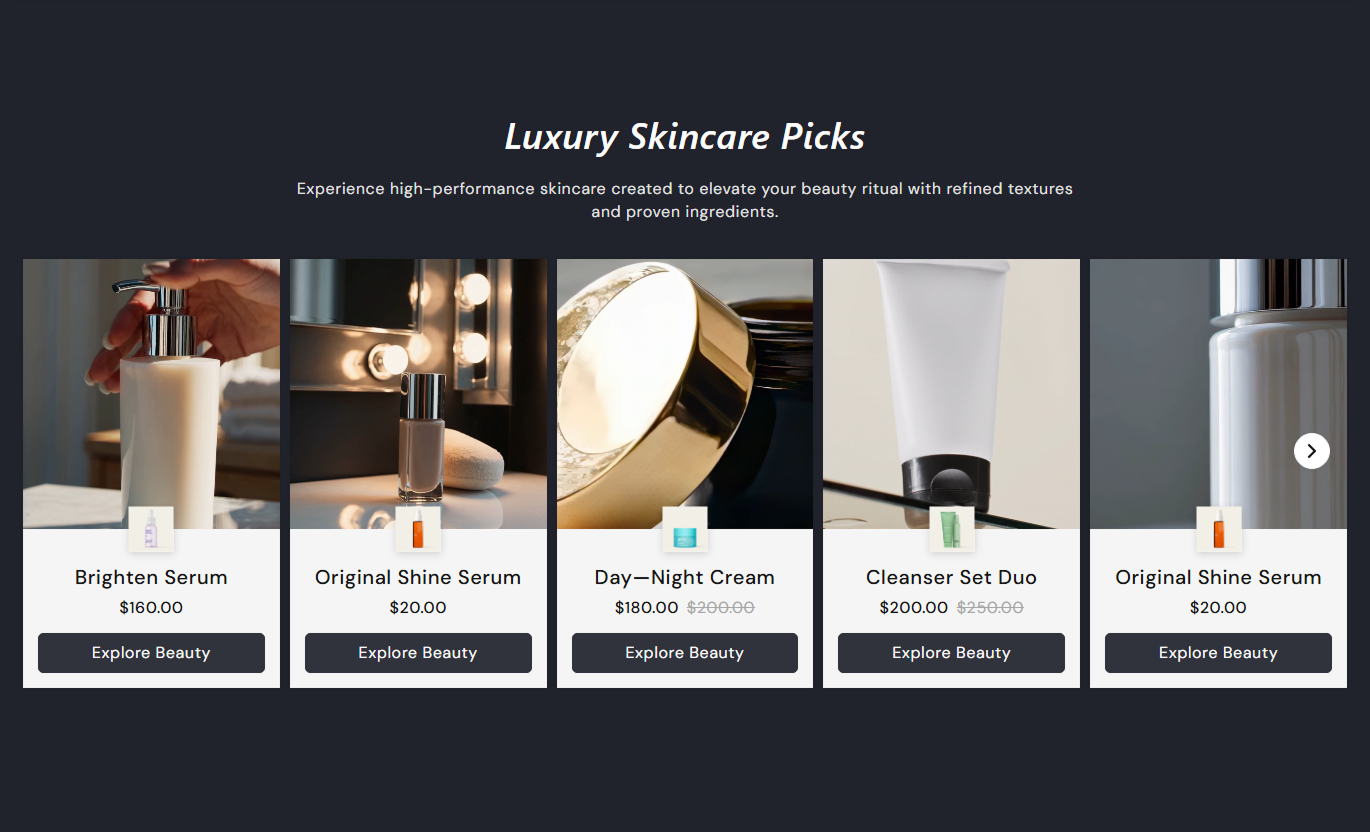


Combine product videos, pricing, thumbnails, CTA buttons, slider navigation, autoplay options, and responsive columns in one merchant-friendly shopping section.

Connect each video slide to a Shopify product so shoppers can view the product title, price, thumbnail, and product link together.

Choose whether videos start automatically and loop continuously, while keeping them muted and optimized for inline playback.

Show a configurable play/pause control on each video so shoppers can manually stop or resume playback as needed.

Choose three to six desktop columns and one or one-and-a-half mobile cards, with automatic breakpoint adjustments.

Use either the previous and next arrows or the clickable pagination dots to help shoppers move through the shoppable video slider.

Show the selected product price and a crossed-out compare-at price when the product is currently discounted.

Upload a custom thumbnail for each card or automatically use the selected product's featured image when no custom image is set.

Control video ratio, card alignment, colors, radii, typography, buttons, navigation, spacing, and overall section width.
Control slider behavior, video playback, product card layout, navigation, typography, colors, spacing, and width.
Applies to the whole section
Edit the main heading, rich text, and content alignment.
Heading & ContentChoose video aspect ratio and product card alignment.
Video Card LayoutSet desktop and mobile columns, looping, and autoplay.
Slider Display ControlsChoose arrows or dots and set the slide change delay.
Slider NavigationControl video autoplay, looping, and play or pause button.
Video Playback ControlsSet product CTA text, outline style, radius, and size.
Product Button StyleAdjust heading, content, product title, and price sizes.
Typography ControlsCustomize section, card, product, button, and control colors.
Color Style ControlsSet desktop and mobile spacing plus full or contained width.
Spacing & Width
Applies to each video slide
Upload the video displayed inside this shoppable card.
Product VideoSelect the Shopify product linked to this video card.
Linked ProductUpload a custom thumbnail or use the product image.
Card ThumbnailUse this section across key Shopify pages to pair product-focused videos with pricing, direct links, and responsive slider browsing for stronger visual merchandising.
Use Shoppable Video on your homepage to highlight featured products, demonstrations, lifestyle clips, or campaign videos with direct product links and pricing.
Show video-led products in a high-visibility homepage areaPair demonstrations or lifestyle clips with product pricingLink every populated card directly to its selected productUse autoplay when passive video discovery suits the pageChoose mobile card density for easier touch-based browsingPlace the slider around the collection content to showcase products, highlight best sellers, or add a lifestyle video while keeping each card linked to a selected product.
Add product demonstrations without changing the product gridHighlight best sellers or key items with supporting videosKeep each card connected to a relevant product destinationShow pricing directly beneath each product-focused videoUse arrows or dots to support collection-level browsingUse the section on product pages to introduce related products, complementary items, demonstrations, or social-style videos that connect shoppers to more products.
Promote complementary products through short visual storiesShow related product pricing beside engaging video contentUse custom thumbnails to keep product cards visually clearOffer direct links to additional products from every cardKeep playback controls available when shoppers need themUse Shoppable Video on landing pages to combine campaign videos, linked products, pricing, autoplay, and responsive slider controls inside one focused shopping experience.
Build campaign stories around several linked product videosCombine product pricing and video in one shopping sectionUse slider autoplay to rotate campaign content automaticallyChoose navigation controls that fit the campaign experienceKeep the layout responsive across desktop and mobile screensBlend product videos with prices, links, and clear shopping actions so customers can discover products through engaging media without losing purchase context.
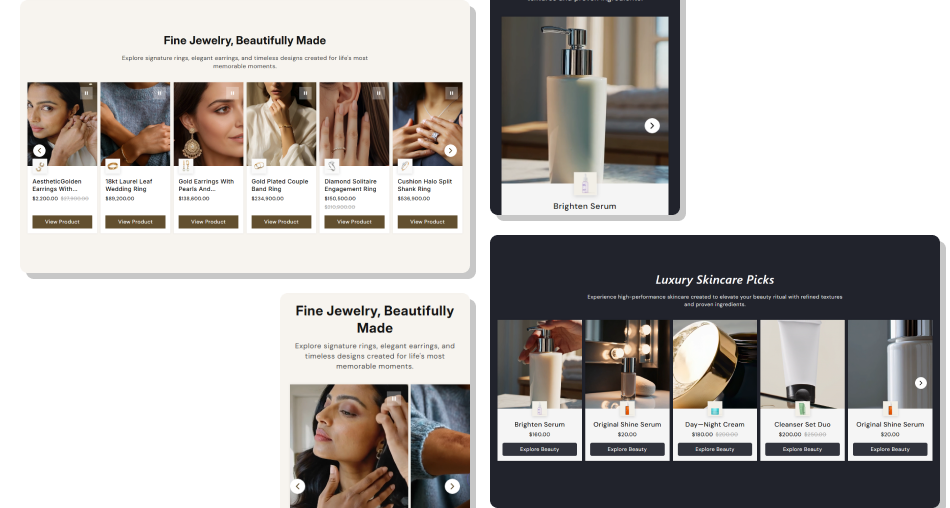
Turn product videos into shopping cards with pricing, direct links, thumbnails, and responsive controls for easier discovery.
Connect engaging product videos directly with Shopify productsKeep product titles and pricing visible beneath every videoUse custom or product-based thumbnails for clearer card contextLet shoppers manually pause and resume individual video cardsChoose autoplay and looping behavior separately for the videosAdapt visible card counts to desktop and mobile browsingGuide shoppers to product pages through a reusable CTA button Use concise videos that clearly demonstrate the linked product
Keep selected products and card thumbnails accurate and current
Test autoplay, looping, and manual play controls before launch
Choose desktop columns that keep video cards easy to review
Check mobile card density and swipe behavior on smaller screens
Use concise videos that clearly demonstrate the linked product
Keep selected products and card thumbnails accurate and current
Test autoplay, looping, and manual play controls before launch
Choose desktop columns that keep video cards easy to review
Check mobile card density and swipe behavior on smaller screens  Do not link a product video to an unrelated product page
Do not use heavy videos that make the section slow to load
Do not enable autoplay if constant motion hurts page clarity
Do not hide play controls when shoppers need manual playback
Do not overcrowd the slider with too many similar video cards
Do not link a product video to an unrelated product page
Do not use heavy videos that make the section slow to load
Do not enable autoplay if constant motion hurts page clarity
Do not hide play controls when shoppers need manual playback
Do not overcrowd the slider with too many similar video cards Yes. Every Video slide block can select one Shopify product, and the card uses that product for its title, price, link, and image fallback.
Yes. Section settings let you independently enable or disable video autoplay and looping, while rendered videos remain muted and play inline.
Yes. When the Show play/pause button is enabled, each card displays a control that toggles its video between playing and paused states.
The Desktop columns setting supports three to six visible cards at 1024px and above, while at smaller breakpoints, it automatically reduces the count.
Yes. Navigation Type offers Arrows or Dots. Arrow colors and size are customizable, while pagination dots have active and inactive color settings.
If a custom block image is missing, the card uses the selected product's featured image. Without a product, a placeholder image is shown.
Mobile can show one or one-and-a-half cards initially, then uses two cards from 575px and three from 767px, with smaller typography and controls.
For Support or any Questions Email Us: [email protected]
Install SectionHub and add the Shoppable Video section to your theme in minutes - no coding required.
