Keep Product Activity Visible While Visitors Browse
Use sales notifications on the homepage to surface selected products while visitors explore your brand, collections, promotions, and featured store content.

Display rotating product purchase notifications with shopper details, timestamps, verified labels, and flexible positioning to highlight store activity.
 Rotating Sales Popups
Flexible Popup Timing
Responsive Notifications
Rotating Sales Popups
Flexible Popup Timing
Responsive Notifications 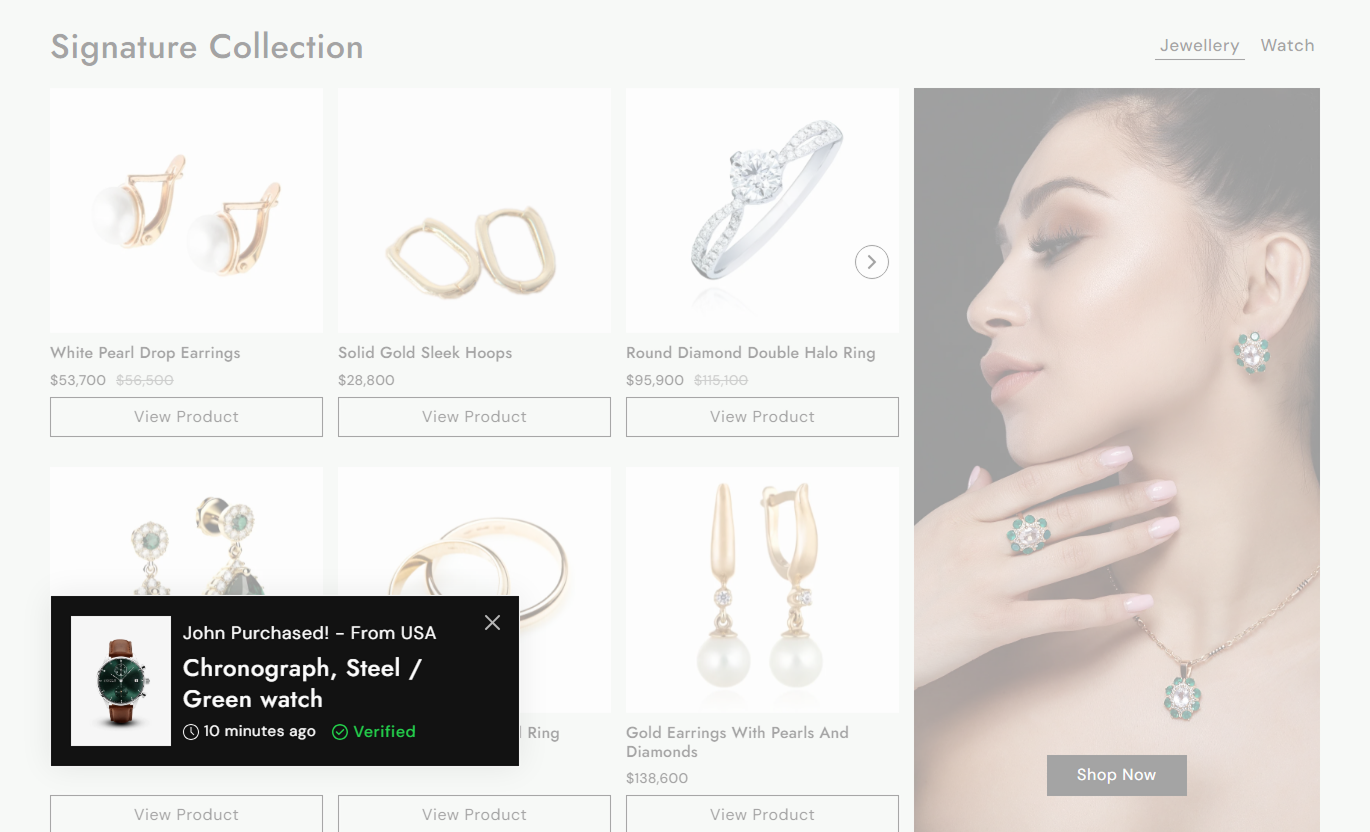


Show configurable product activity popups with purchase details, timing controls, responsive placement, animations, and customizable visual styling.

Add multiple product notification blocks and display them sequentially in a repeating pop-up sequence across the storefront.

Choose a Shopify product for each notification and automatically display its featured image, title, and product page link.

Add custom purchaser text to each pop-up, such as a shopper's name, purchase message, or location information.

Show custom timing text, such as "15 minutes ago," next to a clock icon to provide additional context in each notification.

Enable or disable verified status for individual notifications, and display it with a check icon next to the purchase time.

Control the initial delay, how long each product stays visible, and the interval between notifications.

Place notifications in any screen corner and choose a matching slide-in direction from the side, top, or bottom.

Control desktop and mobile spacing, popup padding, width, typography, colors, image placement, borders, and alignment.
Control popup timing, placement, animation, content alignment, colors, spacing, typography, and individual product notifications.

Applies to the whole notification system
Set how long the section waits before the first popup appears.
Initial Popup DelayChoose how many seconds each product notification remains visible.
Popup Display TimeSet the delay between one notification and the next.
Popup IntervalAdjust the corner radius used around each notification.
Popup Border RadiusChoose left, center, or right alignment for popup text.
Text AlignmentPlace the product image on the left or right side.
Image AlignmentChoose top-left, top-right, bottom-left, or bottom-right.
Popup PositionChoose the slide-in direction based on the selected corner.
Popup AnimationSet separate edge spacing values for desktop and mobile.
Position SpacingSet the maximum desktop popup width from 350 to 600 pixels.
Popup Width
Applies to each sales notification
Choose the Shopify product shown in the notification.
ProductAdd the purchaser or customer activity message.
Purchaser DetailsAdd custom text describing when the purchase happened.
Purchase TimeShow or hide the Verified status beside the notification.
Verified StatusUse rotating product activity popups across Shopify storefront pages to keep selected products visible without taking space from the main page layout.
Use sales notifications on the homepage to surface selected products while visitors explore your brand, collections, promotions, and featured store content.
Keep selected products visible without adding another homepage sectionShow product images and titles in a compact floating formatRotate multiple product notifications automatically over timePosition notifications away from important homepage contentLink shoppers directly from the product title to its product pageDisplay rotating notifications while shoppers browse collections to surface selected products without interrupting the main collection grid or navigation.
Highlight selected products alongside collection browsingKeep the main collection grid free from extra promotional blocksRotate several product notifications without manual interactionUse corner positioning to avoid covering collection controlsGive shoppers another direct path to individual product pagesUse product notifications while shoppers view a product page to keep other selected items visible without changing the main product information layout.
Show additional products while visitors review one itemKeep product suggestions separate from core product informationUse compact popups instead of a large recommendation sectionRotate through multiple selected Shopify products automaticallyLet visitors open another product directly from its titleUse notifications on landing pages to surface products beside campaign content while keeping the main promotional message and call to action uninterrupted.
Keep campaign layouts focused while still surfacing productsDisplay product activity without adding another content blockControl popup timing around longer campaign experiencesChoose a corner that does not cover important campaign actionsRotate selected promotional products throughout the visitUse compact rotating notifications to surface selected products and custom purchase details while keeping the main storefront layout focused and uncluttered.
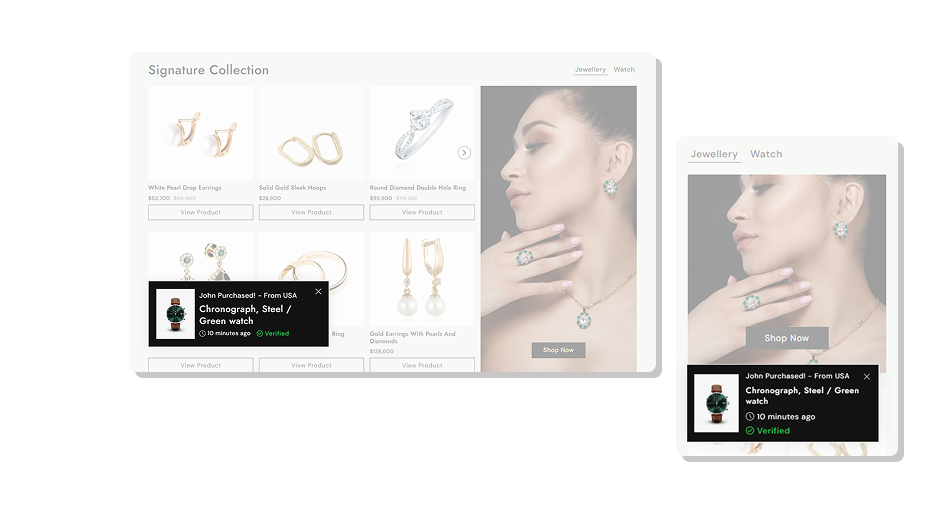
Show selected products, purchaser details, timing, and verification inside rotating popups without using valuable page content space.
Display several product notifications in an automatic rotationChoose exactly which Shopify products appear in each popupAdd custom purchaser details and purchase-time messagingEnable a Verified label individually for each notificationControl initial delay, visibility time, and popup intervalsChoose the screen corner and matching entrance animationCustomize width, padding, typography, colors, and alignment Choose products that are relevant to the storefront experience
Keep purchaser detail text short enough to scan quickly
Use sensible timing so popups do not appear too frequently
Place notifications away from cart, chat, and navigation controls
Check desktop and mobile placement before publishing the section
Choose products that are relevant to the storefront experience
Keep purchaser detail text short enough to scan quickly
Use sensible timing so popups do not appear too frequently
Place notifications away from cart, chat, and navigation controls
Check desktop and mobile placement before publishing the section  Do not fill purchaser details with long or distracting messages
Do not set intervals so short that notifications feel intrusive
Do not place popups over important buttons or page controls
Do not enable Verified unless that label matches your intended content
Do not use product notifications unrelated to the current campaign
Do not fill purchaser details with long or distracting messages
Do not set intervals so short that notifications feel intrusive
Do not place popups over important buttons or page controls
Do not enable Verified unless that label matches your intended content
Do not use product notifications unrelated to the current campaign Yes. Add multiple Sale Product blocks, choose a Shopify product in each one, and the section rotates through the notifications automatically.
Yes. The Show Popup After setting lets you choose an initial delay of 0 to 10 seconds after the storefront page loads.
You can choose a display duration of 1 to 5 seconds using the Show Product For setting in the section configuration.
Yes. The Interval Between Product Popups setting lets you choose a gap of 1 to 10 seconds between notifications.
You can place it in the bottom-left, bottom-right, top-left, or top-right corner and configure matching edge spacing.
Yes. Depending on its selected corner, the popup can slide in from the left, right, top, or bottom before becoming visible.
Yes. Every block has its own purchaser details, purchase time, Shopify product selection, and individual Verified toggle.
The popup closes and the section stores that choice for the current browser session, preventing more notifications during that session.
For Support or any Questions Email Us: [email protected]
Install SectionHub and add the Sales Notification section to your theme in minutes - no coding required.
