Promote Limited-Time Offers on Your Homepage
Place the countdown prominently on your homepage to announce flash sales, seasonal discounts, special promotions, or campaigns that need immediate customer attention.

Create urgency around limited-time offers with a promotional image, a live countdown timer, sale messaging, and a customizable call-to-action in a single responsive section.
 Live Countdown Timer
Sale Promotion Layout
Responsive Offer Section
Live Countdown Timer
Sale Promotion Layout
Responsive Offer Section 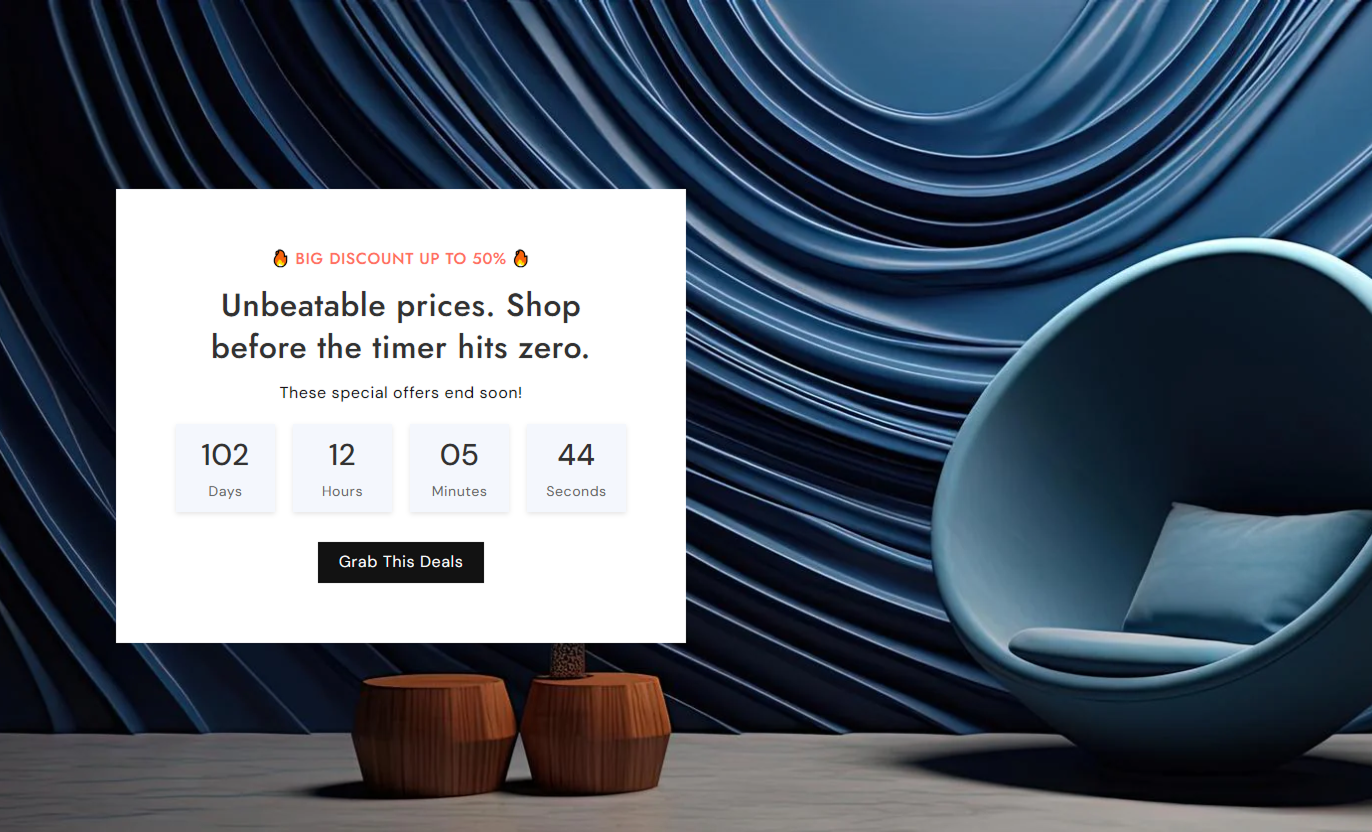
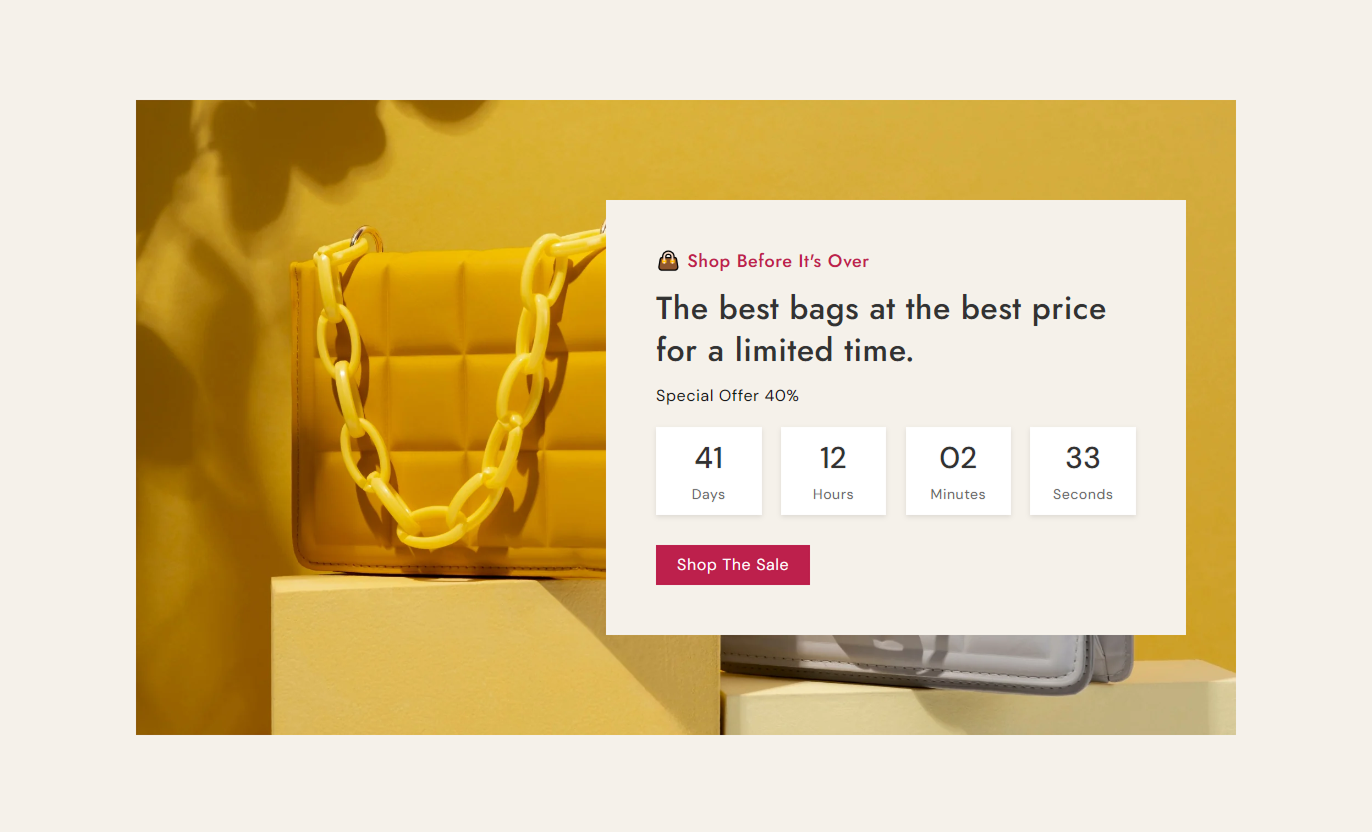


Combine promotional imagery, sale messaging, a live countdown, timer labels, flexible positioning, button controls, and responsive styling for your store.

Add a large promotional image behind the sale content to create a visually engaging offer section.

Display remaining days, hours, minutes, and seconds to create urgency around your limited-time promotion.

Add a subheading, main heading, and rich text content to clearly communicate your offer and promotional message.

Set the exact year, month, date, hour, and minute when your countdown should end.

Change the Days, Hours, Minutes, and Seconds labels to match your store language or campaign style.

Place the sale content on the left, center, or right side of the promotional image on the desktop.

Add a button with custom text, destination link, colors, border radius, and optional outline styling.

Adjust mobile image behavior, content placement, alignment, spacing, and typography for smaller screens.
Customize the promotional image, countdown, sale content, button, typography, colors, spacing, alignment, and section width from the theme editor.

Applies to the whole section
Add the main promotional image behind the sale content.
ImageChoose the displayed promotional image height.
HeightMove the sale content below the image on mobile.
Show content below images (Mobile)Add the supporting text above the main sale heading.
SubheadingAdd the main promotional heading for the campaign.
HeadingAdd rich text content to explain the current offer.
ContentChoose the desktop position of the sale content.
PositionSet the maximum width of the content container.
Container width in px (Desktop)Choose the corner radius of the sale content card.
Card radiusMake the section span the available page width.
Full width
Applies to the sale content and timer controls
Set the text displayed on the promotional button.
LabelAdd the destination URL for the promotional button.
LinkEnable an outlined style for the sale button.
Use outline buttonSet the corner radius of the promotional button.
Border radiusChoose the desktop button text size.
Size (Desktop)Set the sales content alignment on the desktop.
DesktopSet the sales content alignment on mobile.
MobileUse Sale Countdown Floating Card to promote limited-time discounts, seasonal campaigns, product launches, flash sales, clearance offers, and other time-sensitive store promotions.
Place the countdown prominently on your homepage to announce flash sales, seasonal discounts, special promotions, or campaigns that need immediate customer attention.
Highlight important limited-time promotionsCreate urgency around active offersShowcase campaign visuals prominentlyAdd a direct link to your sale pageKeep promotional messaging easy to noticeUse the countdown above or near sale collections to remind shoppers when a promotion ends and encourage them to explore discounted products before time runs out.
Promote collection-specific salesEncourage faster product discoveryHighlight campaign deadlines clearlyConnect offers with relevant collectionsReinforce limited-time promotional messagingAdd the countdown near promotional product content to communicate a clear deadline for discounts, special pricing, or limited-time campaigns.
Highlight time-sensitive product offersShow customers when promotions endSupport focused promotional campaignsLink directly to relevant productsMake offer deadlines easy to understandUse the section on campaign pages for flash sales, seasonal events, product launches, clearance campaigns, or other promotions with a specific ending time.
Create a clear campaign deadlineSupport seasonal promotional eventsCombine visuals with sale messagingDirect visitors toward campaign contentMake limited-time offers more prominentUse a live countdown, a promotional image, focused messaging, and a clear call to action to communicate time-sensitive offers across your Shopify store.
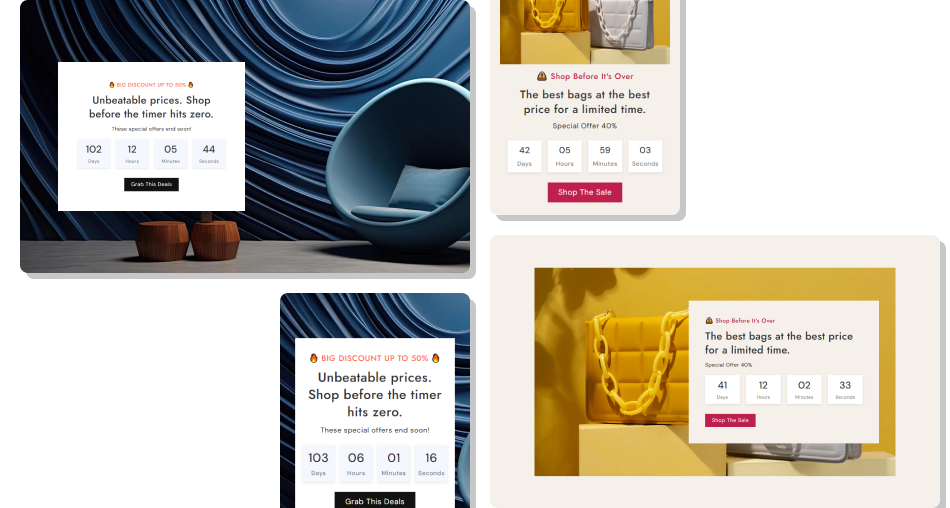
Give shoppers a clear visual reminder of when an offer ends while keeping your promotional message, countdown, and action button together.
Create urgency around limited-time promotionsShow remaining offer time at a glanceCombine campaign visuals with sale messagingAdd a clear action button for shoppersCustomize countdown labels for your storeControl content placement across layoutsMaintain a responsive experience on mobile Use a promotional image that matches the current offer
Set the countdown deadline carefully before publishing
Keep sales messaging short and easy to understand
Link the button to the most relevant campaign page
Check the countdown layout carefully on mobile devices
Use a promotional image that matches the current offer
Set the countdown deadline carefully before publishing
Keep sales messaging short and easy to understand
Link the button to the most relevant campaign page
Check the countdown layout carefully on mobile devices  Use an unrelated image for your promotional campaign
Set an incorrect date or time for the countdown
Overload the sales card with unnecessary content
Link the button to an unrelated destination
Ignore mobile spacing, alignment, or image placement
Use an unrelated image for your promotional campaign
Set an incorrect date or time for the countdown
Overload the sales card with unnecessary content
Link the button to an unrelated destination
Ignore mobile spacing, alignment, or image placement Yes. Set the year, month, date, hour, and minute to define exactly when the promotional countdown should end.
The timer displays the remaining days, hours, minutes, and seconds until the configured promotional end date and time.
Yes. You can change the Day, Hour, Minute, and Second labels to match your store language, campaign style, or preferred wording.
Yes. Use the Image setting to add a promotional image that fills the section background behind the sale content.
Yes. Use the Position setting to place the content on the left, center, or right side of the section on the desktop.
Yes. Add custom button text and a destination link, then choose between a standard or outline button style.
Yes. Separate Desktop and Mobile alignment settings let you control how the sale content is aligned on different screen sizes.
Yes. Enable "Show content below images (Mobile)" to place promotional content below the image on smaller screens.
Yes. You can adjust timer backgrounds, number and text colors, card radius, timer box radius, typography, button styling, and section colors.
For Support or any Questions Email Us: [email protected]
Install SectionHub and add the Sale Countdown Floating Card section to your theme in minutes - no coding required.
