Highlight Important Promotions on Your Homepage
Place the banner between key homepage sections to promote an offer, seasonal campaign, featured collection, or important message with a direct CTA.

Create a focused promotion banner with an image or gradient background, clear messaging, and a clickable button to guide shoppers toward important store content.
 Flexible Promotion Layout
Custom CTA Styling
Responsive Store Design
Flexible Promotion Layout
Custom CTA Styling
Responsive Store Design 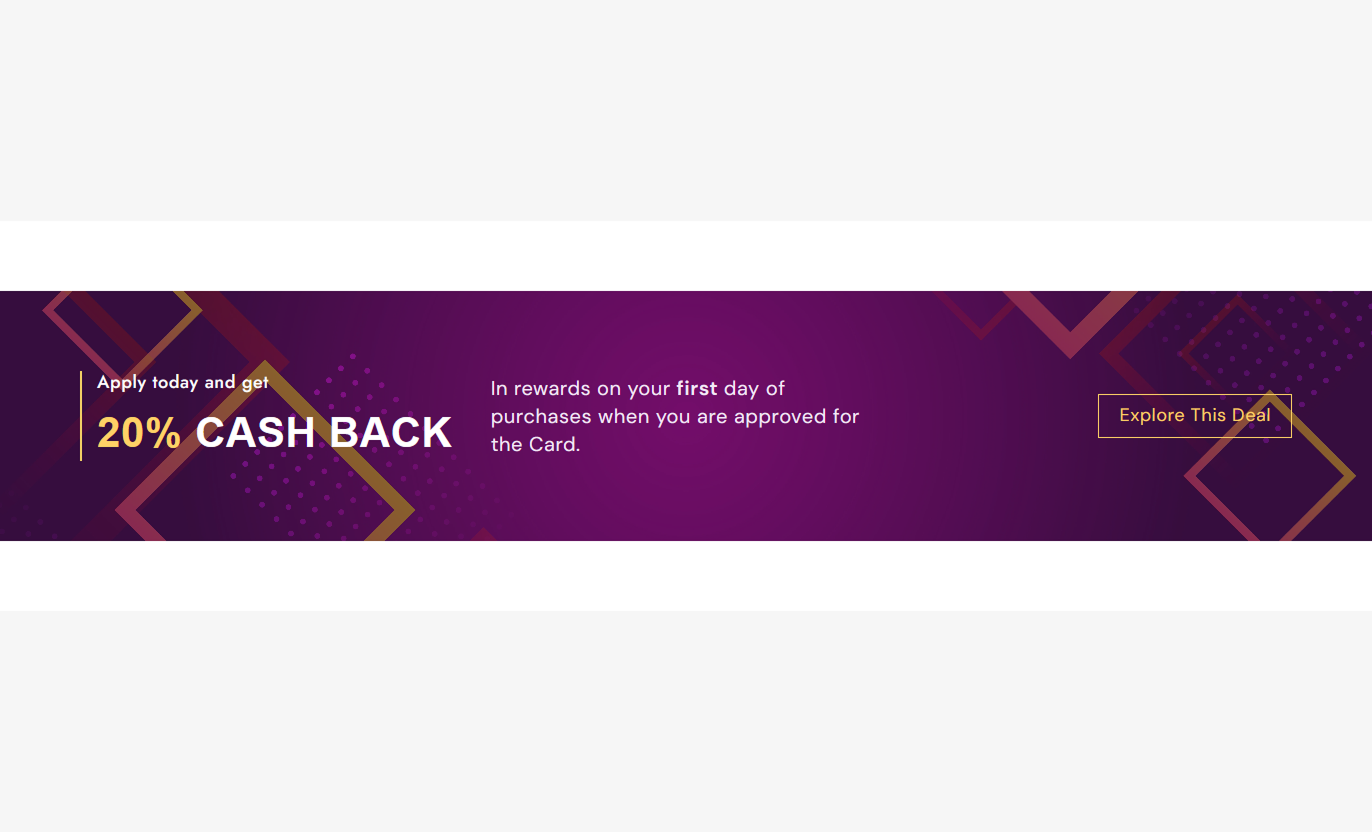
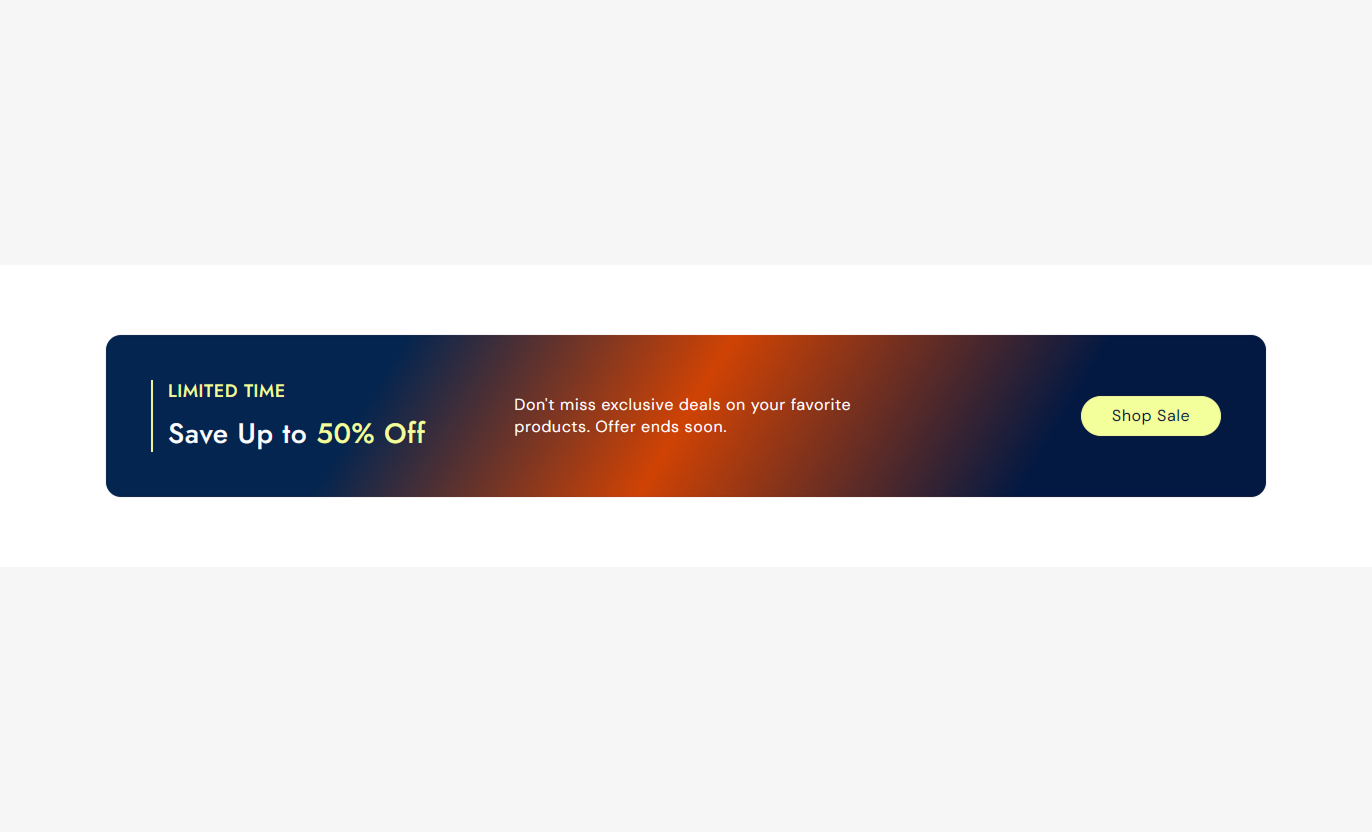
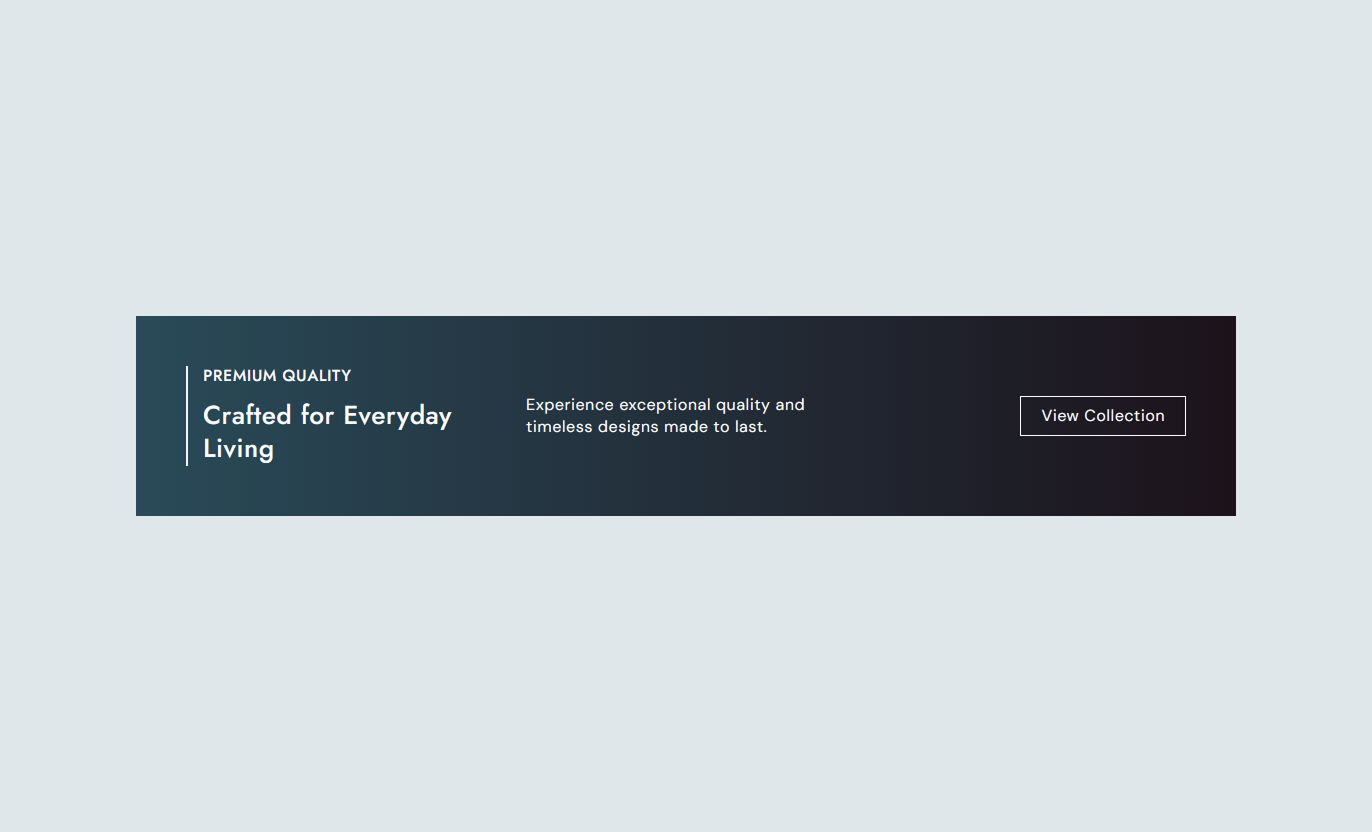


Build focused promotional content with flexible backgrounds, rich text, CTA controls, custom colors, typography, spacing, and responsive layout options.

Add an image as the banner background to create a strong visual setting for your promotional message.

Use a customizable gradient background to create a styled banner without relying on a background image.

Add a clear main heading and use bold text styling to highlight important words in your promotion.

Add a short subheading above the main heading to introduce the offer, campaign, or promotional message.

Add supporting content below the heading to explain an offer, campaign, product, or important store message.

Add a button label and link to direct shoppers toward a relevant page or destination.

Customize the button appearance with filled or outline styling, colors, borders, radius, hover colors, and shadow settings.

Use the responsive layout to keep the promotion content readable and well-spaced across desktop and mobile screens.
Control banner content, backgrounds, CTA styling, typography, colors, spacing, and section width from the Shopify theme editor.

Applies to the complete promotion banner
Add an image behind the promotional content.
Background ImageAdjust the corner radius of the banner content area.
Banner Border RadiusAdd a short label above the main heading.
Promotional SubheadingAdd the main promotional heading with rich text support.
Promotion HeadingAdd supporting rich text below the heading.
Promotion ContentSet the desktop inner spacing of the banner.
Desktop Card PaddingChoose the text displayed inside the CTA button.
Button LabelSet the page or destination opened by the CTA.
Button LinkSwitch the CTA between filled and outline styling.
Outline Button StyleEnable a gradient background instead of a solid background.
Gradient BackgroundAdjust the overlay color and opacity over the banner background.
Background Overlay ControlsCustomize the section's outer background color.
Section Background ColorSet desktop and mobile top and bottom spacing.
Responsive Section PaddingMake the banner span the available page width when required.
Full Width LayoutSet the maximum width for a contained section layout.
Section Maximum Width
Applies to the promotional content elements
Set the subheading text size for desktop displays.
Subheading Font SizeSet the main heading text size for desktop displays.
Heading Font SizeChoose the weight used for the main heading.
Heading Font WeightSet the supporting content text size.
Content Font SizeCustomize the subheading text color.
Subheading ColorCustomize the main heading text color.
Heading ColorSet the color used for highlighted bold heading text.
Heading Highlight ColorCustomize the supporting content color.
Content Text ColorUse the promotion banner to communicate timely offers, campaigns, announcements, featured products, or store messages with a clear call to action.
Place the banner between key homepage sections to promote an offer, seasonal campaign, featured collection, or important message with a direct CTA.
Highlight current promotions without creating a separate pageDirect shoppers toward featured collections or productsAdd campaign messaging between existing homepage sectionsUse imagery or gradients to support the promotionKeep the promotional message focused and easy to scanUse the banner around collection content to communicate category-specific offers, seasonal messages, shipping promotions, or related shopping opportunities.
Highlight collection-specific promotionsSupport seasonal category campaignsDirect shoppers toward related store destinationsAdd useful promotional context around product listingsKeep campaign messaging connected to collection browsingUse the banner to communicate supporting offers, related shopping opportunities, or campaign messages while shoppers browse individual product information.
Highlight relevant promotions near product contentGuide shoppers toward related store pagesCommunicate timely campaign messagesAdd visual emphasis without changing product detailsProvide a clear destination through the CTA buttonUse the banner as a dedicated promotional content block for campaigns, seasonal offers, announcements, or featured destinations on focused landing pages.
Create a clear promotional focal pointSupport campaign-specific messagingCombine visual backgrounds with concise copyGuide visitors toward a selected destinationMatch the banner design to the campaign styleGive important offers and store messages in a dedicated visual space with flexible controls for content, background, CTA, color, typography, spacing, and width.
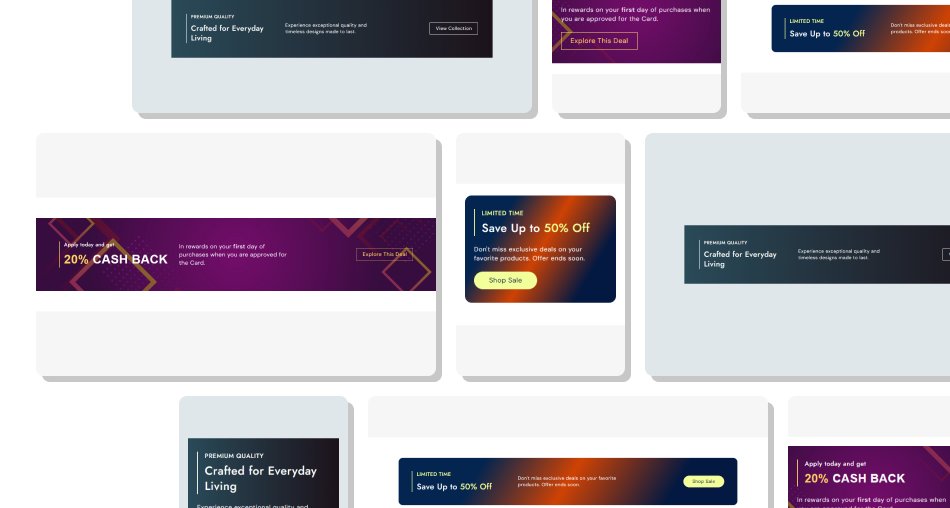
Use focused messaging, visual backgrounds, and a clear CTA to help shoppers quickly understand the promotion and where they can go next.
Create a Clear Promotional FocusGuide Shoppers With a CTAMatch Your Store BrandingSupport Different Campaign StylesControl Content HierarchyMaintain Responsive SpacingChoose the Right Section Width Use a relevant background image that supports the promotion
Keep the main heading short and focused on one clear message
Use bold heading text to highlight important promotional details
Link the CTA to a relevant product, collection, or campaign page
Choose strong contrast between the background and text content
Use a relevant background image that supports the promotion
Keep the main heading short and focused on one clear message
Use bold heading text to highlight important promotional details
Link the CTA to a relevant product, collection, or campaign page
Choose strong contrast between the background and text content  Do not use distracting images that compete with the promotion
Do not fill the banner with several unrelated promotional messages
Do not make the CTA label vague or difficult to understand
Do not use text and background colors with poor readability
Do not add excessive padding that pushes important content too far apart
Do not use distracting images that compete with the promotion
Do not fill the banner with several unrelated promotional messages
Do not make the CTA label vague or difficult to understand
Do not use text and background colors with poor readability
Do not add excessive padding that pushes important content too far apart Yes. You can select an image to display behind the promotional content and control how the background appears within the banner.
Yes. Enable the gradient background option and choose a custom gradient when you prefer a styled background without an image.
Yes. The section includes separate fields for a subheading, main heading, and rich text content to create a clear content hierarchy.
Yes. Add a button label and link to create a CTA that directs shoppers to the relevant page or destination.
Yes. You can enable the outline button option and customize its colors, border, radius, and hover appearance.
Yes. You can customize the background, overlay, subheading, heading, highlighted heading text, content, side border, and button colors.
Yes. Separate mobile top and bottom padding settings let you adjust the banner spacing for smaller screens.
For Support or any Questions Email Us: [email protected]
Install SectionHub and add the Promotion Banner section to your theme in minutes - no coding required.
