Show Multiple Product Collections in One Compact Area
Use Product Tabs on your homepage to organize featured collections, new arrivals, best sellers, or seasonal edits inside one compact interactive product section.

Show products from up to three collections in animated tabs with responsive grids, product pricing, hover zoom, flexible tab alignment, and mobile column controls.
 Animated Product Tabs
Collection-Based Product Grid
Responsive Mobile Columns
Animated Product Tabs
Collection-Based Product Grid
Responsive Mobile Columns 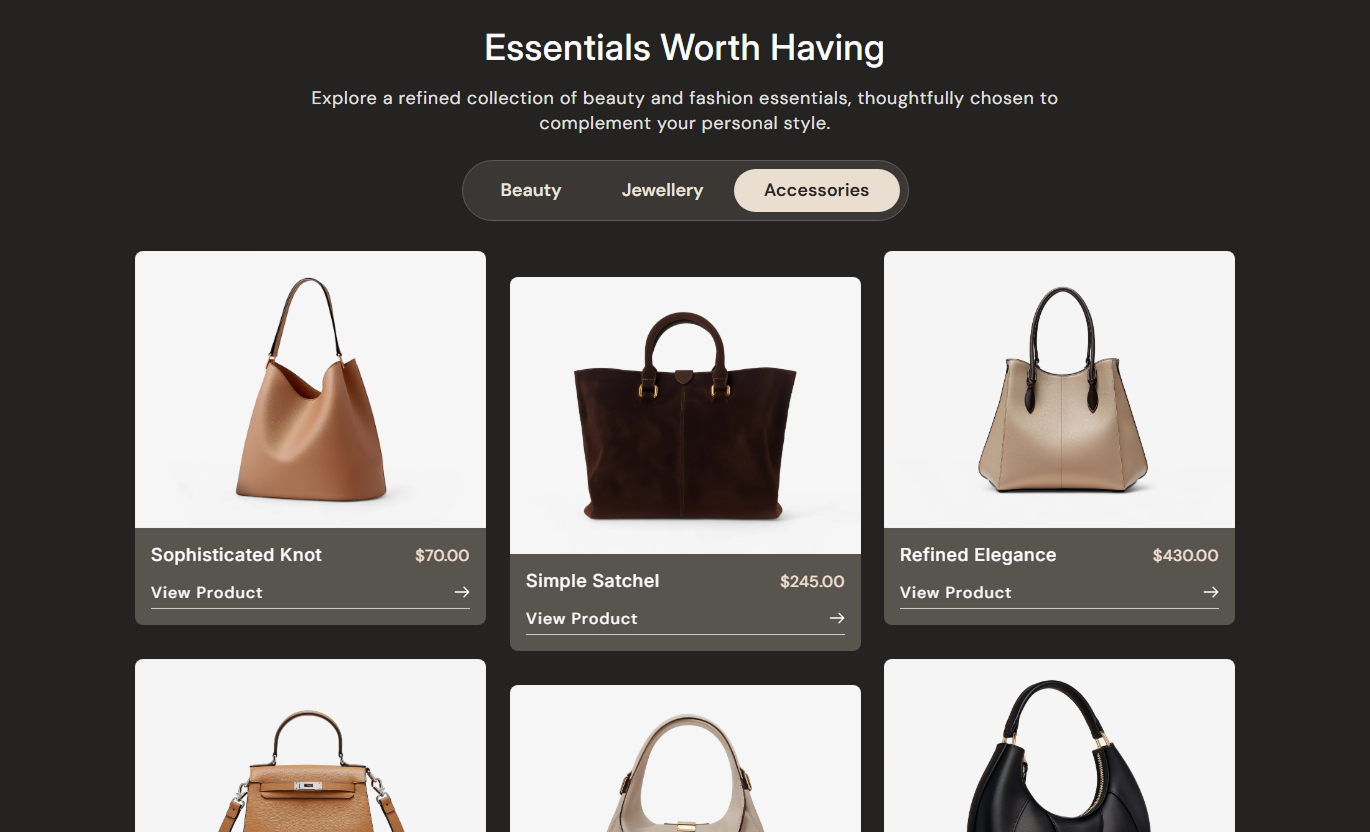
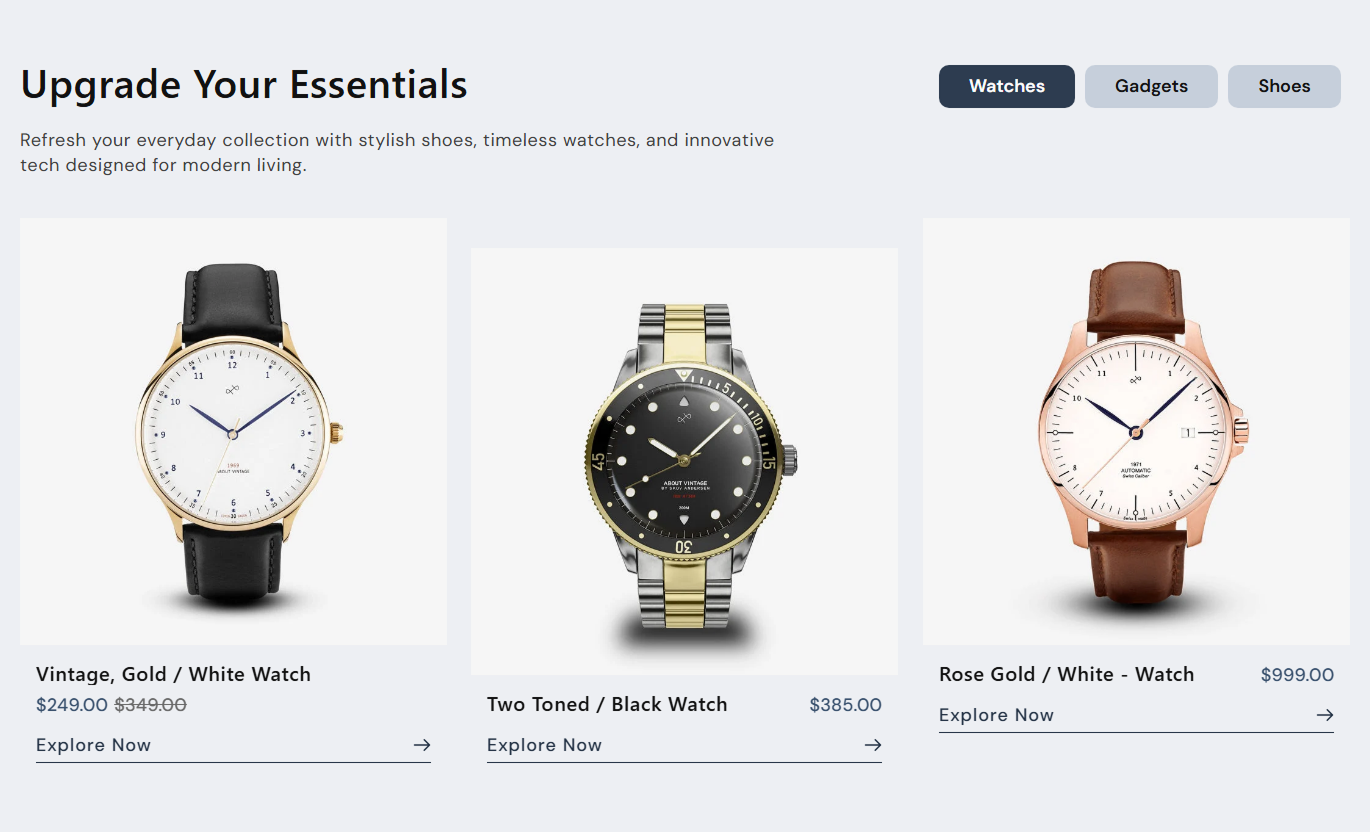


Organize products into animated collection tabs with responsive grids, staggered card reveals, live pricing, hover effects, and flexible layout controls.

Create up to three tabs, each linked to a Shopify collection, with the tab title falling back to the collection name when needed.

Switching tabs triggers staggered fade, lift, and scale animations that reveal product cards in a polished sequence.

Display active-tab products in a three-column desktop grid with consistent gaps and a staggered middle-column offset.

Choose a one-column or two-column mobile product grid to match your preferred balance of readability and density.

Show the price of the selected or first available variant, plus compare-at pricing, when the product is currently discounted.

Hovering over a product card scales and slightly lifts its image, adding motion without changing the card's structure.

Place the heading and tab navigation side by side on larger screens, then stack them automatically on mobile.

Control tab colors, spacing, radius, product card colors, image ratio, typography, button styling, spacing, and section width.
Control tab layout, product cards, mobile columns, typography, colors, spacing, button styling, and section width.

Applies to the whole section
Place heading and tabs side by side or use the standard stack.
Horizontal Header LayoutAlign tab navigation to the left, center, or right, and set spacing.
Tab Navigation SetupChoose product media height and one or two mobile columns.
Product Grid LayoutSet card radius, CTA label, and product button size.
Product Card StyleAdjust section, tab, product title, and price font sizes.
Typography ControlsCustomize section, tab, product, and button colors.
Color Style ControlsSet separate vertical section padding for desktop and mobile.
Responsive SpacingUse full width or define a maximum contained section width.
Section Width Setup
Applies to each tab block
Set a custom tab title or use the collection name.
Custom Tab TitleChoose the Shopify collection shown inside this tab.
CollectionShow between three and six products from the collection.
Products to ShowUse this tabbed product section across Shopify pages to organize collections, related ranges, featured edits, or curated products without creating long grids.
Use Product Tabs on your homepage to organize featured collections, new arrivals, best sellers, or seasonal edits inside one compact interactive product section.
Group several product collections without extending page lengthLet shoppers switch categories without leaving the homepageUse staggered animations to make tab changes feel polishedChoose one or two mobile columns for smaller-screen browsingAdd direct View Details links to every product cardPlace Product Tabs on collection templates to surface related ranges, subcollections, or curated edits while keeping the primary product grid separate and focused.
Promote related ranges beside the main collection experienceOrganize subcollections into clear clickable product tabsShow live prices directly inside each product cardUse image hover zoom to add subtle desktop interactionKeep active and inactive tabs visually easy to distinguishUse Product Tabs on product pages to present complementary products, related collections, or alternative styles in a structured tabbed grid beneath key product content.
Cross-sell related products without a long scrolling carouselGroup accessories, alternatives, or matching items by collectionLink each product image and CTA directly to its product pageShow compare-at pricing when an item is discountedSwitch to a compact two-column layout on mobileUse Product Tabs on landing pages to organize campaign edits, seasonal ranges, or curated product groups with clear tab labels and responsive animated product grids.
Create multiple shopping paths inside one campaign sectionKeep campaign collections organized with simple tab controlsUse up to six products per tab for focused merchandisingStyle tabs and cards to match campaign visual directionChoose a side-by-side heading and tab layout on desktopTurn multiple product collections into one organized shopping section with animated tab switching, responsive grids, live pricing, and flexible merchant controls.
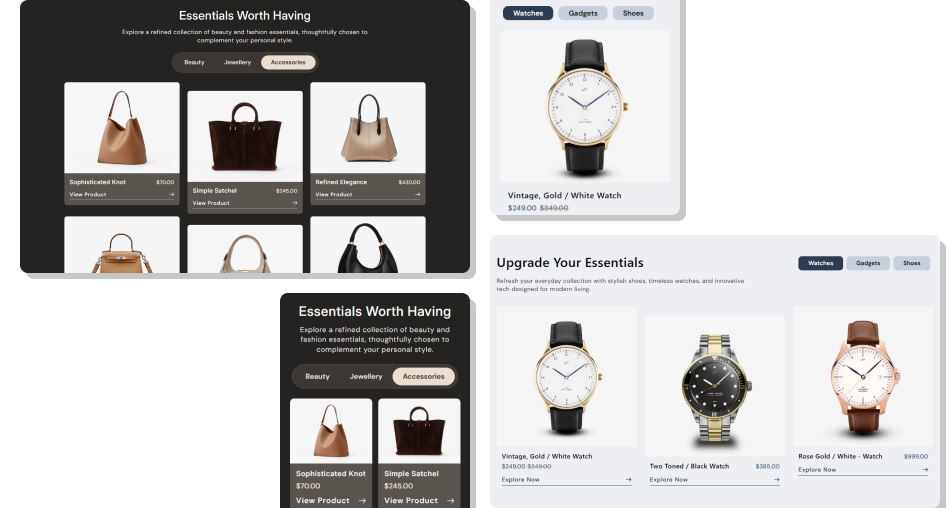
Combine collection tabs, animated product cards, responsive columns, and live pricing to make browsing multiple ranges easier.
Organize several collections inside one compact product sectionGive each tab its own Shopify collection and product countUse animated card reveals to make tab changes feel more polishedShow live variant pricing and compare-at pricing automaticallyChoose one or two product columns for mobile layoutsPlace heading content beside the tabs on larger screensCustomize tab, product card, CTA, spacing, and color styling Use clear tab labels that shoppers can understand instantly
Select focused collections that support a clear browsing goal
Keep product counts balanced across tabs when possible
Test both one-column and two-column mobile layouts before launch
Use concise CTA text that clearly leads to product details
Use clear tab labels that shoppers can understand instantly
Select focused collections that support a clear browsing goal
Keep product counts balanced across tabs when possible
Test both one-column and two-column mobile layouts before launch
Use concise CTA text that clearly leads to product details  Do not overload tabs with collections that have no clear relationship
Do not use vague tab names that hide what products are inside
Do not rely on hover effects to communicate essential information
Do not select more products than the six-item block limit allows
Do not leave placeholder tabs visible on a published storefront
Do not overload tabs with collections that have no clear relationship
Do not use vague tab names that hide what products are inside
Do not rely on hover effects to communicate essential information
Do not select more products than the six-item block limit allows
Do not leave placeholder tabs visible on a published storefront The schema allows up to three Tab blocks. Each tab can use its own title, Shopify collection, and product count setting.
Each Tab block can show between three and six products, using the first products returned by the selected Shopify collection.
The tab label falls back to the selected collection title. If both are blank, that tab button and its product panel are not rendered.
The section renders placeholder product cards based on the configured Products to Show value, so the panel still keeps its layout.
Yes. The mobile column setting offers one or two columns, while desktop panels use a fixed three-column grid.
The section shows the selected or first available variant price and displays compare-at pricing when it is higher than the current price.
It places the heading area and tab navigation side by side on larger screens, then stacks them vertically again on mobile.
No. The schema disables this section in Shopify header and footer groups, so use it within supported page-template section areas.
For Support or any Questions Email Us: [email protected]
Install SectionHub and add the Product Tabs section to your theme in minutes - no coding required.
