Feature Key Products in One Interactive Area
Use thumbnail selectors to showcase best sellers, new arrivals, or priority products while keeping detailed imagery and supporting content inside one clean section.

Show up to five featured products with thumbnail selectors, large product imagery, custom descriptions, and direct links in one clean, interactive Shopify section.
 Product Swatch Navigation
Up to 5 Products
Responsive Product Layout
Product Swatch Navigation
Up to 5 Products
Responsive Product Layout 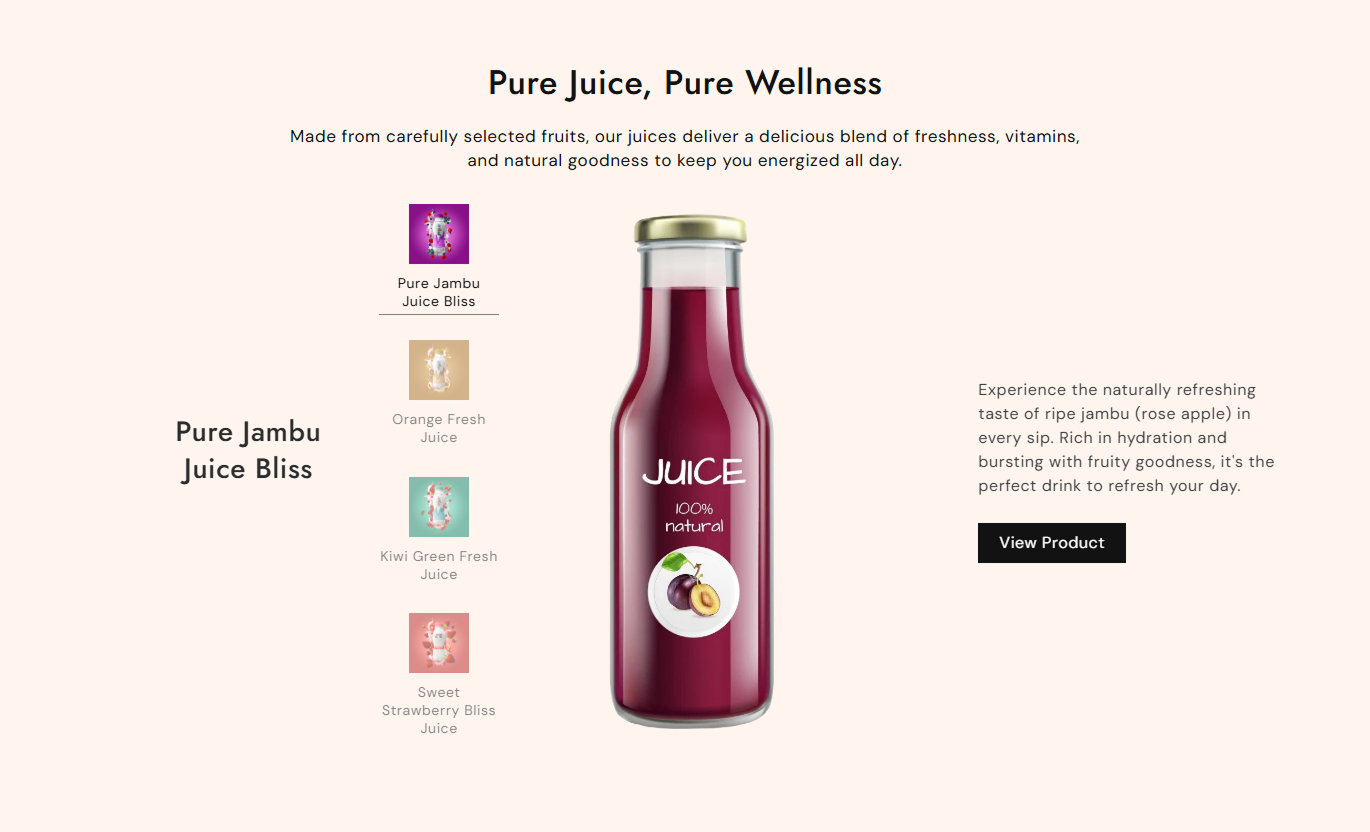


Let shoppers switch between featured products using visual swatches while displaying focused imagery, product descriptions, and direct product links.

Display each product as a small, selectable thumbnail that shoppers can click to switch the active product content.

Add up to five product blocks to keep the section focused while giving shoppers several featured options to explore.

Upload custom thumbnail and main images, or use the selected Shopify product's featured image when custom media is not provided.

Use a custom heading for each product or automatically use the selected Shopify product title for the product presentation.

Add custom rich text for each product or use the selected Shopify product content when no custom description is provided.

Use one shared button label that links each active product directly to its corresponding Shopify product page.

Use a smooth fade transition when shoppers select a different thumbnail from the product selector.

The three-column desktop layout stacks vertically on smaller screens for a cleaner and easier mobile browsing experience.
Control headings, CTA styling, typography, colors, spacing, section width, and individual featured products from the Shopify theme editor.

Applies to the whole section
Add the main heading displayed above the product selector.
Section HeadingAdd supporting rich text below the main section heading.
Section ContentChoose how the section heading and supporting content are aligned.
Text AlignmentSet the shared CTA text for all selected products.
Product Button LabelSwitch the CTA between filled and outline button styles.
Button StyleAdjust the button corner radius and desktop font size.
Button AppearanceCustomize section, tab, swatch, content, and button colors.
Color ControlsSet separate top and bottom spacing for desktop and mobile.
Responsive PaddingMake the section full width or use a contained layout.
Section WidthSet the maximum width when the full-width option is disabled.
Maximum Width
Applies to each featured product
Choose the Shopify product used for this item.
Selected ProductUpload the small image used in the product selector.
Thumbnail ImageUpload the larger image displayed in the active product panel.
Main Product ImageSet the heading displayed for the product.
Product HeadingAdd custom rich text for the selected product.
Product ContentUse Product List Showcase to spotlight a small group of important products and let shoppers switch between them without adding multiple separate product sections.
Use thumbnail selectors to showcase best sellers, new arrivals, or priority products while keeping detailed imagery and supporting content inside one clean section.
Showcase several featured products without stacking multiple large sections.Give each priority product its own dedicated visual presentation.Let shoppers switch between products without leaving the homepage.Keep product recommendations compact and easy to browse.Send visitors directly to each selected product page.Use Product List Showcase to feature key items from a larger collection and give them more visual space, supporting content, and direct product page access.
Draw attention to priority products within larger collections.Show richer product content beyond the standard product grid.Use custom images for editorial collection storytelling.Give shoppers additional context for selected products.Create direct paths from collection content to product pages.Use a compact selector to showcase alternative, matching, or related products, each with its own image, description, and direct link from the current product page.
Present related products without adding a large recommendation grid.Give each alternative product more visual context.Use thumbnails to make related options easy to switch between.Explain product differences with custom supporting content.Link each recommendation directly to its product detail page.Use the section to showcase a curated group of campaign products with custom visuals, content, and direct links while keeping the landing page visually clean.
Highlight campaign products in a single compact experience.Use custom media to match the landing page creative.Let shoppers switch between products without adding multiple sections.Add unique copy for each campaign product highlight.Keep visitors focused on a small, curated product selection.Create a focused product showcase that gives several important products their own visual presentation without turning the page into a large product grid.
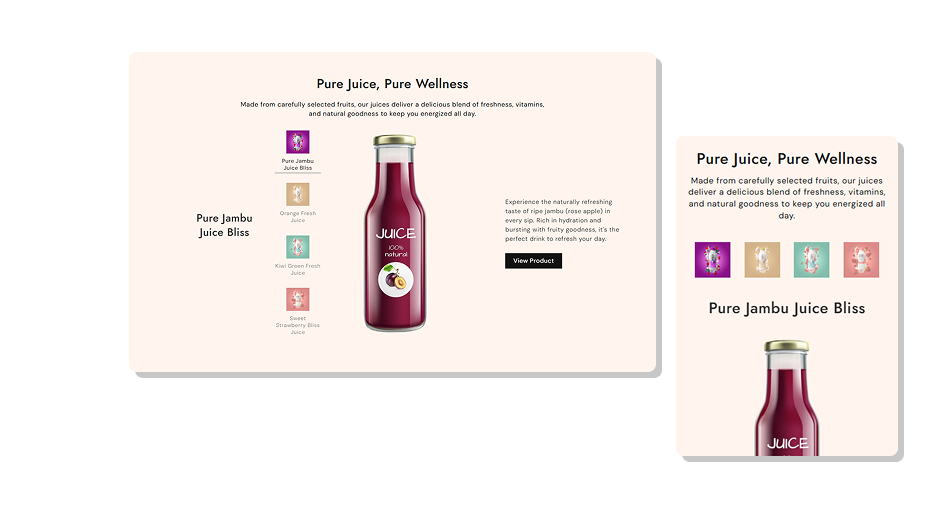
Let shoppers explore a curated product set through quick visual selectors, detailed imagery, supporting content, and direct product links.
Feature several products without creating multiple full-width sections.Make product switching quick with visual thumbnail selectors.Use Shopify product details or custom content when needed.Keep one product in focus instead of displaying everything at once.Customize the visual presentation for each selected product.Maintain a clean and responsive layout across different screen sizes.Guide shoppers directly from product discovery to product detail pages. Use clear thumbnail images that remain readable at small sizes.
Feature only products that naturally belong in the same group.
Keep custom descriptions short and focused on key product details.
Use consistent main image styles across all featured products.
Check every product link and the mobile layout before publishing.
Use clear thumbnail images that remain readable at small sizes.
Feature only products that naturally belong in the same group.
Keep custom descriptions short and focused on key product details.
Use consistent main image styles across all featured products.
Check every product link and the mobile layout before publishing.  Do not fill all five slots if fewer products tell the story better.
Do not use nearly identical thumbnails that are difficult to distinguish.
Do not add long descriptions that overwhelm the product imagery.
Do not mix unrelated products just to fill the selector area.
Do not use generic CTA copy that hides where the link leads.
Do not fill all five slots if fewer products tell the story better.
Do not use nearly identical thumbnails that are difficult to distinguish.
Do not add long descriptions that overwhelm the product imagery.
Do not mix unrelated products just to fill the selector area.
Do not use generic CTA copy that hides where the link leads. You can add up to five Product blocks, giving you a focused selection of products that shoppers can switch between using the visual selector.
Yes. Each block includes a Thumbnail Image and Main Product Image field, allowing you to use custom media for every featured product.
The thumbnail can use the selected product's featured image, while the main product panel can also fall back to the selected product image when no custom image is provided.
Yes. Each block includes custom Product Heading and Product Content fields, giving you control over the copy used for every product presentation.
The CTA links directly to the selected Shopify product page, while the button label is controlled once at the section level.
No. Product List Showcase focuses on product imagery, headings, descriptions, and the product-page CTA rather than displaying price information.
The main product layout stacks vertically on smaller screens, while shoppers can still tap the product thumbnails to switch between the featured products.
For Support or any Questions Email Us: [email protected]
Install SectionHub and add the Product List Showcase section to your theme in minutes - no coding required.
