Create a Focused Featured Product Showcase
Use the product list to highlight best sellers, new arrivals, or priority products with large visuals and supporting content without adding a full product grid.

Present selected products in a clean tabbed list with thumbnails, large imagery, descriptions, and direct links that make product discovery easier across your Shopify store.
 Interactive Product Tabs
Responsive Product List
Mobile Accordion Layout
Interactive Product Tabs
Responsive Product List
Mobile Accordion Layout 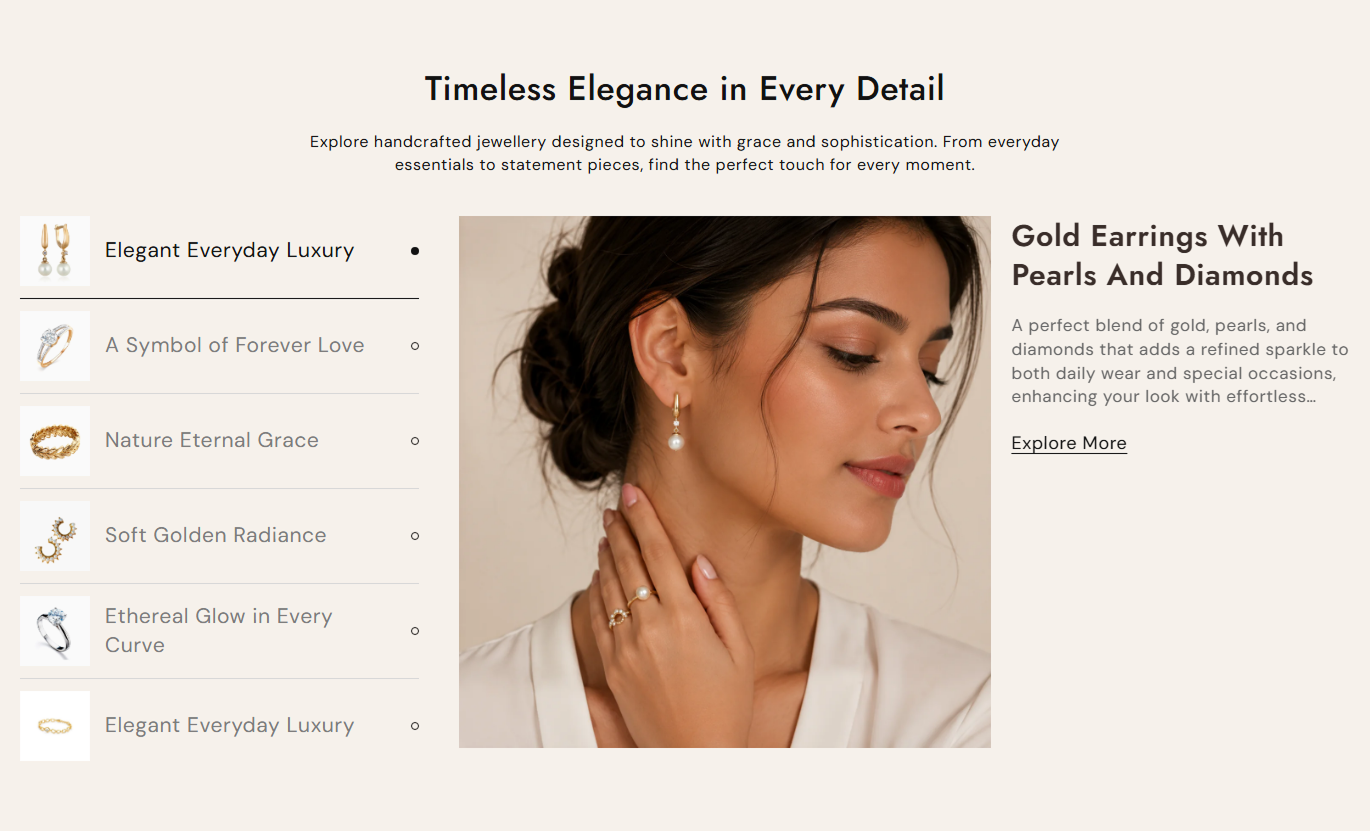
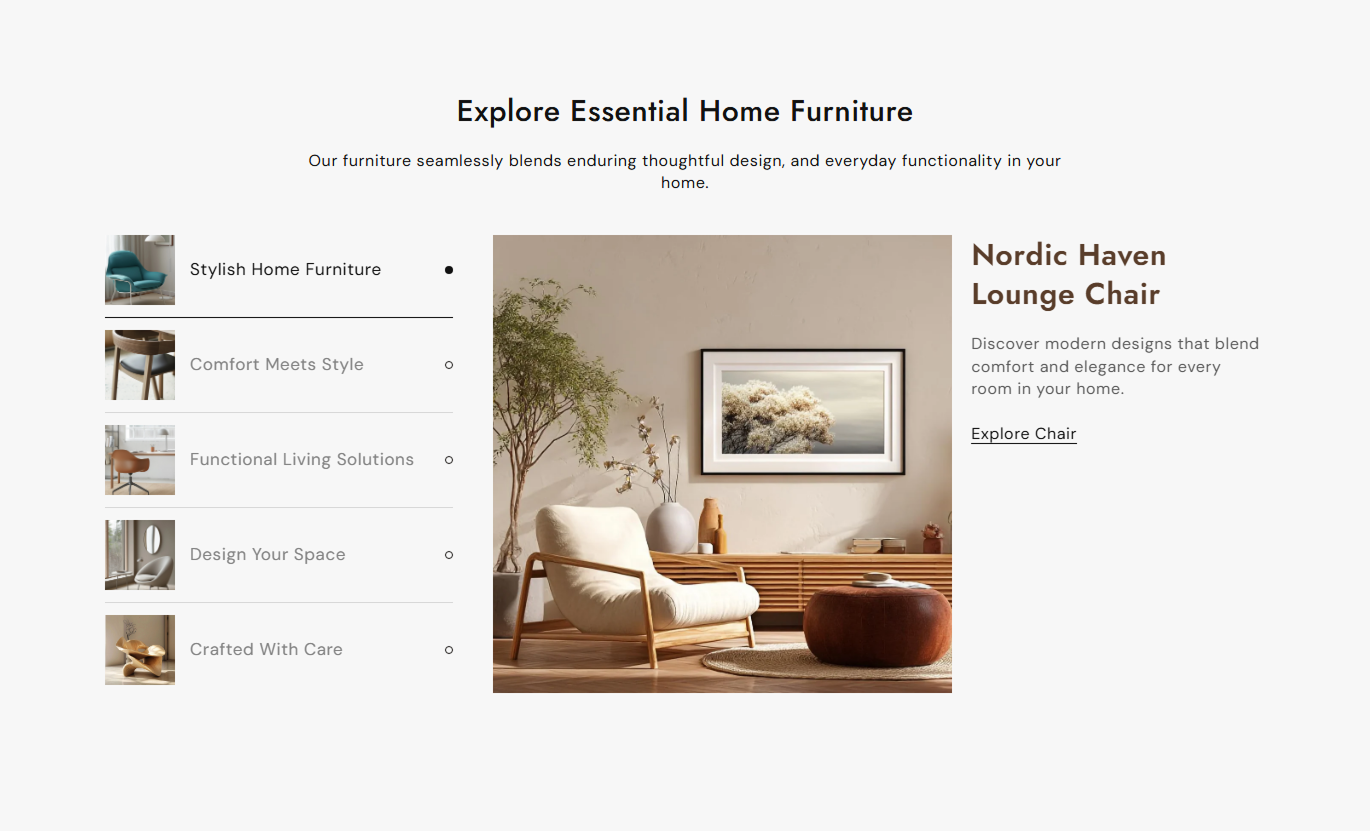


Create a focused product discovery section with clickable tabs, large product visuals, flexible descriptions, direct links, and a responsive mobile accordion.

Show products as selectable list items with thumbnail images, clear titles, and an active state for the currently selected product.

Display a larger image, the product title, a supporting description, and a direct link when shoppers select a product from the list.

Upload a custom content image for each item or automatically use the selected Shopify product's featured image.

Add custom rich text for each product, or leave it blank to automatically display the selected Shopify product description.

Add a custom link label that directs shoppers to the selected product's Shopify product page.

Keep the active product preview sticky on desktop while shoppers browse through the product list beside it.

Turn the product list into expandable accordion items on mobile for a simpler and more space-efficient browsing experience.

Choose small, medium, or large image proportions on desktop, while mobile product images use a square format.
Control section text, image proportions, typography, colors, spacing, width, and individual product tabs directly from the Shopify theme editor.

Applies to the whole section
Add the main heading displayed above the product list.
Section HeadingAdd supporting rich text below the main heading.
Section ContentChoose the alignment of the section heading and supporting content.
Section Text AlignmentChoose small, medium, or large desktop image sizing.
Product Image HeightAdjust heading, tab, content, and link font sizes.
Typography ControlsCustomize section, tab, content, and link colors.
Section Color ControlsSet separate top and bottom spacing for desktop and mobile.
Responsive PaddingMake the section span the available page width.
Full Width LayoutSet a custom maximum width when full-width mode is disabled.
Maximum Section Width
Applies to each product item
Add the selectable product name displayed in the list.
Product Tab TitleAdd the small image displayed beside the tab title.
Thumbnail ImageChoose the Shopify product connected to this item.
Selected ProductUpload a custom preview image or use the selected product image.
Content ImageAdd custom rich text or use the selected product description.
Custom ContentSet the text displayed for the product page link.
Link LabelUse this interactive product list to feature selected items, explain product differences, and guide shoppers to relevant product pages across key store areas.
Use the product list to highlight best sellers, new arrivals, or priority products with large visuals and supporting content without adding a full product grid.
Feature priority products without building a large product gridPair each selected product with a focused visual previewUse thumbnails to make featured items easier to scanAdd helpful context before visitors open product pagesKeep product discovery compact across desktop and mobileFeature selected products from a larger collection giving each item more visual space, supporting information, and a direct path to its product page.
Draw attention to important products inside large collectionsExplain differences between featured products more clearlyUse custom imagery to support specific collection storiesGive shoppers direct links to individual product pagesAdd curated discovery without replacing the main product gridUse the list to present related products, alternatives, or complementary items, with dedicated imagery and supporting context displayed alongside the product shoppers are viewing.
Present relevant alternatives in an easy-to-scan product listShow complementary products with useful supporting detailsUse thumbnails to help shoppers compare related items quicklyLink each recommendation directly to its product pageKeep recommendations organized in a responsive layoutUse a focused list of selected products to support campaigns, launches, or themed edits with strong visuals, descriptions, and direct shopping links.
Feature campaign products without a crowded product gridPair promotional messaging with selected Shopify productsUse custom images to strengthen the landing page storyGuide shoppers directly from content to product pagesKeep product-focused campaigns easy to browse on mobileCreate a cleaner way to feature selected products by combining quick list navigation with larger visuals, supporting copy, and direct access to product pages.
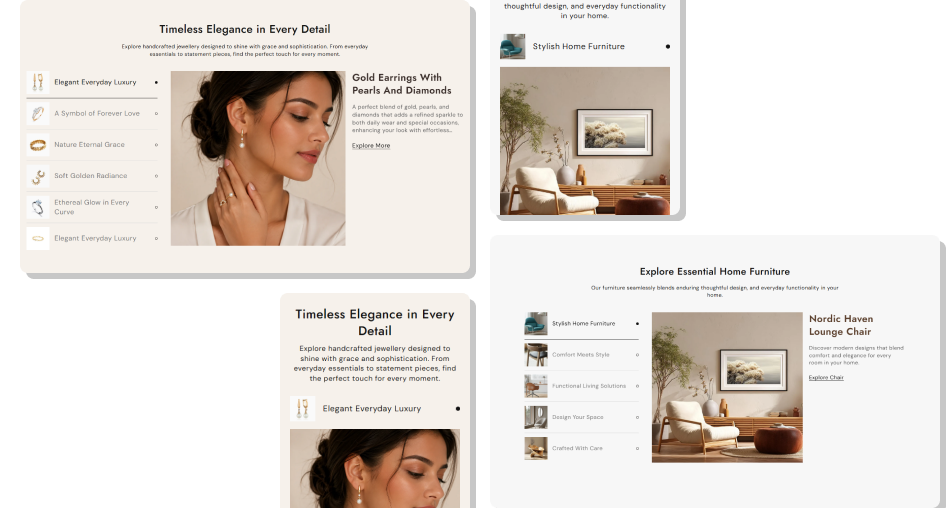
Help shoppers explore selected products with less page clutter by pairing quick tabs with detailed imagery, content, and direct links.
Show more product context without using a dense product gridHelp shoppers switch between featured items with one clickUse custom or product imagery for flexible product storytellingKeep longer product details contained within one focused areaCreate a simpler mobile experience with accordion behaviorLink shoppers directly to the selected Shopify product page Use clear tab titles that identify each featured product.
Choose thumbnail images that remain clear at small sizes.
Use custom content only when it adds useful product context.
Keep the main preview image closely related to the selected product.
Test desktop tabs and mobile accordion behavior before publishing.
Use clear tab titles that identify each featured product.
Choose thumbnail images that remain clear at small sizes.
Use custom content only when it adds useful product context.
Keep the main preview image closely related to the selected product.
Test desktop tabs and mobile accordion behavior before publishing.  Do not use vague tab titles that make products difficult to identify.
Do not upload unrelated images just to fill the preview area.
Do not repeat long product descriptions without editing them.
Do not add link labels that fail to describe the next action.
Do not overcrowd the list with products that lack clear priority.
Do not use vague tab titles that make products difficult to identify.
Do not upload unrelated images just to fill the preview area.
Do not repeat long product descriptions without editing them.
Do not add link labels that fail to describe the next action.
Do not overcrowd the list with products that lack clear priority. Yes. Every Product block includes its own Shopify product selector, so each tab can display and link to a different product page.
Yes. Add a custom content image for the block. If you leave it empty, the section uses the selected product's featured image.
If a product is selected and the custom rich-text field is empty, the section automatically falls back to that product's description.
Yes. Every block has a thumbnail image field for the small image displayed beside its tab title in the product list.
Desktop uses a clickable product list with a separate sticky preview, while mobile turns each item into an expandable accordion section.
Yes. The Product Image Height setting offers Small, Medium, and Large options for desktop. Mobile preview images use a square layout.
No. This section focuses on product imagery, title, description, and a product-page link. It does not display prices or an Add to Cart button.
Yes. The section includes controls for typography, section colors, tab colors, content colors, link colors, desktop and mobile padding, full-width layout, and maximum width.
For Support or any Questions Email Us: [email protected]
Install SectionHub and add the Product List section to your theme in minutes - no coding required.
