Make Your Homepage More Visually Engaging
Use layered images with supporting content to introduce your brand, feature collections, highlight products, or guide visitors to important pages.

Create an engaging two-column layout with layered images, flexible content, animation, and a clear button to highlight products, collections, brands, or campaigns.
 2.0 Compatible
Interactive Animation
Responsive Design
2.0 Compatible
Interactive Animation
Responsive Design 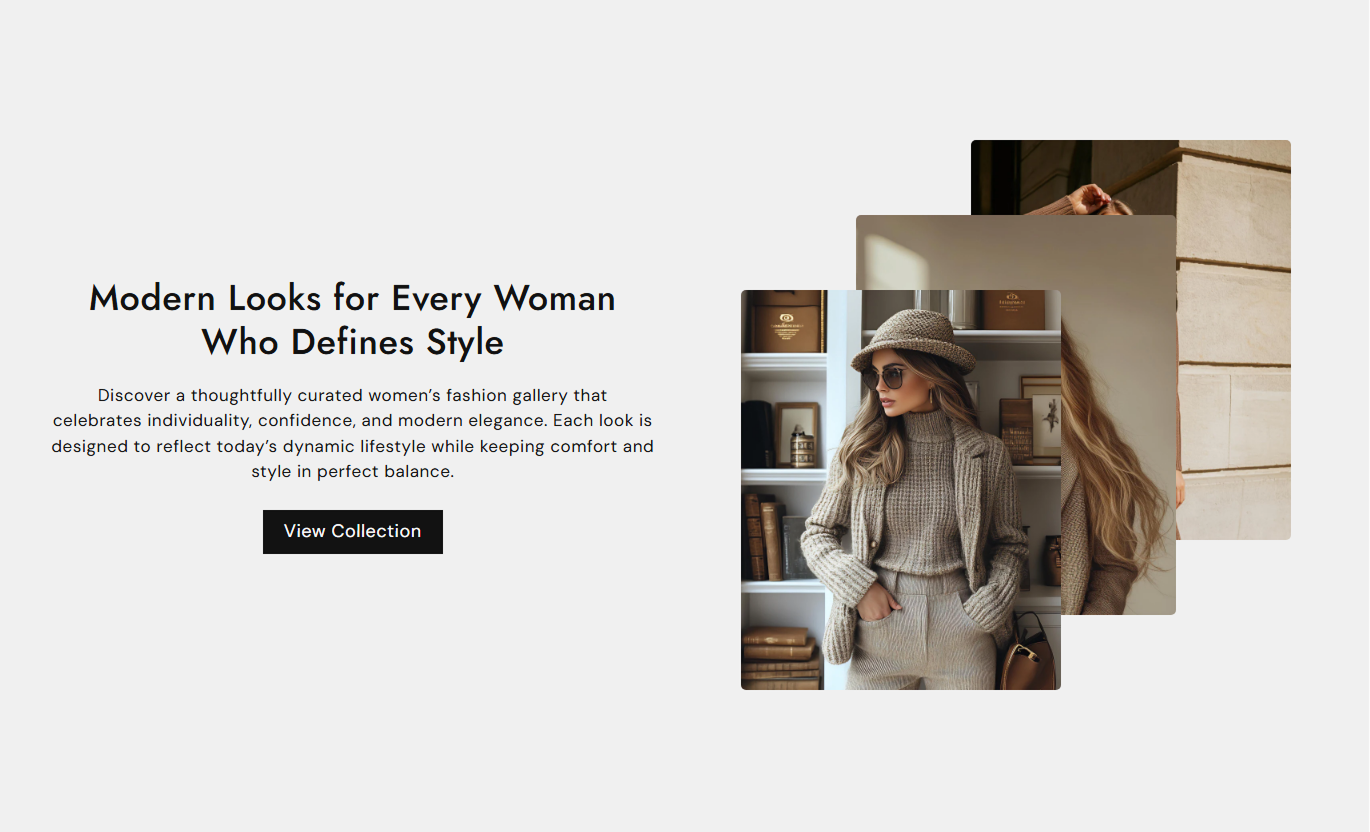
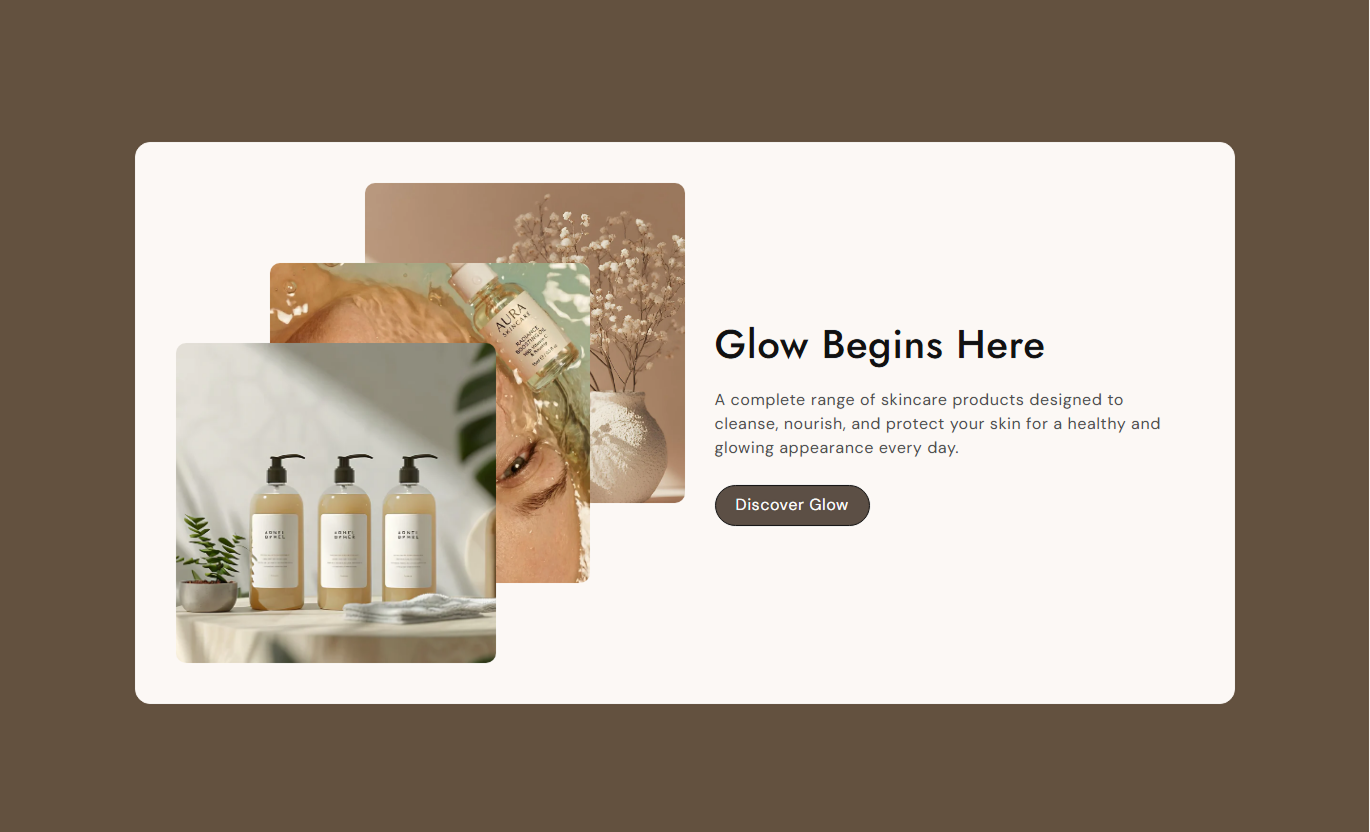


Combine text, layered images, animation, and buttons in a flexible layout designed to make important store content more visual and engaging.

Show up to three images in an overlapping arrangement for added visual depth.

Add subtle image movement that responds to the visitor's mouse position.

Place the image group on the left or right side of the content.

Add a button with your own label and destination link.

Choose small, medium, or large image proportions for the layout.

Adjust image border radius to match your store design.

Use a smooth reveal animation when the image content appears.

Content and images stack neatly on smaller screens for mobile visitors.
Control the content, images, animation, button, colors, spacing, and layout from the Shopify theme editor.

Applies to the whole section
Main heading displayed beside the images.
HeadingSupporting text shown below the main heading.
ContentText alignment used for the content area.
Text AlignmentLabel displayed on the call-to-action button.
Button LabelPage or destination linked to the button.
Button LinkChoose a filled or outline button style.
Use Outline ButtonSet the button corner roundness.
Border RadiusSet the button text size on the desktop.
Button SizeSet the content container corner roundness.
Container Border RadiusSet spacing inside the content container.
Container PaddingChoose where the image group appears.
Media PositionChoose the image height and proportions.
Image HeightSet the image corner roundness.
Image Border RadiusEnable or disable mouse-based image movement.
Enable AnimationSet the section background color.
Background ColorSet the content container background.
Container BackgroundSet the section heading color.
Heading ColorSet the supporting content color.
Content ColorSet the desktop section spacing.
Desktop PaddingSet the mobile section spacing.
Mobile PaddingSet the maximum width of the section.
Section Width
Applies to the layered image area
First image displayed in the image group.
Image 1Second image displayed in the center.
Image 2Third image displayed in the image group.
Image 3Use layered images and focused content to highlight products, collections, brand stories, campaigns, or important store messages.
Use layered images with supporting content to introduce your brand, feature collections, highlight products, or guide visitors to important pages.
Create a strong visual sectionHighlight featured productsIntroduce your brand storyGuide visitors with a CTAUse the section to introduce a collection, highlight its key features, or direct shoppers toward a featured product or related page.
Introduce collectionsHighlight featured itemsAdd supporting informationImprove collection discoveryCombine multiple product images with useful content to highlight product details, benefits, materials, or related shopping information.
Add more product visualsHighlight key product detailsSupport product storytellingLink to related contentUse layered visuals and focused messaging to support promotions, launches, campaigns, or other important landing page content.
Capture visitor attentionSupport campaign messagingHighlight important offersAdd a clear CTACombine multiple images with useful content and subtle movement to create a section that feels more dynamic without overwhelming the page.
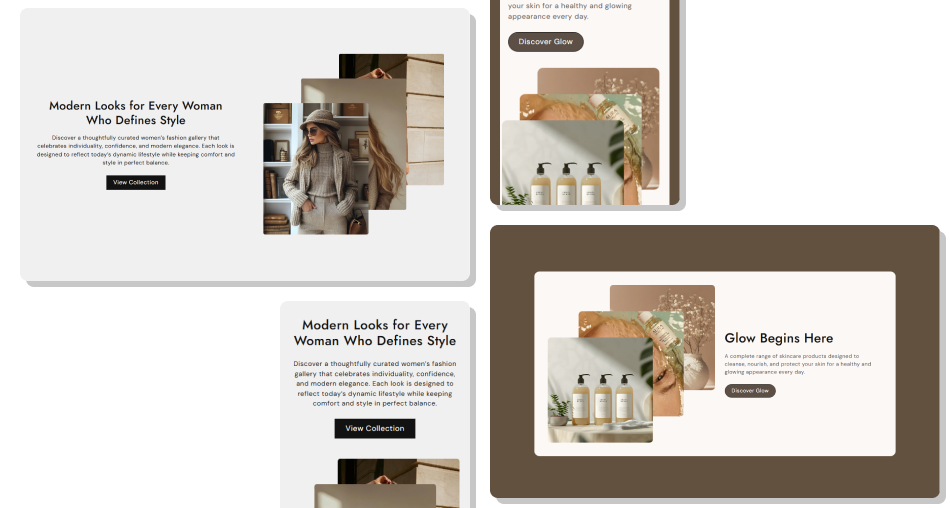
Showcase layered images alongside focused content and a clear CTA, with subtle animation that adds depth to your Shopify storefront.
Display up to three layered imagesAdd subtle mouse-based image movementChoose image placement on either sideAdd a custom CTA buttonControl image height and proportionsAdjust image corner radiusCustomize colors, padding, and stylingKeep the layout responsive across devices Use related images that tell one story
Choose clear and useful supporting content
Keep the CTA short and relevant
Use consistent image styles
Enable animation when it supports the design
Use related images that tell one story
Choose clear and useful supporting content
Keep the CTA short and relevant
Use consistent image styles
Enable animation when it supports the design  Use unrelated images together
Add too much text beside the visuals
Use vague button labels
Mix heavily different image styles
Overuse animation on a busy layout
Use unrelated images together
Add too much text beside the visuals
Use vague button labels
Mix heavily different image styles
Overuse animation on a busy layout Yes. You can add up to three images to create a layered visual arrangement.
Yes. Enable the Animation setting to add a subtle mouse-based parallax effect on desktop.
Yes. You can turn off Enable Animation if you prefer a static image layout.
Yes. Use the Media Position setting to place the image group on the left or right.
Yes. Add a button label and link to create a clear call to action below the content.
Yes. Enable Use Outline Button to switch the button to an outline style.
Yes. Choose from Small, Medium, or Large image height options.
Yes. The content and image area stack vertically on smaller screens for a mobile-friendly layout.
Yes. Use the Border Radius setting to adjust the roundness of the images.
Yes. You can change the section background, content background, heading, content, and button colors.
For Support or any Questions Email Us: [email protected]
Install SectionHub and add the Parallax Content section to your theme in minutes - no coding required.
