Tell Your Brand Story on the Homepage
Add your brand journey to the homepage and give visitors a simple way to explore important milestones through images, content, and timeline navigation.

Tell your brand story through images, meaningful content, and timeline years. Help shoppers explore key moments and understand how your brand has grown over time.
 Visual Brand Story
Timeline Navigation
Responsive Slider
Visual Brand Story
Timeline Navigation
Responsive Slider 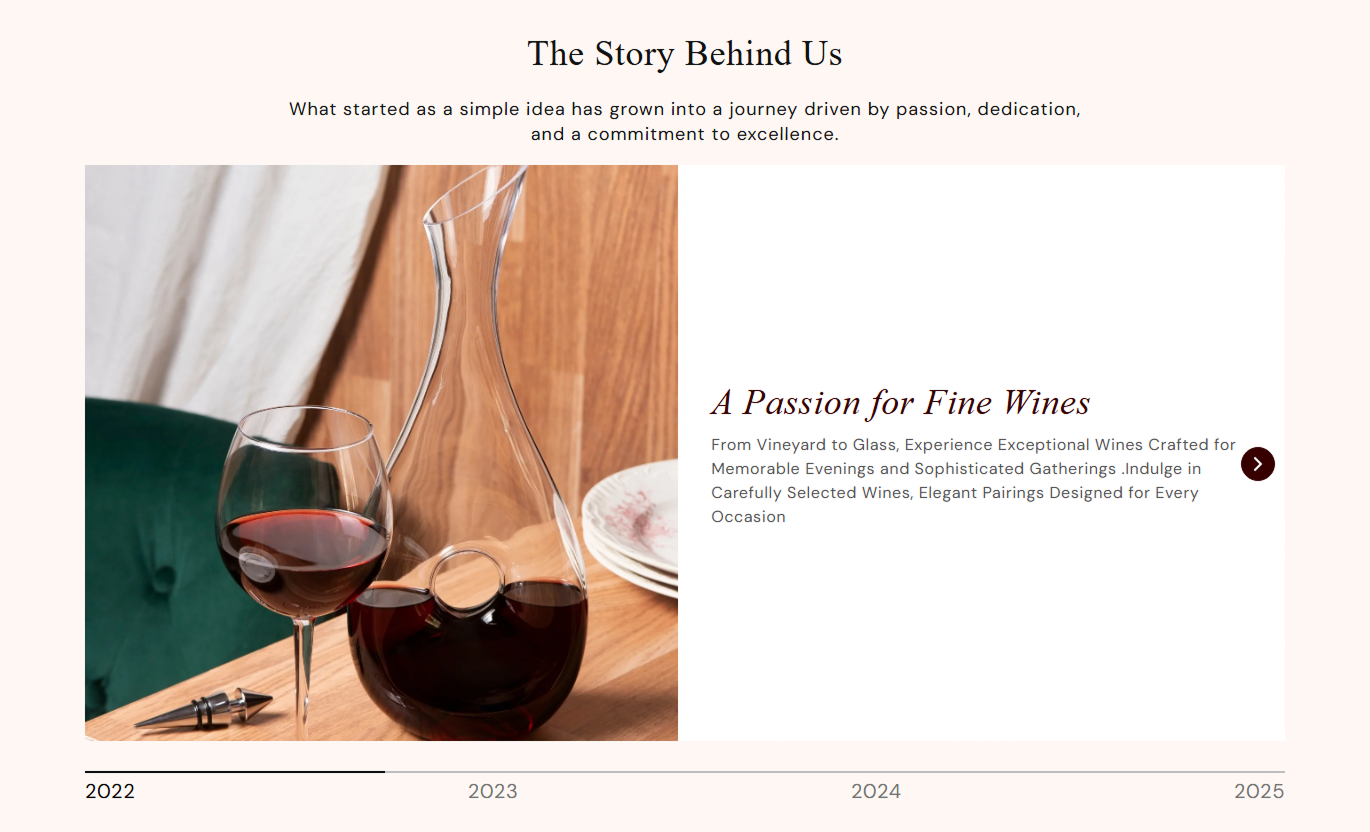
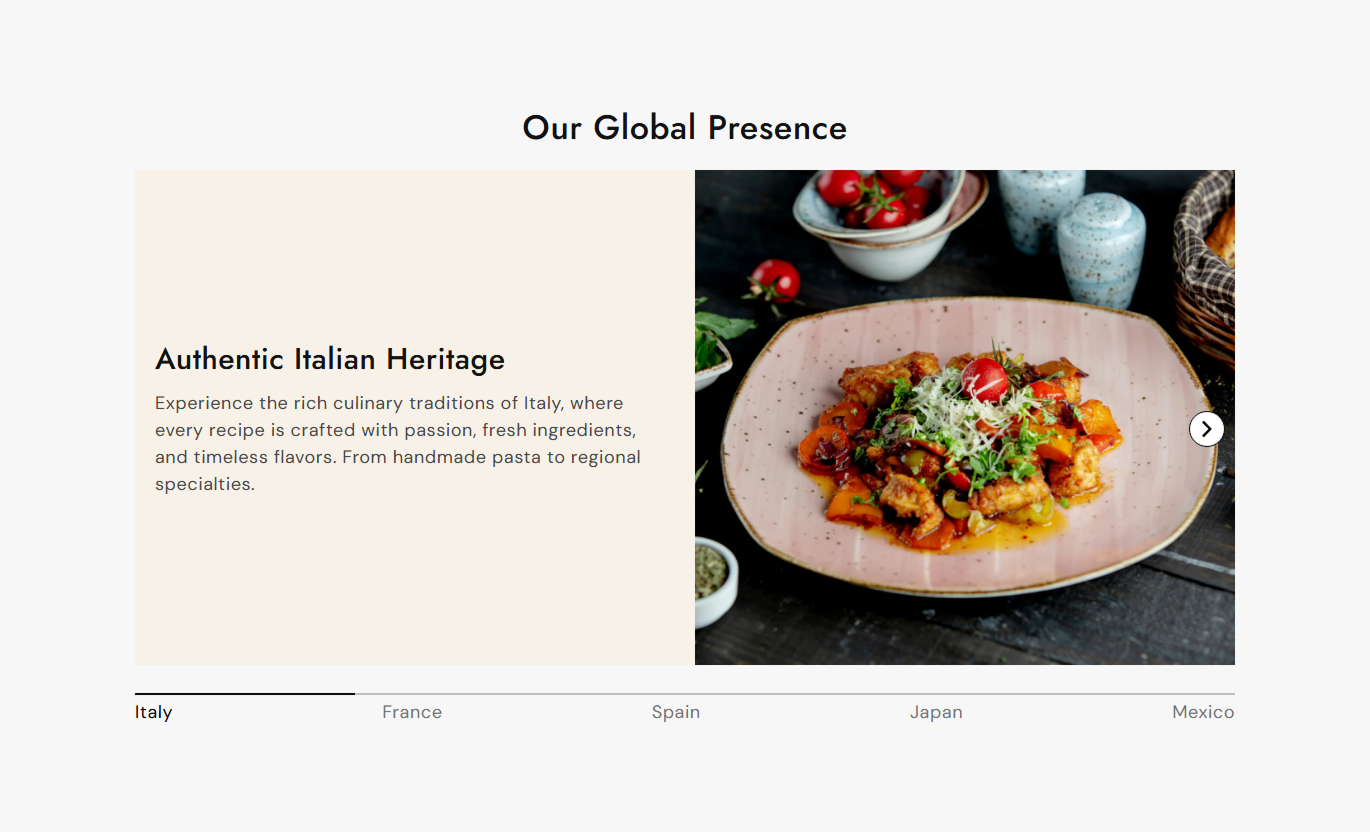


Create an engaging story timeline with images, text, years, slider navigation, flexible layouts, and responsive controls for your Shopify store.

Present important brand moments as individual slides that shoppers can easily navigate.

Add years to your story slides so shoppers can jump directly to specific moments.

Add a dedicated image to each story slide to make important brand moments more visual.

Add a heading and supporting content to explain each milestone or stage of your journey.

Place the story image on the left or right side of the content on the desktop.

Let shoppers move between story slides using clear previous and next controls.

Show a progress bar so shoppers can understand where they are within the story.

The story layout adapts for smaller screens, keeping images and content easy to view.
Customize story content, images, timeline, typography, colors, spacing, and layout from the Shopify theme editor.

Applies to the whole section
Add the main story section heading.
HeadingAdd supporting text below the heading.
ContentChoose the main heading alignment.
Text AlignmentChoose the story image height.
Image HeightSet the main heading font size.
Heading Font SizeSet the supporting content font size.
Content Font SizeSet the story slide heading size.
Story Heading SizeSet the story description text size.
Story Content SizeCustomize the section and story colors.
Color SettingsSet the progress indicator color.
Progress ColorCustomize the timeline year styling.
Timeline ColorsAdjust desktop and mobile section spacing.
Section PaddingChoose full width or a maximum section width.
Section Width
Applies to each story slide
Add an image for the story milestone.
ImageAdd the milestone heading.
HeadingAdd supporting story content.
ContentChoose the image position on the desktop.
Image PositionChoose the story text alignment.
Text AlignmentAdd the year shown in the timeline.
Timeline TextUse the Our Story Slider to share your brand journey, milestones, history, and key moments across pages where shoppers can learn more about your business.
Add your brand journey to the homepage and give visitors a simple way to explore important milestones through images, content, and timeline navigation.
Introduce your brand journey to new visitorsHighlight important moments visuallyBuild a stronger brand connectionMake your homepage more personalShare milestones without long page copyUse the story slider alongside collection content to share the ideas, history, or milestones behind your products and give shoppers more brand context.
Add meaningful brand contextConnect collections with your storyGive shoppers more background informationMake collection pages more engagingStrengthen your brand presentationPlace the story slider near product content when your brand history, craftsmanship, or milestones can help shoppers better understand what makes your products special.
Explain the story behind your productsAdd depth to product page contentHighlight important brand milestonesBuild stronger brand familiaritySupport more informed shoppingUse the timeline slider on landing pages to present your brand journey in a focused visual format that supports campaigns, launches, and brand storytelling.
Create focused brand storytellingHighlight key milestones in sequenceAdd visual depth to landing pagesSupport campaign storytellingKeep visitors exploring your journeyTurn your brand history into a visual timeline that lets shoppers explore important moments through images, short stories, and year-based navigation.
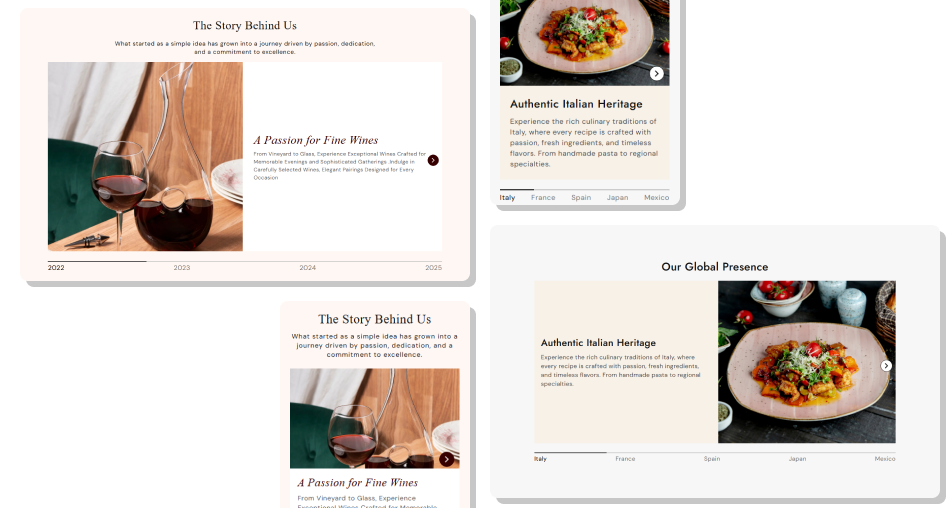
Give shoppers a clearer view of your journey by combining meaningful content, images, and timeline navigation into a single section.
Share important brand milestonesMake your story more visualOrganize moments by yearCreate a more personal store experienceLet shoppers explore your journey easilyPresent story content in a clean layout Use meaningful milestones from your brand journey.
Choose images that support each story.
Keep story descriptions short and clear.
Use years to organize important moments.
Keep your timeline easy to follow.
Use meaningful milestones from your brand journey.
Choose images that support each story.
Keep story descriptions short and clear.
Use years to organize important moments.
Keep your timeline easy to follow.  Don't add unnecessary milestones.
Don't use unrelated images.
Don't write overly long story descriptions.
Don't repeat the same information.
Don't make the timeline difficult to understand.
Don't add unnecessary milestones.
Don't use unrelated images.
Don't write overly long story descriptions.
Don't repeat the same information.
Don't make the timeline difficult to understand. Yes. Add multiple Story slide blocks to create a timeline with different images, headings, content, and years.
Yes. Each story block includes Timeline Text, displayed as a clickable year on the timeline.
Yes. Shoppers can select a timeline year to move directly to its corresponding story slide.
Yes. On the desktop, each story slide can display its image on either the left or right side of the content.
Yes. Choose Small, Medium, Large, or Auto to control how the story images are displayed.
Yes. You can control the main section alignment and also set text alignment for individual story slides.
Yes. The layout changes for smaller screens so the image and story content are displayed in a mobile-friendly format.
Yes. The section includes controls for story text, timeline colors, progress color, arrows, background, and other visual elements.
For Support or any Questions Email Us: [email protected]
Install SectionHub and add the Our Story Slider section to your theme in minutes - no coding required.
