Introduce Your Services at a Glance
Use the service cards on your homepage to quickly explain your main services, business capabilities, customer benefits, or key offerings with a clear visual presentation.

Showcase your services, features, or business offerings in organized cards with custom icons, supporting content, flexible columns, and responsive Shopify layouts.
 Service Card Layout
Custom Service Icons
Responsive Design
Service Card Layout
Custom Service Icons
Responsive Design 
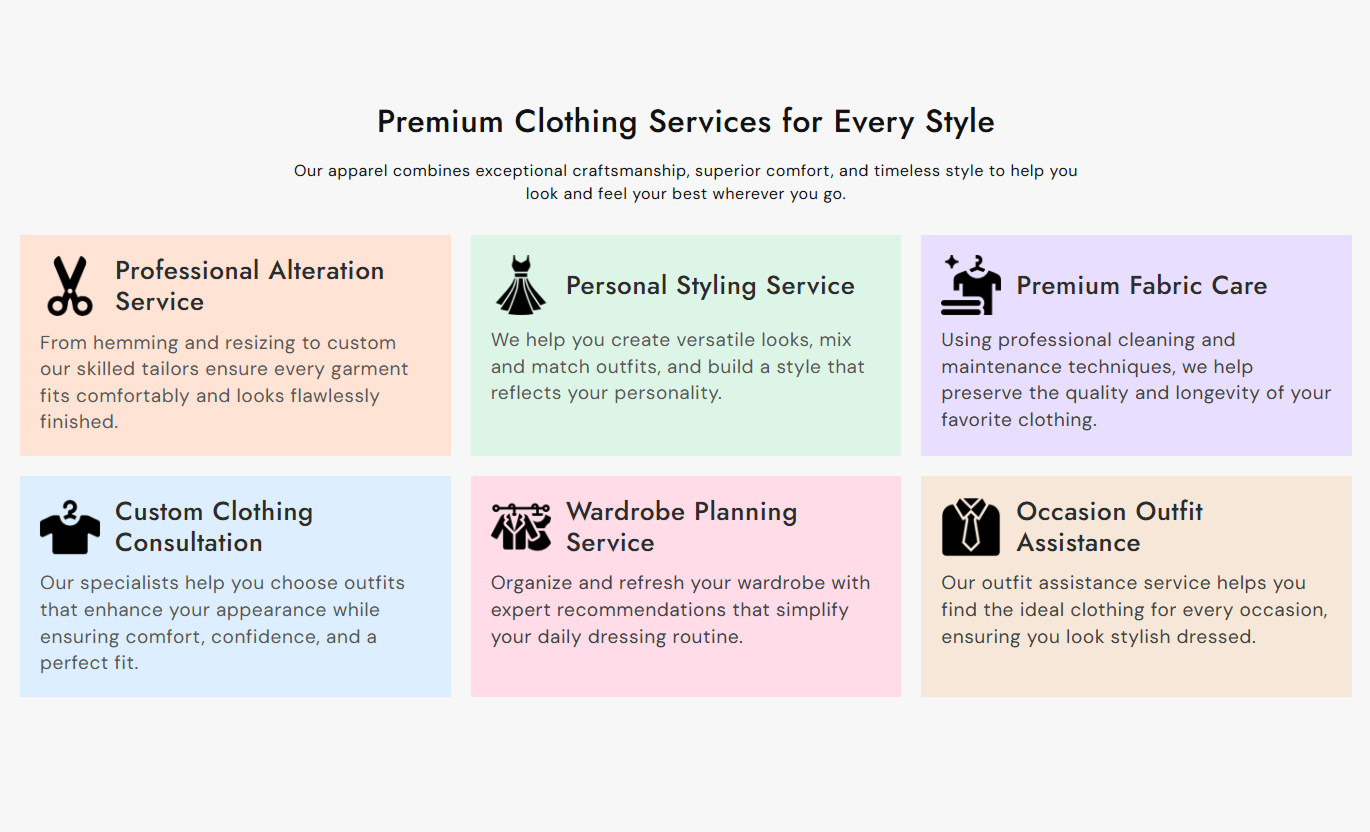


Create a structured service section with custom icons, headings, rich text, individual card colors, responsive columns, and flexible spacing controls.

Add an image icon to each service card to visually represent the service, feature, benefit, or offering being presented.

Add up to eight individual service cards to present multiple services, capabilities, customer benefits, or business offerings in one section.

Add formatted supporting content below each service heading to explain what the service includes and provide useful details.

Choose between 2, 3, or 4 cards per row on the desktop to control the density and visual structure of the service layout.

Service cards automatically stack into a single-column layout on smaller screens, giving every service enough space for comfortable reading.

Customize the background, heading color, and content color for each service card to create visual separation and match your brand styling.

Adjust the service icon size from the theme editor to control its visual prominence within each card.

Control the gap between service cards and adjust the card corner radius to create the spacing and shape that best fits your storefront.
Control service content, card layout, icons, typography, colors, spacing, responsive behavior, and section width from the Shopify theme editor.

Applies to the whole section
Add the main heading displayed above the service cards.
Section HeadingAdd supporting rich text below the main heading.
Section ContentChoose the alignment of the main heading and supporting content.
Content AlignmentChoose how many service cards appear per row on the desktop.
Desktop ColumnsSet the alignment used for content inside each service card.
Card Content AlignmentControl the displayed size of service card icons.
Icon SizeSet the spacing between individual service cards.
Card GapAdjust the corner radius applied to each service card.
Card Border RadiusControl heading and content font sizes for the section and service cards.
Typography SettingsSet the top and bottom spacing for desktop and mobile screens.
Section PaddingChoose whether the section spans the available page width or uses a maximum width.
Section Width
Applies to each service card
Add an image used as the service card icon.
IconAdd the service, feature, or offering title.
HeadingAdd formatted supporting information below the service title.
ContentChoose the individual background color of the service card.
Background ColorChoose the heading color used inside the service card.
Heading ColorChoose the supporting content color used inside the service card.
Content ColorUse service cards to explain business offerings, highlight customer benefits, organize capabilities, or present supporting services across important Shopify pages.
Use the service cards on your homepage to quickly explain your main services, business capabilities, customer benefits, or key offerings with a clear visual presentation.
Present your main services in one organized sectionUse icons to give each service a clear visual identityExplain each offering with concise supporting contentChoose multiple desktop columns for a compact layoutGive every service its own visual color treatmentUse service cards to explain collection-specific benefits, customization options, delivery services, shopping support, or other information relevant to the products being displayed.
Explain useful shopping services near collection of productsHighlight customization or customer support optionsPresent collection-specific information without adding complexityUse icons to make each service easier to identifyKeep supporting service information separate from the product gridPlace service cards around product content to explain delivery, customization, warranty, support, care, installation, or other customer-focused services connected with your products.
Explain important services alongside product informationHighlight support and customization options clearlyGive different customer benefits their own dedicated cardsUse icons to make service information easier to scanKeep supporting service details visually organizedUse service cards to organize key services, capabilities, features, or customer benefits for agencies, businesses, professional services, campaigns, or service-focused landing pages.
Organize multiple services into one focused sectionGive every offering its own visual presentationUse rich text to explain each service in more detailMaintain a consistent card structure across the sectionUse custom card colors to support brand or campaign stylingPresent multiple services or business offerings in a clear card layout that combines icons, headings, rich text, custom colors, and responsive presentation.
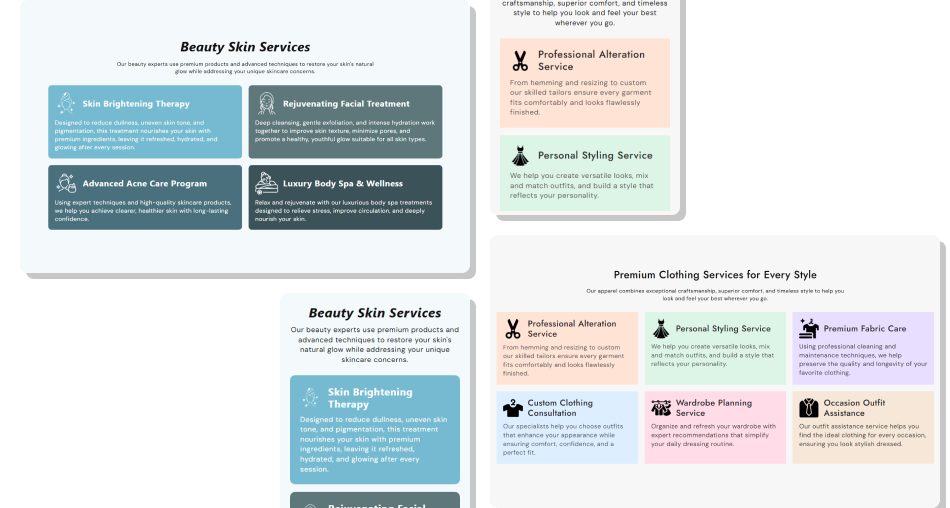
Give every service its own visual card so visitors can quickly understand what you offer and find the information that matters to them.
Present up to eight services in one organized sectionUse custom icons to visually distinguish each serviceAdd detailed supporting content without complex layoutsChoose two, three, or four desktop columns for flexible presentationUse individual card colors to create visual separationKeep service cards readable with a dedicated mobile layoutControl spacing, typography, and section width to fit your theme Use simple icons that clearly represent each service
Keep service headings short and easy to scan
Explain each offering with useful supporting content
Use card colors that maintain a strong text contrast
Group related services together within the same section
Use simple icons that clearly represent each service
Keep service headings short and easy to scan
Explain each offering with useful supporting content
Use card colors that maintain a strong text contrast
Group related services together within the same section  Don't use icons that have no clear connection to the service
Don't write long headings that make cards difficult to scan
Don't fill cards with unnecessary or repetitive information
Don't choose background colors that reduce text readability
Don't mix unrelated services without a clear purpose
Don't use icons that have no clear connection to the service
Don't write long headings that make cards difficult to scan
Don't fill cards with unnecessary or repetitive information
Don't choose background colors that reduce text readability
Don't mix unrelated services without a clear purpose You can add up to eight service card blocks. Each card can have its own icon, heading, rich text content, background color, heading color, and content color.
Yes. Each service card includes an Icon setting where you can add an image representing the service, feature, benefit, or offering.
Yes. The Desktop Columns setting lets you display 2, 3, or 4 service cards per row on desktop screens.
On smaller screens, the service cards switch to a single-column layout with responsive spacing and sizing so each service remains easy to read and explore.
Yes. Each service card has its own Background Color setting, allowing you to give individual services different visual treatments.
Yes. The Card Content Alignment setting lets you control how the icon, heading, and supporting content are positioned inside the service cards.
Yes. You can adjust the Card Gap to control the space between cards and the Card Border Radius to control how rounded the card corners appear.
Yes. Typography settings let you adjust the heading and supporting content sizes to create a clear hierarchy across the section.
Yes. The section can also be used to present product benefits, business capabilities, customer advantages, store features, or other grouped information that works well in individual visual cards.
For Support or any Questions Email Us: [email protected]
Install SectionHub and add the Our Services Grid section to your theme in minutes - no coding required.
