Introduce Your Services With Interactive Visual Cards
Use Our Services Cards on your homepage to present key services, brand capabilities, support options, or customer benefits with a sticky intro and engaging image cards.

Present services with a sticky intro, expanding image cards, desktop hover effects, mobile tap activation, optional CTAs, custom overlays, and responsive styling.
 Sticky Service Intro
Hover-Reveal Service Cards
Mobile Tap Interaction
Sticky Service Intro
Hover-Reveal Service Cards
Mobile Tap Interaction 

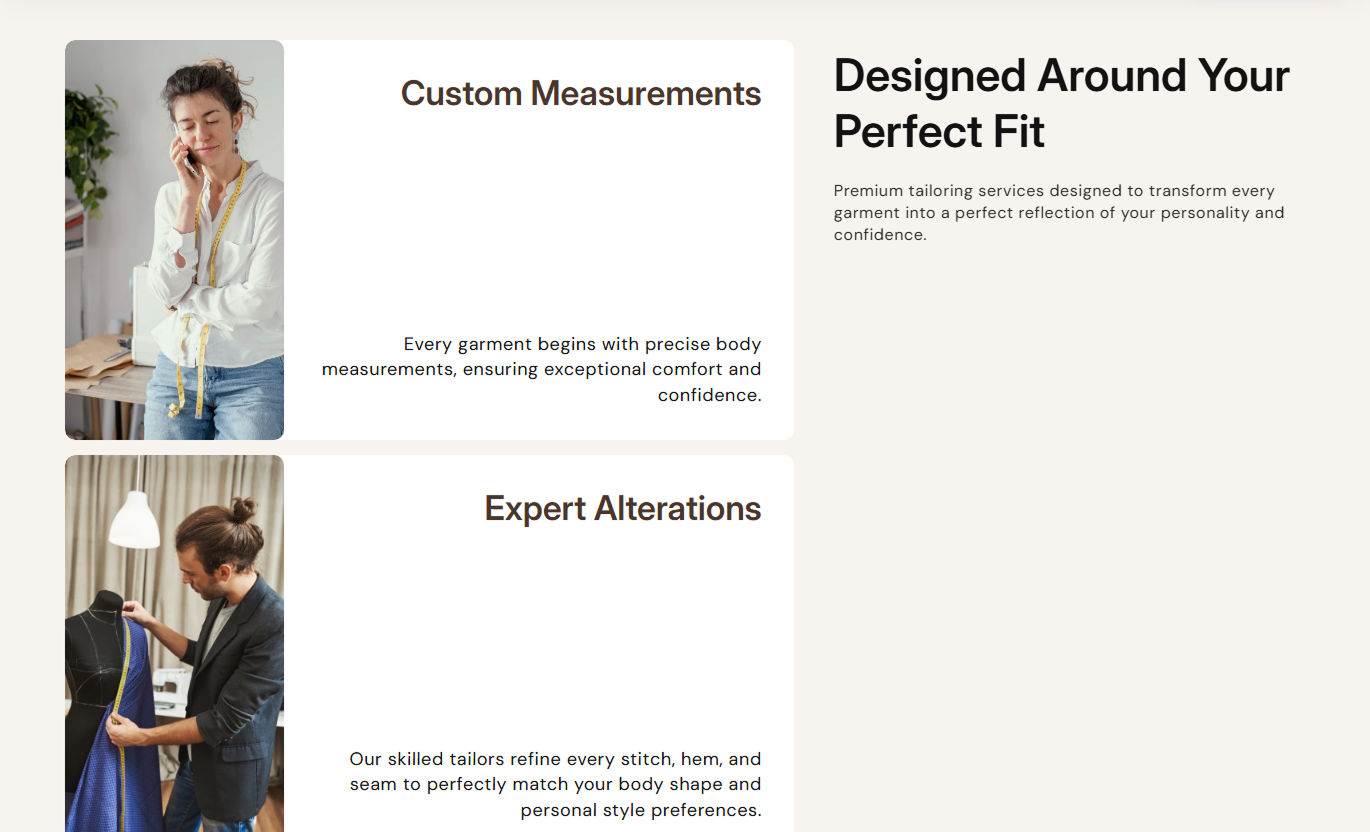


Show services with sticky introductory content, expanding image cards, hover or tap interactions, optional CTAs, responsive layouts, and custom styling.

Keep the section heading and supporting text visible in a sticky desktop column while shoppers explore service cards.

On desktop hover, the service image expands across the card, and the alternate text content and the CTA become visible.

On screens below 768px, tapping a service card activates its expanded image state and reveals the hover content.

Show a linked button only when both its label and destination are provided, keeping incomplete CTAs hidden.

Apply a configurable overlay color and opacity across the expanded service image to improve text readability.

Place the service-card column on the left or right side of the sticky intro, and choose the image placement within each card.

Control section and service-card text alignment separately for desktop and mobile presentation.

Customize each service card's text, hover text, button, arrow, border, hover, and shadow colors independently.
Control service layout, card interactions, typography, colors, spacing, width, content, and optional CTA styling.

Applies to the whole section
Edit the section heading, rich text, and responsive alignment.
Heading & ContentPlace the service-card column on the left or right side.
Card Column PositionSet card radius, overlay color, opacity, and image side.
Card Interaction StyleAdjust button radius, desktop size, and card text alignment.
Button & AlignmentSet heading, content, service title, and description sizes.
Typography ControlsCustomize section background and card background colors.
Section Color StyleSet separate desktop and mobile top and bottom padding.
Responsive SpacingUse full width or define a contained maximum section width.
Section Width Setup
Applies to each service block
Upload the image displayed inside this service card.
Service ImageAdd the service heading and supporting rich text.
Service ContentSet the button label and destination link for this service.
Service CTACustomize normal and hover text colors for this card.
Text Color StyleStyle button, arrow, border, hover, and shadow colors.
Button Color StyleUse this interactive services section across key Shopify pages to explain offerings, benefits, support options, or brand capabilities with visual card interactions.
Use Our Services Cards on your homepage to present key services, brand capabilities, support options, or customer benefits with a sticky intro and engaging image cards.
Keep the service context visible with the sticky desktop introUse hover expansion to add visual depth to each serviceLink individual services to detailed destination pagesUse short descriptions to explain each offering clearlySwitch to tap-based service activation on mobile screensPlace the section on collection templates to explain shopping support, customization, delivery options, category benefits, or services related to the products being browsed.
Explain service benefits alongside collection browsingPromote delivery, support, or customization options clearlyUse visual cards without changing the collection gridLink shoppers to detailed service or support pagesKeep mobile interactions simple with tap activationUse the section on product pages to explain installation, personalization, delivery, care, support, or other services that help shoppers feel confident before buying.
Explain services that support the product purchase journeyShow installation, delivery, care, or support optionsUse images to make service information easier to scanLink each service to a relevant detailed resourceKeep important service content readable on mobileUse Our Services Cards on landing pages to present consulting, support, delivery, setup, or campaign-specific services with visual storytelling and optional destination CTAs.
Present multiple services inside one structured sectionUse strong imagery to differentiate each service offeringGuide visitors to dedicated pages with optional CTAsCustomize colors to match campaign or brand stylingAdapt desktop hover behavior into mobile tap interactionTurn service information into an interactive visual experience with sticky context, expanding imagery, responsive activation, and flexible card-level styling.
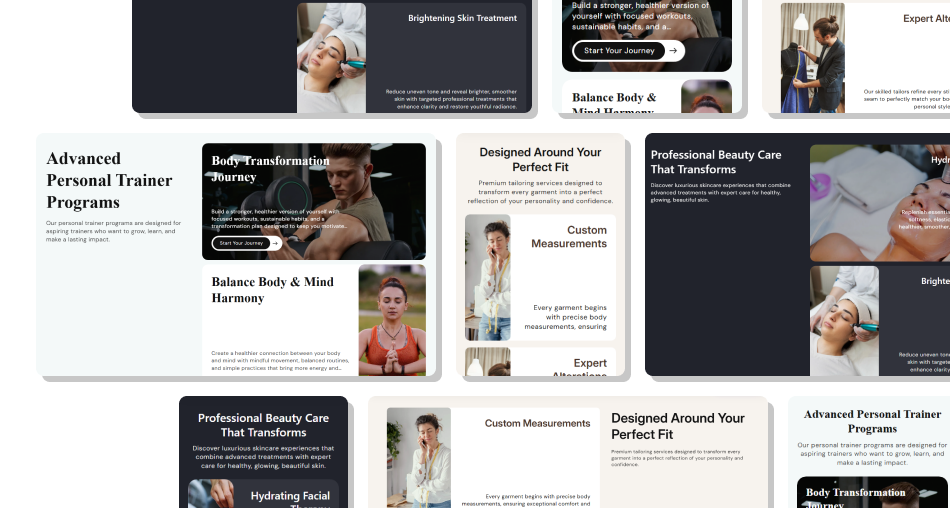
Combine sticky context, expanding image cards, responsive interaction, and optional CTAs to make services easier to explore.
Keep introductory service context visible while cards are exploredTurn static service cards into responsive visual interactionsReveal alternate card content and CTAs only in the active stateUse separate desktop hover and mobile tap interaction patternsControl service images, overlays, typography, and alignmentCustomize individual card text and button colors independentlyPlace the service-card column on either side of the sticky intro Use one clear service topic for each individual content card
Choose images that still read well under the hover overlay
Keep headings concise so they stay within the two-line clamp
Add CTA links only when there is a useful destination page
Test desktop hover and mobile tap interactions before launch
Use one clear service topic for each individual content card
Choose images that still read well under the hover overlay
Keep headings concise so they stay within the two-line clamp
Add CTA links only when there is a useful destination page
Test desktop hover and mobile tap interactions before launch  Do not overload service cards with long descriptive copy
Do not use low-contrast text colors over expanded images
Do not add unrelated imagery that weakens service clarity
Do not rely on hover alone for essential mobile information
Do not leave CTA labels active without valid destination links
Do not overload service cards with long descriptive copy
Do not use low-contrast text colors over expanded images
Do not add unrelated imagery that weakens service clarity
Do not rely on hover alone for essential mobile information
Do not leave CTA labels active without valid destination links From 768px upward, hovering a service card expands its image to full width, applies the overlay, hides the default copy, and reveals the hover content.
Below 768px, the sticky layout is removed. Tapping an inactive service card marks it active, expands its image, and reveals the alternate content.
No. The script activates a tapped card only if it is not already active, so tapping the active card again does not toggle it closed.
The CTA renders only when both the button label and button link are provided for that service block, preventing partially configured buttons.
Yes. The Image Position setting places the image on the left or right, while the service-card column itself can also sit left or right of the intro.
Yes. Every block includes normal and hover text colors plus detailed button, arrow, border, hover, inner background, and shadow colors.
The section shows a neutral placeholder image, so the service card still keeps its visual structure when no custom image has been uploaded.
No. The schema disables this section in Shopify header or footer groups, so add it only to supported page-template section areas.
For Support or any Questions Email Us: [email protected]
Install SectionHub and add the Our Services Cards section to your theme in minutes - no coding required.
