Show Core Services in a Clean Interactive List
Use Our Services Accordion List on your homepage to introduce your main services, support options, or brand capabilities in a compact numbered list that expands on demand.

Present services in numbered expandable rows with hover or click interaction, rotating imagery, reveal-on-demand descriptions, linked arrows, and responsive styling.
 Expandable Service Rows
Hover or Click Interaction
Linked Service Arrows
Expandable Service Rows
Hover or Click Interaction
Linked Service Arrows 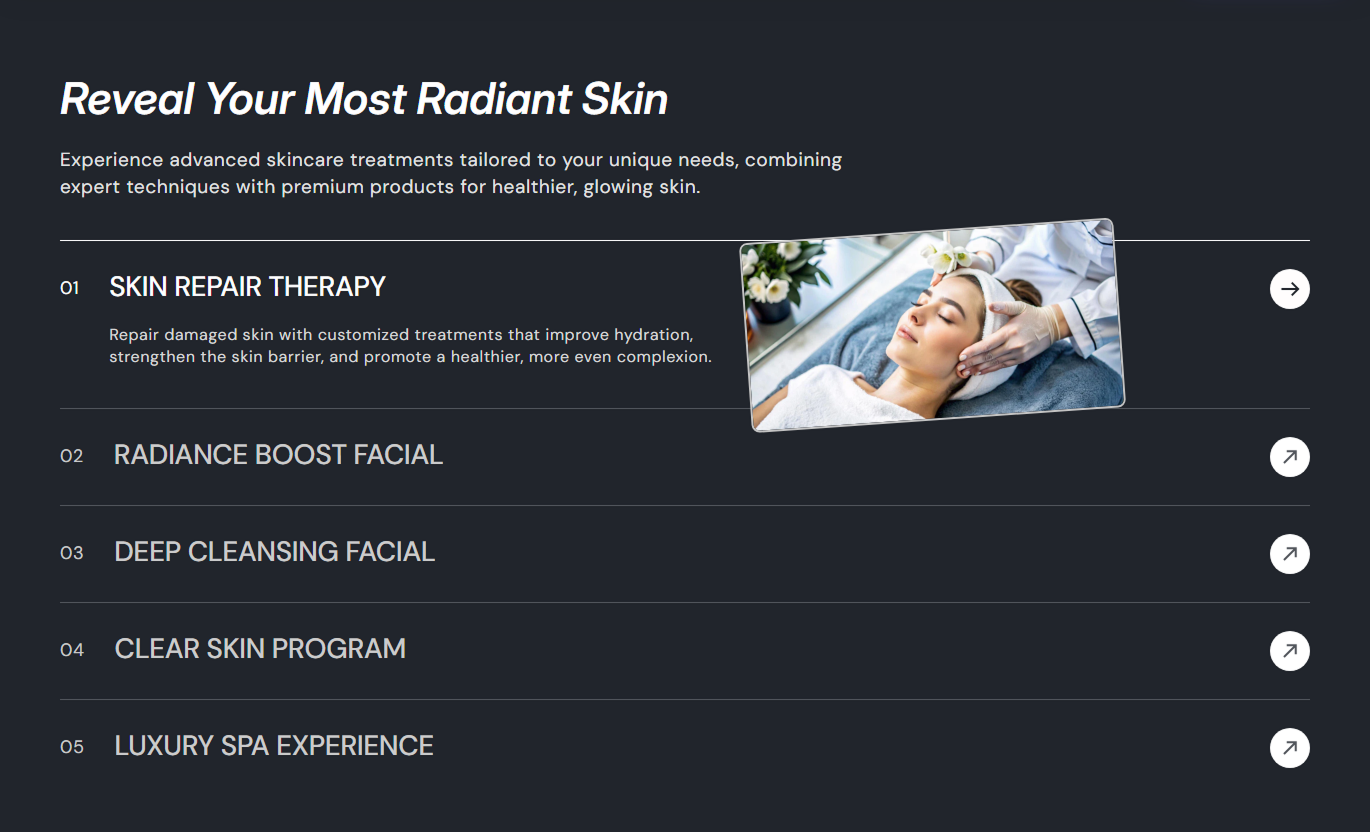
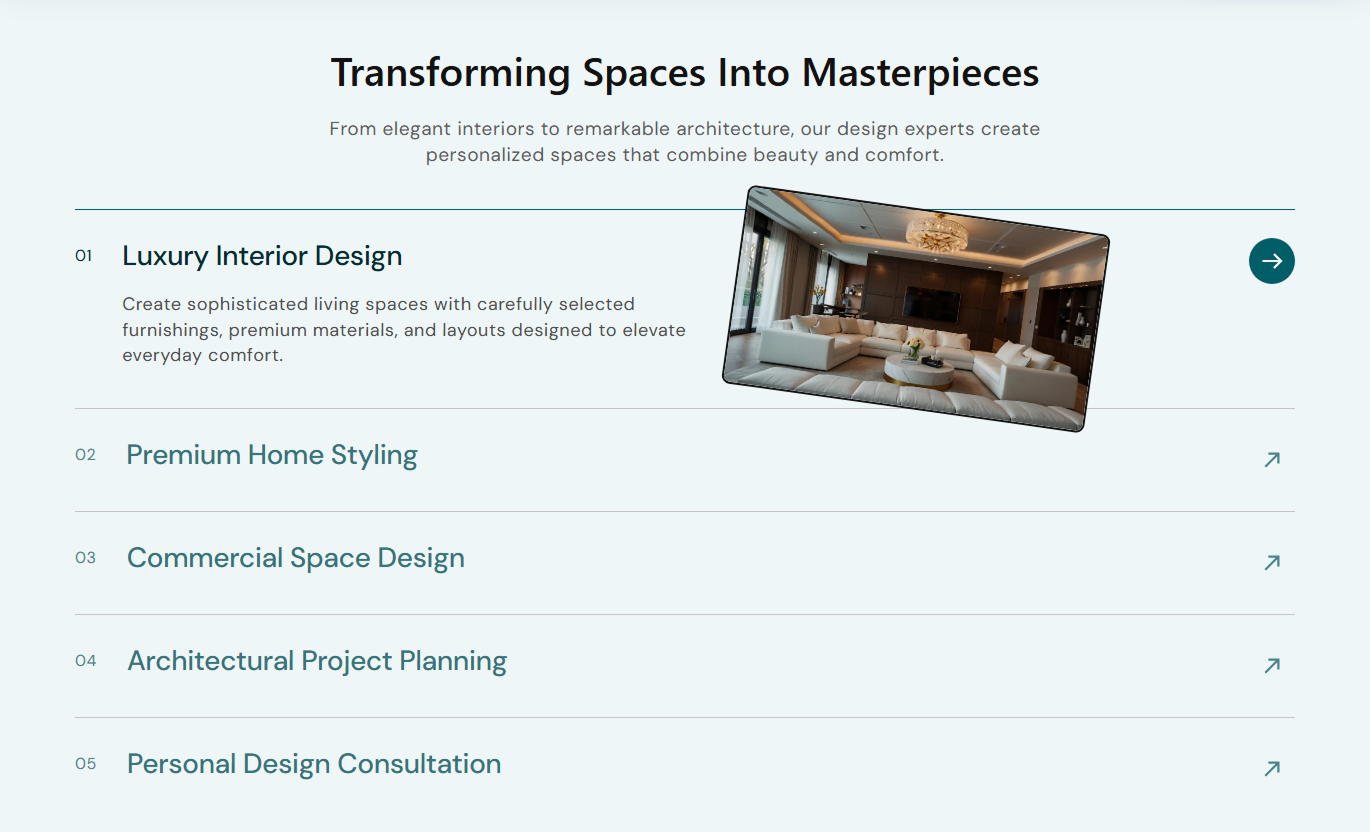


Present services in numbered rows with hover or click reveals, responsive imagery, expandable descriptions, link arrows, and flexible styling controls.

Choose whether service details, imagery, active colors, and arrow states appear on mouse hover or after a click or tap.

When Click mode is selected, you can automatically load the first valid service row in its expanded, active state.

Each rendered service receives an automatic two-digit sequence number, helping visitors quickly scan multiple offerings.

Reveal the service description only in the active state, keeping the default list compact and easy to browse.

Show rotated desktop imagery beside the active row, then switch to an inline 16:9 image layout below 992px.

Add an optional arrow link to each service row, with configurable icon size, normal colors, and active colors.

Control image rotation, border radius, and border color to create a more editorial service presentation.

Customize typography, colors, row borders, spacing, alignment, width, and responsive padding from section settings.
Control interaction mode, service imagery, typography, colors, arrows, spacing, alignment, width, and row behavior.

Applies to the whole section
Edit the section heading, rich text, and responsive alignment.
Heading & ContentChoose Hover or Click to reveal service details and imagery.
Interaction ControlsOptionally open the first valid row when Click mode is used.
First Row BehaviorAdjust service image radius, rotation, and border color.
Service Image StyleSet heading, content, number, and service text sizes.
Typography ControlsCustomize section, service, active, border, and arrow colors.
Color Style ControlsSet arrow size plus normal and active arrow appearance.
Arrow Style ControlsSet desktop and mobile top and bottom section padding.
Responsive SpacingUse full width or define a custom maximum content width.
Section Width Setup
Applies to each service block
Upload the image revealed for this service item.
Service ImageAdd the service heading shown in the numbered row.
Service HeadingAdd the expandable service description text.
Service ContentSet the destination to the one opened by the service arrow.
Service LinkUse this expandable services section across Shopify pages to explain offerings, support options, processes, or benefits without overwhelming the page.
Use Our Services Accordion List on your homepage to introduce your main services, support options, or brand capabilities in a compact numbered list that expands on demand.
Keep the default view clean while detailed descriptions stay hiddenLet shoppers explore services through hover or click interactionsUse numbered rows to make several offerings easier to scanAdd linked arrows for visitors who want deeper service detailsUse service imagery to add visual context to each offeringPlace the section near collection content to explain delivery, customization, sourcing, support, or other services connected to the products shoppers are browsing.
Explain collection-related services without changing the product gridKeep supporting details compact until shoppers choose a rowUse linked arrows to guide visitors to detailed informationShow service imagery only when a row becomes activeMatch borders, colors, and typography to the collection designUse the section on product pages to explain installation, delivery, personalization, care, warranties, or support in a compact interactive format.
Present purchase-support services without adding a long text blockReveal detailed descriptions only when shoppers need themUse optional links for guides, support pages, or service detailsShow related imagery alongside the active service informationKeep the interaction usable across desktop and smaller screensUse Our Services Accordion List on landing pages to explain consulting, setup, delivery, workflow stages, or campaign services in an organized expandable presentation.
Turn several service topics into one structured interactive sectionUse Click mode when visitors should intentionally open each rowUse Hover mode for faster desktop exploration of service detailsAdd destination links for booking, contact, or deeper informationStyle imagery and row borders to match the campaign directionTurn a long service list into a compact interactive section with expandable descriptions, active imagery, numbered rows, and flexible hover or click behavior.
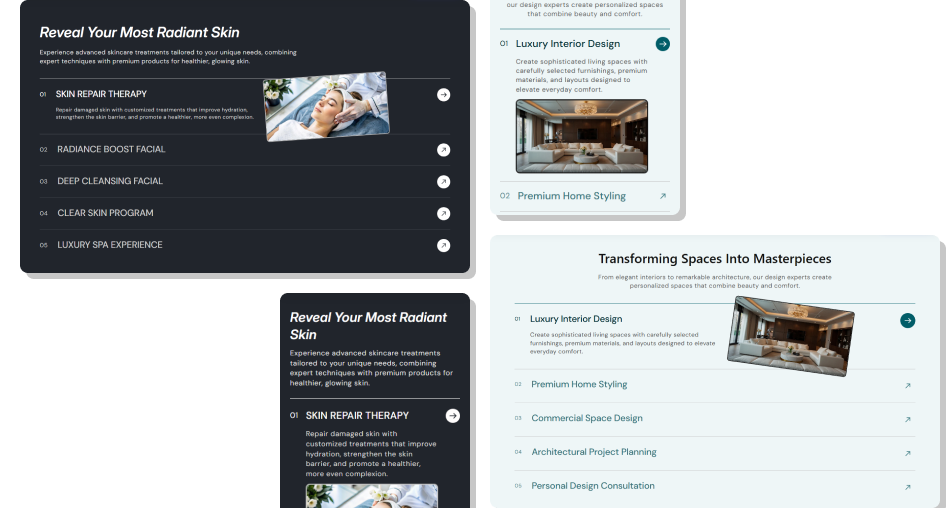
Combine numbered rows, expandable content, responsive imagery, and optional links to make service information easier to explore.
Keep multiple service topics organized inside one compact listLet merchants choose between hover and click interaction behaviorStart the first service open automatically when Click mode is usedAdd responsive imagery that changes placement on smaller screensUse automatic numbering to make long service lists easier to scanAdd optional links without forcing every service row to navigateCustomize active borders, text colors, arrows, and image styling Use short service titles that remain easy to scan in a list
Choose images that still look clear when rotated on desktop
Use Click mode when visitors need deliberate accordion control
Add links only when a useful destination exists for that service
Test the active image and description behavior across screen sizes
Use short service titles that remain easy to scan in a list
Choose images that still look clear when rotated on desktop
Use Click mode when visitors need deliberate accordion control
Add links only when a useful destination exists for that service
Test the active image and description behavior across screen sizes  Do not overload expandable descriptions with long paragraphs
Do not use highly rotated images that become difficult to read
Do not rely on Hover mode for interactions that require certainty
Do not add empty service headings because those rows will not render
Do not make every row link to the same unrelated destination
Do not overload expandable descriptions with long paragraphs
Do not use highly rotated images that become difficult to read
Do not rely on Hover mode for interactions that require certainty
Do not add empty service headings because those rows will not render
Do not make every row link to the same unrelated destination Yes. The section setting lets you reveal service content and imagery either on hover or via click-and-tap activation.
Yes. Enable Open First Collapsible Row to make the first rendered service start active when Click mode is selected.
Yes. Clicking the currently active row removes its active state, while clicking another row closes the first and opens the new one.
That block is skipped entirely because Liquid renders service rows only when the block's Heading field is not blank.
Below 992px, the separate desktop image is hidden, and the image is placed within the expandable content in a horizontal 16:9 layout.
No. The arrow link is rendered only when a Link is provided, so service rows can serve as expandable information without navigation.
Yes. Image Rotation Angle supports values from -20 to 20 degrees, while smaller screens automatically remove the rotation.
No. The schema disables the section in Shopify header and footer groups, so use it inside supported page-template section areas.
For Support or any Questions Email Us: [email protected]
Install SectionHub and add the Our Services Accordion List section to your theme in minutes - no coding required.
