Grow Subscribers From Your Main Storefront
Use the floating signup trigger on your homepage to invite visitors into a focused newsletter popup without replacing hero, collection, or promotional content.

Add a floating newsletter trigger that opens a customizable sign-up pop-up with an image, an email form, success messaging, flexible placement, and fully responsive styling.
 Floating Signup Button
Custom Newsletter Popup
Responsive Email Form
Floating Signup Button
Custom Newsletter Popup
Responsive Email Form 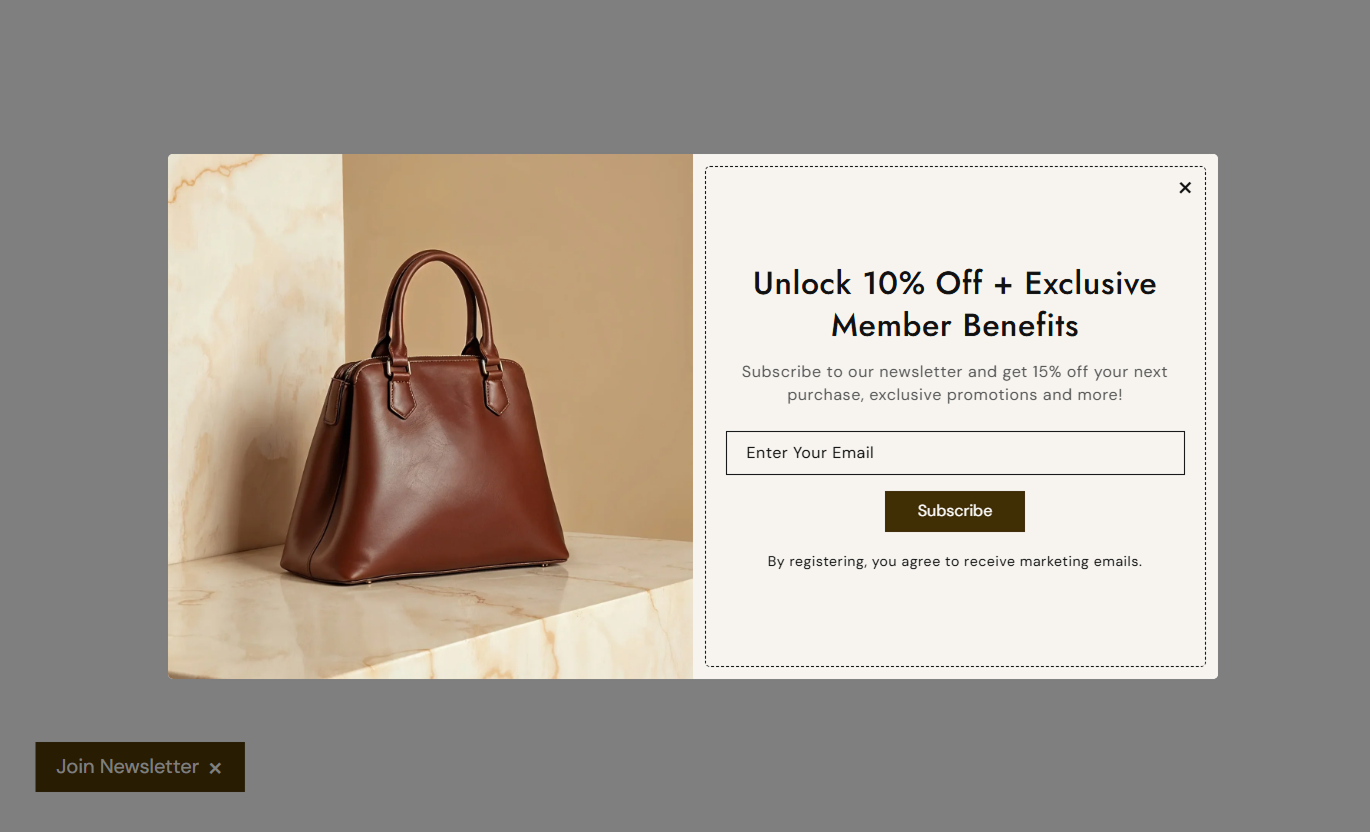


Build a flexible newsletter signup experience with a floating trigger, image-supported pop-up, Shopify customer form, custom messages, and responsive styling.

Use a fixed button that shoppers can click at any time to open the signup pop-up without taking up permanent space in the page layout.

Place the popup at top, middle, or bottom positions aligned left, center, or right across the storefront viewport.

Collect newsletter emails through Shopify's customer form with a newsletter tag, required email field, and validation feedback.

Add a popup image and choose whether it appears on the left or right beside the signup content on larger screens.

Show a custom success message after signup and display Shopify email form errors when submission details are invalid.

Set separate horizontal and vertical positions for the floating newsletter trigger on smaller screens.

Customize floating and submit buttons with colors, borders, radii, hover states, shadows, and outline treatments.

Stack image and content vertically on mobile, resize the form controls, and use a full-width submit button for easier tapping.
Control the floating trigger, popup layout, signup form, image placement, typography, colors, and responsive positions.

Applies to the whole section
Set the fixed button label and trigger position.
Floating TriggerChoose separate trigger coordinates for mobile screens.
Mobile Trigger PositionSet popup width, screen placement, and outer radius.
Popup Layout ControlsUpload an image and place it left or right of content.
Popup Image LayoutEdit popup heading, rich text, and content alignment.
Popup Content SetupEnable the Shopify email form and edit field text.
Newsletter FormSet success copy and optional supporting form notes.
Form Message SettingsStyle submit button, outline mode, radius, and size.
Submit Button StyleAdjust popup, input, note, and close text sizing.
Typography ControlsCustomize popup, form, floating, and submit colors.
Color Style ControlsUse the newsletter popup across Shopify storefront pages to collect email signups via a floating trigger without taking up permanent space in the main layout.
Use the floating signup trigger on your homepage to invite visitors into a focused newsletter popup without replacing hero, collection, or promotional content.
Collect emails without occupying permanent homepage spaceKeep the signup offer available while shoppers continue browsingUse an image and offer message to explain subscription valuePosition the popup trigger away from important homepage actionsGive visitors a clear way to close or dismiss the experienceUse the popup across collection pages to promote newsletter benefits while visitors compare products, explore categories, or discover seasonal ranges.
Keep signup access available beside ongoing product discoveryPromote exclusive updates without changing the collection gridUse flexible trigger placement around filters and navigationShow a focused email form only after the shopper opens itMatch popup styling with collection and campaign brandingUse the popup on product pages to collect emails from interested shoppers while keeping the main product gallery, details, and purchase actions unobstructed.
Collect subscriber interest without changing product contentKeep the form separate from core product purchase controlsUse incentives or member benefits to support email signupPosition the floating trigger away from sticky purchase toolsLet shoppers dismiss the trigger or close the popup easilyUse the newsletter popup on landing pages to support launches, seasonal campaigns, lead generation, or member offers without adding another permanent form section.
Add optional email capture without expanding page lengthPair campaign imagery with a focused subscription messageUse custom popup placement to suit different campaign layoutsShow extra consent or marketing information below the formCustomize colors and buttons to match campaign stylingUse a floating newsletter trigger and focused popup to collect subscriber emails while keeping the storefront layout clean, flexible, and easy to browse.
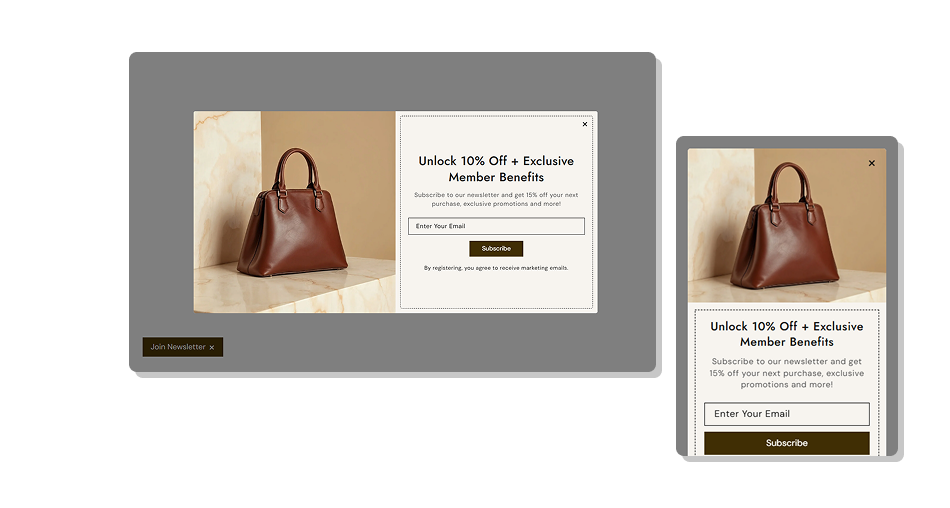
Combine an offer, image, email field, submit button, and note inside a focused popup that opens only when shoppers choose.
Keep newsletter signup accessible without adding a permanent page formCollect subscriber emails through Shopify's customer formPosition the popup in nine different areas of the viewportControl floating button placement separately on mobileAdd an image beside the newsletter content on larger screensShow custom success messaging after a completed signupMatch popup, input, and button styling to your storefront Use a clear benefit or incentive in the popup heading and copy
Keep the email form simple so signup requires minimal effort
Place the floating trigger away from cart, chat, and sticky tools
Use an image that supports the newsletter offer without distraction
Test popup placement, closing, and submission on mobile devices
Use a clear benefit or incentive in the popup heading and copy
Keep the email form simple so signup requires minimal effort
Place the floating trigger away from cart, chat, and sticky tools
Use an image that supports the newsletter offer without distraction
Test popup placement, closing, and submission on mobile devices  Do not make the popup copy longer than shoppers need to read
Do not place the floating trigger over important page controls
Do not hide essential consent or marketing information from users
Do not use weak color contrast for form fields or submit buttons
Do not make the signup offer difficult to dismiss or close
Do not make the popup copy longer than shoppers need to read
Do not place the floating trigger over important page controls
Do not hide essential consent or marketing information from users
Do not use weak color contrast for form fields or submit buttons
Do not make the signup offer difficult to dismiss or close The fixed trigger button opens the newsletter overlay and temporarily prevents page scrolling until the popup is closed.
Yes. You can place it in nine positions: top, middle, or bottom combined with left, center, or right alignment.
Yes. It submits via Shopify's customer form, tags the contact as a newsletter subscriber, and requires a valid email address.
Yes. The Success Message setting lets you define the confirmation text shown after Shopify reports a successful submission.
Yes. On larger screens the image can appear on the left or right. On mobile, the layout automatically stacks vertically.
Yes. Separate horizontal and vertical percentage controls for mobile let you reposition the floating newsletter button on smaller screens.
They can close the popup with its close icon or by clicking the overlay. The floating trigger also has an × control that hides it.
Yes. The Enable Form setting can hide the email field, submit button, success messaging, errors, and extra form information.
For Support or any Questions Email Us: [email protected]
Install SectionHub and add the Newsletter Popup section to your theme in minutes - no coding required.
