Showcase Your Best Videos
Use multiple videos to introduce your brand, products, launches, or customer-focused content.

Display multiple videos in a responsive slider with autoplay, navigation arrows, custom controls, and flexible layouts. Showcase products, tutorials, stories, or brand content.
 2.0 Compatible
Video Slider
Responsive Layout
2.0 Compatible
Video Slider
Responsive Layout 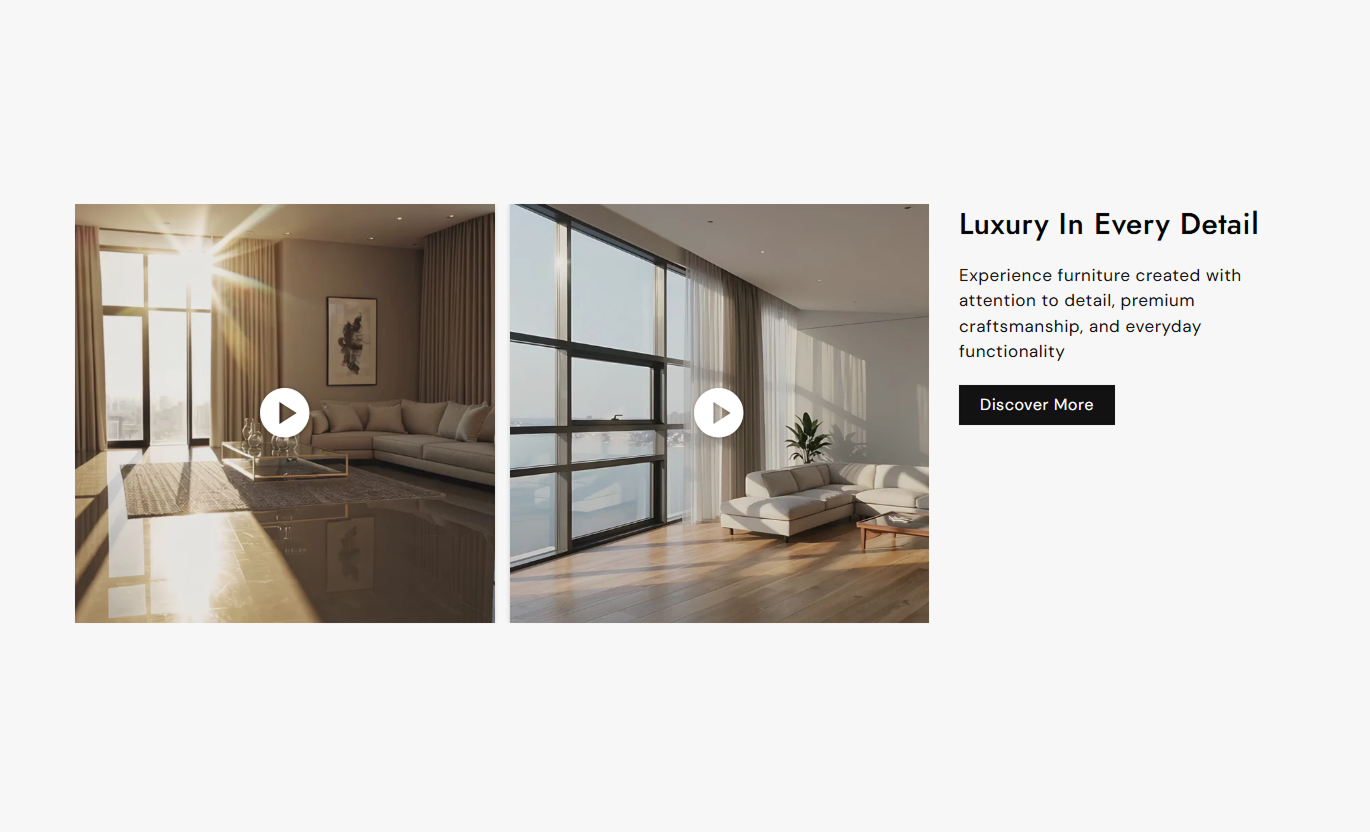
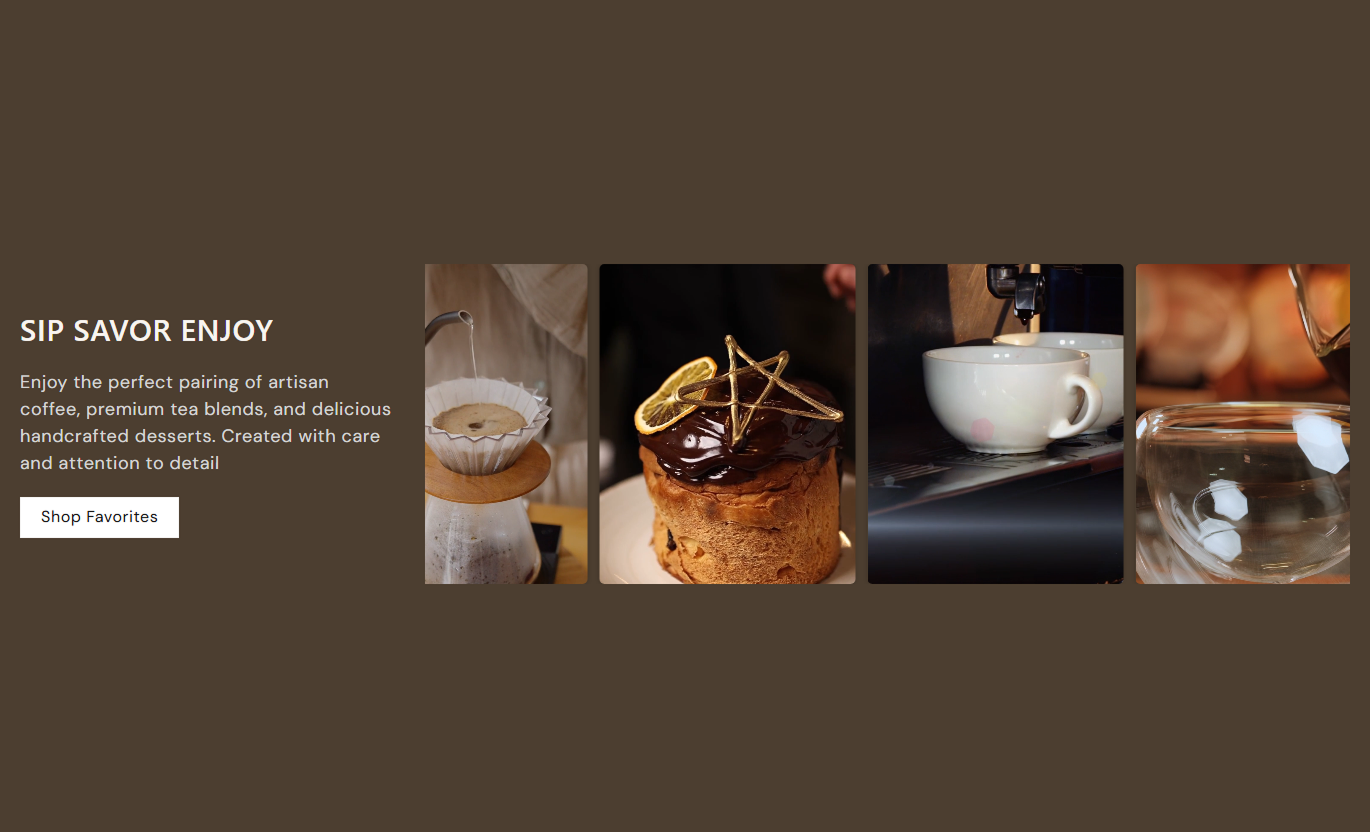
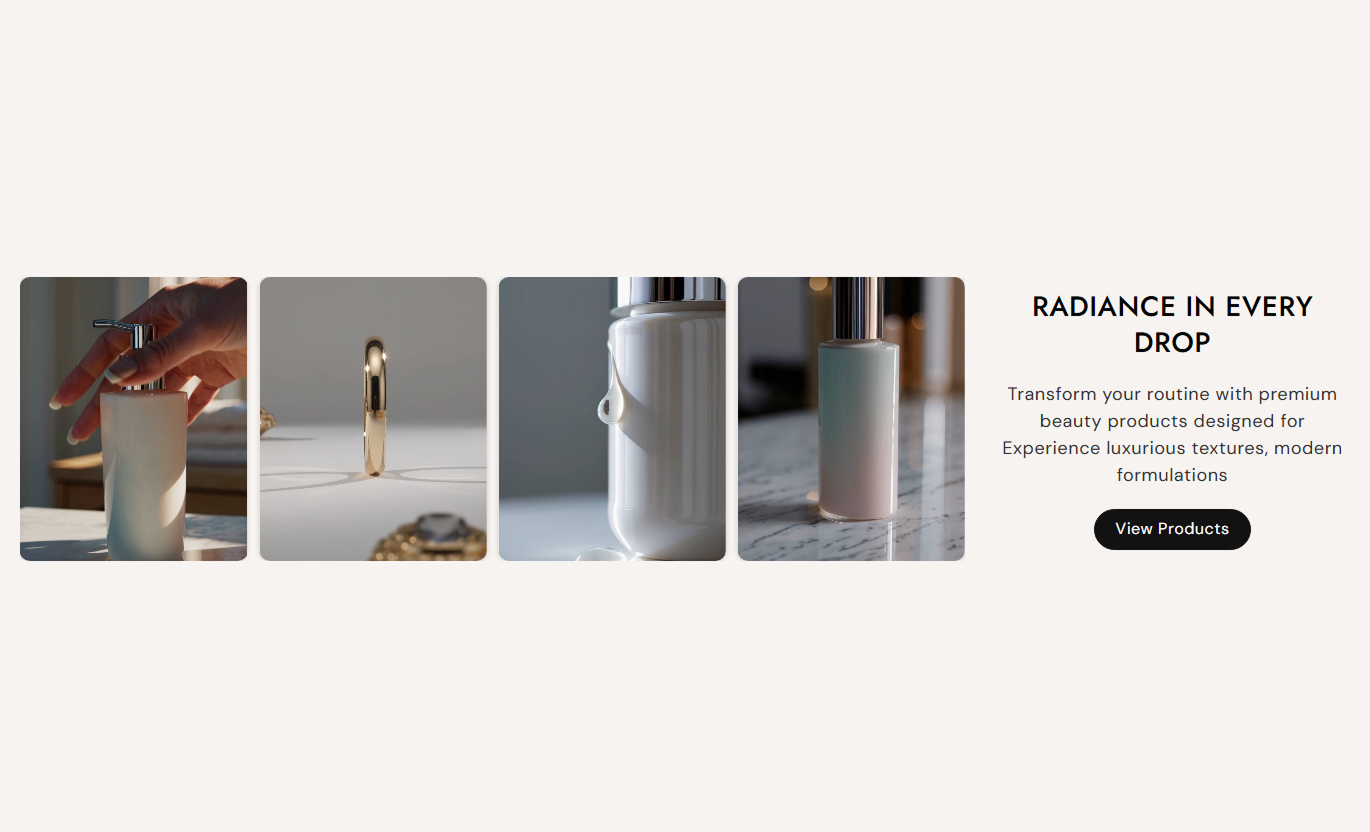


Create a visual video section with multiple slides, flexible layouts, playback controls, and responsive settings for a smooth Shopify storefront experience.

Add multiple videos and display them in a clean slider layout.

Use Shopify-hosted videos directly inside your video slider.

Add a YouTube video when a Shopify-hosted video is not provided.

Control whether videos autoplay and repeat continuously.

Show or hide native video controls based on your storefront design.

Add a custom play or pause button for MP4 videos when controls are disabled.

Choose the number of visible videos on desktop and mobile.

Give shoppers previous and next arrows to browse through videos.
Control video playback, slider behavior, content placement, buttons, typography, colors, spacing, and responsive layout from the Shopify editor.

Applies to the whole section
Add a heading and rich text above the video slider.
Heading & ContentAdd a CTA button with a custom destination.
Button Label & LinkUse an outline style for the CTA button.
Outline ButtonAdjust button radius and desktop text size.
Button StylingAlign text horizontally within the content area.
Text AlignmentPosition content vertically at the top, center, or bottom.
Vertical AlignmentPlace content on the left or right of the videos.
Content PositionChoose the video aspect ratio for the slider.
Video HeightEnable automatic video playback.
Video AutoplayShow or hide native video controls.
Video ControlsRepeat videos automatically when enabled.
Video LoopMute videos when they play automatically.
Video MuteAdd a custom play/pause button for MP4 videos.
Play/Pause ButtonSet the desktop play button size.
Play Button SizeRound the corners of video cards.
Video Border RadiusEnable continuous slider looping.
Slider LoopEnable automatic slide changes.
Slider AutoplayChoose how often slides change from 3–9 seconds.
Slide Change SpeedSet the number of visible videos on the desktop.
Desktop ColumnsAdjust spacing between desktop videos.
Desktop Media GapSet the number of visible videos on mobile.
Mobile ColumnsAdjust spacing between mobile videos.
Mobile Media GapCustomize heading and content font sizes.
Font SizesSet section, content, and button colors.
Section ColorsCustomize slider arrow colors, borders, and size.
Arrow StylingSet separate desktop and mobile section padding.
Section PaddingChoose full width or a custom section width.
Section Width
Applies to each video slide
Add a Shopify-hosted video for the slide.
VideoAdd an optional poster image for the video.
Poster ImageAdd a YouTube video as an alternative source.
YouTube VideoUse the video slider wherever your store needs multiple videos in a compact, visual, and easy-to-browse layout.
Use multiple videos to introduce your brand, products, launches, or customer-focused content.
Highlight multiple videos in one sectionShowcase products visuallyKeep the homepage engagingMake video content easier to browseShow product demonstrations, styling ideas, or collection-focused videos alongside your products.
Support collection discoveryDemonstrate product useAdd visual contextKeep content organizedUse video slides to show product details, demonstrations, features, or different ways to use an item.
Explain products visuallyShow product demonstrationsHighlight important featuresGive shoppers more visual informationPresent campaign videos, tutorials, product stories, or brand content in a flexible slider.
Showcase campaign contentCreate a visual storytelling flowPresent multiple videos neatlyKeep visitors engaged with rich mediaBring several videos together into a single flexible section that keeps your storefront visually engaging and easy to browse.
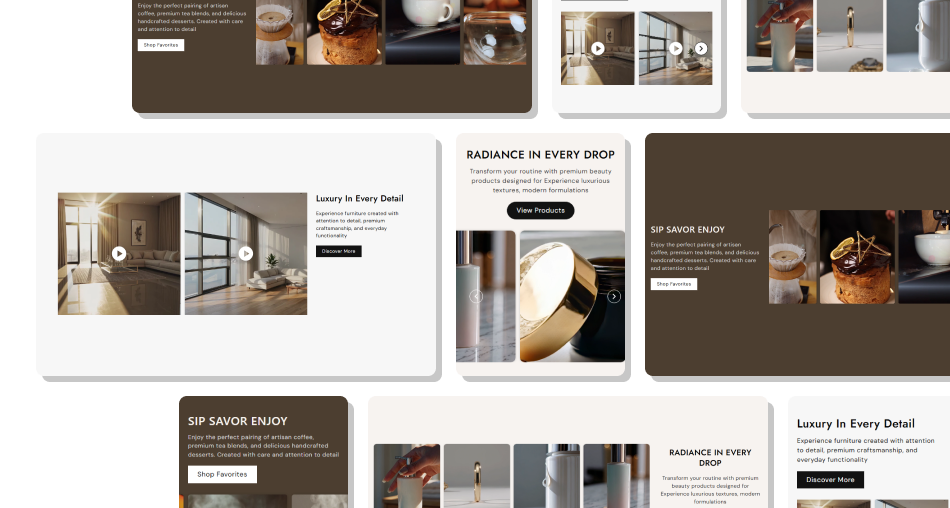
Use autoplay, navigation, and playback settings, along with responsive layouts, to control how your videos appear and play.
Add multiple videos to one sliderUse Shopify-hosted or YouTube videosControl autoplay, loop, mute, and controlsAdd optional poster imagesShow custom play and pause controls for MP4 videosAdjust visible slides for desktop and mobileAdd navigation arrows for easy browsingCustomize video shape, spacing, colors, and layout Use clear, high-quality videos that support your products or brand.
Keep video content visually consistent across slides.
Use poster images when a strong preview image helps.
Choose a suitable number of visible slides for your content.
Keep autoplay videos muted for a smoother storefront experience.
Use clear, high-quality videos that support your products or brand.
Keep video content visually consistent across slides.
Use poster images when a strong preview image helps.
Choose a suitable number of visible slides for your content.
Keep autoplay videos muted for a smoother storefront experience.  Don't add unrelated videos just to fill the slider.
Don't use videos with poor resolution or distracting visuals.
Don't overload the section with too many similar clips.
Don't use text-heavy video content that is hard to follow.
Don't choose spacing or sizing that makes videos difficult to view.
Don't add unrelated videos just to fill the slider.
Don't use videos with poor resolution or distracting visuals.
Don't overload the section with too many similar clips.
Don't use text-heavy video content that is hard to follow.
Don't choose spacing or sizing that makes videos difficult to view. It is a responsive video slider that lets you showcase multiple videos within a single section.
Yes. Each video block supports Shopify-hosted video files.
Yes. You can add a YouTube video as an external video source when a Shopify video is not provided.
Yes. You can enable or disable video autoplay from the section settings.
Yes. The video loop setting lets videos repeat continuously.
Yes. You can enable the mute option for the videos.
Yes. Native video controls can be enabled or hidden.
Yes. A custom play/pause button is available for MP4 videos when native controls are disabled.
Yes. You can set the number of visible columns separately for desktop and mobile.
Yes. Slider autoplay can be enabled, with slide changes set between 3 and 9 seconds.
Yes. You can adjust the video aspect ratio and spacing between media items.
Yes. Arrow background, color, border, and desktop size can be customized.
For Support or any Questions Email Us: [email protected]
Install SectionHub and add the Multi video with slider section to your theme in minutes - no coding required.
