Create an Immersive Homepage Showcase
Use Media Gallery Sticky Cards on your homepage to feature key collections, campaigns, products, or brand visuals through large scrolling cards with direct CTA links.

Show images or videos in a scroll-based media gallery with pinned cards, headings, counters, CTA buttons, and responsive styling for an immersive Shopify experience.
 Scroll-Pinned Gallery
Image & Video Support
Responsive Media Cards
Scroll-Pinned Gallery
Image & Video Support
Responsive Media Cards 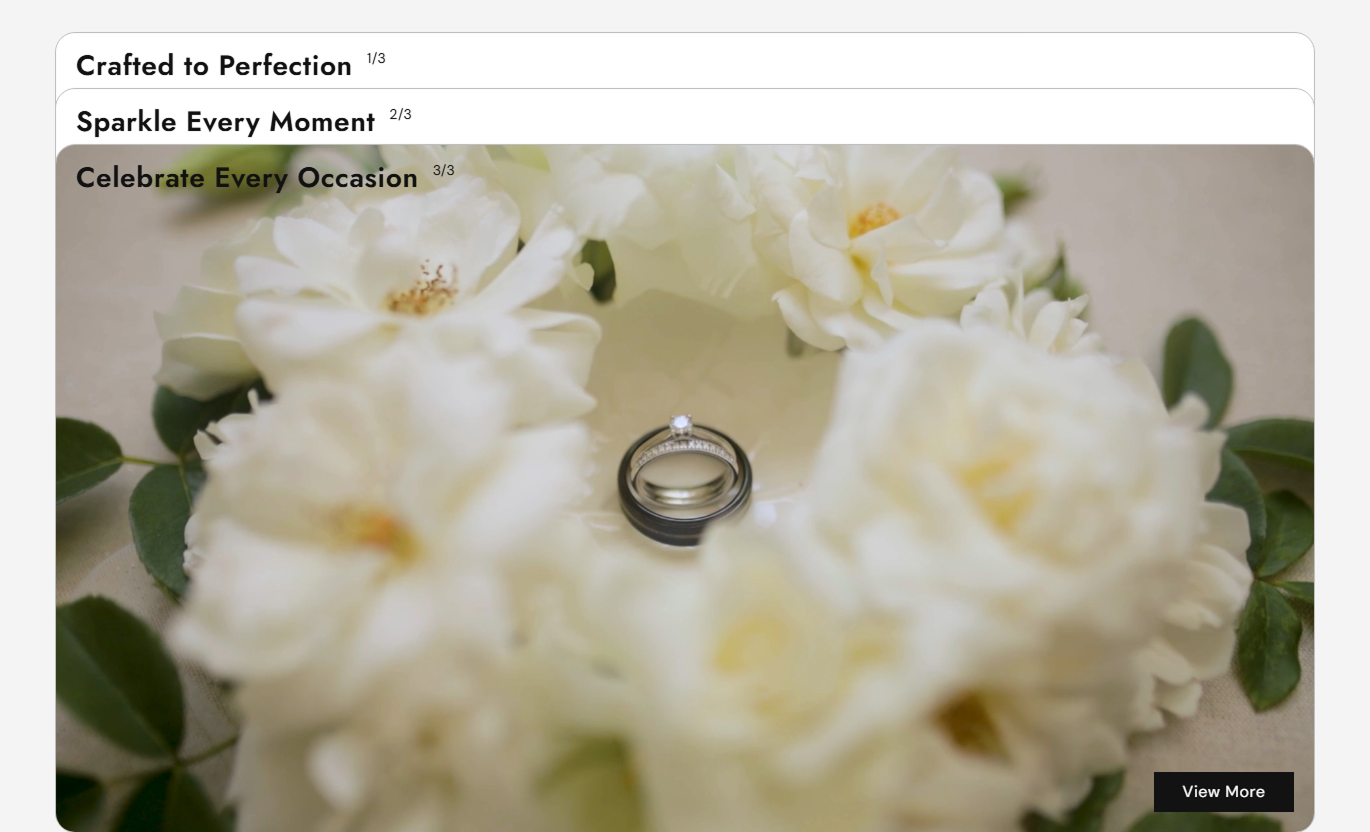
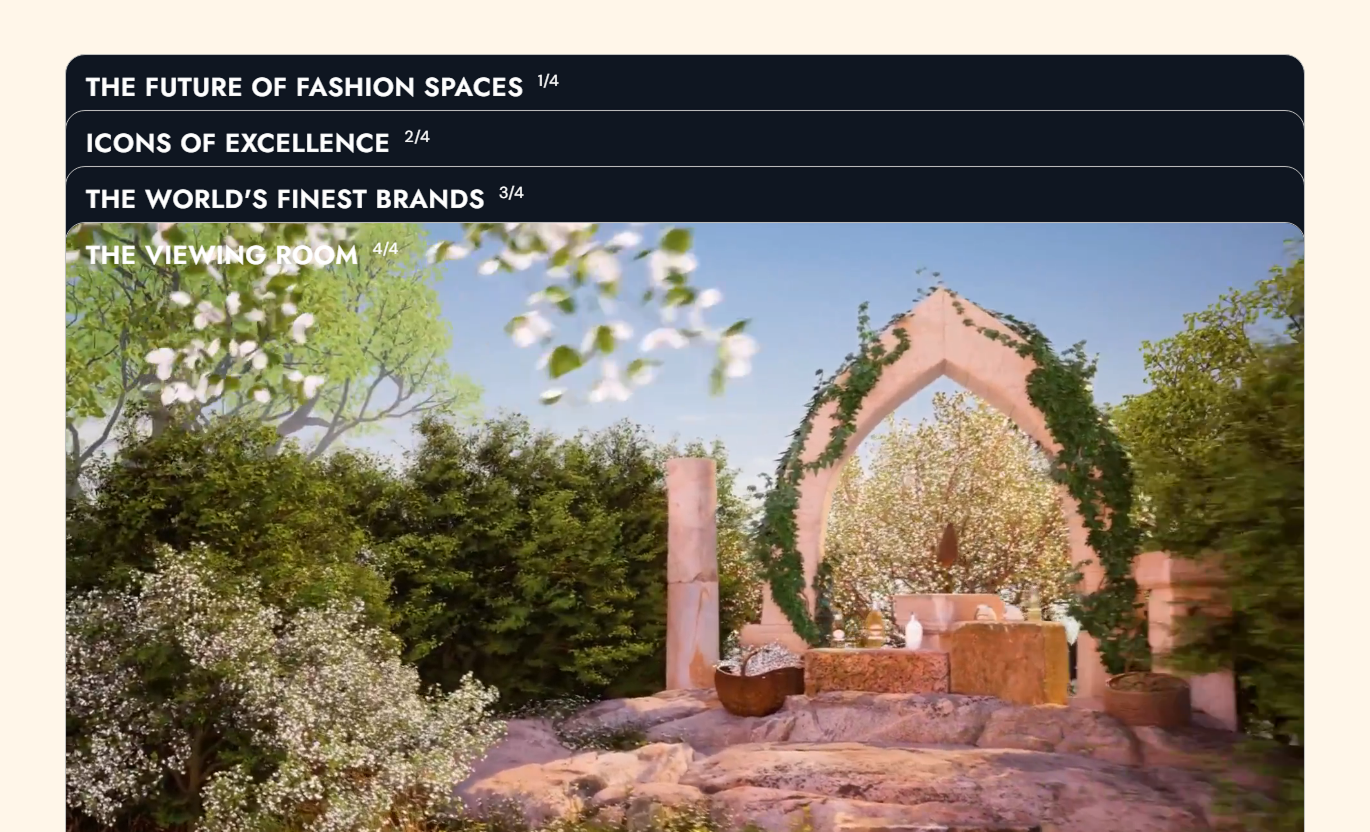


Create a scroll-driven gallery with pinned media cards, images or videos, slide counters, CTA buttons, fade effects, and flexible Shopify styling.

Multiple gallery cards stay pinned during scrolling, creating a layered browsing experience as shoppers move through the section.

Add either an image or a Shopify video to each media card to showcase collections, campaigns, products, or visual brand content.

Gallery videos play automatically, loop continuously, stay muted, and run without visible video controls inside the media card.

Each media card displays its current position and total count, helping shoppers understand where they are within the gallery.

Add a separate heading to every media block so each image or video can introduce a different product, collection, or message.

Add a button label and destination link to individual cards to guide shoppers from featured media to relevant store pages.

As visitors move through multiple cards, the previous media fades out while its heading and counter remain visible with a scrolled style.

Media cards, typography, spacing, button sizing, and section proportions adjust for a cleaner experience on smaller screens.
Control gallery media, headings, buttons, colors, sizing, spacing, and section width directly from the Shopify theme editor.

Applies to the whole section
Add the main heading displayed above the media gallery.
Section HeadingAdd supporting rich text below the gallery heading.
Section ContentChoose the alignment of the main heading and content.
Text AlignmentChoose the alignment of headings displayed over media.
Media Text AlignmentControl the corner radius used on media gallery cards.
Media Border RadiusChoose solid or outline styling for gallery CTA buttons.
Button StyleControl CTA button alignment and corner rounding.
Button LayoutAdjust section, media heading, content, and counter font sizes.
Font Size ControlsCustomize section, media, scrolled-state, and button colors.
Color ControlsSet desktop/mobile padding and maximum section width.
Width & Spacing
Applies to each media card
Upload an image to display as the card's main media.
Media ImageAdd a video to display when no image is selected.
Media VideoAdd the title displayed over the individual media card.
Media HeadingEnter the text displayed inside the card CTA button.
Button LabelChoose the page or destination opened by the CTA.
Button LinkUse this scroll-based media gallery across key Shopify pages to showcase collections, products, campaigns, or visual stories with immersive image and video content.
Use Media Gallery Sticky Cards on your homepage to feature key collections, campaigns, products, or brand visuals through large scrolling cards with direct CTA links.
Show major collections using large image or video cardsCreate a visually engaging break between standard homepage sectionsUse separate headings to introduce multiple featured store areasGuide visitors directly to key pages with individual CTA buttonsAdd movement and depth through the pinned scrolling gallery effectAdd visual media cards to collection pages to introduce subcategories, seasonal edits, styling ideas, or featured groups without relying only on product grids.
Highlight important subcategories before or after product listingsUse video or imagery to add context around a collectionFeature seasonal edits or curated product groups visuallyLink individual gallery cards to relevant collection destinationsBreak up long collection pages with stronger visual storytellingUse Media Gallery Sticky Cards on product pages to present lifestyle imagery, product videos, related ranges, or supporting content in a structured visual sequence.
Add large supporting product imagery beyond the main galleryShow product videos in an immersive full-card formatIntroduce related ranges or complementary collections visuallyUse individual CTA buttons to guide further product discoveryOrganize supporting visuals into a clear scrolling sequenceUse multiple images or video cards on campaign pages to present launches, promotions, collections, or brand stories in a scroll-led visual experience.
Turn campaign content into a structured visual sequenceMix images and videos across different campaign messagesUse individual headings to separate important campaign momentsSend visitors to targeted pages with card-specific CTA buttonsCreate a more immersive experience for long promotional pagesTransform images and videos into an interactive scrolling showcase that helps merchants present visual content, campaigns, and collections with more impact.
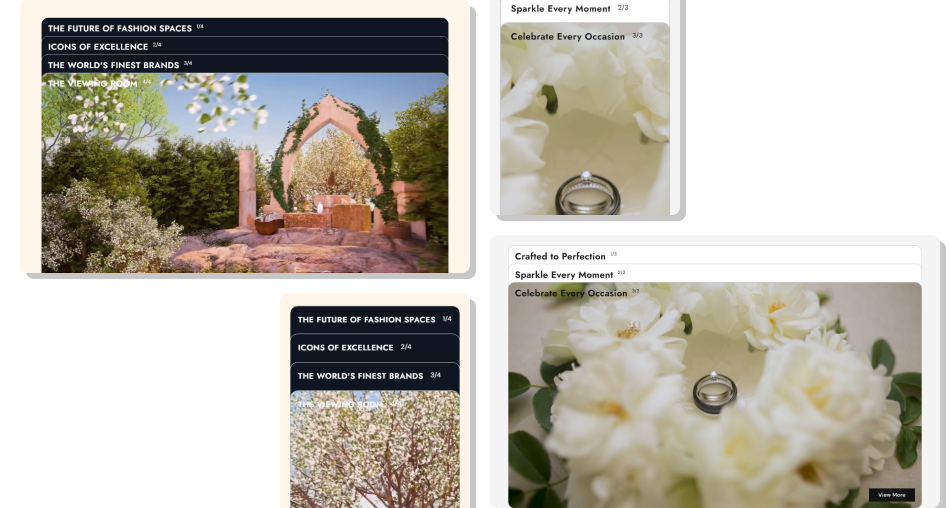
Combine large media cards, scroll interaction, clear headings, counters, and CTA buttons to create a focused visual browsing experience.
Show up to four media cards inside one focused gallery sectionCombine image and video content across different gallery blocksCreate scroll interaction without using a standard image sliderGive each card its own heading, CTA label, and destination linkHelp visitors track gallery progress with automatic card countersCustomize button, media, text, background, and scrolled colorsKeep visual storytelling consistent across desktop and mobile Use high-quality images or videos that support each card message.
Keep card headings short and easy to read over media.
Use CTA buttons with relevant and useful destination links.
Arrange gallery cards in a clear visual or campaign sequence.
Keep media styles consistent across all gallery cards.
Use high-quality images or videos that support each card message.
Keep card headings short and easy to read over media.
Use CTA buttons with relevant and useful destination links.
Arrange gallery cards in a clear visual or campaign sequence.
Keep media styles consistent across all gallery cards.  Use unrelated media that creates a confusing gallery flow.
Add long headings that compete with the featured visuals.
Use CTA buttons that lead to unrelated store pages.
Expect videos to display when an image is already selected.
Overload the gallery with unnecessary promotional content.
Use unrelated media that creates a confusing gallery flow.
Add long headings that compete with the featured visuals.
Use CTA buttons that lead to unrelated store pages.
Expect videos to display when an image is already selected.
Overload the gallery with unnecessary promotional content. You can add up to four media blocks. Each block can contain an image or video, a heading, a button label, and a destination link.
Yes. Different blocks can use images or videos. If both are added to the same block, the image is displayed because it takes priority.
Videos autoplay, loop, play inline, stay muted, and display without controls, creating a clean background-style video experience.
When multiple cards are added, each card becomes pinned as visitors scroll, creating a layered sequence before moving to the next gallery card.
Yes. Each card automatically displays a counter, such as 1/4 or 2/4, showing the current card number and total number of media blocks.
Yes. You can adjust media border radius, heading alignment, typography, colors, scrolled-state styling, section background, and width.
Previous media can fade out while its heading and counter change to the configured scrolled text color, maintaining the stacked visual effect.
For Support or any Questions Email Us: [email protected]
Install SectionHub and add the Media Gallery Sticky Cards section to your theme in minutes - no coding required.
