Lead With a Cinematic Media-to-Gallery Story
Use Media Gallery Scroll Showcase as a homepage statement piece that starts with full-screen media, then reveals a dynamic image gallery and supporting content as visitors scroll.

Create a full-screen media intro that scrolls away to reveal an animated image grid, centered content, optional CTA, responsive media, and custom playback controls.
 Scroll-Reveal Media Story
Full-Screen Video Intro
Animated Image Grid
Scroll-Reveal Media Story
Full-Screen Video Intro
Animated Image Grid 
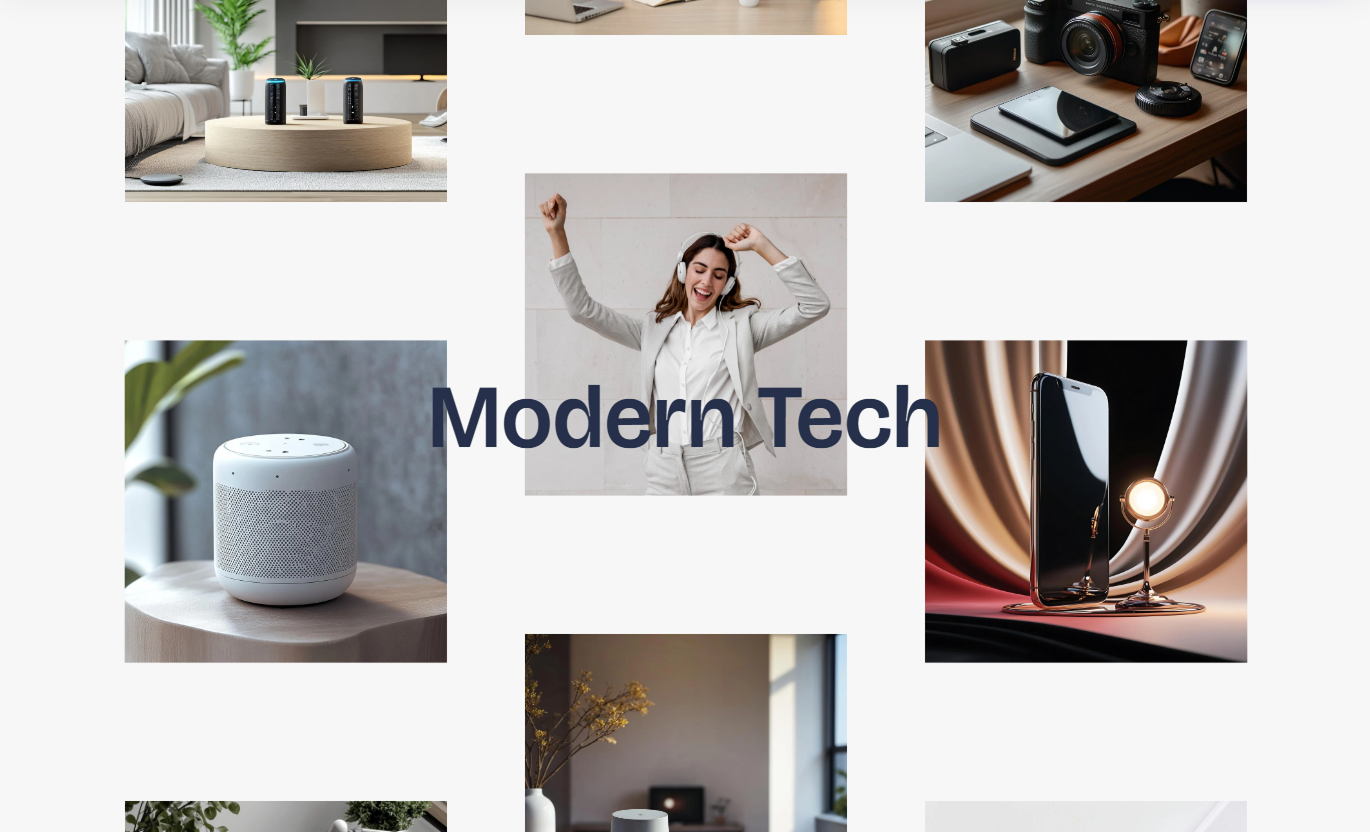


Build a pinned media story with full-screen image or video, animated gallery tiles, responsive motion, optional CTA content, and custom playback behavior.

Start with a 100vh image or video layer that fills the section before the scroll-driven gallery animation takes over.

Pin the main wrapper while GSAP moves the opening media upward and brings gallery tiles into view as shoppers scroll.

Choose image or video mode, with separate mobile media options, so the opening scene adapts across screen sizes.

When native controls are disabled, show custom play and pause icons that update to reflect current video playback.

Reveal gallery tiles in three columns, animate them from opposite directions, then spread and scale the grid for visual impact.

Layer a centered heading over the animation, then reveal supporting copy and an optional linked button later in the scroll.

Add up to three Image blocks, each with six image pickers, creating a gallery of up to 18 individual tiles.

Below 768px, the gallery uses smaller tiles, tighter gaps, a stronger scale effect, and mobile-specific media where available.
Control opening media, playback, overlays, CTA content, typography, colors, gallery styling, and image blocks.

Applies to the whole section
Choose image or video mode with desktop and mobile media.
Media Source SetupSet autoplay, loop, mute, controls, and custom play button.
Video Playback ControlsAdjust overlay color and opacity over the opening media.
Media Overlay StyleEdit the centered heading, rich text, CTA label, and link.
Content & CTA SetupAdjust heading, content, button, and gallery image styling.
Typography & MediaCustomize section, text, button, and hover colors.
Color Style ControlsSet gallery image corner radius for all animated tiles.
Gallery Image Radius
Applies to each image block
Upload the gallery image in this block.
Gallery ImageUse this immersive media section across Shopify pages to introduce campaigns, collections, products, or brand stories with a cinematic scroll-to-gallery transition.
Use Media Gallery Scroll Showcase as a homepage statement piece that starts with full-screen media, then reveals a dynamic image gallery and supporting content as visitors scroll.
Create a high-impact opening with full-screen mediaReveal supporting gallery imagery through scroll motionLayer a concise heading over the visual experienceAdd a CTA for campaign or collection navigationUse mobile-specific media for better small-screen framingPlace the section on collection templates to introduce seasonal edits, lookbooks, or category stories with a large media opener and animated supporting images.
Introduce a collection with cinematic visual storytellingShow supporting imagery without replacing the product gridUse gallery tiles for campaign or editorial contextLink shoppers to a focused collection destinationAdapt the experience with separate mobile mediaUse the section on product pages to present lifestyle media, detailed imagery, or campaign visuals before revealing a grid of supporting product-focused images.
Show lifestyle or detail media around a featured productReveal extra imagery through a guided scroll sequenceUse a focused CTA for related products or collectionsKeep supporting copy hidden until later in the animationUse mobile media to improve crop and compositionUse Media Gallery Scroll Showcase on landing pages to combine a full-screen campaign opener, animated gallery tiles, centered messaging, and a linked CTA into a single scroll-led section.
Open with campaign media at full viewport heightUse GSAP motion to create a staged visual revealShow up to eighteen supporting campaign imagesAdd concise copy and a clear campaign destinationCreate responsive motion for desktop and mobileTurn static media into an immersive scroll-led experience with full-screen opening visuals, animated gallery reveals, responsive sources, and flexible CTA content.
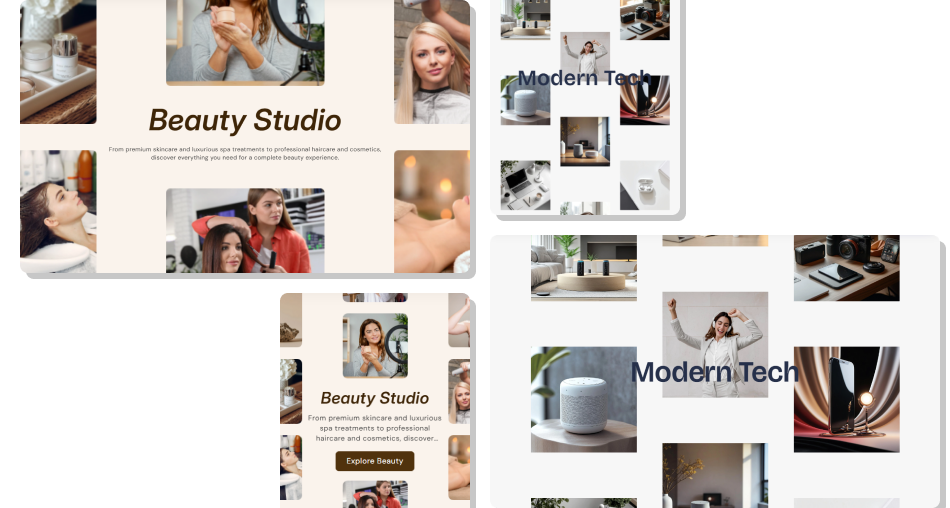
Combine full-screen media, animated gallery tiles, responsive sources, and focused CTA content to create a richer visual journey.
Create a cinematic full-screen entrance before the gallery appearsUse image or video media with separate mobile source optionsAnimate gallery tiles with GSAP and ScrollTrigger-based motionShow up to eighteen gallery images through three image blocksReveal supporting copy and CTA content later in the scrollOffer custom play and pause controls when native controls are offKeep gallery imagery consistent with global radius and color styling Use compressed video or imagery to keep the opening scene fast
Choose gallery images with a consistent visual style and crop
Keep the main heading concise for the two-line display limit
Test the full pinned scroll sequence on desktop and mobile
Use a clear CTA destination that matches the visual story
Use compressed video or imagery to keep the opening scene fast
Choose gallery images with a consistent visual style and crop
Keep the main heading concise for the two-line display limit
Test the full pinned scroll sequence on desktop and mobile
Use a clear CTA destination that matches the visual story  Do not upload heavy video files that slow initial page loading
Do not mix unrelated gallery imagery that weakens the story
Do not rely on autoplay audio because browsers may block it
Do not use long descriptions that compete with the animation
Do not ignore mobile-specific media when desktop crops fail
Do not upload heavy video files that slow initial page loading
Do not mix unrelated gallery imagery that weakens the story
Do not rely on autoplay audio because browsers may block it
Do not use long descriptions that compete with the animation
Do not ignore mobile-specific media when desktop crops fail Yes. Source Type lets you choose Image or Video, with separate desktop and mobile media fields available for the selected source type.
The section allows up to three Image blocks, each containing six image pickers, so the gallery can contain up to eighteen images.
GSAP pins the full-screen wrapper, moves the opening media upward, brings gallery tiles into view, scales the grid, tightens gaps, and reveals the description.
Yes. Both image and video modes include optional mobile media fields. When mobile media exists, separate responsive classes are applied.
Each empty gallery image slot renders a neutral placeholder image, so every block still contributes six tiles to the animated gallery.
Yes. If native controls are disabled and the play button option is enabled, custom play and pause icons control all videos in the media wrapper.
They begin to collapse and expand later in the GSAP timeline, after the gallery starts moving into its final spread and scaled composition.
No. The schema disables this section in Shopify header and footer groups, so add it within the supported page-template section areas.
For Support or any Questions Email Us: [email protected]
Install SectionHub and add the Media Gallery Scroll Showcase section to your theme in minutes - no coding required.
