Create an Interactive Visual Story on Your Homepage
Use Media Gallery Hover Reveal on your homepage to present campaign imagery, products, collections, or brand visuals in an engaging desktop grid that is responsive on mobile.

Create an interactive media gallery with eight image tiles, GSAP hover previews, rotating slideshow images, responsive mobile grids, and flexible container styling.
 Interactive Image Grid
GSAP Hover Previews
Responsive Media Gallery
Interactive Image Grid
GSAP Hover Previews
Responsive Media Gallery 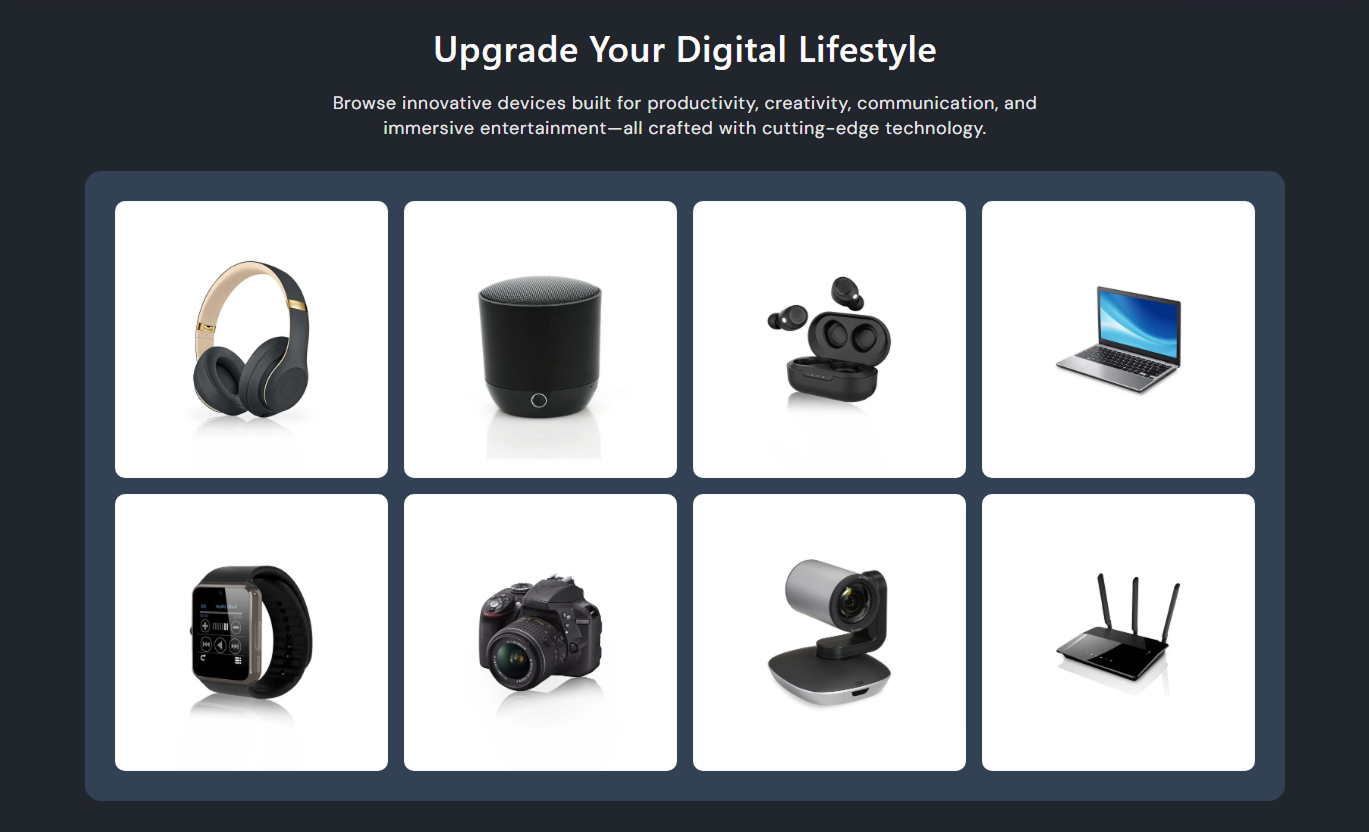
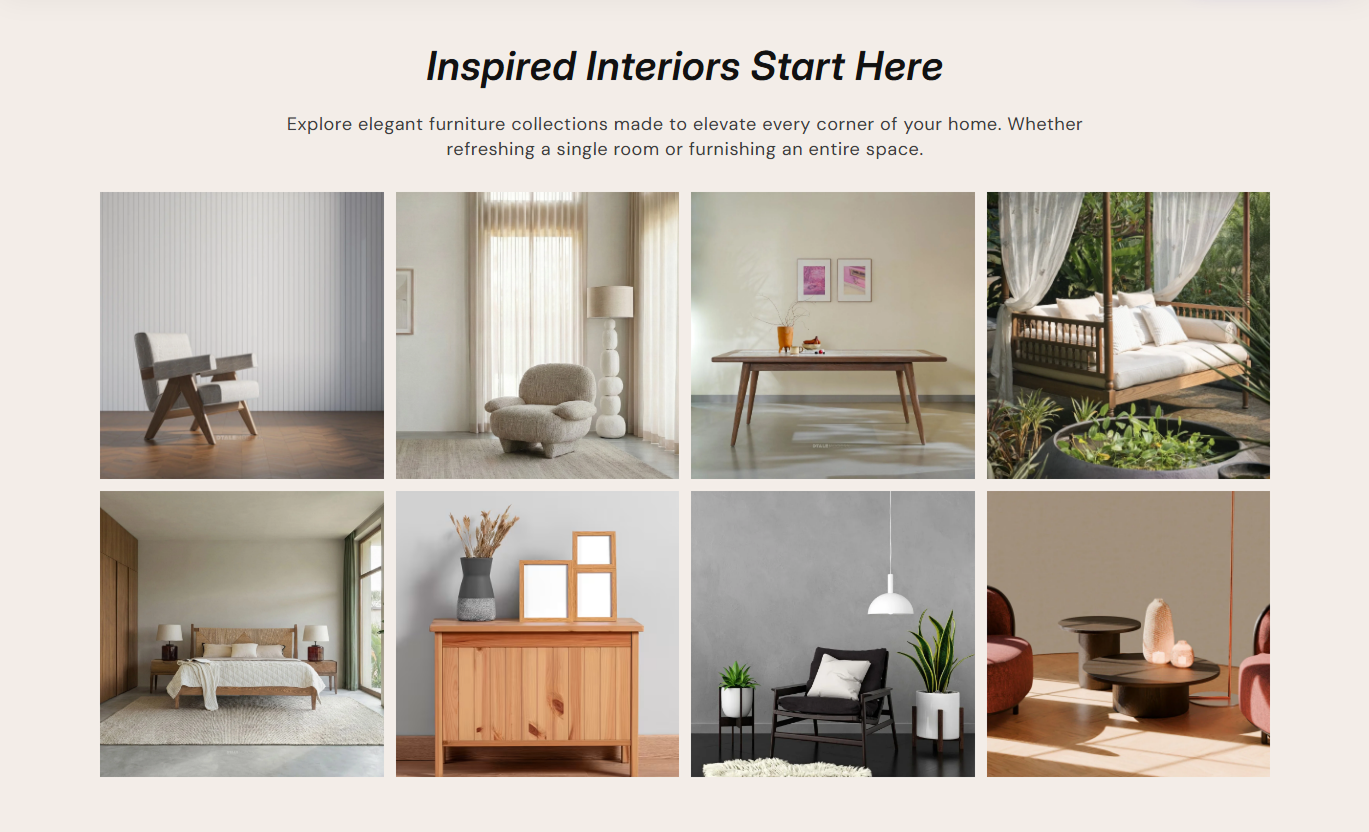


Show up to eight gallery tiles with GSAP hover previews, rotating image slideshows, responsive mobile behavior, placeholders, and flexible styling.

Build a structured four-column, two-row media gallery designed around up to eight individual gallery item blocks.

Hover a desktop tile to shift nearby items and reveal a larger animated preview on the opposite side of the grid.

Add up to three preview images per gallery item, and rotate them automatically within the active hover preview.

Tiles on the left reveal a right-side preview, while right-side tiles open their animated preview on the left.

Use GSAP transitions to move neighboring tiles, fade unused items, scale preview media, and animate reveal masks.

Missing main or hover images automatically use placeholder artwork so the gallery structure remains visually complete.

Below 768px, the hover preview layer is removed, and gallery tiles switch to a simple two-column square-image grid.

Control grid spacing, media radius, container padding, container radius, colors, section width, and responsive spacing.
Control gallery spacing, media styling, container design, typography, colors, responsive padding, alignment, and width.

Applies to the whole section
Edit the section heading, rich text, and responsive alignment.
Heading & AlignmentAdjust desktop grid spacing and image corner radius.
Gallery Grid StyleSet gallery container padding and outer corner radius.
Container StylingAdjust section heading and supporting content sizes.
Typography ControlsCustomize section, heading, content, and container colors.
Color Style ControlsSet separate vertical section padding for desktop and mobile.
Responsive SpacingUse full width or define a maximum contained section width.
Section Width Setup
Applies to each gallery item
Upload the primary image displayed in the gallery grid.
Main Gallery ImageAdd the first image used in the desktop hover preview.
Hover Slide OneAdd the second image used in the desktop hover preview.
Hover Slide TwoAdd the third image used in the desktop hover preview.
Hover Slide ThreeUse this visual gallery across key Shopify pages to showcase products, collections, campaigns, lookbooks, or editorial imagery with interactive desktop previews.
Use Media Gallery Hover Reveal on your homepage to present campaign imagery, products, collections, or brand visuals in an engaging desktop grid that is responsive on mobile.
Show eight coordinated visuals in one structured gallery layoutUse hover previews to reveal larger supporting imageryAdd up to three preview images for richer visual storytellingKeep the mobile experience simple with a two-column gridMatch the gallery container to your homepage visual stylePlace the gallery on collection templates to support seasonal edits, category storytelling, campaign imagery, or product details without replacing the main collection grid.
Add editorial visuals without changing the product gridShow alternate imagery for seasonal or category storytellingUse hover previews to create richer desktop explorationKeep image tiles consistent for a polished merchandising layoutUse responsive spacing to separate the gallery from productsUse the gallery on product pages to show lifestyle scenes, detail shots, materials, or alternate angles through a visual grid with optional desktop hover slideshows.
Show detail shots, materials, or lifestyle product imageryGroup several supporting visuals inside one compact galleryUse hover slideshows for alternate product perspectivesKeep mobile browsing straightforward with square image tilesUse custom container styling to match product page designUse Media Gallery Hover Reveal on landing pages to create campaign lookbooks, visual stories, mood boards, or editorial galleries with animated desktop preview interactions.
Build visual campaign stories around up to eight image tilesUse larger hover previews to create editorial visual impactRotate several supporting images within each active previewKeep the layout responsive across desktop and mobile screensCustomize container colors and spacing for campaign stylingTurn static image collections into an interactive gallery with animated desktop previews, rotating supporting media, responsive layouts, and flexible styling.
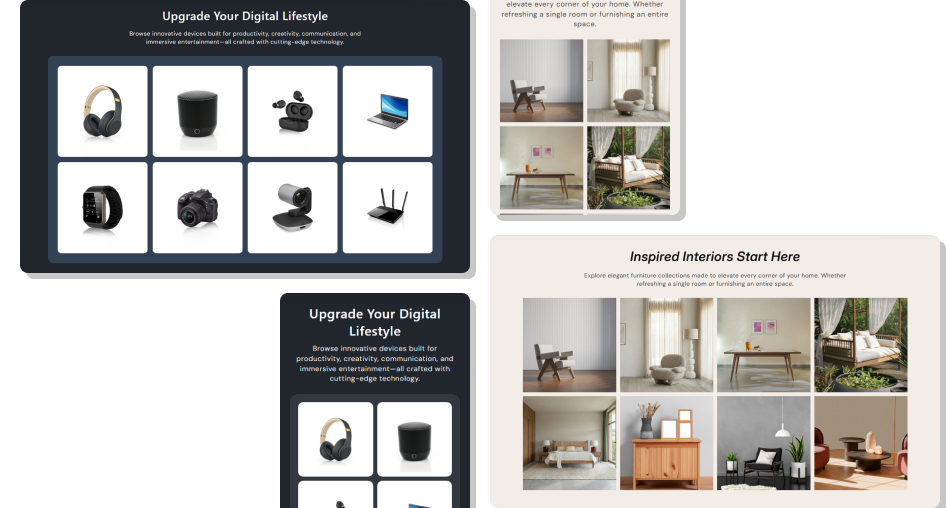
Combine structured image grids, hover previews, rotating slides, and responsive layouts to create richer visual browsing.
Present up to eight coordinated gallery items in one sectionCreate larger desktop previews without opening a separate modalRotate up to three supporting images inside each hover previewUse automatic placeholders when gallery media is not configuredSwitch to a simpler two-column square grid on mobile screensCustomize media radius, container padding, colors, and spacingUse full-width or contained presentation across store templates Use eight gallery blocks when you want the intended full layout
Choose main images with consistent crops for a balanced grid
Add multiple hover images when they improve visual storytelling
Test hover previews with a mouse and mobile grids by touch
Keep container padding moderate on smaller mobile screens
Use eight gallery blocks when you want the intended full layout
Choose main images with consistent crops for a balanced grid
Add multiple hover images when they improve visual storytelling
Test hover previews with a mouse and mobile grids by touch
Keep container padding moderate on smaller mobile screens  Do not depend on hover previews for essential mobile information
Do not mix unrelated image styles that make the grid feel uneven
Do not leave important gallery items without clear main imagery
Do not use oversized container padding that crowds small screens
Do not expect desktop hover interactions below the mobile breakpoint
Do not depend on hover previews for essential mobile information
Do not mix unrelated image styles that make the grid feel uneven
Do not leave important gallery items without clear main imagery
Do not use oversized container padding that crowds small screens
Do not expect desktop hover interactions below the mobile breakpoint The schema allows up to eight Gallery Item blocks, and its own note recommends using all eight blocks to achieve the intended desktop presentation.
Hovering a tile shifts the opposite group, keeps the active-side group visible, and opens a larger animated preview on the other side.
Each Gallery Item includes three optional hover slideshow image fields, and the active preview rotates through available images every second.
Missing main images use a standard placeholder, while missing hover slideshow images generate three placeholder visuals for that preview.
No. Below 768px the preview media layer is hidden, pointer interaction on tiles is disabled, and the gallery becomes a two-column square grid.
Yes. You can adjust desktop grid gap, image border radius, container padding, and container border radius from the section settings.
Below 768px, configured container padding is capped at 16px, while smaller values remain unchanged for a more compact mobile layout.
No. The schema disables the section in Shopify header and footer groups, so add it within supported page-template section areas.
For Support or any Questions Email Us: [email protected]
Install SectionHub and add the Media Gallery Hover Reveal section to your theme in minutes - no coding required.
