Create an Engaging Visual Homepage Gallery
Showcase featured products, collections, campaigns, or brand visuals using large media cards with hover effects, overlay content, and clickable destinations.

Showcase images with hover videos, alternate images, overlay content, clickable links, flexible media heights, and responsive layouts for an engaging visual store experience.
 Interactive Media Gallery
Hover Video & Images
Responsive Visual Design
Interactive Media Gallery
Hover Video & Images
Responsive Visual Design 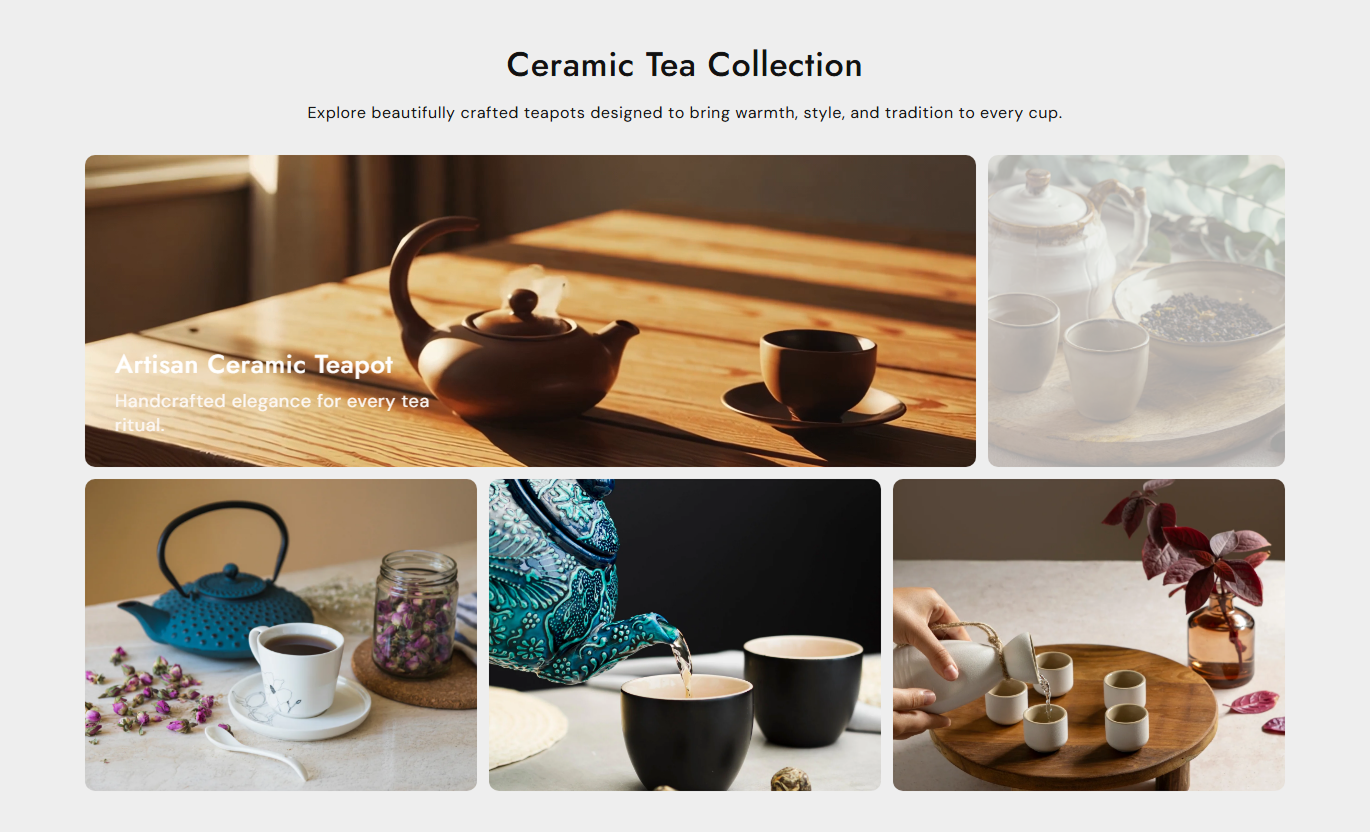
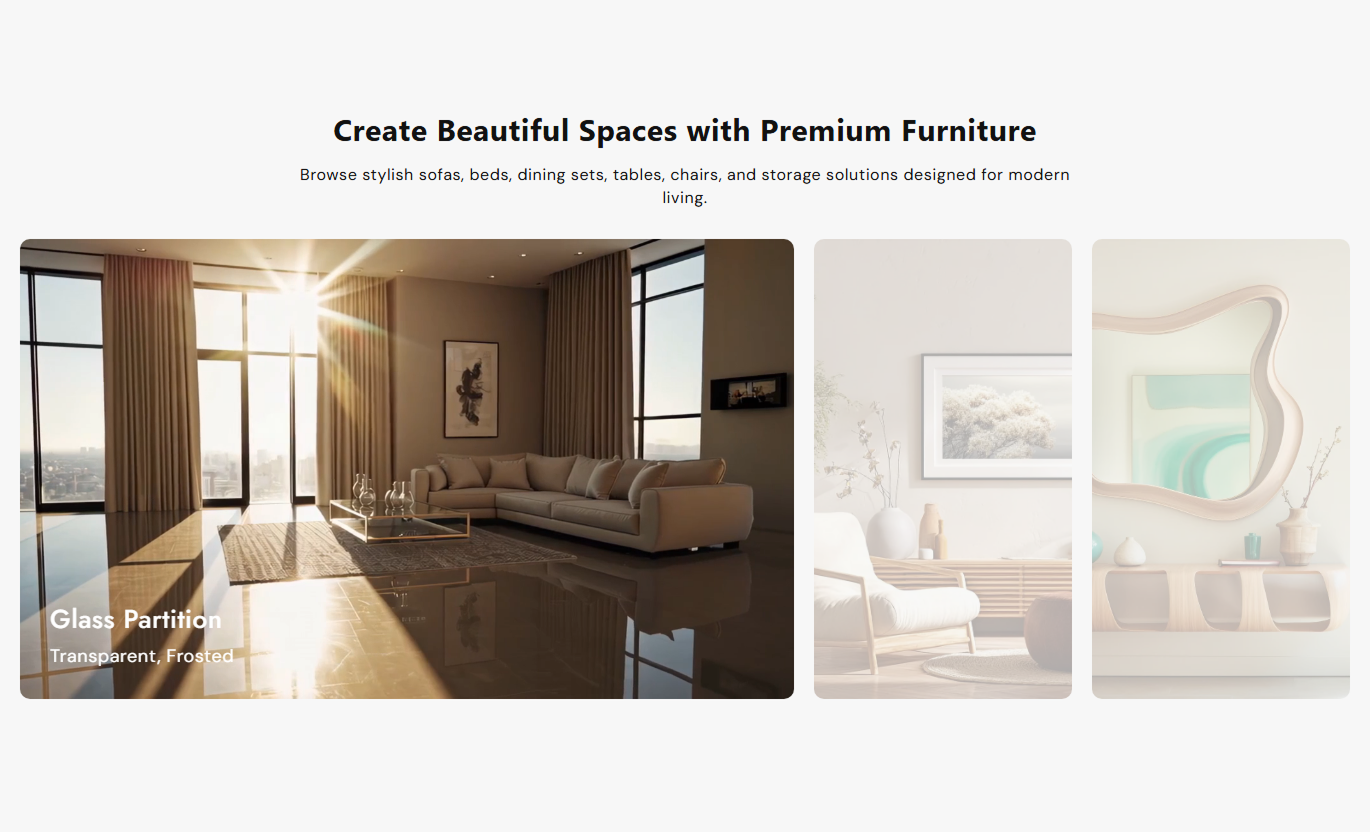


Create engaging media galleries with hover effects, clickable visuals, overlay content, flexible sizing, custom positioning, responsive layouts, and detailed styling controls.

Add up to three media items inside each gallery block, with separate images, content, links, and hover effects.

Add a Shopify-hosted video that automatically appears when visitors hover over a media item on the desktop.

Show a different image on hover when no hover video is configured, creating a smooth visual transition.

Add a heading and rich-text content above each media item to highlight products, messages, or visual details.

Add a custom link to each media item so visitors can navigate directly to related products, collections, or pages.

Choose small, medium, or large media heights to control the overall size and visual impact of gallery items.

Position overlay content at different locations on desktop and mobile, with separate controls for each device.

Automatically adapt gallery items for mobile with stacked media, adjusted heights, spacing, typography, and content positioning.
Customize gallery content, media sizing, spacing, overlay positions, typography, colors, border radius, section padding, and width.

Applies to the whole section
Add the main heading displayed above the media gallery.
Section HeadingAdd rich text below the heading to introduce or describe the gallery.
Section ContentChoose the alignment of the main heading and section content.
Text AlignmentSelect small, medium, or large height options for gallery media items.
Media HeightControl the gap between media items displayed within each gallery row.
Media SpacingChoose where the overlay heading and content appear on desktop.
Desktop Content PositionSet a separate overlay position for gallery content on mobile devices.
Mobile Content PositionSet overlay text alignment to left, center, or right.
Content Text AlignmentAdjust the corner radius of each gallery media item.
Media Border RadiusChoose a full-width display or set a custom maximum section width.
Section Width
Applies to each media item
Select the main image displayed for each media item.
Media ImageAdd a video that appears automatically when visitors hover over the media.
Hover VideoAdd an alternate image that appears when the hover video is blank.
Hover ImageAdd a custom heading that appears over the selected media item.
Media HeadingAdd rich text content to display as an overlay on the media.
Media ContentAdd a URL that visitors can open by clicking the media item.
Media LinkCustomize separate heading and content colors for each media item.
Media ColorsUse this section across different store pages to showcase visual content, products, campaigns, collections, services, and promotional messages with interactive media.
Showcase featured products, collections, campaigns, or brand visuals using large media cards with hover effects, overlay content, and clickable destinations.
Highlight important visual content above the fold.Add hover videos to make presentations more engaging.Link each media item to relevant store pages.Display short promotional messages over images.Create flexible gallery layouts for different campaigns.Use gallery items to introduce collection themes, featured products, or category visuals with custom links, alternate hover images, and useful overlay content.
Present multiple collection visuals within a single section.Link each image directly to relevant collections.Use alternate images to show different visuals.Add headings to explain collection highlights.Adjust media height to suit the collection page.Use interactive gallery cards to showcase product imagery, alternate visuals, promotional content, and supporting information while directing shoppers to relevant destinations.
Showcase product imagery in a flexible layout.Add alternate visuals using hover images.Use videos to create dynamic product presentations.Add useful content over product visuals.Link media directly to related product pages.Create focused visual sections for campaigns, promotions, services, or brand storytelling using custom media, hover effects, overlay content, and clickable links.
Create strong visual sections for campaigns.Combine images with hover videos or images.Add promotional messages directly over media.Connect visuals to dedicated landing destinations.Control the layout for desktop and mobile visitors.Give customers an interactive way to explore images, hover effects, videos, and content across desktop, tablet, and mobile.
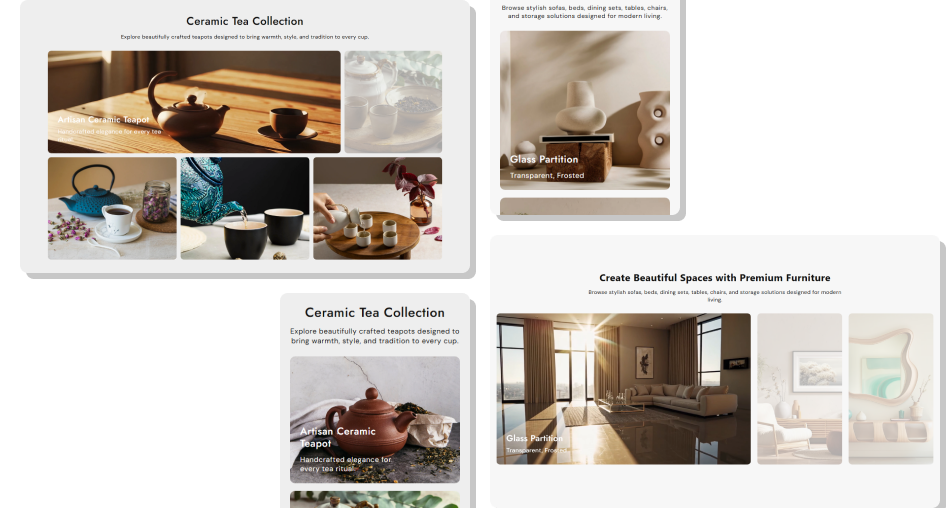
Make visual content more engaging with a responsive gallery designed for interactive media, clickable content, hover effects, and flexible layouts.
Showcase products and visual contentCreate engaging hover experiencesHighlight important product detailsAdd videos and alternate imagesGuide customers with clickable mediaDeliver a better mobile experienceMatch your store branding Use high-quality and relevant images for every media item.
Keep overlay headings short, clear, and easy to scan.
Use hover videos when they add useful visual information.
Add relevant links that match the displayed media content.
Check content positioning and spacing carefully on mobile.
Use high-quality and relevant images for every media item.
Keep overlay headings short, clear, and easy to scan.
Use hover videos when they add useful visual information.
Add relevant links that match the displayed media content.
Check content positioning and spacing carefully on mobile.  Avoid using unrelated images within the same gallery.
Don't fill media cards with too much overlay text.
Avoid hover videos that distract from the main visual.
Don't use links that are unrelated to the displayed media.
Don't ignore mobile layout, spacing, and content positioning.
Avoid using unrelated images within the same gallery.
Don't fill media cards with too much overlay text.
Avoid hover videos that distract from the main visual.
Don't use links that are unrelated to the displayed media.
Don't ignore mobile layout, spacing, and content positioning. Each gallery block supports three media items. Every item can have its own image, hover video, hover image, heading, content, link, and color settings.
Yes. You can add a Shopify-hosted hover video to each media item. On desktop, the video appears automatically when the visitor hovers over the item.
If the hover video is blank, you can use a hover image instead. If both are blank, the main image is used as the hover visual.
Yes. Each media item supports a custom heading and rich-text content that can appear as an overlay on the visual.
Yes. Each media item has its own link setting, allowing you to send visitors to different products, collections, landing pages, or other URLs.
Yes. You can control the content position separately for desktop and mobile, with multiple positioning options available.
Yes. The section provides Small, Medium, and Large media height options to control the visual size of gallery items.
Yes. On mobile, gallery items stack vertically and use dedicated mobile settings for media height, spacing, content position, and typography.
For Support or any Questions Email Us: [email protected]
Install SectionHub and add the Media Gallery section to your theme in minutes - no coding required.
