Create a Visual Product Showcase on Your Homepage
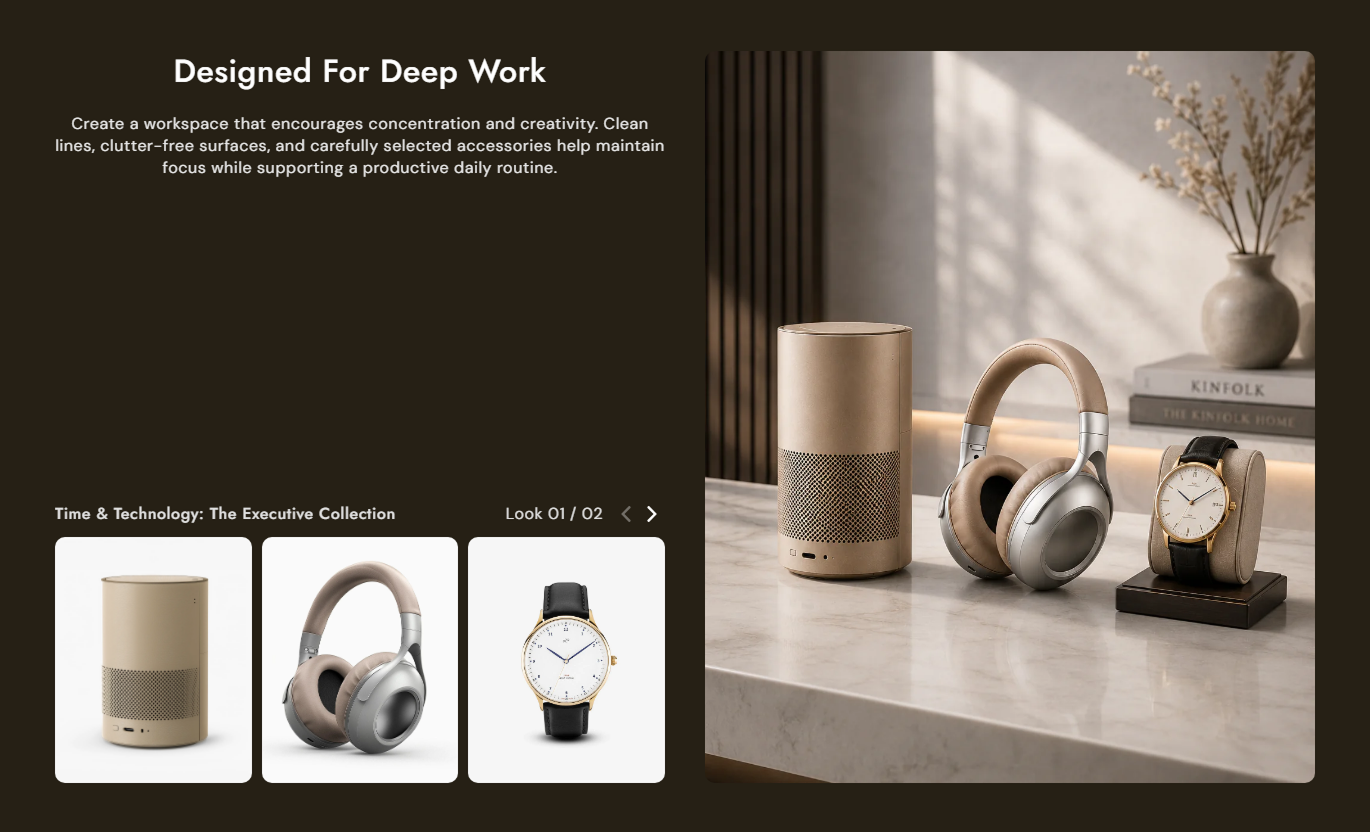
Present complete looks or featured product groups through large imagery and linked product thumbnails that encourage customers to explore and shop directly.

The showcase product looks with a large featured image, up to three linked products, slide navigation, custom layouts, and responsive controls for every device.
 Interactive Lookbook Slider
Product-Focused Visuals
Responsive Store Design
Interactive Lookbook Slider
Product-Focused Visuals
Responsive Store Design 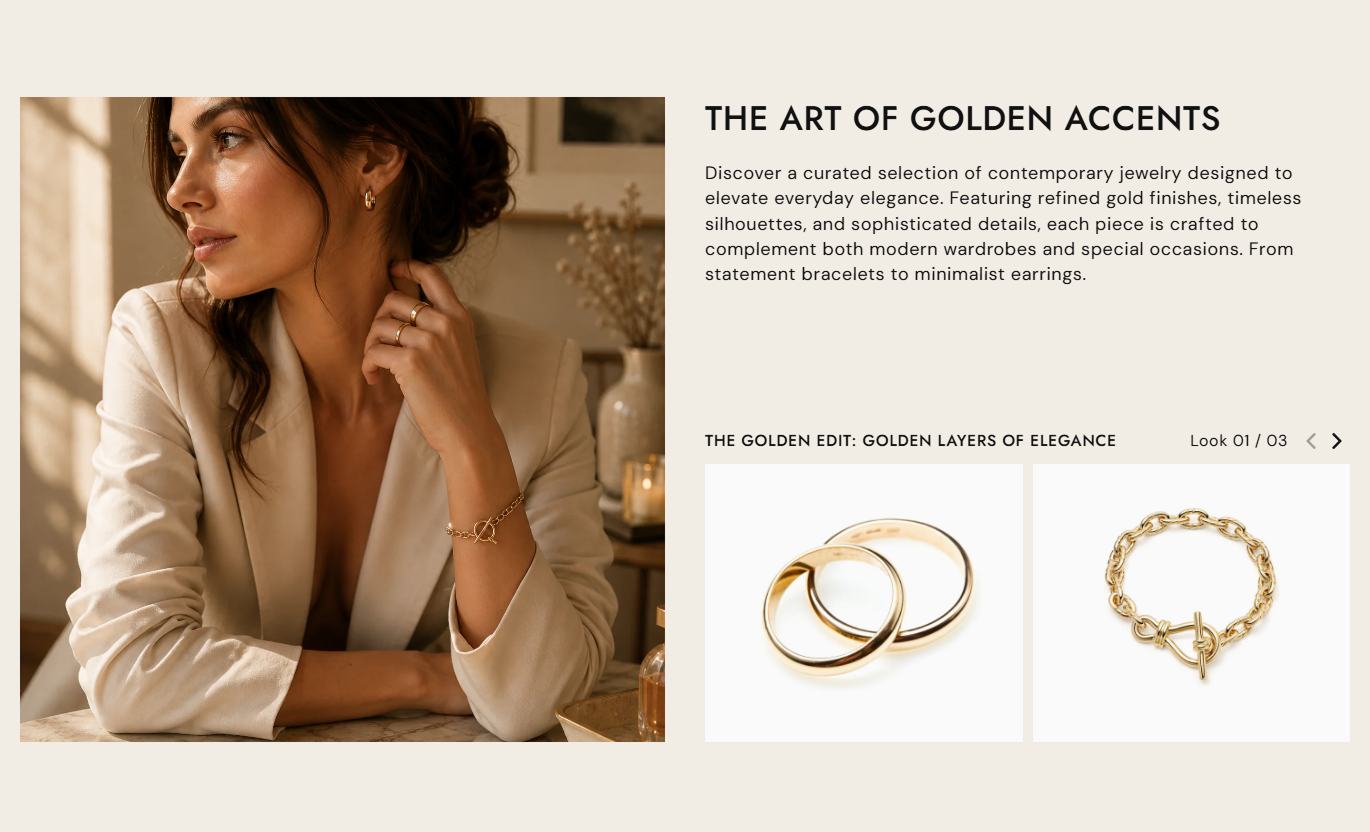


Create visual product showcases with multiple slides, featured images, product thumbnails, navigation arrows, custom layouts, and responsive styling controls.

Add up to five separate slides to showcase different looks, product groups, campaigns, or visual collections.

Add a large main image to every slide and use it as the primary visual for each featured look.

Select up to 3 products per slide and display their featured images as clickable product thumbnails.

Product thumbnails automatically link to their respective product pages, helping customers move directly from inspiration to shopping.

Slides use a smooth fade transition to create a clean, focused visual browsing experience between looks.

Customers can move between looks using the built-in previous and next navigation arrows.

Choose whether the main lookbook image appears on the left or right side of the slide layout.

The section adapts across desktop, tablet, and mobile with responsive image sizes, typography, spacing, and layout behavior.
Control lookbook content, image sizes, layout position, typography, colors, spacing, border radius, and section width from the theme editor.

Applies to the whole section
Add a heading to introduce the featured lookbook content.
Main Section HeadingAdd rich text to describe the lookbook or featured products.
Section ContentSet the alignment of the slide heading and supporting content.
Text AlignmentChoose whether the main lookbook image appears on the left or right.
Media PositionChoose small, medium, or large sizing for the main lookbook image.
Main Image HeightSelect the size ratio for product thumbnail images.
Thumbnail Image HeightAdjust the corner radius of the main lookbook image.
Image Border RadiusCustomize the corner rounding of product thumbnail images.
Thumbnail Border RadiusAdjust heading, content, and slider text font sizes.
Typography ControlsControl maximum width, full-width display, and desktop or mobile padding.
Section Width & Spacing
Applies to each lookbook slide
Select the main visual image displayed for the lookbook slide.
Lookbook ImageAdd the text label shown with the current lookbook slide.
Slider TextChoose up to three products to display as clickable thumbnails.
Select ProductsUse the lookbook slider to present styled product collections, seasonal looks, featured products, campaigns, and visual shopping experiences across key store pages.
Present complete looks or featured product groups through large imagery and linked product thumbnails that encourage customers to explore and shop directly.
Showcase complete product looks visually.Feature multiple product groups in one section.Link displayed products directly to product pages.Create engaging seasonal or campaign showcases.Guide customers from inspiration to shopping.Use lookbook slides to present collection themes with featured imagery and selected products, giving shoppers a visual way to discover items from each look.
Present collection themes through visual looks.Feature up to three products per slide.Connect thumbnails to individual product pages.Create multiple looks within one section.Make collection discovery more visual.Display a featured product look alongside selected products to introduce complementary items and create a more complete visual shopping experience.
Highlight complementary products together.Present products through styled visual scenes.Link every selected product to its page.Encourage discovery of related products.Create a richer product browsing experience.Create campaign-focused lookbook slides with featured imagery and linked products to present seasonal collections, promotions, launches, or curated product stories.
Build focused visual campaign sections.Present products within curated looks.Add multiple campaign slides.Connect visuals directly to products.Create a strong shopping-focused experience.Give customers an engaging way to explore complete looks and discover featured products across desktop, tablet, and mobile.
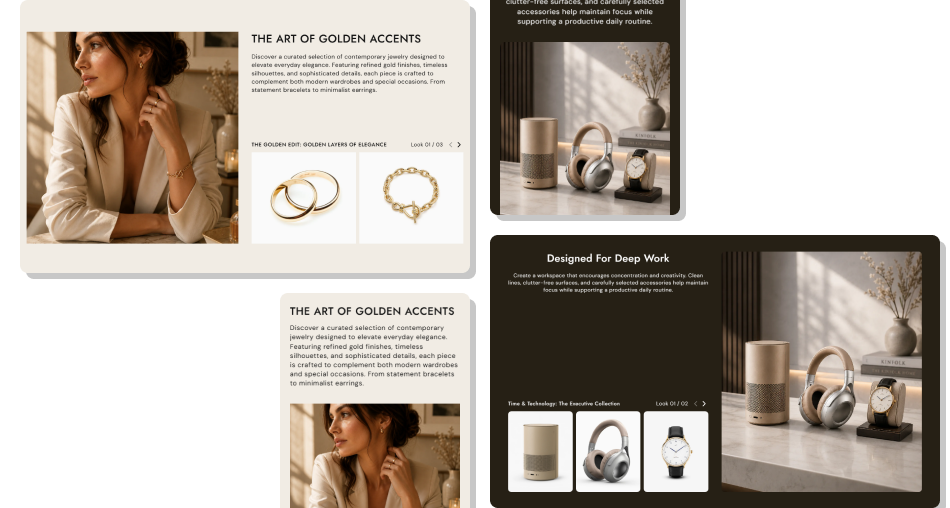
Make product discovery more visual with a responsive lookbook experience that combines featured imagery, linked products, slide navigation, and flexible layouts.
Showcase complete product looksMake product discovery more visualHighlight multiple products togetherConnect inspiration directly to productsCreate interactive browsing experiencesDeliver a better mobile experienceMatch your store branding Use high-quality images that clearly showcase each look.
Select products that match the featured lookbook image.
Keep slider text short, clear, and easy to understand.
Use multiple slides to present different product stories.
Check image sizes and spacing across all devices.
Use high-quality images that clearly showcase each look.
Select products that match the featured lookbook image.
Keep slider text short, clear, and easy to understand.
Use multiple slides to present different product stories.
Check image sizes and spacing across all devices.  Avoid using unrelated products in the same look.
Don’t use low-quality or unclear featured images.
Avoid adding unnecessary or overly long slider text.
Don’t add products that do not match the visual story.
Don’t ignore mobile spacing and image presentation.
Avoid using unrelated products in the same look.
Don’t use low-quality or unclear featured images.
Avoid adding unnecessary or overly long slider text.
Don’t add products that do not match the visual story.
Don’t ignore mobile spacing and image presentation. The section supports up to five lookbook slides. Each slide can have its own featured image, slider text, and selected products.
Each slide supports up to three selected products. Their featured images are displayed as thumbnails below the main lookbook image.
Yes. Each selected product thumbnail links directly to that product’s page, allowing customers to move from the lookbook to the product details.
Yes. You can choose whether the main lookbook image appears on the left or right side of the content and product area.
Yes. The slider includes previous and next arrow controls so customers can move between the available lookbook slides.
Yes. The slider uses a fade transition between slides, creating a smooth, focused change from one look to the next.
Yes. You can select the main image height and the thumbnail image ratio, along with separate border-radius controls for both image types.
Yes. The layout includes responsive behavior for desktop, tablet, and mobile, with mobile-specific typography, image sizing, and section spacing.
For Support or any Questions Email Us: [email protected]
Install SectionHub and add the Lookbook Slider Thumbnails section to your theme in minutes - no coding required.
