Turn Homepage Inspiration Into Product Discovery
Use lookbook tabs to combine lifestyle imagery with curated products, helping visitors explore seasonal edits, featured collections, complete looks, or campaign stories.

Create shoppable lookbook tabs with large campaign images, curated product lists, pricing, optional descriptions, and responsive slides to help shoppers discover products through visual stories.
 Tabbed Lookbook Layout
Curated Product Lists
Responsive Shop Stories
Tabbed Lookbook Layout
Curated Product Lists
Responsive Shop Stories 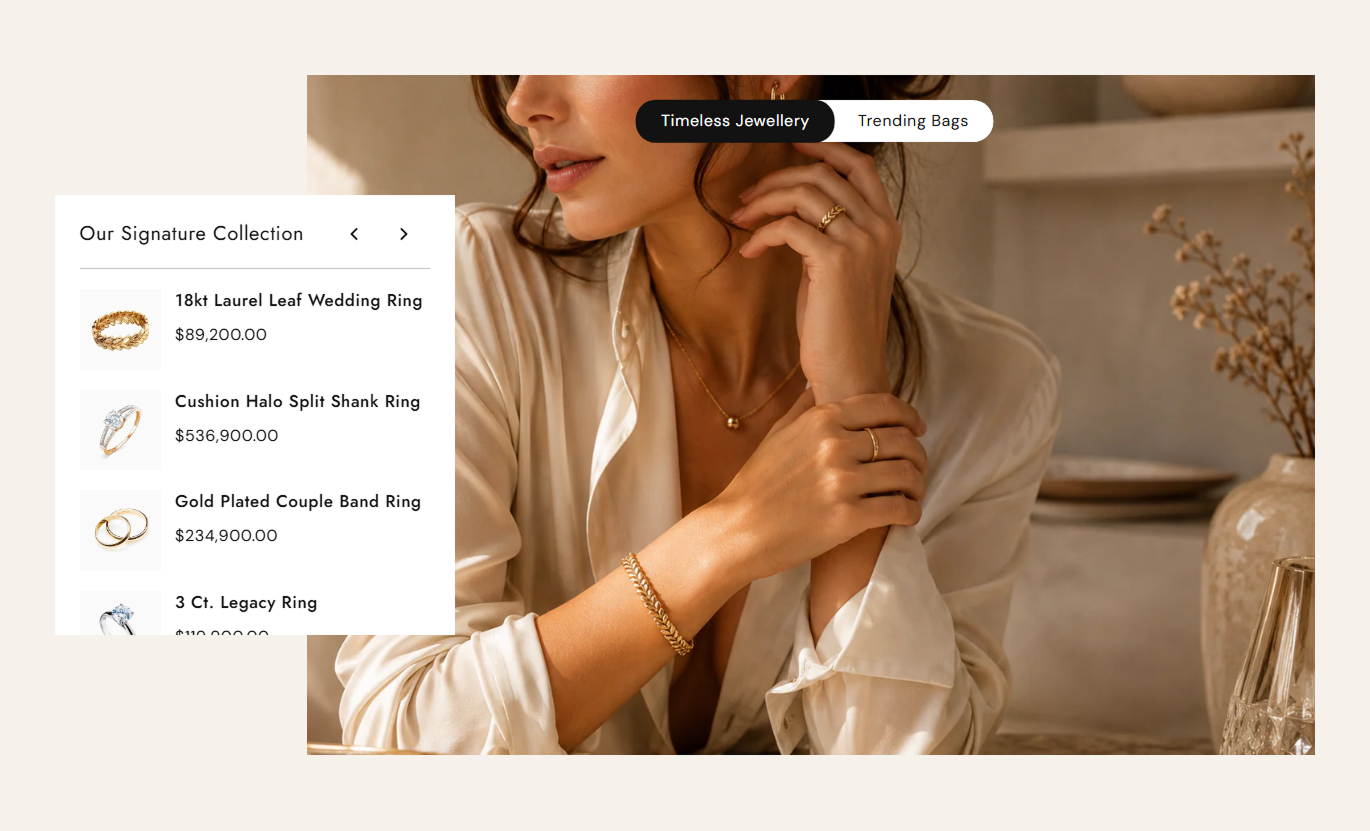
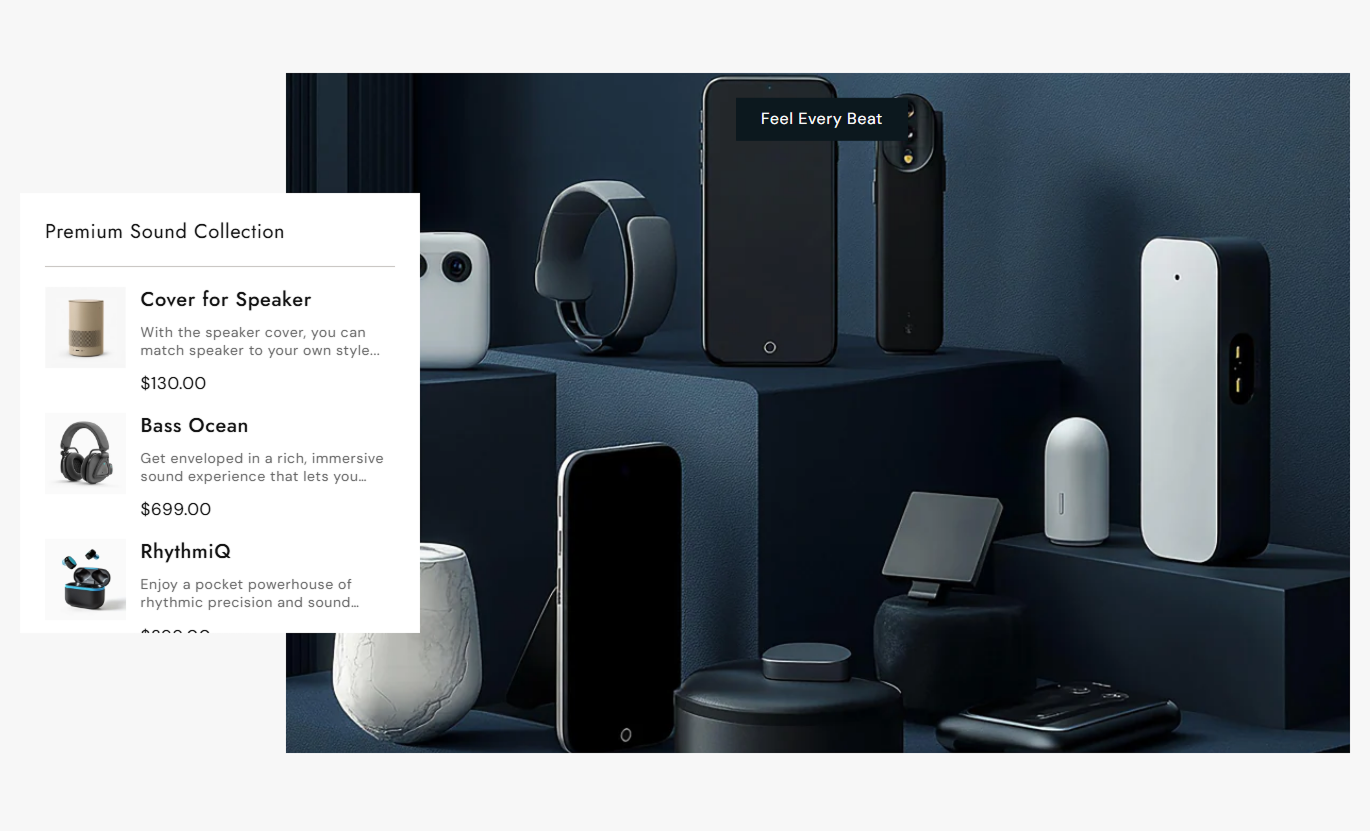


Combine large lifestyle imagery with curated product lists, tabbed browsing, pricing, optional descriptions, and responsive slider navigation to create an engaging shopping experience.

Create up to three lookbook tabs so shoppers can switch between different themes, collections, seasonal edits, or campaign stories.

Add up to three visual slides inside each lookbook tab, giving every story multiple curated scenes to explore.

Connect a Shopify product list to each slide so shoppers can browse products that directly relate to the featured visual.

Upload separate desktop and mobile images for each slide to create better visual presentation across different screen sizes.

Show the current product price and, when available, the compare-at price, giving shoppers useful pricing information while browsing.

Choose whether product descriptions appear in the product list, with longer descriptions shortened to keep the layout easy to scan.

Move between lookbook slides using previous and next controls with a smooth fade transition between visual stories.

On mobile devices, the image and product content adapt to the smaller layout while maintaining touch-friendly slide navigation.
Control lookbook tabs, product lists, images, descriptions, typography, colors, navigation, spacing, and section width directly from the Shopify theme editor.

Applies to the whole section
Set the corner radius used around the lookbook tabs.
Tab Border RadiusShow or hide product descriptions within the product lists.
Product DescriptionsAdjust the font size used for lookbook tab titles.
Tab Title Font SizeControl heading, product title, content, and price font sizes.
Content Font SizesCustomize section, tab, product card, and divider colors.
Section Color StylesSet separate colors for active and inactive tab states.
Tab State ColorsCustomize slider arrow color, background, border, and size.
Arrow Style Controls
Applies to each lookbook tab
Add the tab name displayed in the lookbook tab switcher.
Lookbook TabAdd the heading displayed above the products for the selected lookbook.
Lookbook HeadingUpload the desktop image used for each lookbook slide.
Desktop Slide ImagesUpload an optional mobile image for each lookbook slide.
Mobile Slide ImagesSelect the Shopify products displayed beside each slide.
Slide Product ListsCreate up to three image-and-product slides inside each lookbook tab.
Lookbook SlidesUse visual lookbook tabs to pair campaign imagery with curated product lists, helping shoppers discover products by theme, collection, style, or story.
Use lookbook tabs to combine lifestyle imagery with curated products, helping visitors explore seasonal edits, featured collections, complete looks, or campaign stories.
Present seasonal edits without creating multiple product sectionsPair lifestyle photography with directly related productsLet shoppers switch between different styles or campaign storiesShow product pricing while keeping the visual story prominentUse dedicated mobile imagery for a better small-screen experienceUse the section to highlight styled edits, subcategories, or campaign looks while giving shoppers direct access to the products featured in each visual story.
Create visual edits around products related to the collectionGroup complementary products into focused lookbook listsHelp shoppers understand how selected products work togetherDisplay current and compare-at pricing beside featured productsAdd visual storytelling without replacing the main product gridUse curated lookbook slides to showcase matching items, styling ideas, or related products around the product shoppers are already viewing.
Show complementary products that complete the featured lookPresent styling ideas with large supporting campaign imageryLink shoppers directly to related product pagesKeep product pricing visible within the lookbookUse separate tabs for different styles, occasions, or product themesCreate campaign-focused lookbooks with tabs, large imagery, curated products, and slide navigation for launches, seasonal edits, promotions, or editorial landing pages.
Turn campaign imagery into a direct product discovery experienceSeparate campaign themes with clear clickable lookbook tabsFeature multiple product groups without creating a long pageUse dedicated desktop and mobile imagery for each slideGuide shoppers from editorial content directly to product pagesTurn lifestyle imagery into a guided shopping experience by pairing each visual story with selected products, pricing, descriptions, and direct product links.
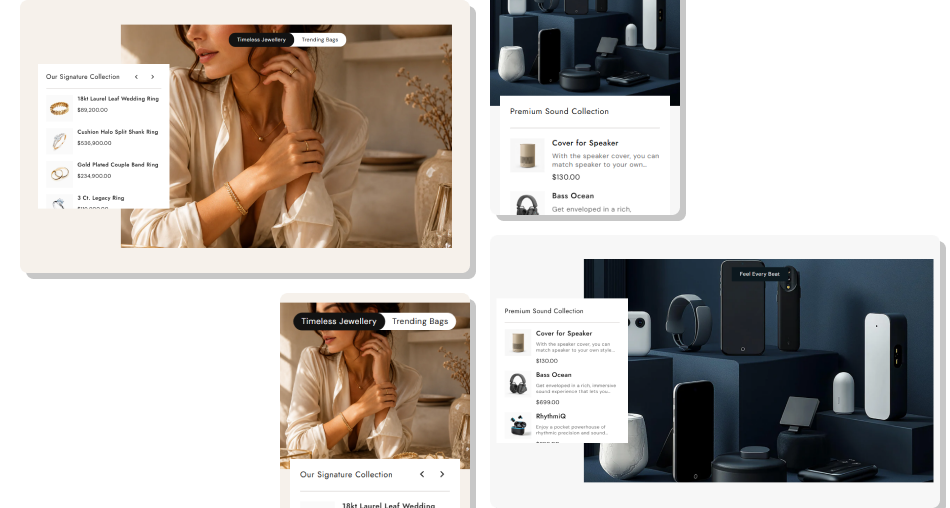
Connect campaign imagery with the products shoppers can explore while keeping the visual story organized, interactive, and easy to browse.
Connect lifestyle imagery directly with selected Shopify productsOrganize multiple visual stories inside simple clickable tabsShow product prices without requiring shoppers to leave the lookbookDisplay compare-at pricing when products have a higher original priceAdd optional product descriptions when additional context is usefulUse separate mobile imagery to improve presentation on smaller screensKeep product discovery interactive with arrows and touch navigation Use clear tab names that describe each lookbook theme or collection.
Pair each slide image with products that directly match the featured story.
Upload dedicated mobile images when desktop crops do not work well on smaller screens.
Keep product lists focused on items that are relevant to each visual.
Check product prices, descriptions, links, and navigation before publishing.
Use clear tab names that describe each lookbook theme or collection.
Pair each slide image with products that directly match the featured story.
Upload dedicated mobile images when desktop crops do not work well on smaller screens.
Keep product lists focused on items that are relevant to each visual.
Check product prices, descriptions, links, and navigation before publishing.  Do not mix unrelated products inside the same lookbook product list.
Do not use repetitive campaign images when different visuals can better explain each story.
Do not add too many loosely related products to a single slide.
Do not display lengthy descriptions when they make the product list difficult to scan.
Do not ignore mobile image crops when preparing lookbook slides.
Do not mix unrelated products inside the same lookbook product list.
Do not use repetitive campaign images when different visuals can better explain each story.
Do not add too many loosely related products to a single slide.
Do not display lengthy descriptions when they make the product list difficult to scan.
Do not ignore mobile image crops when preparing lookbook slides. You can add up to three lookbook tabs. Each tab can have its own heading and contain up to three separate image-and-product slides.
Each lookbook tab supports up to three slides. Every slide can have its own desktop image, mobile image, and selected Shopify product list.
Yes. Each slide supports a desktop image and an optional mobile image, allowing you to use a more suitable crop for smaller screens.
Yes. Selected products display their current variant price and a compare-at price when the compare-at value is higher than the current selling price.
Yes. The Product Descriptions setting lets you show or hide shortened product descriptions within the lookbook product lists.
Yes. The slider supports touch movement on mobile, allowing shoppers to swipe between available lookbook slides.
Yes. Every slide has its own product list selection, allowing you to connect different products to different campaign images or visual stories.
Yes. You can customize tab states, product card colors, typography, pricing, divider styling, arrow appearance, spacing, border radius, and section width.
For Support or any Questions Email Us: [email protected]
Install SectionHub and add the Lookbook Slider Tabs section to your theme in minutes - no coding required.
