Create a Shoppable Lifestyle Story on Your Homepage
Use the lookbook on your homepage to connect a lifestyle image with featured products, helping visitors explore key items without leaving the visual merchandising story.

Create an interactive Shopify lookbook with image hotspots, linked product cards, responsive positioning, mobile drawers, pricing, and customizable styling options.
 Shoppable Image Hotspots
Linked Product Cards
Responsive Mobile Drawer
Shoppable Image Hotspots
Linked Product Cards
Responsive Mobile Drawer 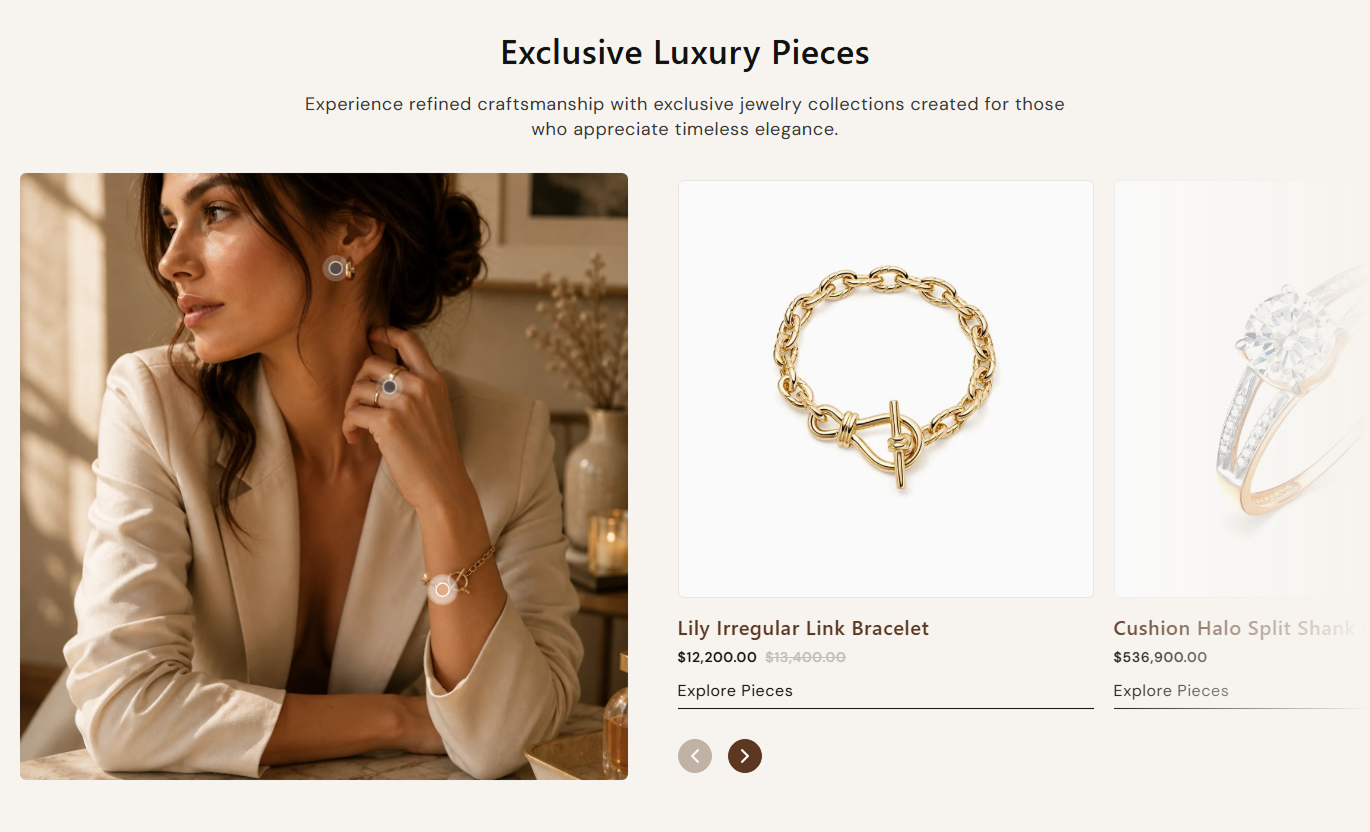
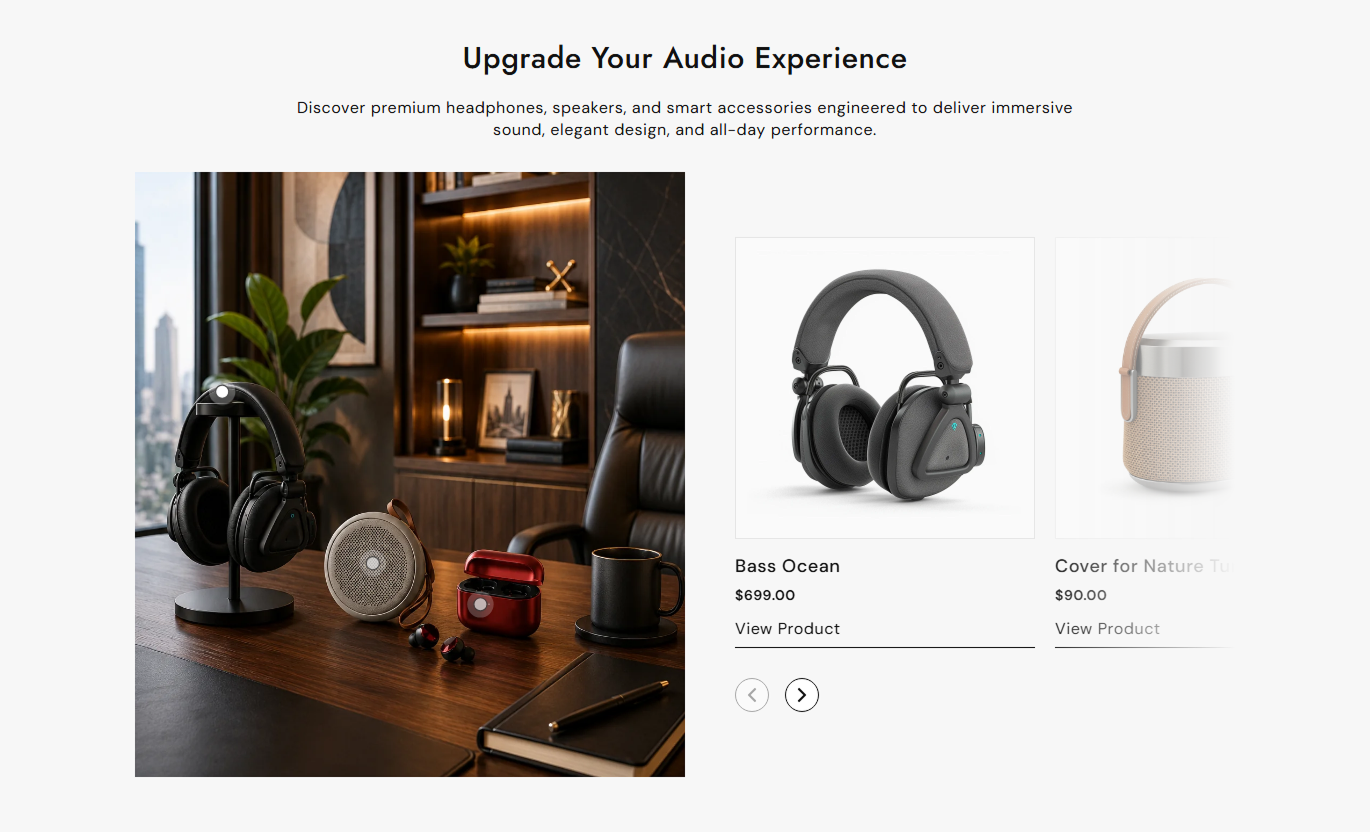


Turn a lifestyle image into a shoppable lookbook with positioned product hotspots, synchronized product cards, mobile drawers, hover images, and navigation.

Place clickable product hotspots over the banner image and connect each point to its matching product slide.

Click a hotspot to move the product slider to the corresponding selected product and highlight the active point.

On mobile, tapping a hotspot opens the selected product inside a bottom drawer with an overlay and close control.

Choose a Shopify product for each block and automatically show its image, title, price, and optional vendor.

Enable a second product image on hover when the selected product includes more than one available image.

Display the selected variant price and show compare-at pricing with a strike-through whenever it is higher.

Set separate horizontal and vertical hotspot positions for desktop and mobile layouts on every product block.

Control card radius, active border, button treatment, arrows, hotspot colors, typography, spacing, and width.
Control the banner, product cards, hotspots, buttons, arrows, colors, spacing, responsive positions, and section width.

Applies to the whole lookbook section
Choose the main lifestyle image used for the lookbook.
Lookbook Banner ImageSet Small, Medium, or Large banner width and height.
Banner Image SizeShow vendor names and optional second images on product cards.
Product Card DisplayShow the product button and customize its label and style.
Product Button StyleAdjust section, card, product, arrow, and hotspot colors.
Section Color ControlsSet heading, content, vendor, title, price, and button sizes.
Typography ControlsControl arrow appearance, hover colors, and desktop size.
Navigation ArrowsCustomize hotspot color, border, pulse color, and size.
Hotspot StylingSet separate desktop and mobile top and bottom padding.
Section SpacingUse full width or set a custom maximum section width.
Section Width Control
Applies to each product hotspot
Choose the Shopify product linked to the hotspot.
Selected ProductSet the desktop horizontal hotspot position.
Desktop HorizontalSet the desktop vertical hotspot position.
Desktop VerticalSet the mobile horizontal hotspot position.
Mobile HorizontalSet the mobile vertical hotspot position.
Mobile VerticalUse this shoppable lookbook across key Shopify pages to connect lifestyle imagery with selected products, improve discovery, and support visual merchandising.
Use the lookbook on your homepage to connect a lifestyle image with featured products, helping visitors explore key items without leaving the visual merchandising story.
Turn a campaign image into an interactive shopping experienceHighlight featured products without adding a large product gridGuide shoppers from visual inspiration to product pages quicklyUse hotspots to connect products with exact areas of the imageKeep product discovery responsive across desktop and mobilePlace the lookbook near collection content to connect styled imagery with selected products, giving shoppers another way to discover items beyond the standard product grid.
Support collection browsing with lifestyle-led product discoveryFeature selected items without changing the main product gridConnect styled imagery with individual product informationUse hotspot positions that match the collection photographySend shoppers directly to product pages from the sliderUse the lookbook on product pages to present related items inside a styled scene, helping shoppers discover complementary products through visual hotspots and linked cards.
Show complementary products within one lifestyle compositionHelp shoppers discover related items through visual contextDisplay product prices and optional vendor information clearlyUse second-image hover previews for additional product detailLink each product card directly to its product pageUse Lookbook Slider Hotspot on campaign landing pages to connect editorial imagery with selected products, combining visual storytelling and direct product discovery in one section.
Turn campaign photography into a direct shopping experienceConnect launch products with specific areas of the artworkUse active hotspots to guide attention between featured itemsKeep campaign product cards organized in one sliderOpen product details in a mobile drawer from each hotspotConnect products directly to a central banner image with interactive hotspots and synchronized product cards that help shoppers explore featured items.
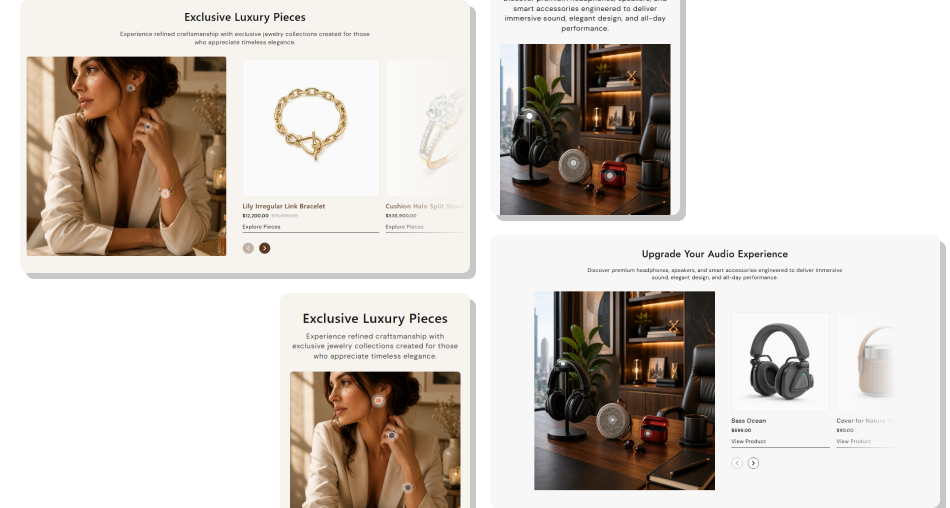
Connect styled imagery with selected products using hotspots, synced cards, pricing, and responsive controls for easier discovery.
Connect visual inspiration directly with selected Shopify productsLet shoppers move between hotspots and matching product cardsDisplay product images, titles, prices, and optional vendorsUse second-image hover previews for richer product discoveryPosition hotspots independently for desktop and mobileOpen a focused product drawer when mobile hotspots are tappedCustomize card, button, arrow, hotspot, and section styling Place each hotspot close to the product it represents in the image
Use products that are clearly visible or relevant to the lookbook
Set separate mobile hotspot positions after checking smaller screens
Keep product titles and imagery consistent with the campaign story
Test every hotspot, product link, drawer, and arrow before publishing
Place each hotspot close to the product it represents in the image
Use products that are clearly visible or relevant to the lookbook
Set separate mobile hotspot positions after checking smaller screens
Keep product titles and imagery consistent with the campaign story
Test every hotspot, product link, drawer, and arrow before publishing  Do not place several hotspots so close that they become hard to tap
Do not use unrelated products that weaken the visual story
Do not rely on desktop hotspot positions for mobile layouts
Do not use busy imagery that makes hotspot markers hard to notice
Do not leave product blocks empty in a published storefront section
Do not place several hotspots so close that they become hard to tap
Do not use unrelated products that weaken the visual story
Do not rely on desktop hotspot positions for mobile layouts
Do not use busy imagery that makes hotspot markers hard to notice
Do not leave product blocks empty in a published storefront section Each product block creates a hotspot and a matching slider card. Clicking a hotspot moves the slider to the corresponding product.
Yes. Every product block has separate horizontal and vertical position controls for desktop and mobile layouts.
On screens up to 767px, the matching product is selected, and a bottom drawer opens with an overlay and a close button.
Yes. Vendor display can be enabled, and compare-at pricing appears with a strike-through when it is higher than the current price.
Yes. Enable the second-image option, and products with more than one image can swap to the second image on hover.
Yes. The product image, product title, and enabled product button can link shoppers directly to the selected product page.
Yes. The section includes controls for arrow size and colors plus hotspot size, fill, border, active color, and pulse color.
Yes. Full Width can be enabled, or you can disable it and enter a custom maximum section width for a contained layout.
For Support or any Questions Email Us: [email protected]
Install SectionHub and add the Lookbook Slider Hotspot section to your theme in minutes - no coding required.
