Help Customers Find Your Physical Store
Add your store location to the homepage to show visitors where you operate, share important contact details, and provide a direct way to get directions.

Help customers find your store with a Google Map, address, contact details, opening hours, and a clear directions button in one clean, responsive section.
 Google Map Integration
Store Contact Details
Responsive Location Layout
Google Map Integration
Store Contact Details
Responsive Location Layout 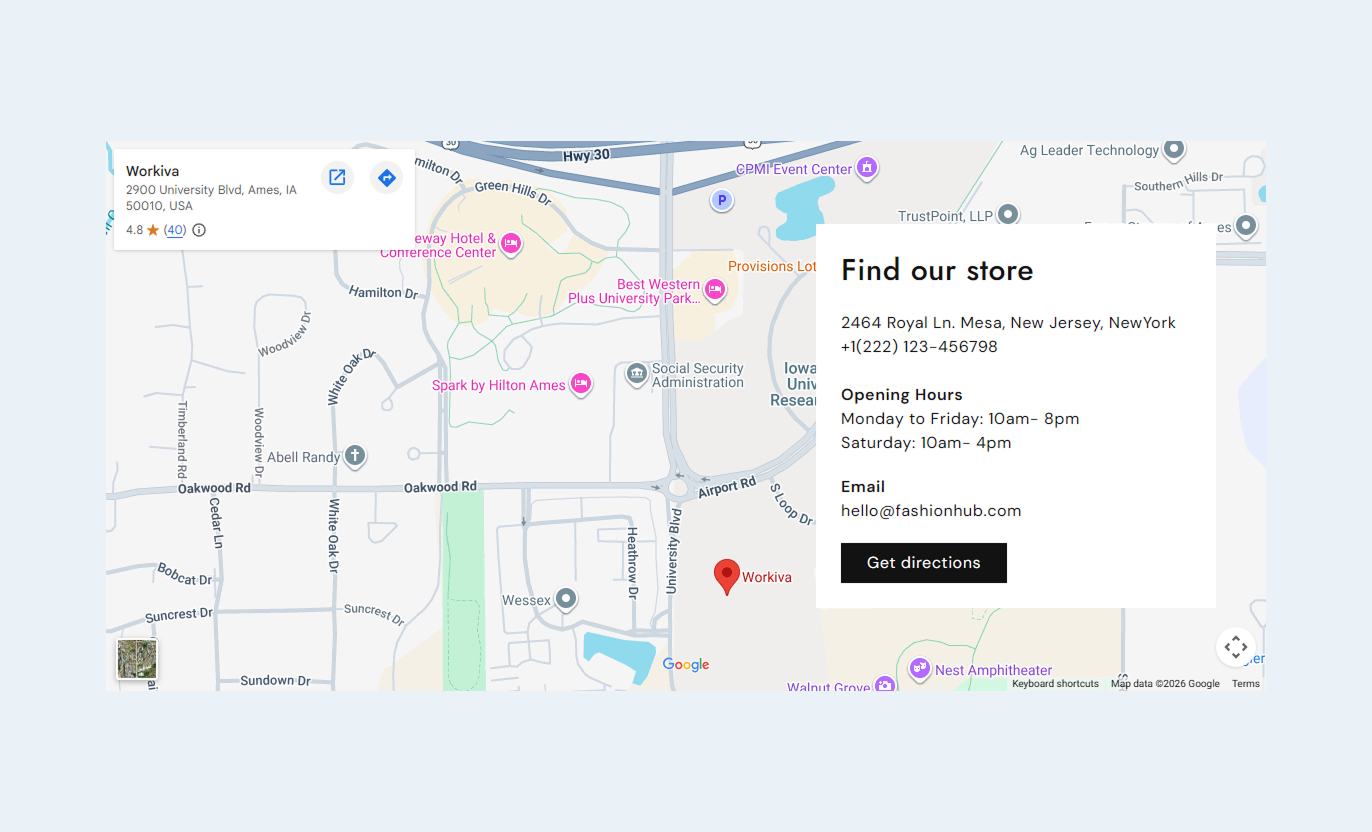
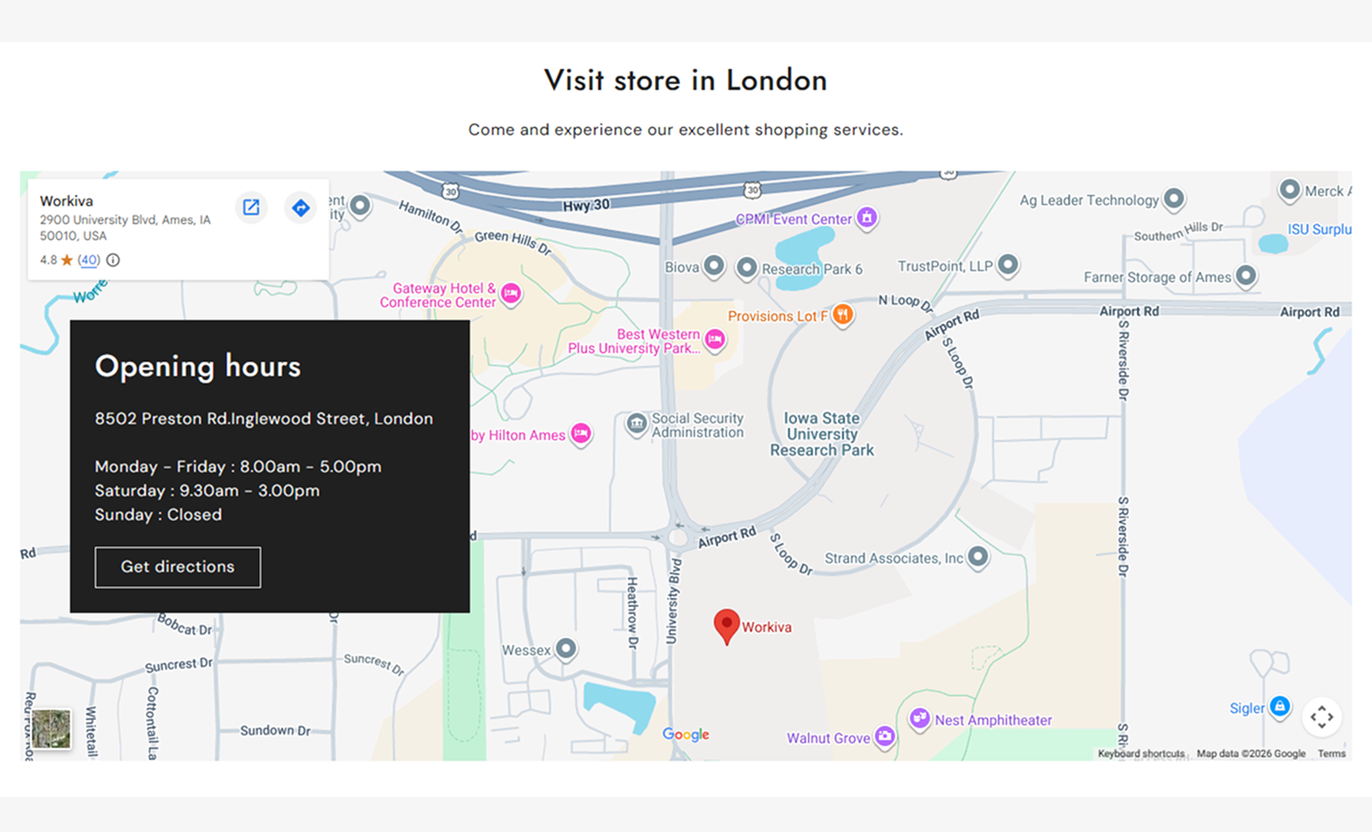


Combine a Google Map with store details, contact information, directions, flexible alignment, button styling, and responsive layouts for your Shopify store.

Add a Google Maps iframe to display your store or business location directly within the section.

Show your address, phone number, opening hours, and other important store information beside the map.

Include additional contact information, such as an email address, to help customers reach your business easily.

Add a dedicated heading to introduce your store information and make the location panel easier to understand.

Add a customizable button that links customers to directions, maps, or another relevant location page.

Choose whether the location information appears on the left or right side of the map on desktop.

Set separate text alignment options for the location content on desktop and mobile devices.

Use the available section width to create a spacious map layout when a separate content panel is not needed.
Customize the map, location details, button, alignment, colors, spacing, and section width directly from the Shopify theme editor.

Applies to the whole section
Main heading is displayed above the location map.
HeadingSupporting rich text displayed below the main heading.
ContentChoose the alignment of the main section content.
Content alignmentHeading displayed inside the location information panel.
HeadingAdd the address, phone number, hours, and store location details.
ContentAdd additional email or contact information for visitors.
Contact detailsAdd the Google Maps embedded iframe source.
Google Maps iframe sourceChoose the location panel position on desktop.
Content position (Desktop)Customize the section and location panel background colors.
Background colorMake the section span the full available width of the page.
Full width
Applies to the location content area
Set the text displayed on the location action button.
LabelAdd the destination URL or page for the button.
LinkEnable an outlined style for the location action button.
Use outline buttonSet the corner radius of the location button.
Border radiusSet the location content alignment on desktop.
DesktopSet the location content alignment on mobile.
MobileUse Location Map Flexible Content to help shoppers find your physical store, view contact details, check opening hours, and access directions from important pages.
Add your store location to the homepage to show visitors where you operate, share important contact details, and provide a direct way to get directions.
Show your store location clearlyHighlight important contact informationDisplay current opening hoursSupport local customer visitsProvide a direct directions linkUse the map section on collection pages when shoppers may need store information, pickup details, or location guidance while browsing your product collections.
Support local shopping journeysShare useful store informationHelp shoppers find your locationAdd directions beside product browsingImprove access to contact detailsAdd a store map below product information to help customers discover your physical location, contact your team, or visit your store in person.
Connect online products with your storeShare local store informationSupport in-store customer visitsDisplay contact information nearbyMake directions easy to accessUse the map section on showroom, event, local promotion, or campaign pages to provide visitors with location details and a clear route to your business.
Highlight a specific business locationSupport event or showroom visitsDisplay useful contact informationMake directions easy to findAdd practical local informationGive shoppers the map, address, contact details, opening hours, and directions they need without sending them across multiple pages.
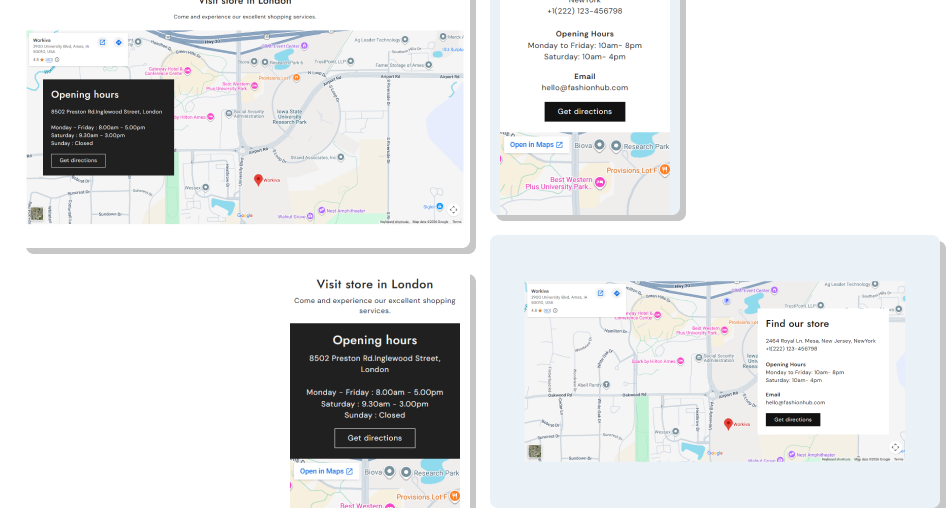
Combine your map and store information in one section so customers can quickly understand where to go and how to reach your business.
Make your physical store easier to discoverKeep address and contact details togetherShow opening hours beside the mapAdd a direct link for directionsChoose a layout that fits your store designCreate a responsive experience across devicesMatch colors and typography with your theme Use an accurate Google Maps embed for your store location
Keep addresses and opening hours updated regularly
Add clear contact details that customers can easily understand
Use a relevant destination for the directions button
Check the map layout carefully on mobile devices
Use an accurate Google Maps embed for your store location
Keep addresses and opening hours updated regularly
Add clear contact details that customers can easily understand
Use a relevant destination for the directions button
Check the map layout carefully on mobile devices  Use an outdated or incorrect Google Maps location
Fill the content area with unnecessary store information
Add unclear or unrelated text to the location panel
Link the button to an unrelated page or destination
Ignore mobile alignment, spacing, or map visibility
Use an outdated or incorrect Google Maps location
Fill the content area with unnecessary store information
Add unclear or unrelated text to the location panel
Link the button to an unrelated page or destination
Ignore mobile alignment, spacing, or map visibility Yes. Add a Google Maps iframe through the Google maps iframe source setting to display your store or business location directly in the section.
You can add a heading, rich-text content, address, phone number, opening hours, and additional contact information next to the map.
Yes. Use the Contact details setting to display additional information, such as your business email address or other contact details.
Yes. Add a button label and link to direct customers to directions, a maps page, your store locator, or another relevant destination.
Yes. Use Content position (Desktop) to place the location information on either the left or right side of the map.
Yes. The section provides separate Desktop and Mobile alignment settings for the location content, giving you better control on smaller screens.
Yes. Enable the Full width setting to let the section span the available page width for a wider map presentation.
For Support or any Questions Email Us: [email protected]
Install SectionHub and add the Location Map Flexible Content section to your theme in minutes - no coding required.
