Tell a Visual Brand or Product Story
Use the section on your homepage to explain brand values, product benefits, processes, or milestones through a clear sequence of images and text.

Create a scroll-driven image and text section with timeline progress, changing visuals, up to four content steps, responsive mobile images, and a customizable CTA button.
 Scroll-Linked Timeline
Changing Step Images
Responsive Story Layout
Scroll-Linked Timeline
Changing Step Images
Responsive Story Layout 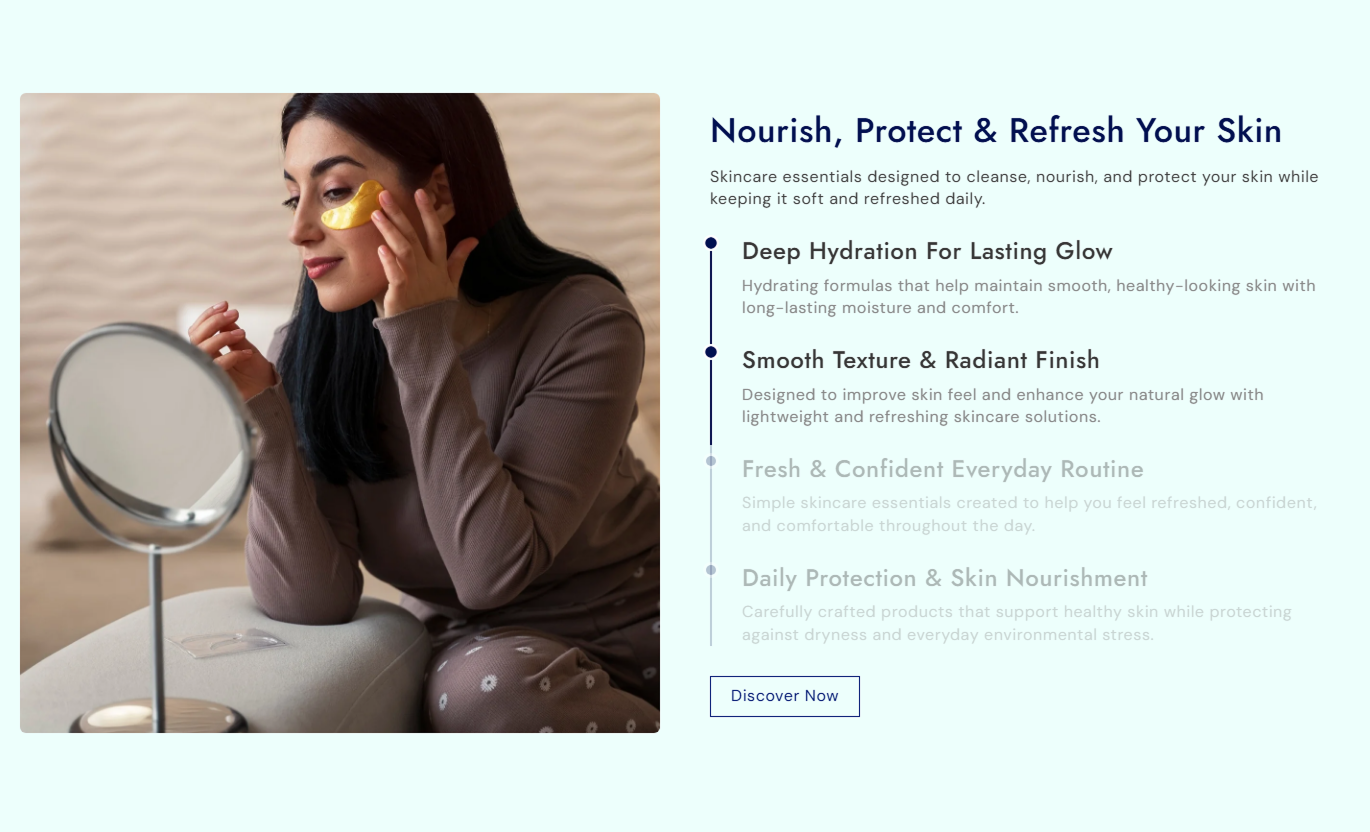


Guide shoppers through a structured story with scroll-linked timeline progress, changing images, content steps, responsive mobile visuals, and a final CTA.

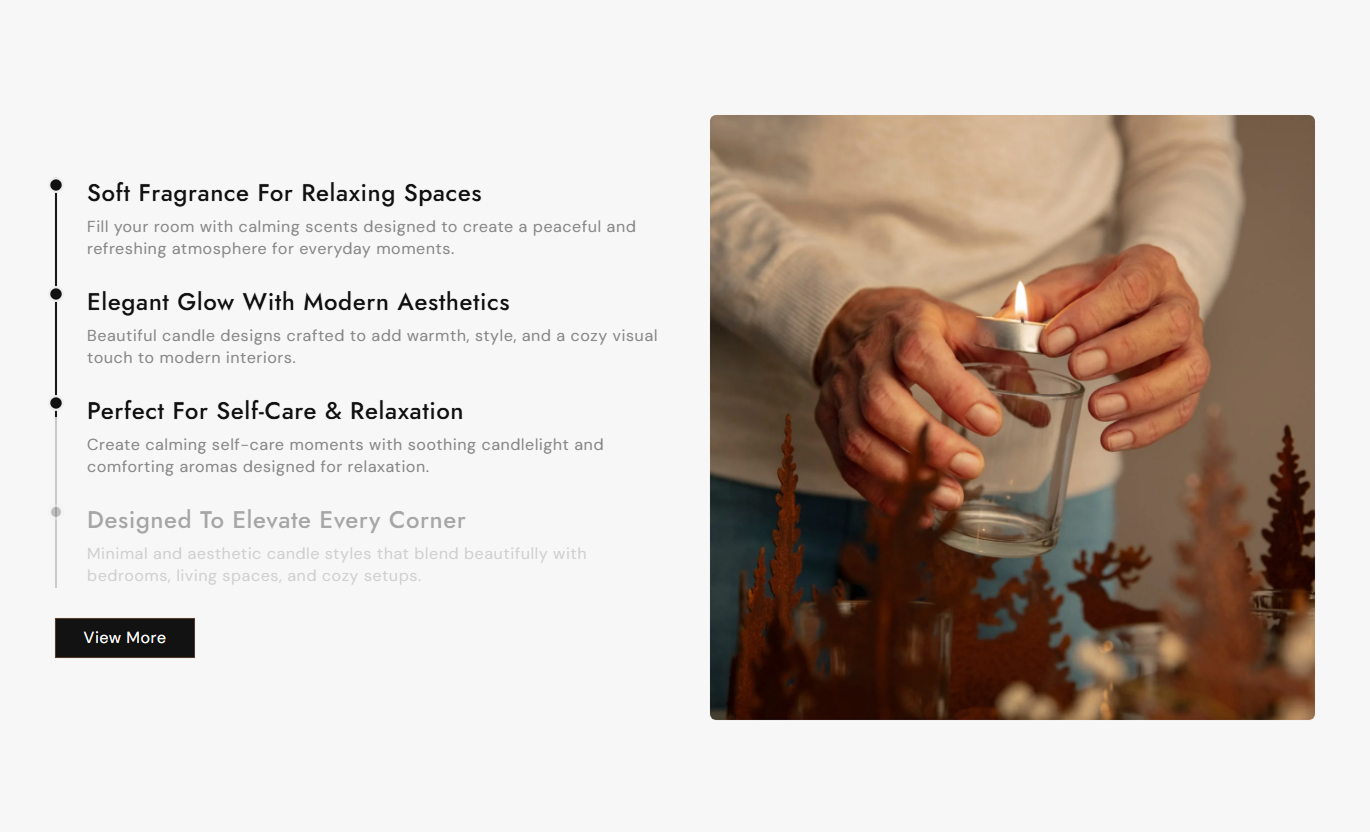
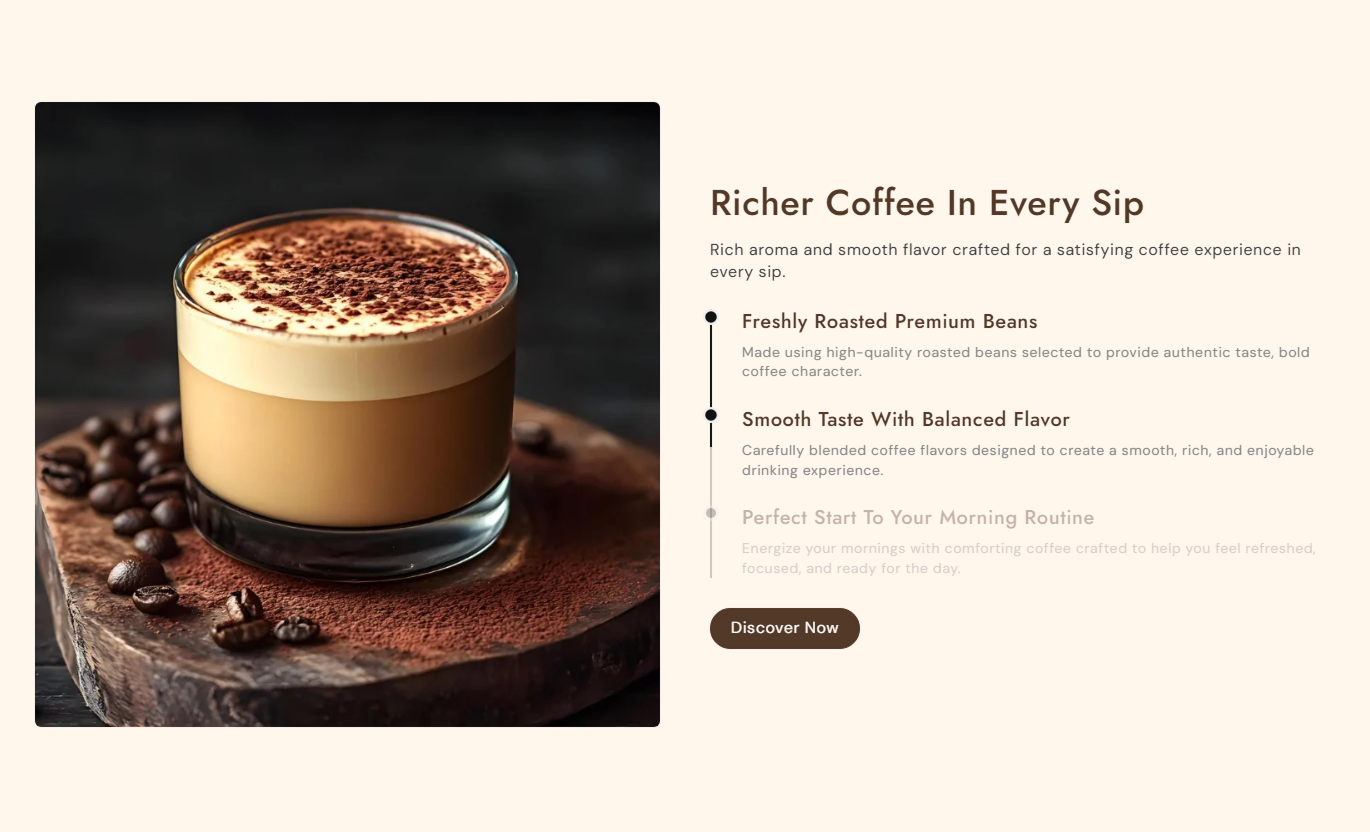
A vertical progress line fills as shoppers move through the section, helping each content step become active in sequence.

The desktop visual changes automatically to match the currently active timeline item as visitors continue scrolling.

Add up to four item blocks, each with its own image, heading, and rich-text content for structured storytelling.

On desktop, the image and content columns use sticky positioning so the visual story stays focused while shoppers scroll.

On mobile, each timeline item displays its own image directly below the text, rather than using the desktop image column.

Position the desktop image on the left or right and choose Small, Medium, or Large image proportions for the layout.

Adjust timeline colors, dot borders, typography, alignment, and active-state visuals to match the storefront design.

Add a section-level button with a destination link, filled or outline styling, custom radius, colors, and hover states.
Control layout, image presentation, timeline styling, text, button appearance, spacing, colors, and responsive behavior.

Applies to the whole section
Edit the main heading, rich text, and heading alignment.
Heading and IntroChoose Small, Medium, or Large image height proportions.
Image Height OptionPlace the desktop image on the left or right side.
Desktop Image SideAdjust the corner radius used on desktop item images.
Image Border RadiusAlign timeline item text to the left, center, or right.
Timeline Text AlignAdd a linked CTA and choose filled or outline styling.
CTA Button ControlsAdjust heading, description, and timeline text sizes.
Typography ControlsCustomize section, timeline, text, dot, and button colors.
Section Color ControlsSet separate top and bottom spacing for desktop and mobile.
Responsive PaddingUse full width or enter a contained maximum section width.
Section Width Control
Applies to each timeline step
Upload the image associated with this timeline step.
Step ImageAdd the heading displayed for this timeline step.
Step HeadingAdd rich text explaining this individual timeline step.
Step ContentUse this scroll-based image and text section across key Shopify pages to explain products, processes, benefits, stories, or campaigns step by step.
Use the section on your homepage to explain brand values, product benefits, processes, or milestones through a clear sequence of images and text.
Guide visitors through key messages in a clear sequencePair each story step with a directly related visualUse scrolling interaction without adding a complex sliderEnd the sequence with a CTA to a relevant destinationKeep the mobile story readable with images under each stepUse the timeline near the collection content to explain the materials, design themes, selection criteria, or shared benefits that connect products across the range.
Introduce shared collection benefits before product browsingExplain materials or design details with matching imageryBreak longer collection stories into easy-to-follow stepsSupport editorial merchandising without changing the gridUse a final CTA to guide shoppers to related contentUse the section on product pages to explain construction, features, usage steps, ingredients, or other details with synchronized text and imagery.
Break complex product information into focused stepsMatch each feature explanation with a relevant imageUse scroll progress to guide shoppers through the sequenceShow step images directly below content on mobile screensAdd a CTA to supporting product or educational contentUse Image with Text Timeline on landing pages to structure a launch, campaign, process, or brand narrative as a clear sequence of visual content steps.
Create a guided campaign story without multiple sectionsUse changing visuals to reinforce each campaign messageKeep the narrative organized with visible timeline progressAdapt each step naturally for smaller mobile screensFinish the story with a clear campaign destination linkCombine changing imagery with a scroll-linked timeline so shoppers can follow important product details, processes, or brand stories in a clear sequence.
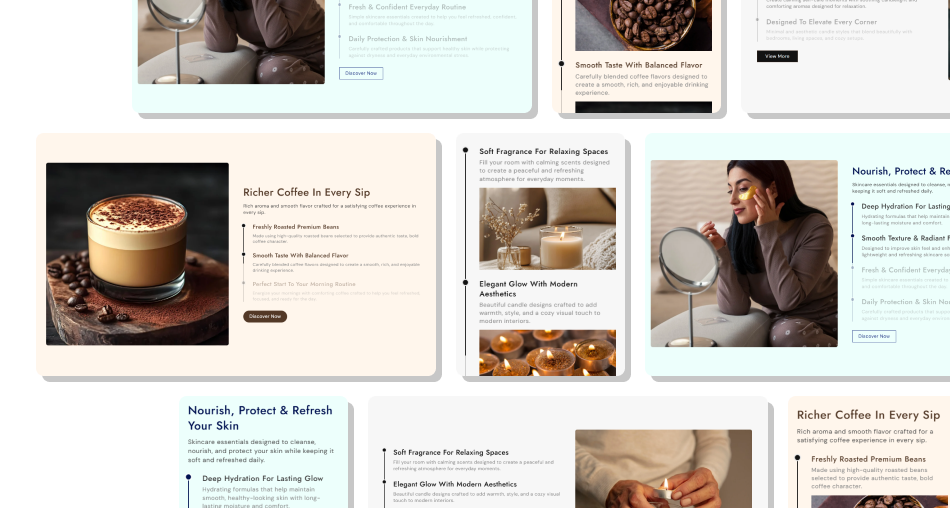
Use synchronized images, timeline progress, and focused steps to explain detailed information in a clear storefront format.
Present detailed information as an easier step-by-step sequenceSynchronize each active content item with its matching imageKeep desktop imagery visible through sticky positioningShow each step image directly with its text on mobileUse timeline progress to communicate movement through the storyPosition the main desktop image on either side of the contentFinish the sequence with an optional linked CTA button Use one focused idea for each timeline item and its image
Choose images that clearly support the text in each step
Keep timeline headings short enough for quick scanning
Check the image order and timeline progression before launch
Test mobile step images and CTA placement on smaller screens
Use one focused idea for each timeline item and its image
Choose images that clearly support the text in each step
Keep timeline headings short enough for quick scanning
Check the image order and timeline progression before launch
Test mobile step images and CTA placement on smaller screens  Do not mix unrelated ideas inside the same timeline sequence
Do not use images that conflict with the active step content
Do not add empty blocks because they will not render correctly
Do not rely on desktop sticky imagery for the mobile layout
Do not make the CTA unrelated to the story shoppers just read
Do not mix unrelated ideas inside the same timeline sequence
Do not use images that conflict with the active step content
Do not add empty blocks because they will not render correctly
Do not rely on desktop sticky imagery for the mobile layout
Do not make the CTA unrelated to the story shoppers just read You can add up to four Item blocks. Each block includes its own image, heading, and rich-text content for a single step in the sequence.
The script tracks timeline progress and activates the image that matches the current content item as the visitor moves through the section.
No. On screens up to 767px, the desktop image column is hidden and each timeline item displays its own image below the text.
Yes. The Image Position setting lets you place the desktop image on the left or right while the content remains in the opposite column.
Yes. The Image Height setting offers Small, Medium, and Large sizes, each with a different aspect ratio for the desktop visual.
Yes. When both a button label and a link are provided, a section-level CTA appears below the timeline with optional outline styling.
Yes. You can customize the progress line color, dot border color, timeline heading and content colors, plus related typography settings.
For Support or any Questions Email Us: [email protected]
Install SectionHub and add the Image with Text Timeline section to your theme in minutes - no coding required.
