Introduce Your Brand With Expandable Stories
Pair a strong lifestyle or brand image with expandable messages about your story, values, services, or key collections without filling the homepage with long copy.

Pair a strong image with expandable text, a shared CTA, and scrolling highlights to explain products, brand stories, services, or campaign messages clearly.
 Expandable Content
Image + Text Layout
Scrolling Text Strip
Expandable Content
Image + Text Layout
Scrolling Text Strip 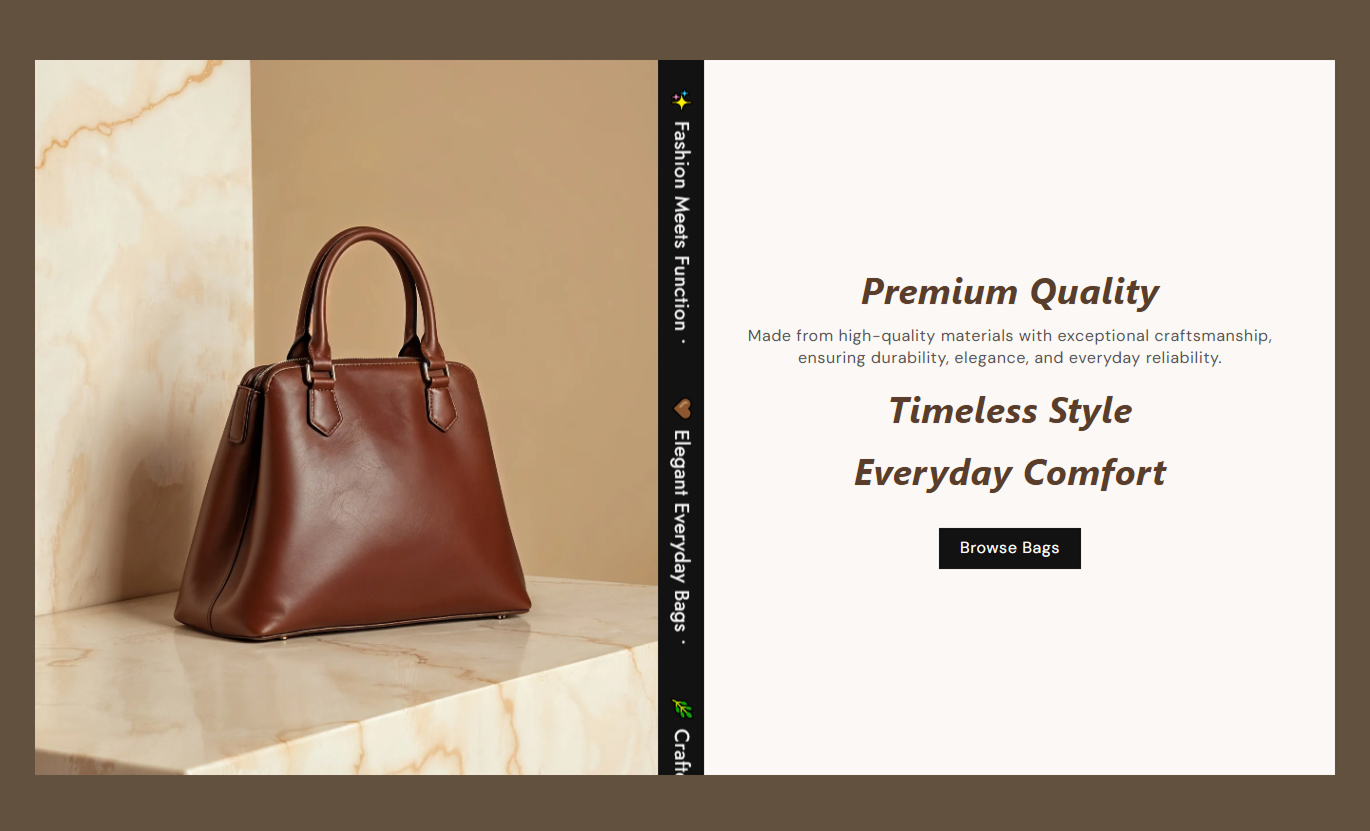
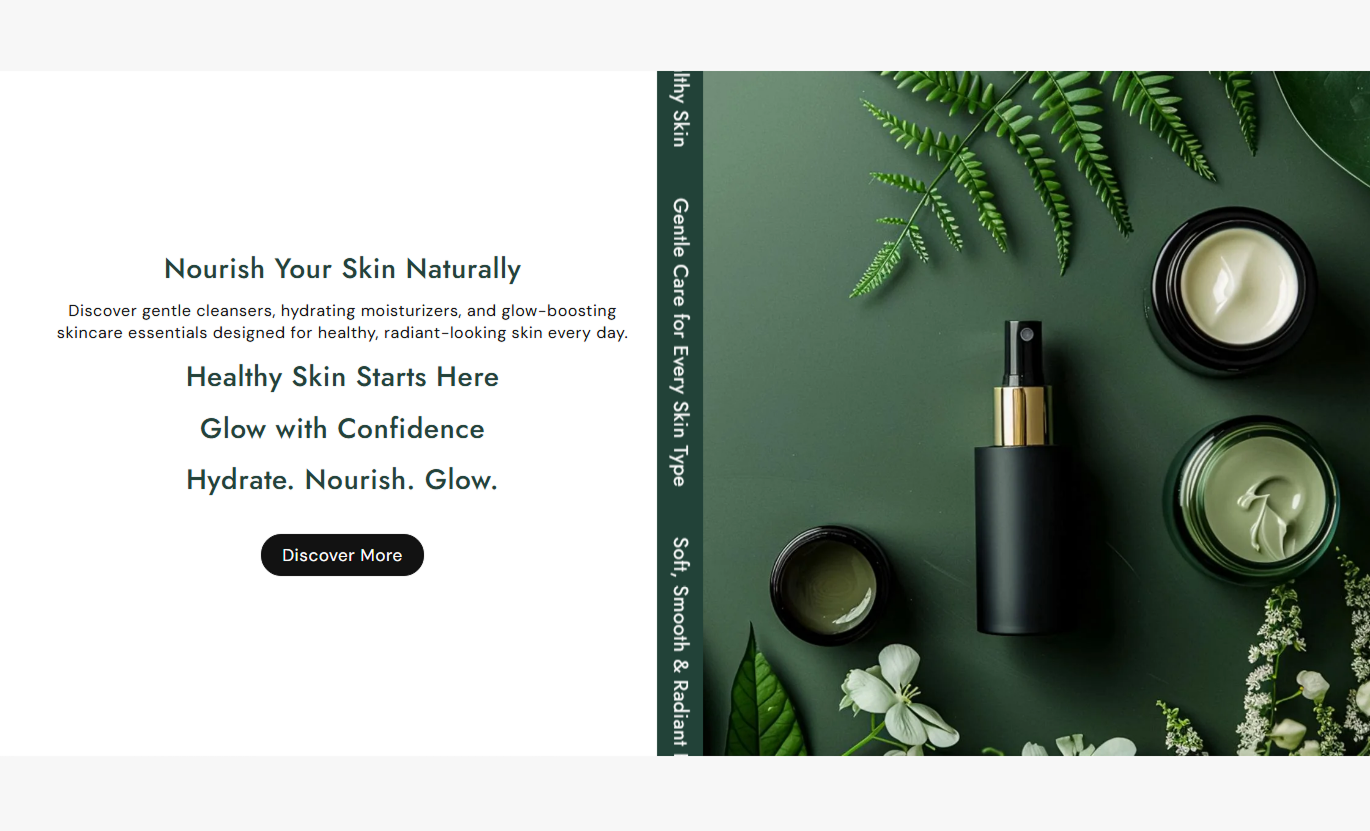


Combine one strong visual with expandable text blocks, a shared CTA, scrolling highlights, flexible alignment, and responsive Shopify layouts.

Add multiple headings and rich-text blocks that shoppers can click to expand and collapse as needed.

Pair all expandable content with one main image to create a balanced visual and informational section.

Opening one text block closes the previous block, keeping the section focused and easier to scan.

Add up to five short text messages in a continuous vertical marquee beside the image and content.

The scrolling text pauses when shoppers hover over it, making individual messages easier to read.

Place the main image on either the left or right side of the text area on desktop to match your page layout.

Add one section-level button with a custom label, destination link, filled or outline style, and hover styling.

On mobile, the text and image stack vertically while the image uses a square format for a cleaner presentation.
Control the image, expandable content, scrolling text, CTA, colors, spacing, and section width directly from the Shopify theme editor.

Applies to the whole section
Choose the main image displayed beside the expandable content.
Main Section ImageSet the desktop image height to Small, Medium, Large, or Auto.
Desktop Image HeightPlace the main image on the left or right side on the desktop.
Desktop Image SideAdjust the corner radius used around the section layout and image.
Image Corner RadiusAlign expandable headings and content left, center, or right.
Content Text AlignmentSet the label and destination for the shared CTA button.
CTA Button ContentChoose filled or outline CTA styling and customize their appearance.
CTA Button StylingControl the scrolling speed of the vertical text marquee.
Scrolling Text SpeedCustomize section, content, scrolling text, and button colors.
Section Color StylingSet the section width, maximum content width, and responsive spacing.
Section Width & Spacing
Applies to each expandable text or scrolling text block
Add the clickable heading for an expandable content item.
Content HeadingAdd rich text that appears when the content item is opened.
Content BodyAdd the short message displayed in the scrolling marquee.
Scroll TextUse expandable text, one strong image, and scrolling messages to explain products, brand details, campaigns, services, or important store information.
Pair a strong lifestyle or brand image with expandable messages about your story, values, services, or key collections without filling the homepage with long copy.
Explain your brand story without adding a large text blockHighlight several messages beside one consistent visualUse scrolling text for short brand or campaign highlightsKeep supporting details hidden until shoppers choose to explore themAdd one clear CTA to guide visitors to the next pageUse a single collection image with expandable details on materials, category differences, styling guidance, or shopping information before customers browse products.
Explain collection themes while keeping the layout compactShare material, fit, care, or category information clearlyUse expandable content for details that shoppers may want laterAdd short scrolling messages beside collection imageryGuide shoppers onward with one relevant section-level CTAPair a product or lifestyle image with expandable information about features, materials, care, sizing, or other details shoppers may want before purchasing.
Break detailed product information into easy-to-scan topicsKeep optional information available without long page copyPair important product explanations with one clear visualHighlight short selling points in the scrolling text stripUse the CTA to direct shoppers to a relevant destinationUse an image, expandable messages, scrolling text, and a single CTA to clearly communicate campaign details, brand messages, services, or promotional information.
Present several campaign messages in one focused layoutKeep detailed explanations behind clickable headingsUse scrolling text for short promotional highlightsMatch the image position and styling to the campaign designSend visitors to one clear destination with the shared CTACreate a cleaner storytelling section that combines one visual, expandable information, scrolling highlights, and a focused CTA in one layout.
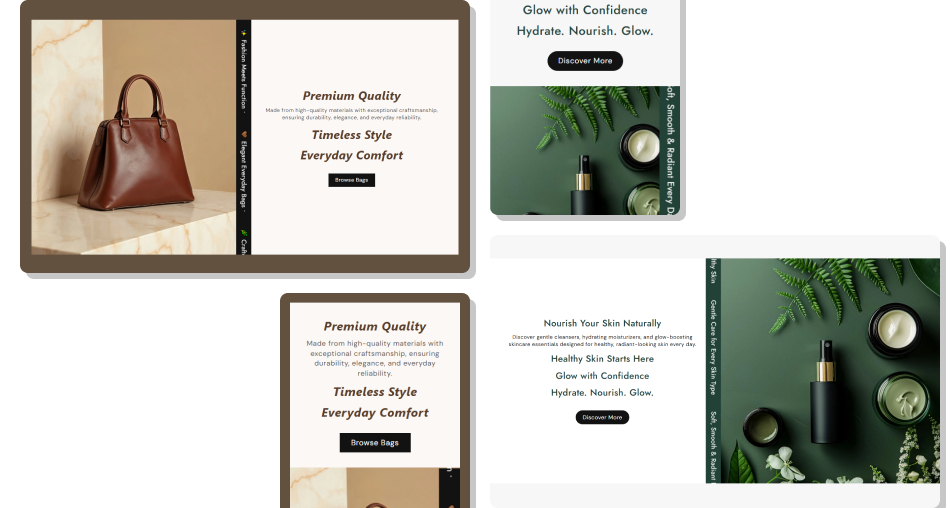
Keep useful information easy to access, while one image, expandable text, and scrolling messages support a focused browsing experience.
Combine visual storytelling and detailed information in one sectionKeep longer content hidden until shoppers choose to read itPresent several content topics without creating a long pageUse scrolling text to highlight short messages continuouslyKeep the main CTA consistent across the entire sectionAdjust the image side, height, styling, and section widthGive mobile shoppers a cleaner stacked image-and-text layout Use one strong image that supports all expandable content topics.
Keep expandable headings short and easy to understand.
Write concise content that gives useful information to shoppers.
Use short scrolling messages that highlight key store information.
Make the shared CTA relevant to the section’s main purpose.
Use one strong image that supports all expandable content topics.
Keep expandable headings short and easy to understand.
Write concise content that gives useful information to shoppers.
Use short scrolling messages that highlight key store information.
Make the shared CTA relevant to the section’s main purpose.  Do not use unrelated images that conflict with the content.
Do not hide essential product information inside expandable blocks.
Do not add long paragraphs that make the section difficult to scan.
Do not use lengthy messages in the scrolling text strip.
Do not link the CTA to a page unrelated to the section content.
Do not use unrelated images that conflict with the content.
Do not hide essential product information inside expandable blocks.
Do not add long paragraphs that make the section difficult to scan.
Do not use lengthy messages in the scrolling text strip.
Do not link the CTA to a page unrelated to the section content. Yes. You can add multiple content blocks, each with its own heading and rich-text content. Shoppers can expand one item at a time.
Yes. The Desktop Image Side setting lets you place the main image on either the left or right side of the text area on the desktop.
You can choose Small, Medium, Large, or Auto for the desktop image height. On mobile, the image uses a square layout for a consistent presentation.
Clicking a heading opens its associated content. Opening another item closes the previously opened item keeping the section focused.
The section supports up to five scrolling text messages. Using several short messages can create a fuller and more balanced marquee effect.
Yes. You can control the scrolling speed and customize the scrolling text colors and other section styling options from the theme editor.
Yes. Add one shared button with a label and destination link, then customize its filled or outline style, colors, border radius, hover colors, and other styling options.
For Support or any Questions Email Us: [email protected]
Install SectionHub and add the Image With Text Marquee section to your theme in minutes - no coding required.
