Introduce Your Brand With Visual Content
Use the section to present a product, brand story, key benefit, or featured message with an image and supporting content.

Create a balanced image-and-text layout with a featured image, supporting content, up to 5 badge icons, and a clear button to highlight products, benefits, or brand stories.
 2.0 Compatible
Image & Text Layout
5 Badge Icons
2.0 Compatible
Image & Text Layout
5 Badge Icons 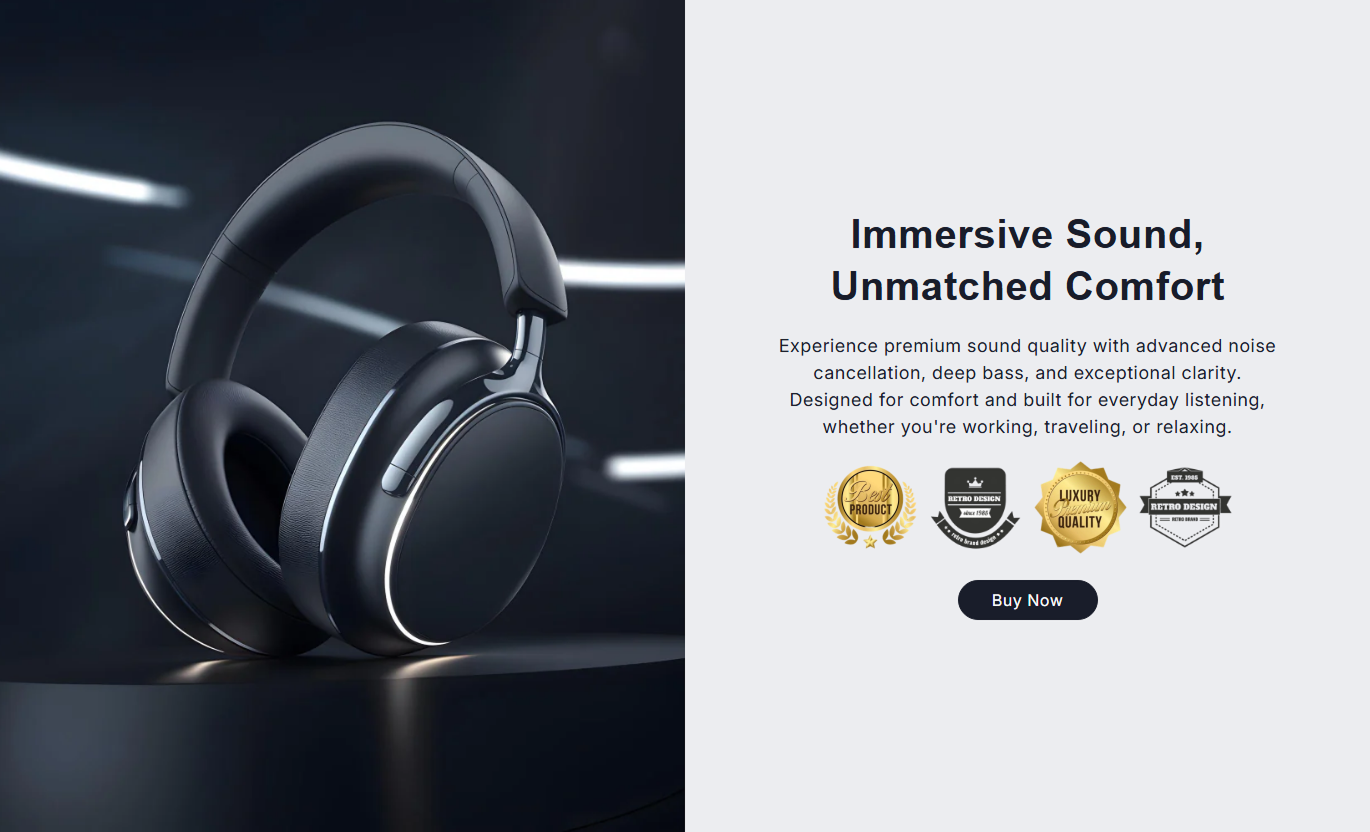
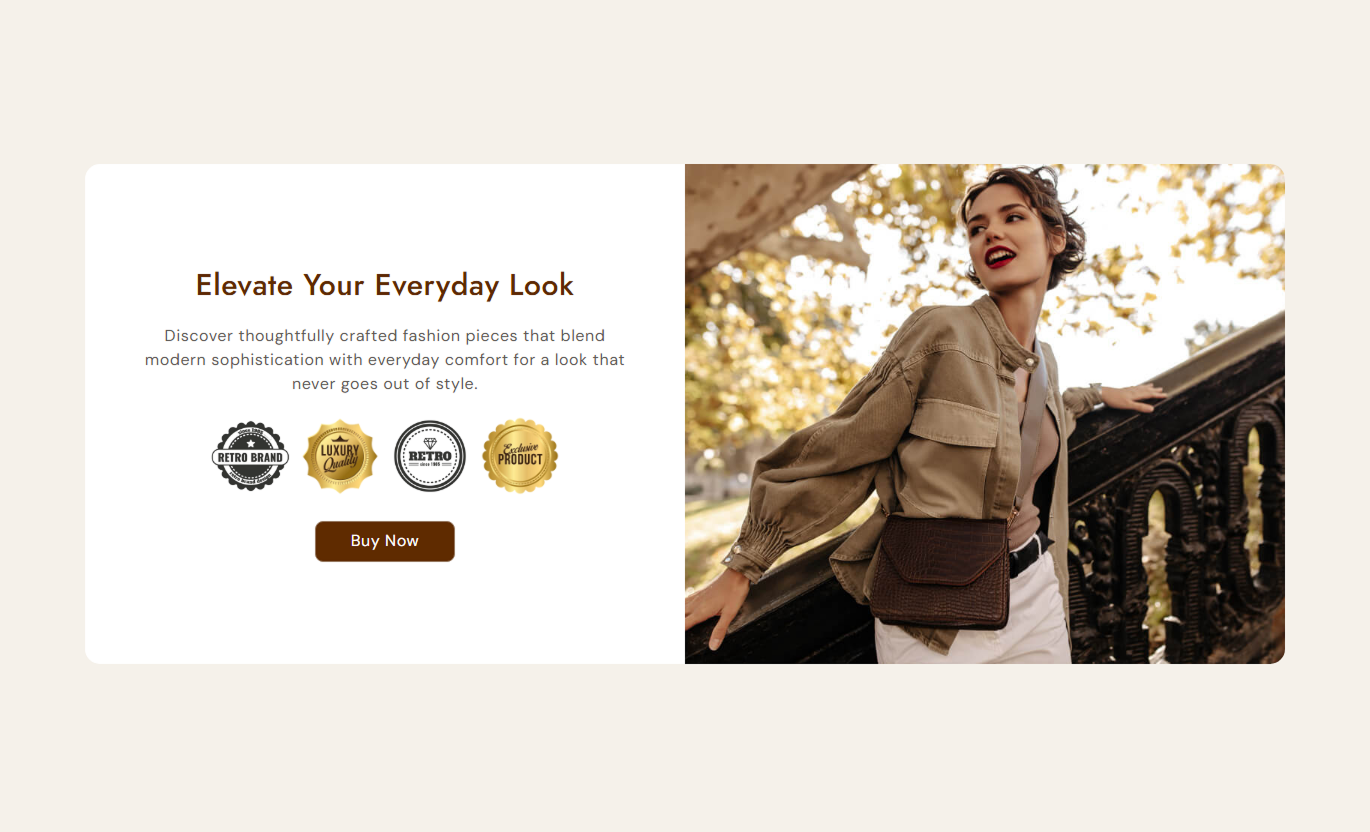
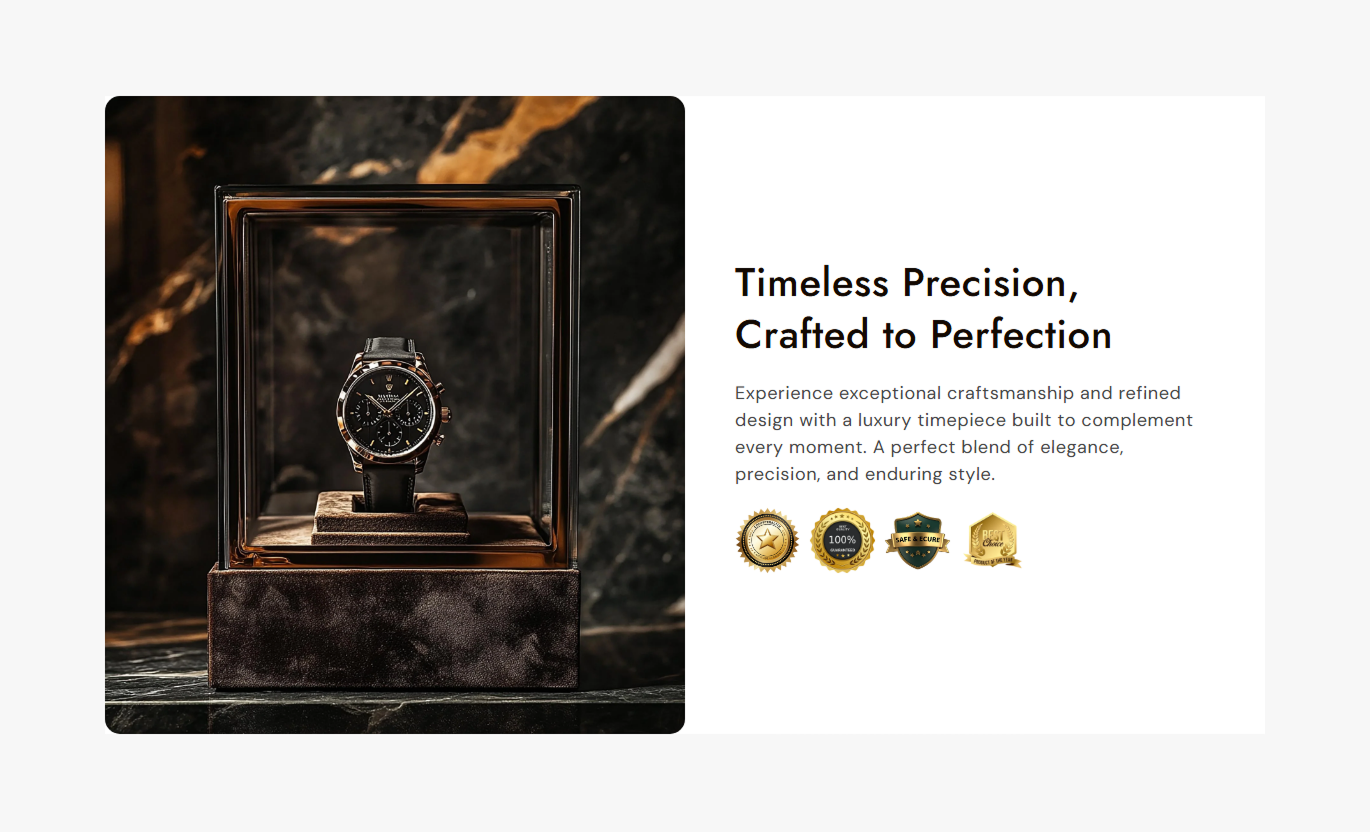


Combine a featured image with useful content, badge icons, buttons, flexible positioning, and responsive settings to create an engaging Shopify store section.

Add a main image beside your text to create a clear visual content section.

Place the main image on the left or right side of the content.

Add a heading and rich text to explain your product, service, offer, or brand message.

Add up to five image-based badges below your content for extra visual highlights.

Add a button with a custom label and link to guide shoppers to another page.

Choose small, medium, large, or automatic image height based on your content.

Adjust text alignment, font sizes, colors, spacing, and corner radius to match your store.

The image and content stack automatically on smaller screens for a cleaner mobile experience.
Customize images, content, badges, buttons, typography, colors, spacing, and section width.

Applies to the whole section
Add the main image displayed beside your content.
Main ImageChoose the image height for the visual area.
Image HeightPlace the image on the left or right side.
Image PositionAdd the main heading and supporting rich text.
ContentChoose the heading font weight for your content.
Heading Font WeightSet the alignment of the text content.
Text AlignmentControl the inner spacing around the content area.
Content PaddingAdjust the corner radius of the content container and image.
Corner RadiusCustomize button style, size, colors, and hover states.
Button SettingsAdjust badge icon size and content typography.
Icon & Font SizeCustomize section, content, text, and button colors.
Color SettingsSet desktop and mobile top and bottom spacing.
Section PaddingControl full-width display and maximum section width.
Section Width
Applies to each badge
Add an image or icon to display below the section content.
Badge ImageUse the section to combine strong visuals with supporting content, badges, and a CTA across key pages of your Shopify store.
Use the section to present a product, brand story, key benefit, or featured message with an image and supporting content.
Highlight featured productsExplain key brand benefitsAdd visual trust badgesGuide shoppers with a CTAPlace an image beside collection-focused content to explain a category, highlight its benefits, or introduce a product range.
Introduce collection themesHighlight category benefitsAdd supporting badge iconsLink shoppers to relevant pagesUse the section to complement product imagery with supporting information, visual badges, and a direct call-to-action.
Highlight product benefitsSupport key product messagingDisplay useful badgesAdd a direct CTABuild a dedicated image and text area for campaigns, product launches, services, or other focused landing page messages.
Present campaign messagesCombine text with strong visualsHighlight supporting badgesDrive visitors toward an actionCombine a strong image with focused text and visual badges to communicate your message without making the layout feel crowded.
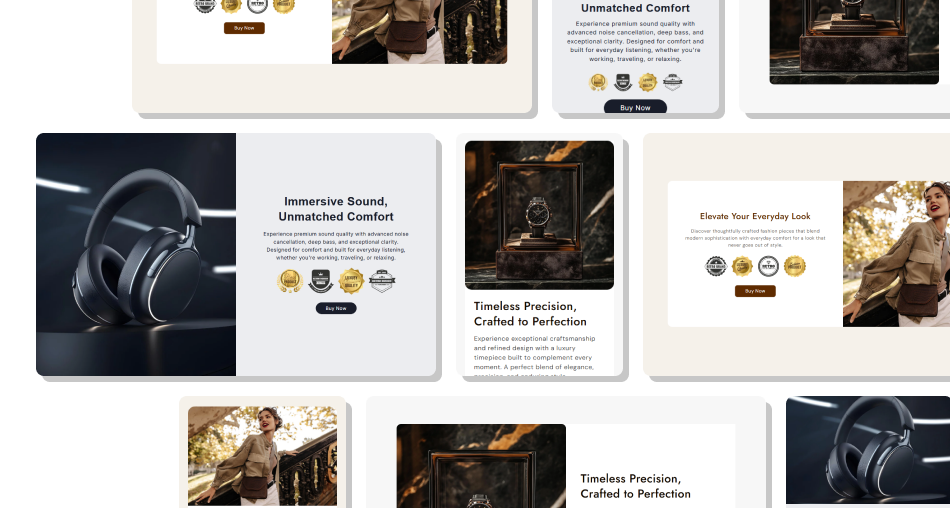
Control image placement, content alignment, badge icons, buttons, typography, colors, spacing, and responsive sizing from the theme editor.
Combine an image with supporting contentPlace the image on either sideAdd up to five badge iconsChoose different image height optionsAdd a customizable CTA buttonControl heading weight and text alignmentCustomize colors and corner radiusCreate a mobile-friendly stacked layout Use a clear image that supports the message
Keep the heading short and focused
Use badges that add meaningful visual context
Choose a CTA that matches the content
Keep text and visual elements well balanced
Use a clear image that supports the message
Keep the heading short and focused
Use badges that add meaningful visual context
Choose a CTA that matches the content
Keep text and visual elements well balanced  Use an image unrelated to the section message
Add long blocks of unnecessary text
Use too many similar-looking badges
Add a CTA without a clear destination
Overload the section with competing messages
Use an image unrelated to the section message
Add long blocks of unnecessary text
Use too many similar-looking badges
Add a CTA without a clear destination
Overload the section with competing messages Yes. The Image Position setting lets you place the main image on the left or right side of the section.
Yes. You can choose Small, Medium, Large, or Auto image height.
You can add up to five Badge blocks, each with one image.
Yes. The section supports a heading and rich text content for your main message.
Yes. You can add a custom button label and link. You can also enable outline button styling.
Yes. The Icon Size setting lets you control the desktop badge icon size. On mobile, the icons use a smaller responsive size.
Yes. You can customize the section background, content background, heading, content, button, border, hover, and outline colors.
Yes. You can control the container and image border radius separately.
Yes. On mobile, the image and content stack vertically, with adjusted typography, spacing, icon size, and button sizing for smaller screens.
For Support or any Questions Email Us: [email protected]
Install SectionHub and add the Image With Text Icon Grid section to your theme in minutes - no coding required.
