Create a Visual Storefront Introduction
Use an image grid on your homepage to showcase collections, products, campaigns, or brand imagery, giving visitors multiple visual paths to explore.

Display multiple images in a clean grid to showcase products, collections, campaigns, or brand visuals. Add links to individual images and customize the layout.
 Flexible Grid Layout
Responsive Design
Custom Image Links
Flexible Grid Layout
Responsive Design
Custom Image Links 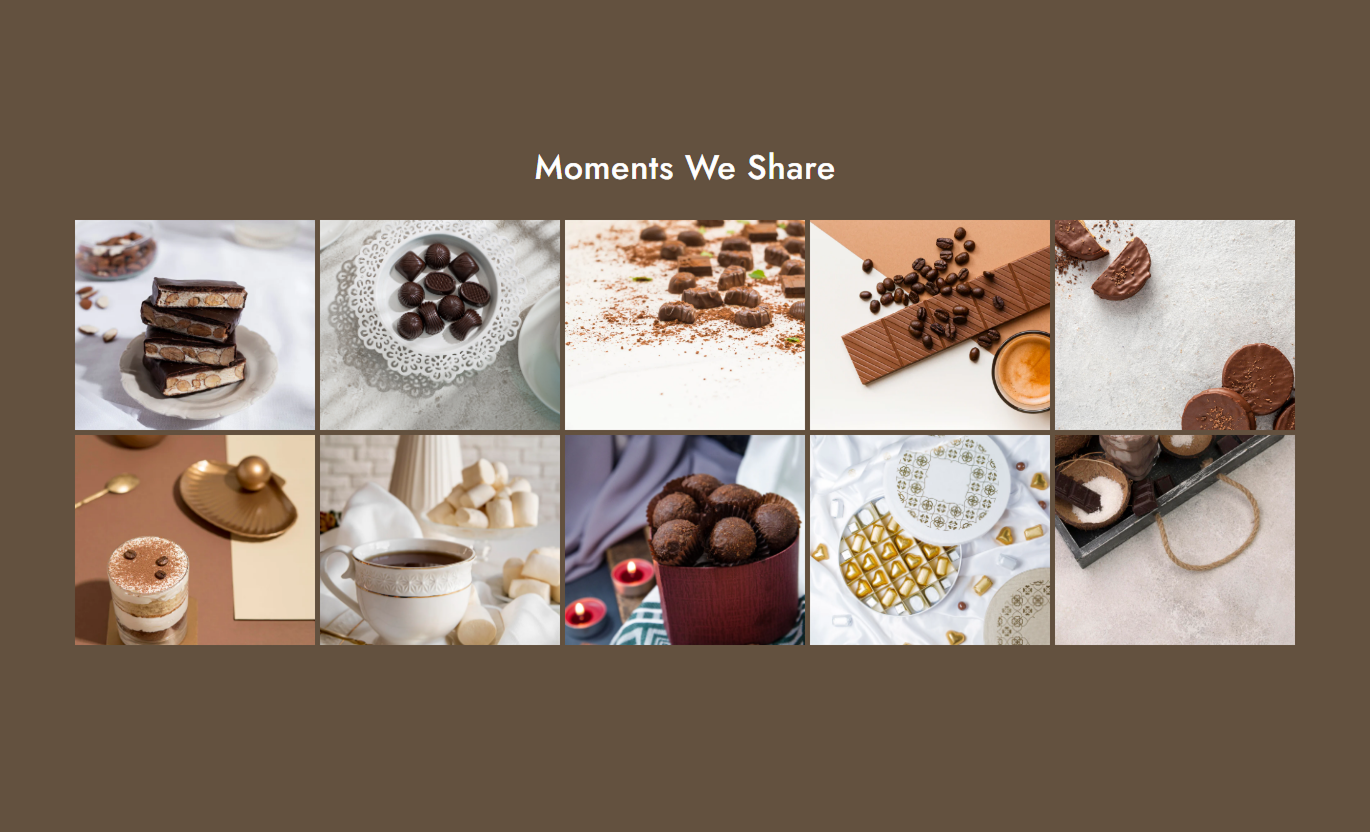
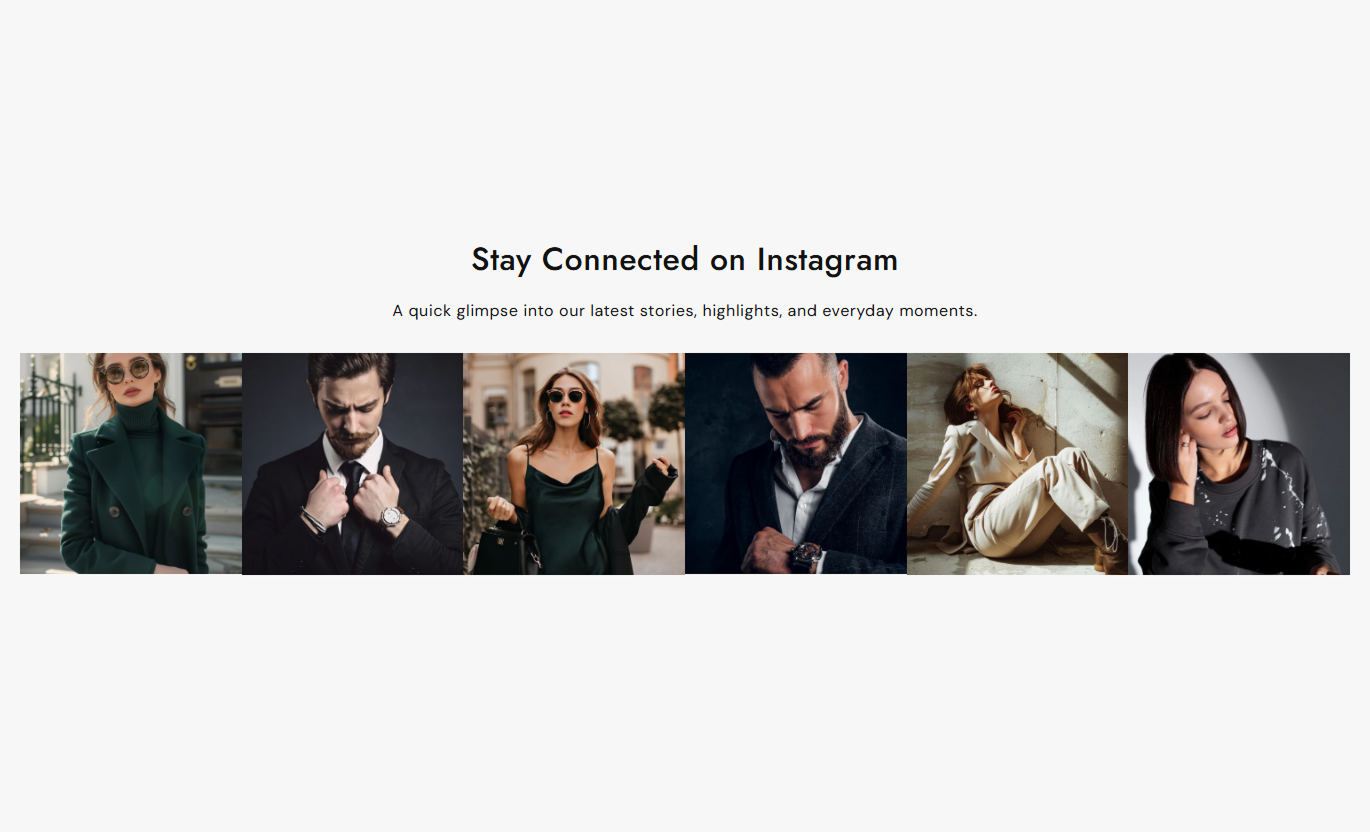
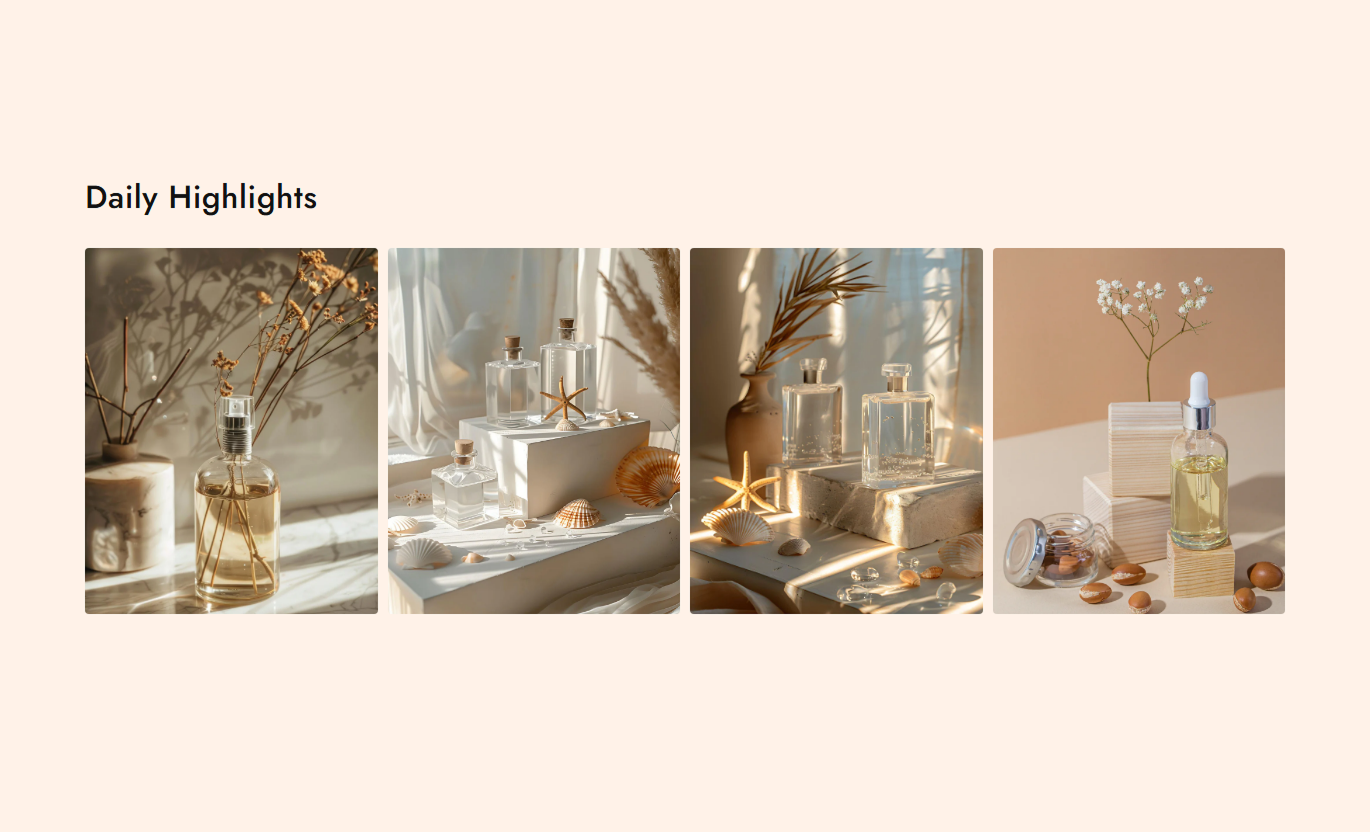


Create a clean image grid with adjustable columns, image sizing, spacing, links, colors, and responsive settings for different screen sizes.

Add as many image blocks as needed to create a visual grid for your store content.

Connect each image to a page, collection, product, or other destination shoppers can visit.

Choose between 3 and 6 columns to create the grid layout that fits your desktop design.

Set 2-5 columns on mobile so the grid works with your preferred smaller-screen layout.

Choose small, medium, or large image proportions to suit your visual content.

Control the space between images to create a tighter or more open grid appearance.

Adjust image corner rounding to match the visual style of your Shopify store.

Use separate desktop and mobile column settings to create a suitable grid across devices.
Control your images, grid layout, sizing, colors, spacing, and section width from the Shopify theme editor.

Applies to the whole section
Add the main heading above the image grid.
HeadingAdd supporting text below the heading.
ContentChoose the heading and content alignment.
Text AlignmentSet the number of image columns on desktop.
Desktop ColumnsSet the space between grid images.
Image SpacingAdjust the corner radius of each image.
Image Border RadiusSet the number of image columns on mobile.
Mobile ColumnsChoose the image height or aspect ratio.
Image HeightSet the heading font size.
Heading Font SizeSet the supporting content font size.
Content Font SizeChoose the section background and text colors.
Color SettingsAdjust desktop and mobile section spacing.
Section PaddingChoose a maximum width or make the section full width.
Section Width
Applies to each image
Upload the image displayed in the grid.
ImageAdd a destination for the image.
Image LinkUse an Image Grid to organize visual content across important store pages. Showcase products, collections, campaigns, lifestyle images, or brand content.
Use an image grid on your homepage to showcase collections, products, campaigns, or brand imagery, giving visitors multiple visual paths to explore.
Showcase multiple visual categories togetherCreate a strong visual homepage sectionLink images to relevant store pagesHelp visitors discover collections quicklyAdd variety to your homepage layoutAdd an image grid to introduce related collections, styles, or visual categories and give shoppers direct links to the areas they want to explore.
Organize collection links visuallyHelp shoppers browse related categoriesCreate a cleaner collection introductionHighlight selected collection themesSupport easier visual navigationUse an image grid to showcase complementary products, lifestyle imagery, or supporting visual content around your main product information.
Add more visual product contextShowcase complementary product ideasSupport product storytelling with imagesLink shoppers to related productsBreak up long product page contentCreate a flexible visual grid for campaign pages, launches, promotions, or brand stories and link each image to the most relevant destination.
Create focused campaign visualsShowcase multiple campaign elementsConnect images to relevant pagesBuild visual interest without heavy copySupport different landing page themesOrganize multiple images into one clean section and give shoppers an easy way to explore visual content across your Shopify store.
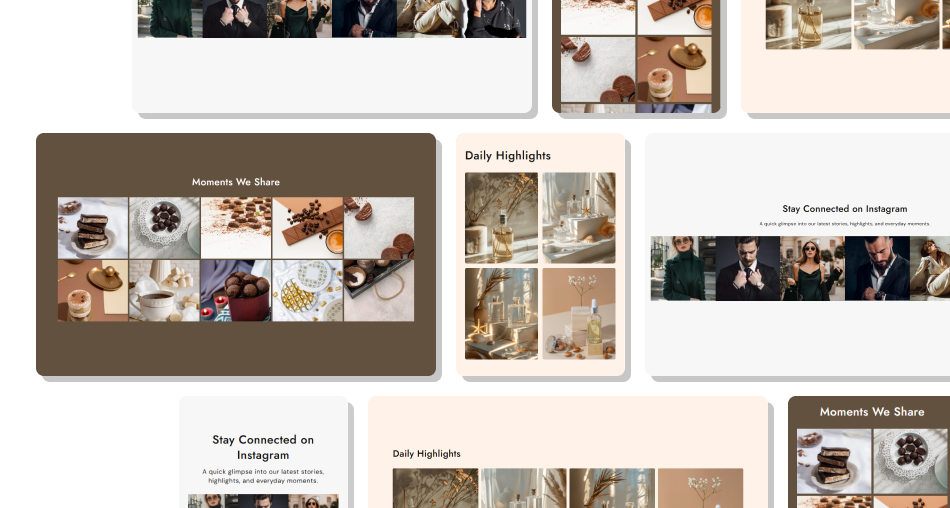
Bring products, collections, and brand imagery together in a flexible grid that keeps your store content easy to browse.
Showcase more images in one sectionCreate clean visual navigationLink images to relevant store pagesAdjust layouts for different devicesMatch image styling to your themeOrganize visual content more effectively Use clear and high-quality images.
Keep image styles visually consistent.
Link each image to a relevant destination.
Choose a grid size that fits your content.
Use spacing that keeps images easy to scan.
Use clear and high-quality images.
Keep image styles visually consistent.
Link each image to a relevant destination.
Choose a grid size that fits your content.
Use spacing that keeps images easy to scan.  Don't mix unrelated images without purpose.
Don't use blurry or low-quality visuals.
Don't add links that lead to unrelated pages.
Don't overcrowd the grid with too many images.
Don't ignore how the grid looks on mobile.
Don't mix unrelated images without purpose.
Don't use blurry or low-quality visuals.
Don't add links that lead to unrelated pages.
Don't overcrowd the grid with too many images.
Don't ignore how the grid looks on mobile. Yes. Add individual Image blocks to build your grid and showcase as many visual items as your page layout requires.
Yes. Each image block includes a Link setting that lets you send shoppers to a relevant page or destination.
You can choose between 3 and 6 image columns on desktop to create the grid layout that fits your store.
Yes. The mobile setting lets you choose between 2 and 5 columns for smaller screens.
Yes. Choose Small, Medium, or Large image height options to control the image proportions within the grid.
Yes. Use the Space Between Images setting to control the spacing between grid items.
Yes. Adjust the Image Border Radius setting to create square or rounded image corners.
Yes. Enable Full Width to let the section use the available page width, or set a custom maximum width.
For Support or any Questions Email Us: [email protected]
Install SectionHub and add the Image Grid section to your theme in minutes - no coding required.
