Create an Engaging Visual Showcase
Use multiple gallery slides to highlight featured products, seasonal campaigns, brand imagery, collections, or important visual content on your homepage.

Showcase visual content in interactive image slides with flexible 1–8 image grids, clickable links, text overlays, autoplay, and responsive layouts for every device.
 Flexible Image Grids
Interactive Gallery Slider
Responsive Visual Layout
Flexible Image Grids
Interactive Gallery Slider
Responsive Visual Layout 



Create engaging gallery slides with flexible image grids, clickable content, autoplay controls, text overlays, responsive layouts, and customizable visual styling.

Choose from single-image layouts and grids containing two to eight images within each gallery slide.

Add multiple image grid blocks to create a swipeable collection of different visual arrangements.

Add individual links to gallery items so visitors can navigate directly to relevant pages.

Add individual headings over images to provide context, labels, or promotional messaging.

Enable autoplay and control how frequently the gallery moves between different slides.

Adjust overlay color and opacity for better text visibility and consistent visual styling.

Use clickable slider dots to navigate between gallery slides and identify the active slide.

The gallery automatically adapts its grid structure and typography for smaller mobile screens.
Control gallery layouts, text alignment, autoplay, typography, colors, spacing, width, and individual image content from one place.

Applies to the whole section
Add the main heading displayed above the gallery.
HeadingAdd supporting rich text below the main heading.
ContentChoose the alignment of the main section heading and content.
Text AlignmentChoose how image overlay headings are aligned.
Gallery Text AlignmentEnable automatic movement between gallery slides.
Enable AutoplaySet the time between automatic slide changes.
Slide Change DelaySet the main section heading font size.
Heading Font SizeSet the supporting content font size.
Content Font SizeSet the image overlay heading font size.
Gallery Heading SizeChoose the main section background color.
Background ColorChoose the main heading & content color.
Heading & Content Color
Applies to each gallery slide
Choose how many images appear in the slide grid.
Grid LayoutUpload the gallery image.
ImageAdd the image overlay heading.
HeadingSet the destination for the image.
LinkChoose the heading color for gallery items.
Heading ColorChoose the overlay color displayed over images.
Overlay ColorControl the opacity of the image overlay.
Overlay OpacityUse visual gallery slides across important storefront pages to showcase products, collections, campaigns, services, inspiration, or branded imagery in organized layouts.
Use multiple gallery slides to highlight featured products, seasonal campaigns, brand imagery, collections, or important visual content on your homepage.
Showcase important visual contentHighlight featured products and collectionsCreate engaging homepage sectionsOrganize images into varied layoutsAdd clickable visual navigationUse image grids to highlight collection products, themes, categories, campaigns, or supporting visuals while customers browse your collection pages.
Highlight collection themes visuallyPromote selected productsCreate organized image groupsLink images to relevant pagesAdd visual variety to collectionsAdd gallery slides around product content to showcase product details, lifestyle imagery, usage scenes, features, or supporting visual information.
Showcase product details visuallyHighlight product lifestyle imageryExplain features through visualsLink images to useful pagesStrengthen product presentationCreate custom image grids for campaign pages, promotions, portfolios, brand stories, launches, or other landing page experiences that need strong visual content.
Create campaign-focused galleriesShowcase visual brand storiesHighlight promotional imageryBuild interactive visual sectionsGuide visitors through linked contentGive your store a flexible way to present multiple images through organized grid layouts, clickable items, text overlays, autoplay slides, and responsive styling.
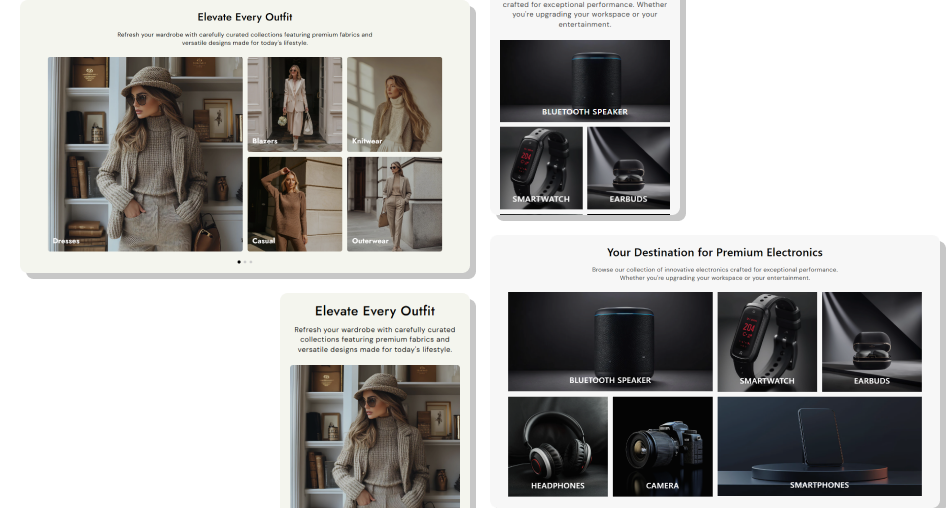
Make visual content more engaging with flexible grid combinations, individual links, custom overlays, slide navigation, and layouts that adapt across devices.
Showcase multiple images in one slideChoose from 1 to 8 image layoutsCreate varied visual compositionsLink individual images to pagesAdd useful text over each imageControl autoplay and slide timingKeep the gallery responsive on mobile Use high-quality images with consistent visual styling.
Choose short headings that are easy to read.
Add relevant links to useful destination pages.
Select grid layouts that fit your content naturally.
Check image overlays and spacing on mobile.
Use high-quality images with consistent visual styling.
Choose short headings that are easy to read.
Add relevant links to useful destination pages.
Select grid layouts that fit your content naturally.
Check image overlays and spacing on mobile.  Avoid using low-quality or heavily pixelated images.
Don't add long text over busy images.
Avoid linking images to unrelated pages.
Don't overcrowd a slide with unnecessary content.
Don't ignore mobile image proportions and spacing.
Avoid using low-quality or heavily pixelated images.
Don't add long text over busy images.
Avoid linking images to unrelated pages.
Don't overcrowd a slide with unnecessary content.
Don't ignore mobile image proportions and spacing. Each gallery block can display between one and eight images. Choose the required layout from the Grid Layout setting.
You can choose single, two, three, four, five, six, seven, or eight image grid layouts for each gallery block.
Yes. Every image has its own Link setting, allowing you to send visitors to different products, collections, pages, or other destinations.
Yes. Each image has its own Heading setting, allowing you to display a separate text overlay on every gallery item.
Yes. Enable autoplay and use the Change Slides Every setting to control the delay between automatic slide changes.
Yes. Each gallery block lets you select an overlay color and adjust its opacity to control how your images appear.
Yes. You can set separate colors for inactive and active pagination dots to match your store design.
Yes. The gallery switches to a mobile-friendly two-column grid and automatically adjusts image proportions, text sizes, spacing, and layout.
For Support or any Questions Email Us: [email protected]
Install SectionHub and add the Image Gallery Slide With Grid Layouts section to your theme in minutes - no coding required.
