Create a Strong Visual Shopping Gateway
Use the gallery to feature key collections, categories, campaigns, or brand moments while giving shoppers clear visual paths into important store content.

Create a structured image gallery with up to six clickable visuals, supporting text, custom buttons, flexible positioning, and responsive layouts for Shopify pages.
 Clickable Image Grid
Responsive Gallery
Flexible Button Styles
Clickable Image Grid
Responsive Gallery
Flexible Button Styles 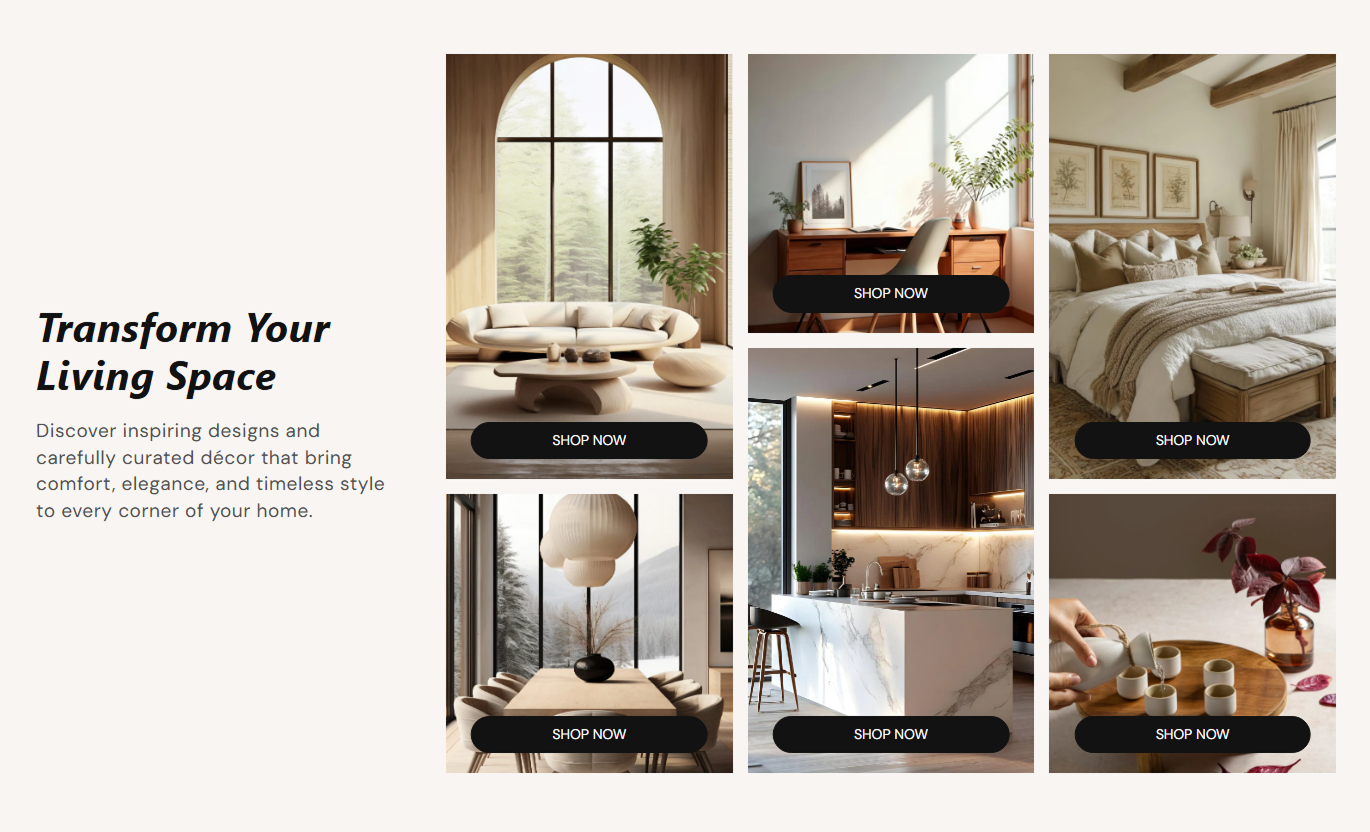



Present collections, categories, campaigns, or featured content in a responsive mosaic gallery with clickable images, supporting copy, and custom buttons.

Display up to six images in a structured mosaic layout, with gallery items varying in size and emphasis.

Add a destination link to each gallery item so shoppers can move directly to a relevant product, collection, page, or other destination.

Add a button label over each linked image to give shoppers a clear action while keeping the visual itself clickable.

Place the image gallery on either side of the supporting heading and content to suit different page compositions.

Align supporting content to the top, middle, or bottom of the gallery area on desktop for better visual balance.

Apply a subtle zoom effect when shoppers hover over gallery images to provide visual feedback and make interactive content more engaging.

Automatically adapt the gallery for smaller screens with a two-column layout that keeps images and content easy to browse.

Customize button appearance with controls for colors, hover states, border radius, outline styling, shadow color, and desktop text size.
Control gallery layout, text placement, spacing, typography, button styling, colors, and section width directly from the Shopify theme editor.

Applies to the whole section
Add the main heading displayed beside the image gallery.
Gallery HeadingAdd supporting rich text below the gallery heading.
Supporting ContentPosition the supporting text at the top, middle, or bottom on the desktop.
Vertical Text AlignPlace the image gallery on the left or right side of the section.
Gallery PositionAdjust the spacing between gallery images.
Gallery Image GapChoose filled buttons or switch to an outline button style.
Gallery Button StyleControl button size, radius, colors, hover states, and shadow styling.
Button AppearanceSet separate top and bottom spacing for desktop and mobile.
Section SpacingUse the available page width, or define a maximum contained width.
Gallery Section Width
Applies to each gallery image
Choose the image displayed in the selected gallery position.
Gallery ImageAdd optional action text displayed over the gallery image.
Button LabelSet the destination linked to the gallery image and button.
Button LinkUse this gallery to connect visual storytelling with direct navigation across key Shopify pages, from homepage discovery to focused campaign content.
Use the gallery to feature key collections, categories, campaigns, or brand moments while giving shoppers clear visual paths into important store content.
Features several important collections in one visual areaGuide shoppers directly to key categories or store pagesBalance gallery imagery with a short supporting messageCreate an editorial break between major homepage sectionsUse hover and button interactions to make visuals more engagingUse the gallery to introduce related collections, seasonal groups, or category highlights and give shoppers more visual ways to continue browsing your store.
Show related collections without adding another product gridPromote seasonal or complementary categories visuallyCreate direct paths to relevant collection pagesUse supporting copy to explain the collection contextKeep category discovery clear across desktop and mobileUse image tiles to highlight matching collections, related categories, brand stories, or other destinations that support the current product experience.
Link shoppers to complementary collections or categoriesAdd visual context without crowding core product informationUse gallery tiles to continue discovery after product detailsHighlight brand or lifestyle content around the productMake related destinations easier to notice and exploreUse up to six gallery tiles to organize campaign destinations, featured collections, product groups, or editorial content in one structured visual area.
Organize several campaign destinations in one sectionGive each visual its own button label and destinationUse varied image proportions to create visual rhythmPosition supporting copy beside the galleryMatch button states and colors to your campaign stylingCombine visual merchandising, supporting copy, and clickable destinations into a single responsive gallery that helps shoppers explore key store content.
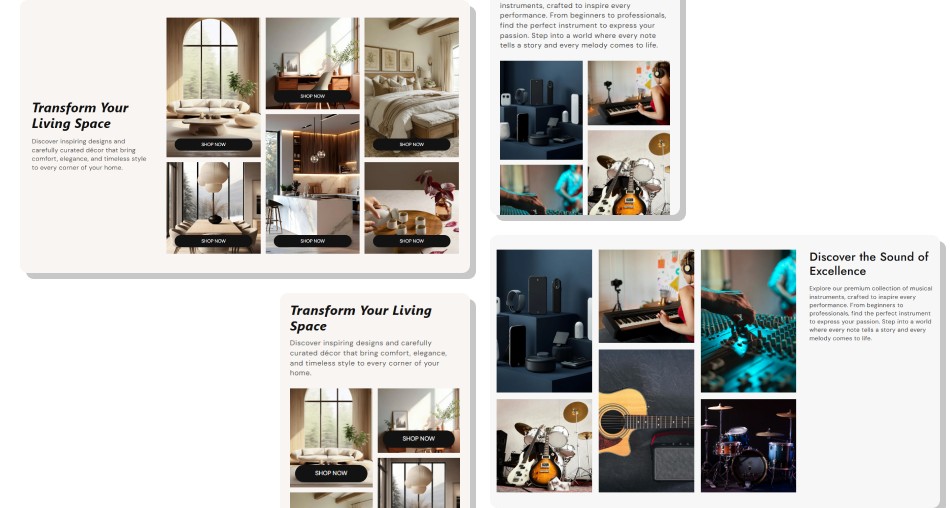
Use a structured image grid, linked visuals, optional buttons, and flexible positioning to create a gallery that supports product and collection discovery.
Show multiple destinations without building separate sectionsGive important collections stronger visual presentationUse clickable images to make browsing more directKeep supporting text separate from the visual galleryAdapt the gallery layout for desktop and mobile screensMatch button styling and colors to your store design Use consistent image quality across all gallery positions
Link each image to a destination that matches the visual
Keep button labels short, clear, and action focused
Use spacing that keeps each gallery image easy to distinguish
Choose text placement that balances the overall composition
Use consistent image quality across all gallery positions
Link each image to a destination that matches the visual
Keep button labels short, clear, and action focused
Use spacing that keeps each gallery image easy to distinguish
Choose text placement that balances the overall composition  Don't mix unrelated images that weaken the gallery story
Don't use links that lead somewhere different from the visual
Don't add long button labels that cover too much of the image
Don't use weak contrast between buttons and gallery images
Don't overload nearby sections with competing visual grids
Don't mix unrelated images that weaken the gallery story
Don't use links that lead somewhere different from the visual
Don't add long button labels that cover too much of the image
Don't use weak contrast between buttons and gallery images
Don't overload nearby sections with competing visual grids You can add up to six gallery image blocks. Each block can include its own image, optional button label, and destination link.
Yes. Every image block has its own Button Link setting, allowing each gallery tile to link to a different product, collection, page, or other URL.
Yes. Use the Gallery Position setting to place the image gallery on either side of the supporting heading and content.
Yes. On the desktop, the supporting text can be aligned to the top, middle, or bottom of the gallery area.
Yes. The gallery adapts to smaller screens and uses a two-column mobile layout for easier browsing.
Yes. A gallery image can have a destination link even when no button label is provided, allowing the visual itself to serve as the navigation element.
For Support or any Questions Email Us: [email protected]
Install SectionHub and add the Image Gallery Showcase section to your theme in minutes - no coding required.
