Create a Lively Homepage Visual Marquee
Create a lively homepage section with moving brand messages and a continuous image marquee to keep featured visuals, promotions, or collection highlights visible in motion.

Create a continuous visual marquee with scrolling images and text, optional icons, hover-to-pause controls, outline text, adjustable speeds, and responsive spacing.
 Scrolling Image Marquee
Moving Text Content
Responsive Storefront Design
Scrolling Image Marquee
Moving Text Content
Responsive Storefront Design 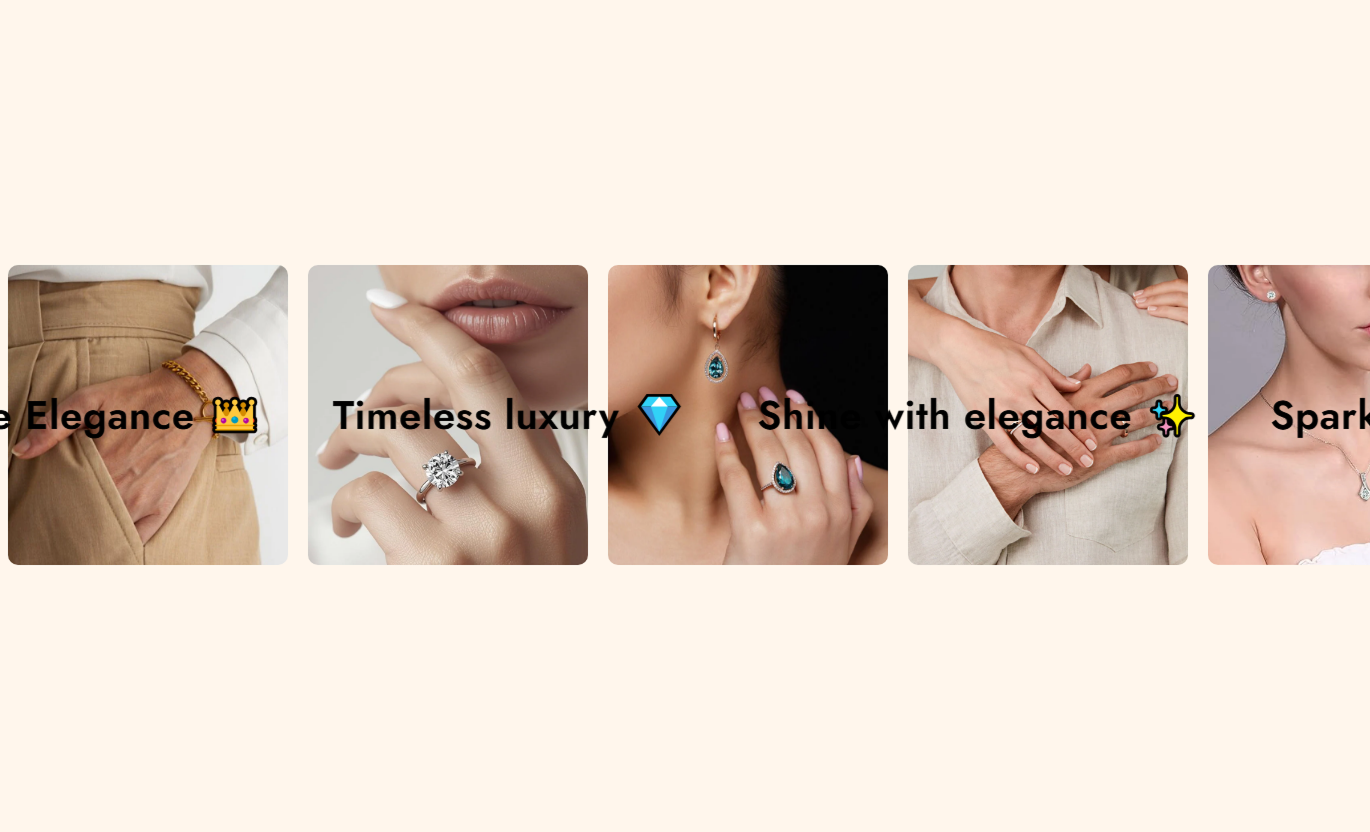
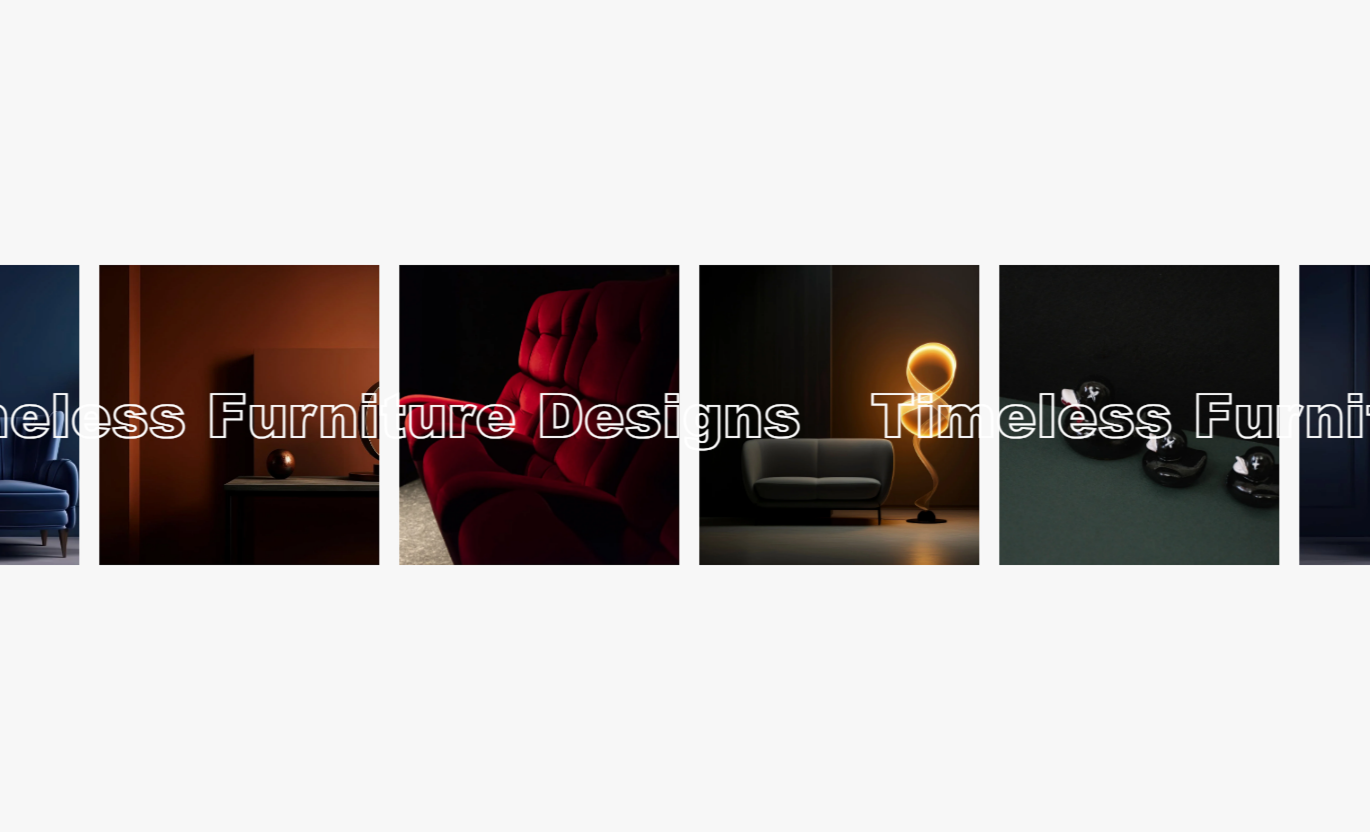
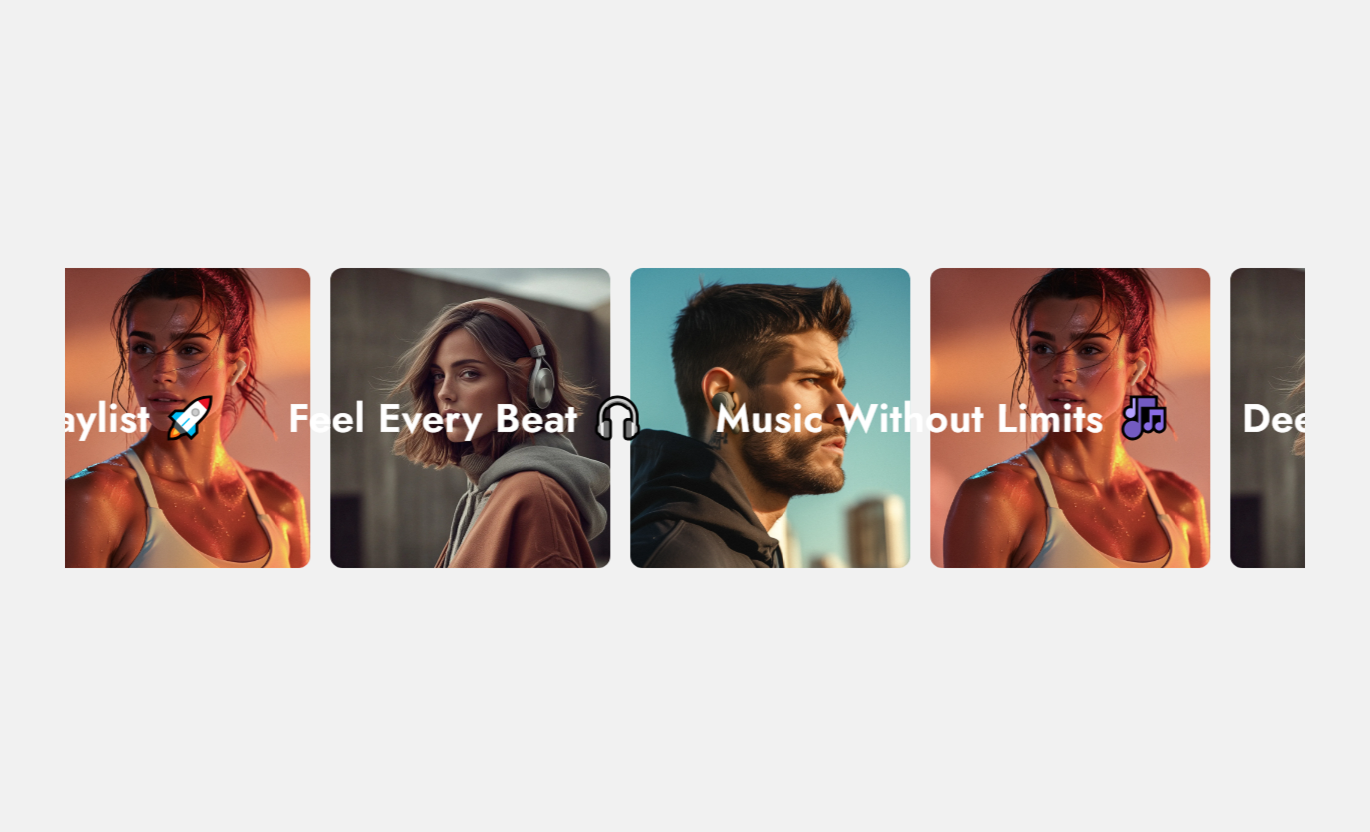


Combine moving images and text into a single animated section with customizable content, icons, scroll speeds, typography, colors, spacing, and responsive sizing.

Display image and text marquees together in a layered section to keep visual content moving across the storefront.

Add up to twenty text entries, each with its own optional icon, to build a varied scrolling message sequence.

Add up to twenty images to create a continuous visual marquee with multiple products, collections, or brand visuals.

Set separate scroll durations for text and images so each moving layer can match the pace of your storefront design.

Let shoppers pause the moving image and text content by hovering over the section when hover pause is enabled.

Switch the scrolling headings to an outlined text treatment, or use solid text with an adjustable font weight.

Use smaller image sizes, icon sizes, spacing, and heading text automatically on screens below 768 pixels.

Adjust desktop and mobile padding, use full width, or set a custom section width to control layout.
Customize scrolling behavior, typography, colors, spacing, width, and the content displayed through each block.

Applies to the whole section
Enable an outlined style for scrolling text headings.
Outline Text StylePause image and text movement while the cursor is over the section.
Hover Pause ControlControl how long the scrolling text animation takes to complete.
Text Scroll DurationControl how long the scrolling image animation takes to complete.
Image Scroll DurationSet the corner radius applied to scrolling images.
Image Border RadiusAdjust the main scrolling text heading size on desktop.
Heading Font SizeChoose the weight used when outline text is disabled.
Heading Font WeightCustomize the section background and scrolling heading colors.
Background & Text ColorsUse full width or define a custom maximum width for the section.
Section Width Setting
Applies to individual content blocks
Add text entries with optional icons for the scrolling text layer.
Text ItemsAdd images to build the scrolling visual marquee.
Image ItemsEnter each scrolling message or promotional text item.
Text ContentAdd an optional icon beside an individual text item.
Text IconChoose the images displayed in the scrolling image layer.
Image UploadsUse the animated image and text marquee across key storefront pages to display visual content, messages, promotions, collection themes, and brand-focused information.
Create a lively homepage section with moving brand messages and a continuous image marquee to keep featured visuals, promotions, or collection highlights visible in motion.
Showcase featured collections with continuous motion.Add promotional messages beside changing visual content.Keep important brand statements visible as users scroll.Use icons to add visual detail to text messages.Create an active section without manual slide navigation.Use the scrolling layout on collection pages to present supporting imagery and messages around a product group, helping shoppers discover visuals while keeping the page active.
Highlight collection themes with moving images.Add supporting messages between visual content.Display campaign or seasonal collection statements.Use multiple images to show a broader collection story.Keep the section compact while adding visual movement.Add the section to product pages to support visuals, brand messages, or promotions that reinforce the product experience through continuous movement and optional icons.
Show supporting product or lifestyle imagery.Add short messages around product benefits or service.Present shipping or promotional information visually.Use icons to separate or emphasize text items.Add motion without relying on a carousel control.Build an engaging landing page section with independent image and text movement, customizable typography, colors, spacing, and content for campaign or brand-focused layouts.
Create a strong visual rhythm for campaign pages.Combine promotional copy with a moving image strip.Match text styling and colors to the landing page.Control animation timing for different content layers.Use full-width or custom-width section layouts.Add continuous motion to your storefront while combining visual media and messaging in a flexible section with independent animation speeds and responsive sizing.
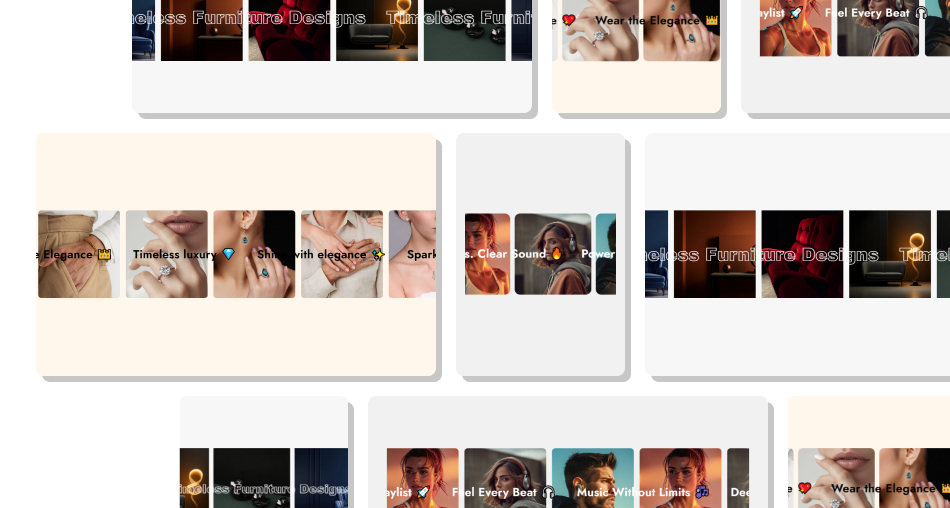
A continuous marquee keeps images and messages active, helping important content stay noticeable without manual navigation.
Create continuous motion to energize static sections of the storefront.Combine image-led storytelling with short messages into a single layered layout.Show multiple content items without adding traditional carousel controls.Adjust animation timing independently for text and image scrolling layers.Use optional icons to make scrolling text more distinctive and visual.Maintain a responsive presentation with smaller mobile sizing and spacing. Use short and easy-to-read text.
Choose clear and relevant images.
Keep icons simple and useful.
Set a smooth scrolling speed.
Check the layout on mobile.
Use short and easy-to-read text.
Choose clear and relevant images.
Keep icons simple and useful.
Set a smooth scrolling speed.
Check the layout on mobile.  Avoid overly long text.
Don't use unrelated images.
Avoid too many decorative icons.
Don't make scrolling too fast.
Don't ignore mobile spacing.
Avoid overly long text.
Don't use unrelated images.
Avoid too many decorative icons.
Don't make scrolling too fast.
Don't ignore mobile spacing. Yes. Add the Text and Image blocks to display both animated layers in the same section, with each layer scrolling continuously.
The Text block supports up to 20 text entries, and each entry can include its own optional icon for added visual detail.
The Image block supports up to 20 image entries. The section also shows placeholder images when no images are added for preview.
Yes. Enable Pause scroll on hover to stop the image and text animations while the cursor is over the corresponding scrolling area.
Yes. Text Scroll Duration and Image Scroll Duration are separate settings, so you can set different animation timing for each layer.
Yes. Enable Outline text to apply an outlined heading treatment. When disabled, you can also choose the heading font weight.
Yes. On screens below 768 pixels, image and icon sizes, text spacing, and the heading scroll size are automatically reduced.
Yes. Enable Full width for a full-width layout, or disable it and enter a custom maximum width for the section.
For Support or any Questions Email Us: [email protected]
Install SectionHub and add the Image & Text Scroll section to your theme in minutes - no coding required.
