Create Interactive Featured Product Displays
Showcase multiple products in a single attractive image and let shoppers discover each item via clickable hotspots. Add supporting content and a button to complete the section.

Turn product images into interactive shopping experiences with clickable hotspots that show product details, prices, and direct links on desktop and mobile.
 Interactive Hotspots
Responsive Design
Product Showcase
Interactive Hotspots
Responsive Design
Product Showcase 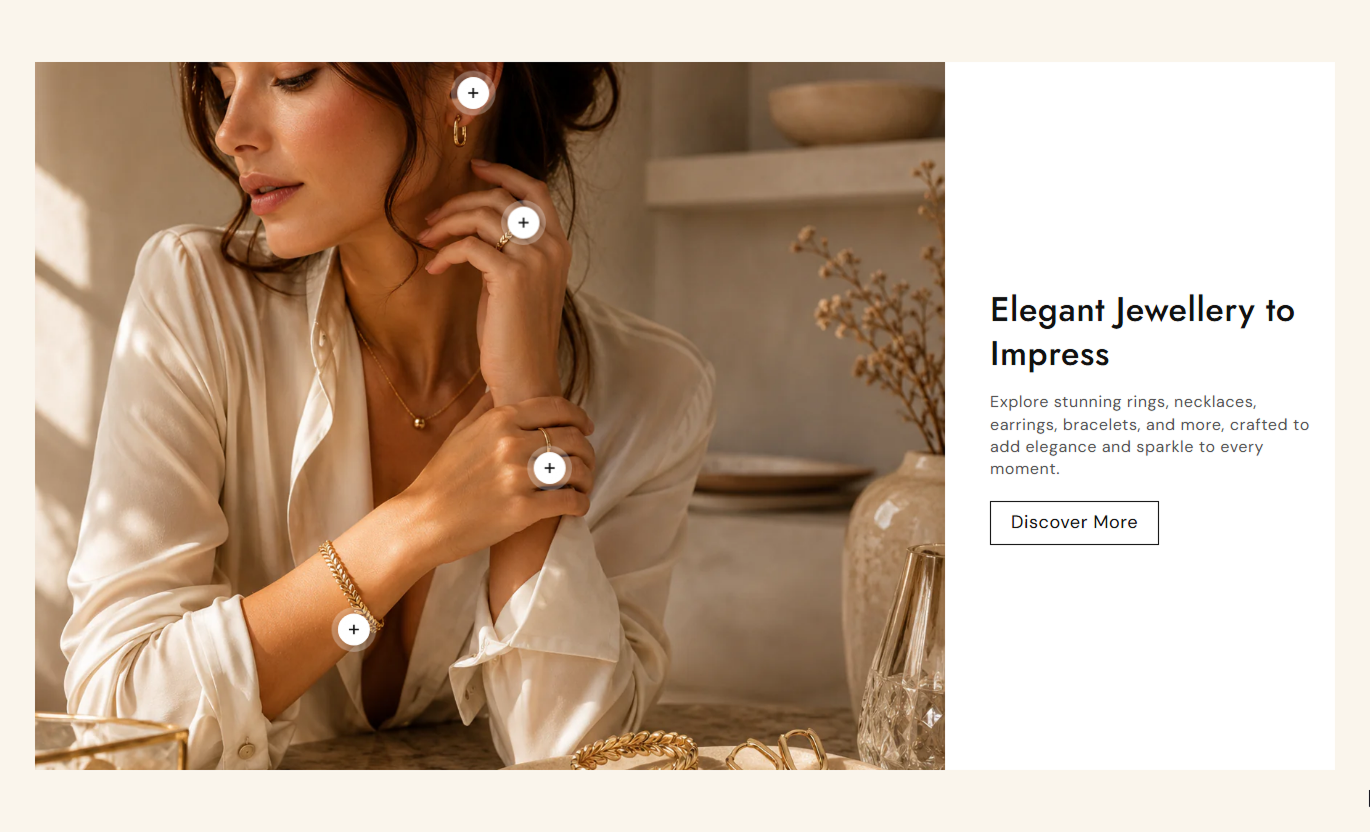
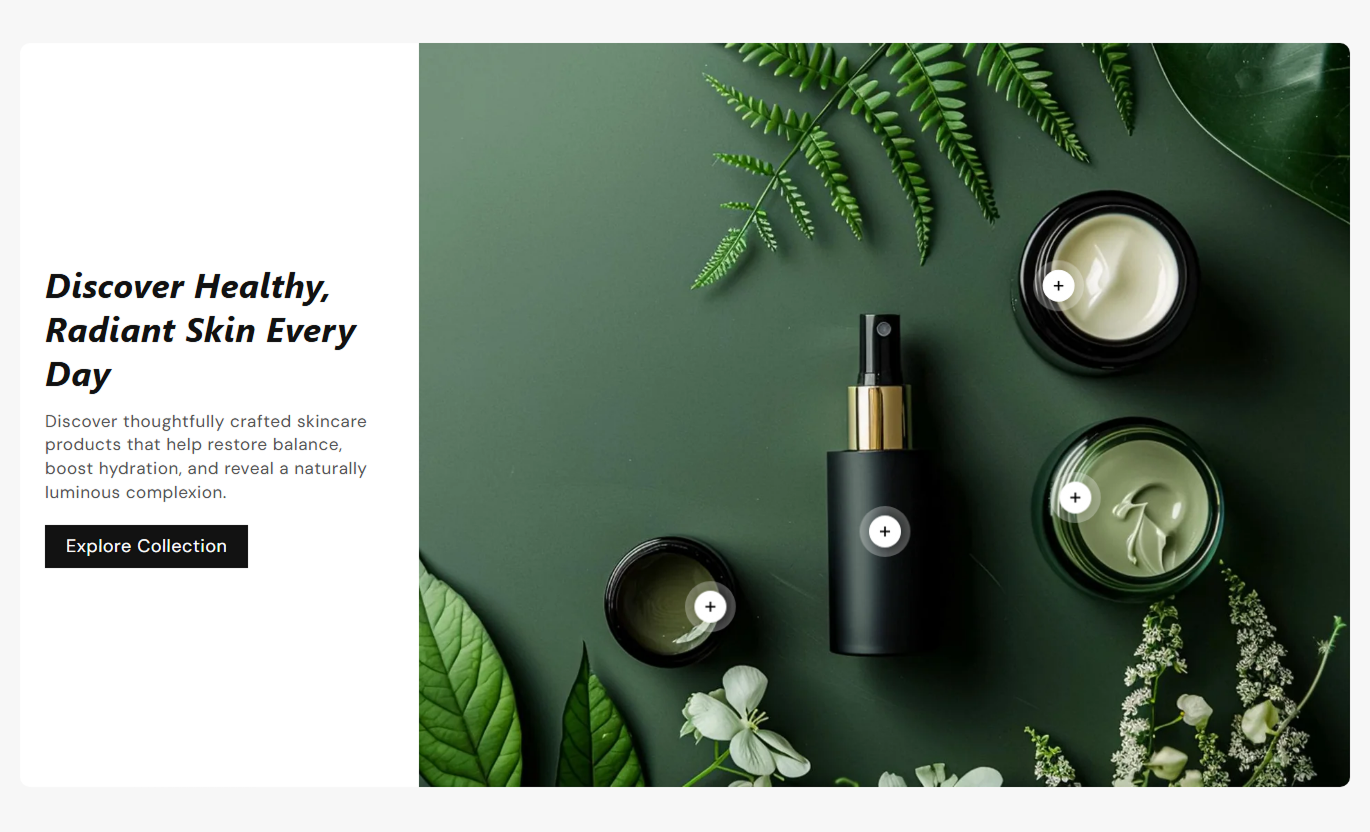


Create engaging product displays with clickable hotspots, product popups, responsive images, custom content, buttons, positioning controls, and flexible styling options.

Select a Shopify product for each hotspot and automatically display its image, title, price, and compare-at price.

Add interactive hotspot markers directly over your image so shoppers can explore featured products with a simple click.

Set separate horizontal and vertical positions for every hotspot to keep markers aligned across different screen layouts.

Show product images, titles, current prices, and compare-at prices inside a compact pop-up linked directly to the product page.

Choose different desktop and mobile images to create better visual compositions for different screen sizes.

Add a heading, rich-text content, and an optional button next to the image to introduce products or guide shoppers.

Customize button labels, links, outline styles, font sizes, colors, borders, hover effects, radii, and shadow settings.

Adjust image height, image position, content alignment, spacing, colors, typography, section width, and border radius.
Control the images, content, buttons, hotspots, product details, and section styling from one place.

Applies to the whole section
Desktop image displayed in the main visual area.
Desktop ImageMobile image displayed on smaller screens.
Mobile ImageChoose the image height for the section.
Image HeightSet the image position beside the content.
Image PositionAdd the main heading for the section.
HeadingAdd supporting rich text content.
ContentSet the button label and destination link.
Button Label & LinkChoose whether the button uses an outline style.
Outline ButtonSet the button border radius and font size.
Button Radius & SizeControl content padding and text alignment.
Content Alignment & PaddingSet the vertical position of content on desktop.
Vertical AlignmentAdjust heading, content, and product information font sizes.
Font SizesSet section, content, heading, and text colors.
Section ColorsCustomize button background, text, border, hover, and shadow colors.
Button ColorsCustomize hotspot and product popup colors.
Hotspot & Popup ColorsSet desktop and mobile section padding.
Section PaddingMake the section span the available width.
Full WidthSet the maximum section width when full width is disabled.
Section Width
Applies to each hotspot
Choose the Shopify product shown by the hotspot.
ProductSet the hotspot vertical position on the desktop.
Desktop Vertical PositionSet the hotspot horizontal position on the desktop.
Desktop Horizontal PositionSet the hotspot vertical position on mobile.
Mobile Vertical PositionSet the hotspot horizontal position on mobile.
Mobile Horizontal PositionUse product hotspots on important Shopify pages to connect visual content with product discovery. Highlight featured products, accessories, collections, seasonal items, or curated product combinations.
Showcase multiple products in a single attractive image and let shoppers discover each item via clickable hotspots. Add supporting content and a button to complete the section.
Highlight multiple products inside one visual sectionLet shoppers explore products without extra product gridsShow product prices directly inside hotspot popupsAdd custom heading, content, and a promotional buttonUse separate images for desktop and mobile layoutsUse an image with product hotspots to present selected items as a part of a visual collection story. Connect each hotspot to its Shopify product page for easier product discovery.
Present selected collection products in a visual layoutConnect each hotspot directly to its product pageDisplay current and compare-at prices in popupsPosition hotspots around products shown in the imageAdjust layouts separately for desktop and mobileCreate an interactive image featuring accessories, matching items, or related products around the main product. Shoppers can open product details without leaving the visual experience.
Feature complementary products around the main itemHighlight accessories through interactive image markersShow product titles and prices inside compact popupsUse mobile-specific positions for better alignmentLink shoppers directly to related product pagesCreate campaign-focused layouts that include an image, supporting content, a CTA button, and clickable product hotspots. Perfect for launches, seasonal promotions, and curated shopping stories.
Combine promotional content with product discoveryHighlight selected products within campaign imageryAdd a custom CTA button for campaign destinationsUse responsive images for different screen layoutsCreate focused visual experiences without product gridsTurn static product imagery into an interactive shopping experience where customers can discover products, view pricing, and visit product pages directly from visual hotspots.
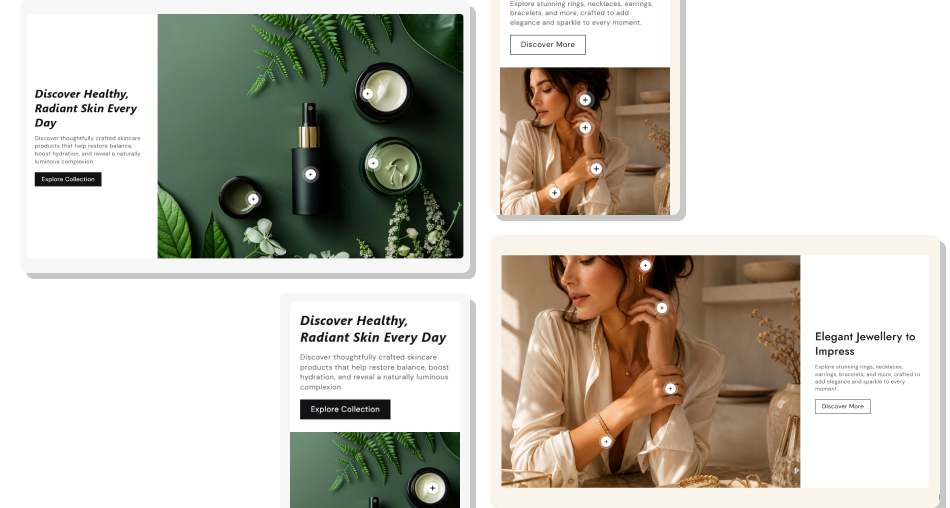
Connect products with visual content so shoppers can discover featured items naturally while browsing your store.
Make product imagery more engaging and interactiveConnect visual products directly to Shopify product pagesDisplay product information without adding separate cardsKeep hotspot positions flexible across desktop and mobileHighlight accessories, featured items, and product combinationsMatch the section design with detailed styling controls Use clear images where products are easy to identify visually.
Place each hotspot close to the product it represents.
Use separate mobile positions when the image layout changes.
Keep product information clear and easy to scan quickly.
Match hotspot and popup colors with your store design.
Use clear images where products are easy to identify visually.
Place each hotspot close to the product it represents.
Use separate mobile positions when the image layout changes.
Keep product information clear and easy to scan quickly.
Match hotspot and popup colors with your store design.  Don't place hotspots over busy areas where they are hard to notice.
Don't add too many hotspots if they make the image feel crowded.
Don't use desktop positions when your mobile image is different.
Don't use low-contrast colors that make product details difficult to read.
Don't ignore mobile positioning when designing your hotspot layout.
Don't place hotspots over busy areas where they are hard to notice.
Don't add too many hotspots if they make the image feel crowded.
Don't use desktop positions when your mobile image is different.
Don't use low-contrast colors that make product details difficult to read.
Don't ignore mobile positioning when designing your hotspot layout. Yes. Each Hotspot block lets you select a Shopify product. The hotspot can then show its product image, title, current price, and compare-at price.
Yes. Every hotspot has separate horizontal and vertical position controls for desktop and mobile, allowing you to place each marker accurately.
Yes. You can select separate desktop and mobile images. This is useful when your image composition changes between larger and smaller screens.
The popup can display the selected product's image, title, current variant price, and compare-at price when a higher compare-at price is available.
Yes. You can add a heading, rich text content, and an optional button with a custom label and link. The button also supports an outline style.
Yes. You can customize the hotspot background and icon colors, the active icon color, the popup background, the product title color, the sale price, and the compare-at price.
Yes. Choose Auto, Small, Medium, or Large image height and place the image on either the left or right side of the content.
Yes. The section includes responsive desktop and mobile layouts, separate mobile images and positions, and a mobile-friendly product information popup.
For Support or any Questions Email Us: [email protected]
Install SectionHub and add the Hotspot with Product section to your theme in minutes - no coding required.
