Create a High-Impact Storefront Introduction
Use image and video slides to introduce your brand, promote key collections, highlight campaigns, and guide visitors toward the most important areas of your store.

Create a responsive Shopify hero slideshow with images or videos, custom slide content, clickable progress navigation, autoplay controls, and individual CTAs.
 Image & Video Slides
Progress Navigation
Responsive Hero Layout
Image & Video Slides
Progress Navigation
Responsive Hero Layout 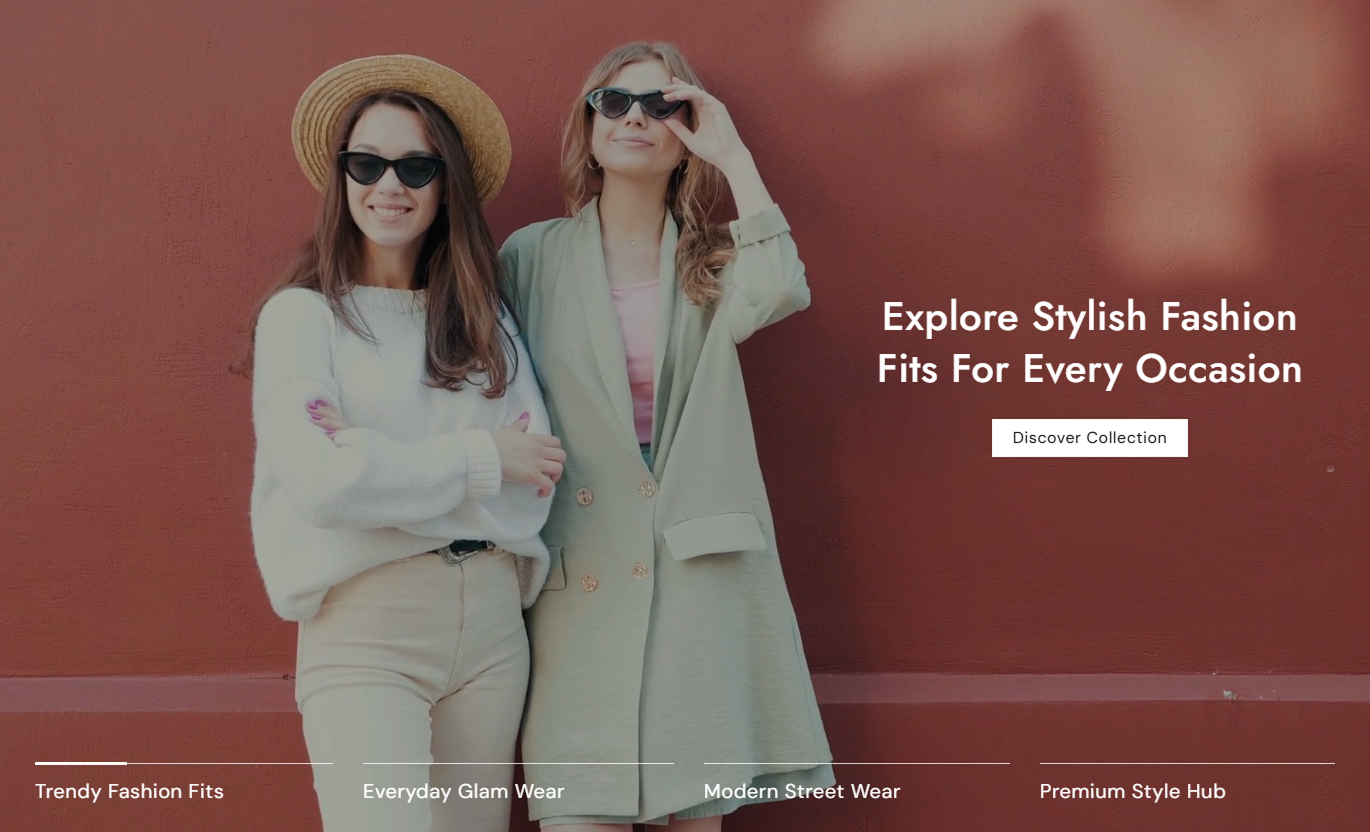
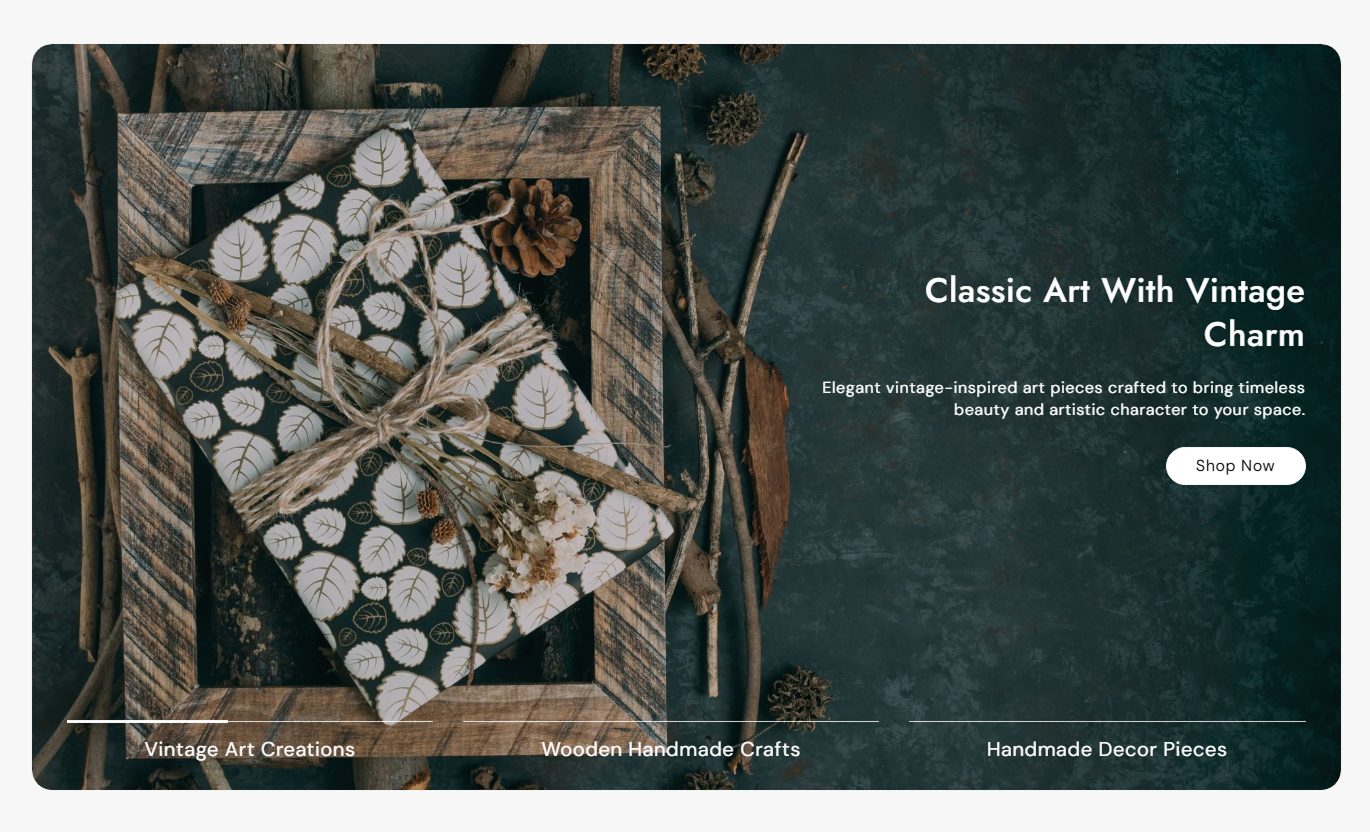


Build campaign-ready hero slideshows with image or video media, individual content, progress navigation, autoplay, responsive positioning, and CTA controls.

Mix Shopify images and hosted videos within the same hero slideshow to create richer campaign and brand presentations.

Add a dedicated mobile image to image slides so important subjects and campaign details remain visible on smaller screens.

Enable automatic slide changes and choose an interval of 3 to 10 seconds to control how quickly content rotates.

Show progress indicators on every slide, and let shoppers click each one to go directly to the corresponding hero content.

Place slide content in 9 desktop positions, and choose separate top, middle, or bottom positions for mobile screens.

Give every slide its own button label, destination link, outline option, corner radius, and independent visual styling.

Set heading, content, pagination, button, hover, outline, and shadow colors separately for each hero slide.

Choose small, medium, large, or adaptive hero heights while maintaining responsive media proportions across desktop and mobile layouts.
Control slideshow height, autoplay, typography, progress navigation, spacing, width, and individual slide content from the Shopify theme editor.

Applies to the whole slideshow
Choose adaptive, small, medium, or large media height.
Slideshow Media HeightSet the corner radius around the slideshow container.
Slideshow Border RadiusTurn automatic slide rotation on or off.
Auto Rotate SlidesChoose how often automatically rotating slides change.
Slide Change SpeedAlign pagination labels to the left, center, or right.
Pagination AlignmentAdjust heading, content, and pagination font sizes.
Slideshow TypographySet separate top and bottom padding for desktop and mobile.
Responsive PaddingMake the slideshow span the full available width.
Full Width LayoutSet a maximum width when full width is disabled.
Maximum Section Width
Applies to each image or video slide
Add desktop imagery, mobile imagery, or hosted video.
Slide MediaAdd the main slide heading and support rich text.
Slide ContentAdd the text shown with the progress navigation.
Pagination LabelSet the slide button label and destination URL.
Slide CTAChoose desktop and mobile content position and alignment.
Content PositionCustomize text, pagination, button, and hover colors.
Slide Color StylingSwitch the CTA to outline style and set its corner radius.
CTA StyleUse image and video hero slides to introduce campaigns, collections, products, or brand messages while guiding shoppers toward key destinations across your store.
Use image and video slides to introduce your brand, promote key collections, highlight campaigns, and guide visitors toward the most important areas of your store.
Present several key campaigns inside one hero area.Mix lifestyle images and videos for stronger visual storytelling.Use separate CTAs to guide shoppers to different destinations.Add dedicated mobile imagery for better responsive presentation.Let visitors jump between slides through progress navigation.Use hero slides to introduce seasonal ranges, subcollections, styling themes, or collection campaigns before shoppers begin browsing the product grid.
Introduce the collection with stronger visual context.Promote subcollections through separate hero slide links.Use video to communicate mood, styling, or campaign direction.Position content differently based on each slide's creative.Keep collection promotions responsive on smaller screens.Use the slideshow to present product campaigns, supporting lifestyle imagery, demonstrations, or related stories around the current product experience.
Add lifestyle context around important featured products.Use videos for visual product demonstrations or storytelling.Promote related collections through individual slide CTAs.Separate supporting stories into focused hero slides.Adjust mobile positioning so text remains clear over the media.Use up to four images or video slides to communicate different campaign messages, offers, launches, or destinations within one focused landing page hero.
Present several campaign messages without stacking multiple hero sections.Give every promotion its own media, copy, and CTA destination.Use progress labels to make campaign navigation more visible.Control slide timing to match the amount of content shown.Create separate desktop and mobile visual compositions.Create a flexible hero experience that combines rich media, campaign messaging, navigation, and responsive controls without needing multiple separate hero sections.
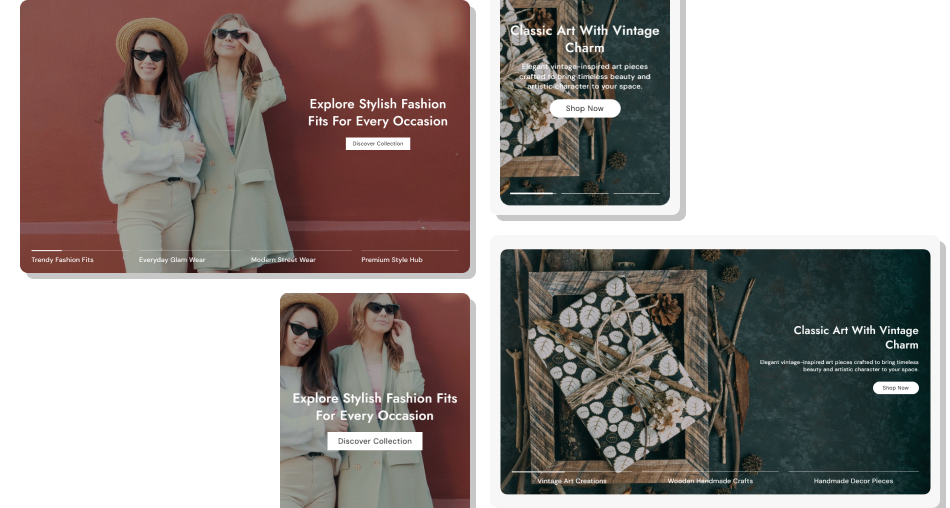
Use up to four focused slides to present distinct messages while keeping visuals, navigation, and calls to action organized within a single hero area.
Combine image and video campaigns inside one slideshow.Give every slide its own copy, CTA, position, and colors.Use automatic rotation to keep campaign content moving.Let shoppers navigate directly through clickable progress items.Optimize image-based slides with dedicated mobile media.Control section proportions for different storefront designs.Keep campaign messaging organized without stacking multiple banners. Use one clear campaign message and CTA on every slide.
Upload dedicated mobile images when desktop crops do not work well.
Choose slide timing that gives visitors enough time to read.
Position text where it remains readable over the selected media.
Keep pagination labels short and easy to understand.
Use one clear campaign message and CTA on every slide.
Upload dedicated mobile images when desktop crops do not work well.
Choose slide timing that gives visitors enough time to read.
Position text where it remains readable over the selected media.
Keep pagination labels short and easy to understand.  Do not overload a slide with several competing messages.
Do not set automatic rotation faster than visitors can read.
Do not place text over visually busy areas without sufficient contrast.
Do not use unrelated images or videos within the same campaign.
Do not make progress labels too long for the navigation area.
Do not overload a slide with several competing messages.
Do not set automatic rotation faster than visitors can read.
Do not place text over visually busy areas without sufficient contrast.
Do not use unrelated images or videos within the same campaign.
Do not make progress labels too long for the navigation area. You can add up to four blocks to the slideshow, and each block can be configured as either an image slide or a video slide.
Yes. Image and video blocks can be used together, allowing the same hero slideshow to combine campaign visuals and hosted video content.
Yes. Image slides include separate Desktop Image and Mobile Image fields, allowing you to use a more suitable crop for smaller screens.
Yes. Selected Shopify-hosted videos are configured to autoplay, loop, remain muted, hide controls, and play inline within their slide.
Yes. Enable Auto Rotate Slides and choose a change interval of 3 to 10 seconds in the main slideshow settings.
Yes. Each progress item is clickable and takes the slideshow directly to its corresponding slide, even when auto rotation is disabled.
Yes. Desktop provides nine content positions, while mobile offers top, middle, or bottom placement with separate text alignment controls.
Yes. Each slide supports its own button label, link, outline option, corner radius, heading color, content color, pagination color, and button colors.
For Support or any Questions Email Us: [email protected]
Install SectionHub and add the Hero Slideshow Tab Navigation section to your theme in minutes - no coding required.
