Create a Dynamic Storefront Hero Experience
Use Hero Slideshow Marquee at the top of your homepage to rotate between campaigns, collections, launches, or brand stories using images, videos, CTAs, and marquee text.

Build a responsive Shopify hero slideshow with image and video slides, custom content, CTAs, autoplay, progress indicators, navigation, and animated marquee text.
 Image and Video Slides
Animated Marquee Text
Responsive Hero Layout
Image and Video Slides
Animated Marquee Text
Responsive Hero Layout 
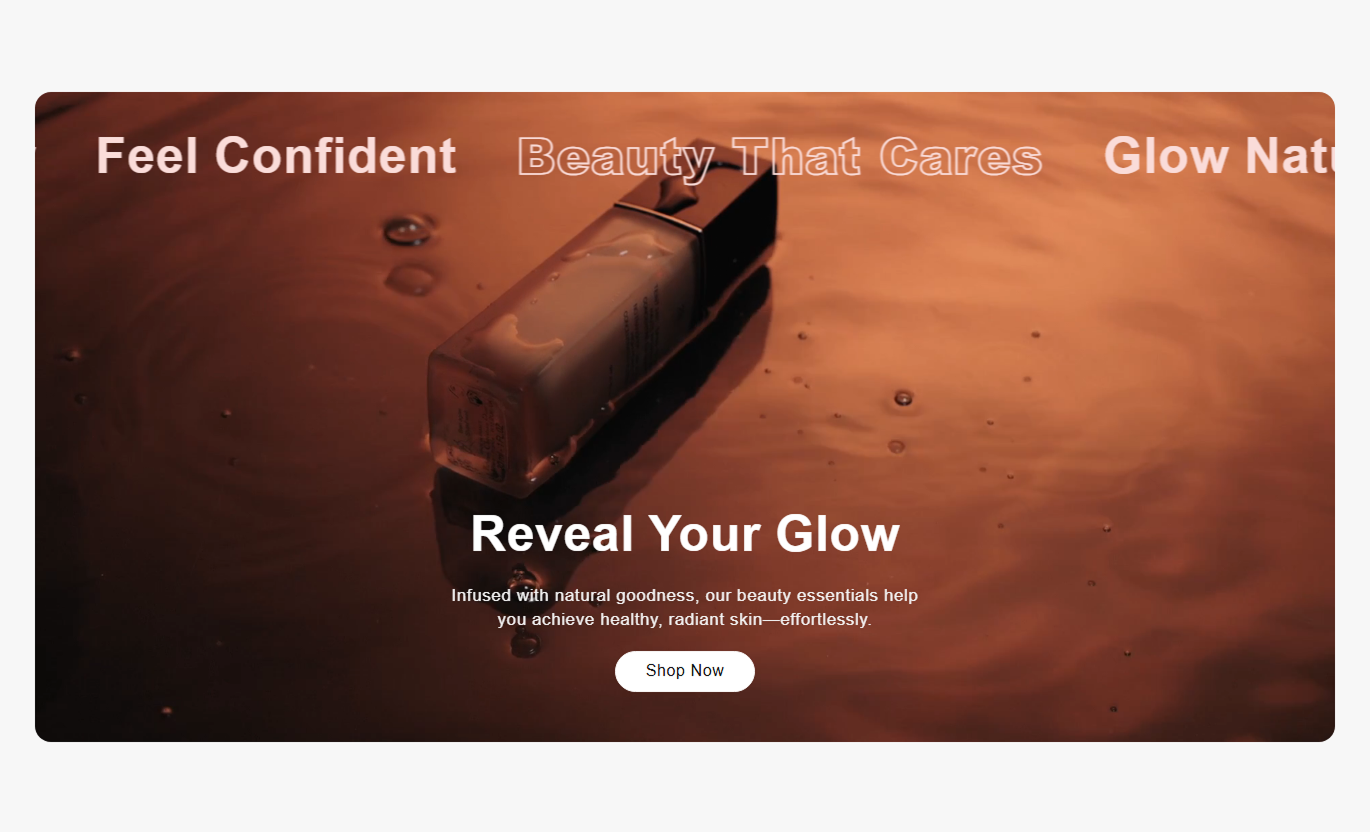


Create a rich storefront hero with image or video slides, responsive media, autoplay controls, progress tracking, flexible content positions, and marquee text.

Combine image and Shopify-hosted video slides inside the same hero carousel to create more varied storefront campaigns and visual storytelling.

Upload dedicated mobile images or videos for individual slides so important campaign visuals can adapt more naturally to smaller screens.

Choose Small, Medium, Large, or Adapt height, with Adapt using the aspect ratio of the first image or video to shape the slideshow.

Enable automatic slide rotation, choose a three-to-ten-second interval, and optionally display a progress line for the active slide.

Place slide content in 9 desktop positions, and choose separate top, middle, or bottom positions for mobile layouts.

Add a linked button to each image or video slide and control fill, outline mode, radius, size, colors, hover states, and shadow.

Add one scrolling marquee block with up to six text entries, adjustable direction, speed, position, typography, color, and hover pause.

Show or hide navigation arrows, position them on the left or right, adjust their size and color, and hide them automatically on mobile.
Control slideshow height, autoplay, navigation, marquee behavior, overlays, responsive spacing, section width, and individual slide content.

Applies to the complete slideshow
Choose a slide height of Adapt, Small, Medium, or Large.
Slide HeightSet the maximum width used by slide content overlays.
Content WidthEnable automatic rotation between slideshow items.
Auto Rotate SlidesChoose a three-to-ten-second automatic slide interval.
Slide Change SpeedShow an animated progress line during autoplay.
Progress BarShow navigation arrows and choose left or right placement.
Navigation ControlsAdjust the corner radius around slideshow media.
Slide Border RadiusControl the overlay color and opacity across all slides.
Slide OverlaySet marquee position, direction, speed, and hover pause.
Marquee ControlsUse full width or enter a custom maximum section width.
Section Width
Applies to image, video, and marquee blocks
Choose desktop and optional mobile media for each slide.
Slide MediaAdd a slide heading and supporting rich text description.
Slide ContentAdd a CTA label, destination link, and outline option.
Slide ButtonSet desktop and mobile content positions independently.
Content PositionSet desktop and mobile text alignment independently.
Text AlignmentCustomize per-slide heading, content, and button styling.
Slide StylingAdd up to six scrolling text entries in the marquee block.
Marquee TextUse this flexible hero slideshow across major Shopify pages to introduce campaigns, products, collections, launches, promotions, or brand stories with rich media.
Use Hero Slideshow Marquee at the top of your homepage to rotate between campaigns, collections, launches, or brand stories using images, videos, CTAs, and marquee text.
Show several important campaigns inside one hero areaMix image and video slides in the same storefront sectionUse separate mobile media for better responsive presentationAdd autoplay and progress feedback for rotating campaignsReinforce messages with a scrolling marquee stripUse the slideshow around collection content to introduce seasonal ranges, category campaigns, editorial imagery, or product stories before shoppers browse the grid.
Give collection pages stronger visual campaign contextUse different slides for sub-ranges or promotional themesLink individual slides to relevant collection destinationsAdapt desktop and mobile media independentlyUse overlay controls to keep text readable over imageryPlace the slideshow on product pages when you want to show lifestyle imagery, demonstrations, related campaigns, or supporting product stories in a large-format visual.
Add campaign or lifestyle context around product detailsUse video slides for richer product demonstrationsDirect shoppers toward related products or collectionsPosition text independently around different media compositionsKeep supporting stories responsive on mobile devicesUse Hero Slideshow Marquee on landing pages to combine campaign images, videos, calls to action, progress indicators, and animated marquee messaging in one focal section.
Present several campaign messages in one visual areaCombine video, imagery, copy, and CTAs in each slideUse autoplay for an automatically rotating experienceAdd marquee messaging above or below the hero mediaControl each slide's content position to suit its artworkCreate a flexible hero that brings together image and video slides, responsive media, CTAs, autoplay, progress feedback, navigation, and animated marquee content.
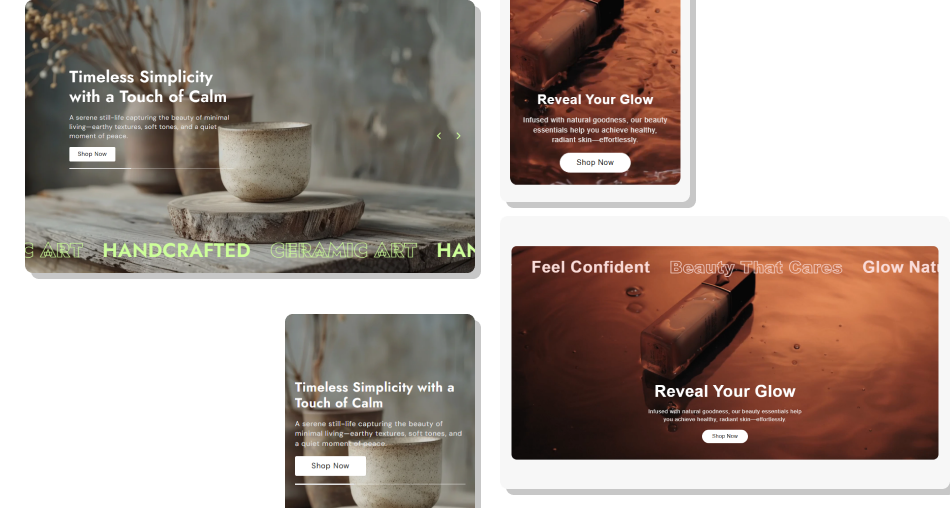
Use multiple media-rich slides to present campaigns, collections, launches, or brand stories without building separate large hero sections.
Mix image and video content inside one slideshowUse dedicated mobile media for individual slidesControl each slide's heading, copy, CTA, and stylingChoose from nine desktop content positionsAdd optional autoplay with a matching progress indicatorInclude a reusable scrolling marquee with up to six messagesControl navigation, overlays, spacing, and overall width Use one clear campaign message and CTA on each hero slide
Upload mobile-specific media when desktop cropping is unsuitable
Keep headings concise so they remain readable over imagery
Choose overlay opacity based on the brightness of each visual
Keep marquee text short enough to scan while it moves
Use one clear campaign message and CTA on each hero slide
Upload mobile-specific media when desktop cropping is unsuitable
Keep headings concise so they remain readable over imagery
Choose overlay opacity based on the brightness of each visual
Keep marquee text short enough to scan while it moves  Do not overload each slide with several competing messages
Do not use videos that depend on audio to explain the campaign
Do not rotate slides too quickly for visitors to read the content
Do not place text where important visual details will reduce contrast
Do not use marquee messaging that distracts from the main CTA
Do not overload each slide with several competing messages
Do not use videos that depend on audio to explain the campaign
Do not rotate slides too quickly for visitors to read the content
Do not place text where important visual details will reduce contrast
Do not use marquee messaging that distracts from the main CTA Yes. Hero Slideshow Marquee supports both Image and Video block types, allowing image and Shopify-hosted video slides to appear in the same carousel.
Yes. Image slides support a Mobile Image, while video slides support a Mobile Video that replaces desktop media on smaller screens.
The schema allows up to five Image blocks and up to five Video blocks, giving you the flexibility to combine both media types in a single slideshow.
Yes. Enable Auto Rotate Slides and choose a rotation interval between 3 and 10 seconds. Manual navigation and touch movement remain available.
When autoplay and the progress bar are enabled, the active slide displays a line that fills in accordance with the configured slide-change duration.
Yes. Desktop supports nine content positions, while mobile has separate top, middle, or bottom placement plus independent text alignment.
You can set its top or bottom position, scroll direction, speed, pause-on-hover behavior, font size, font weight, text color, and up to six messages.
Yes. If a slide has a destination link but no button label, the code adds a full-slide overlay link, making the entire slide clickable.
For Support or any Questions Email Us: [email protected]
Install SectionHub and add the Hero Slideshow Marquee section to your theme in minutes - no coding required.
