Lead With Campaigns and Featured Storefront Stories
Use the slideshow as a homepage hero to rotate seasonal campaigns, featured products, collection launches, or brand messages while keeping the active visual dominant.

Create a layered hero slideshow with a full-width active image, stacked preview cards, autoplay, arrow navigation, animated text, per-slide CTAs, and responsive styling.
 Layered Hero Cards
Animated Slide Content
Autoplay & Arrow Control
Layered Hero Cards
Animated Slide Content
Autoplay & Arrow Control 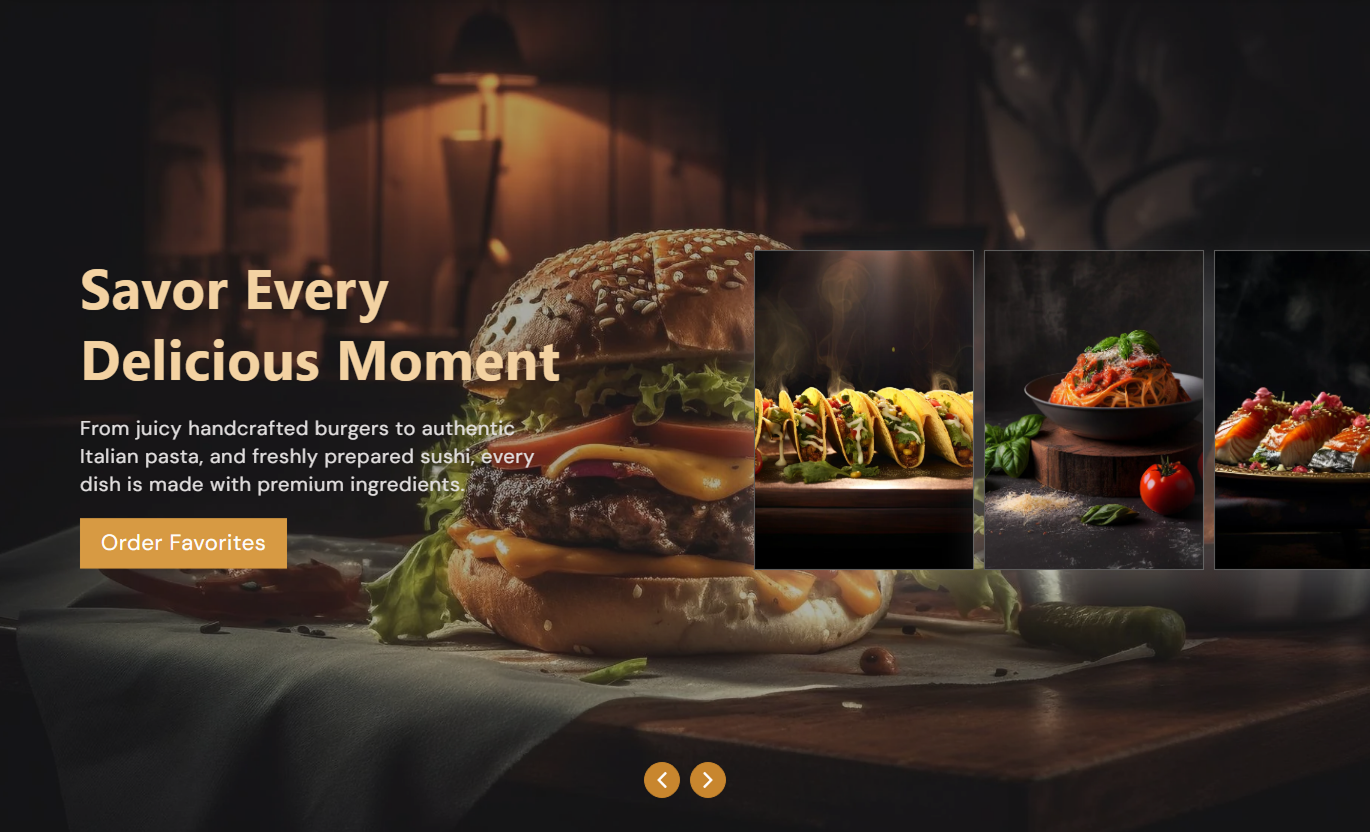
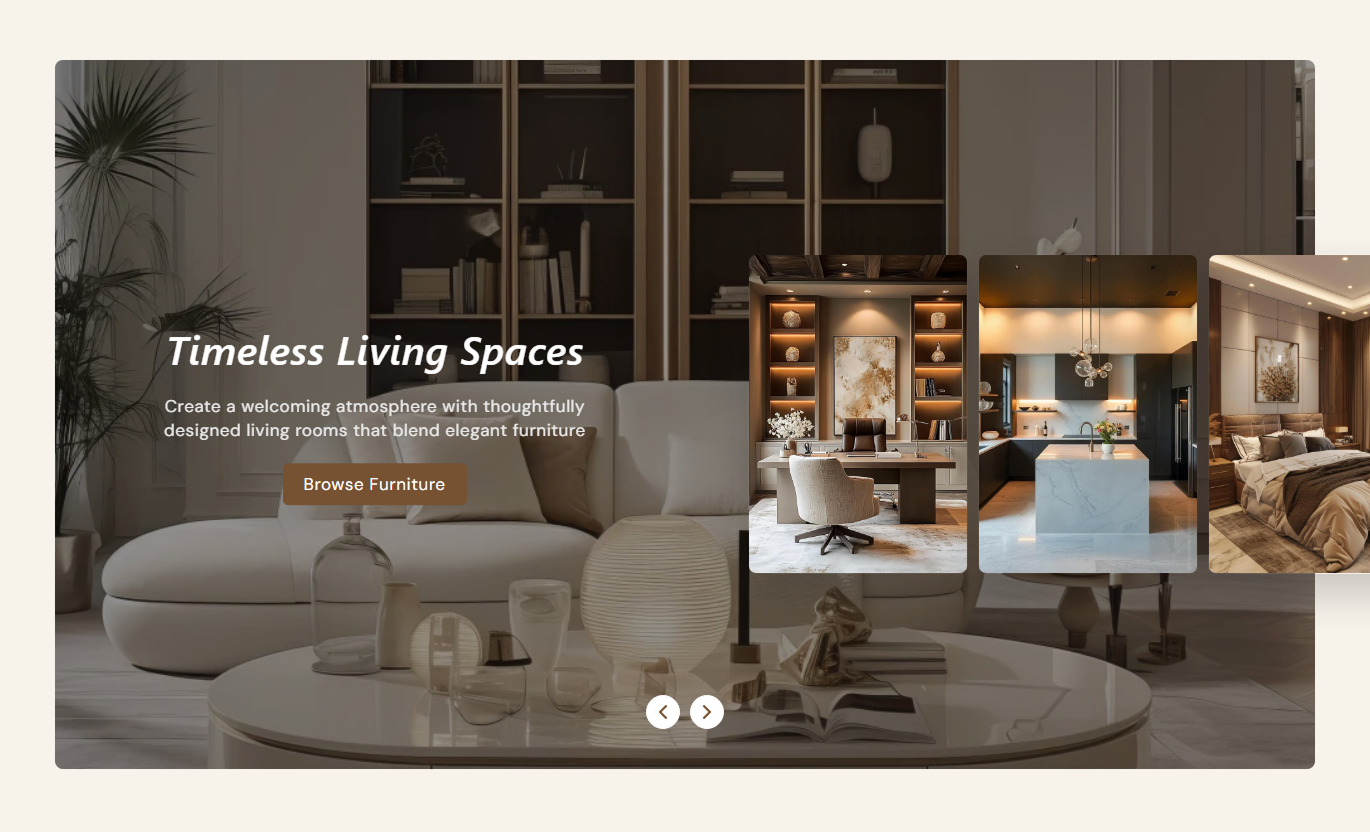


Showcase campaigns with a full-size active slide, stacked preview cards, autoplay, arrow navigation, animated content, responsive layouts, and custom CTA styles.

The first slide expands to fill the hero area while upcoming slides appear as stacked preview cards beside it.

Built-in arrow controls let shoppers move forward or backward through slides without relying on autoplay.

Enable automatic slide changes and choose a delay from two to ten seconds to control campaign pacing.

Active slide headings, descriptions, and buttons animate upward with a soft blur-to-clear entrance effect.

Each slide can use its own button label, link, outline mode, colors, radius, hover states, and shadow.

Apply a configurable color overlay and opacity to the active hero image to improve text contrast when needed.

Preview cards resize and reposition on smaller screens while the main hero switches to a tall mobile aspect ratio.

Choose Small, Medium, or Large hero heights, plus full-width or contained layouts with separate spacing controls.
Control image sizing, overlays, autoplay, typography, arrows, spacing, width, and per-slide content and button styles.

Applies to the whole section
Choose Small, Medium, or Large hero image height.
Hero Image HeightSet active image overlay color, opacity, and image radius.
Image Overlay StyleEnable autoplay and choose the slide change interval.
Autoplay ControlsAdjust heading, description, button, and arrow sizing.
Typography & ArrowsCustomize section, card shadow, border, and arrow colors.
Section Color StyleSet separate desktop and mobile top and bottom padding.
Responsive SpacingUse full width or define a contained maximum section width.
Section Width Setup
Applies to each slide card
Upload the image displayed for this slideshow card.
Slide ImageAdd the heading, rich text, and alignment for this slide.
Slide ContentSet the button label and destination link for this slide.
Slide CTA LinkChoose outline mode and adjust the button corner radius.
Button StyleCustomize slide text, button, hover, and shadow colors.
Slide Color ControlsUse this layered hero slideshow across key Shopify pages to feature campaigns, products, collections, or brand stories with animated visual storytelling.
Use the slideshow as a homepage hero to rotate seasonal campaigns, featured products, collection launches, or brand messages while keeping the active visual dominant.
Show several campaigns without stacking multiple hero sectionsUse preview cards to hint at the next available slidesPair every campaign with its own optional destination CTAControl autoplay speed to match the pace of your homepageKeep the hero readable with overlay and text color controlsPlace the slideshow on collection templates to promote category stories, seasonal edits, related ranges, or featured collection campaigns before shoppers browse products.
Highlight seasonal or curated collection stories visuallyUse each slide to promote a different collection destinationSupport collection launches with individual slide messagingLet shoppers browse campaigns with manual arrow controlsUse contained or full-width layouts around collection contentUse the section on product templates to present product benefits, lifestyle imagery, campaign angles, or related stories in a layered visual format, either above or below the details.
Show multiple product benefits through separate hero slidesPair lifestyle imagery with focused supporting messagesLink slides to related products, guides, or collectionsUse preview cards to encourage further visual explorationKeep mobile content readable with the tall hero layoutUse Hero Slideshow Interactive Panels on campaign landing pages to rotate offers, launches, brand stories, or featured destinations with custom slide messaging and visual treatments.
Combine several campaign messages inside one hero areaGive every slide its own image, copy, and CTA stylingUse autoplay for passive rotation or arrows for controlApply overlays to improve readability on varied imageryMatch campaign layouts with full-width or contained sizingCreate a high-impact hero experience with a dominant active image, visible preview cards, animated content, autoplay, and slide-specific calls to action.
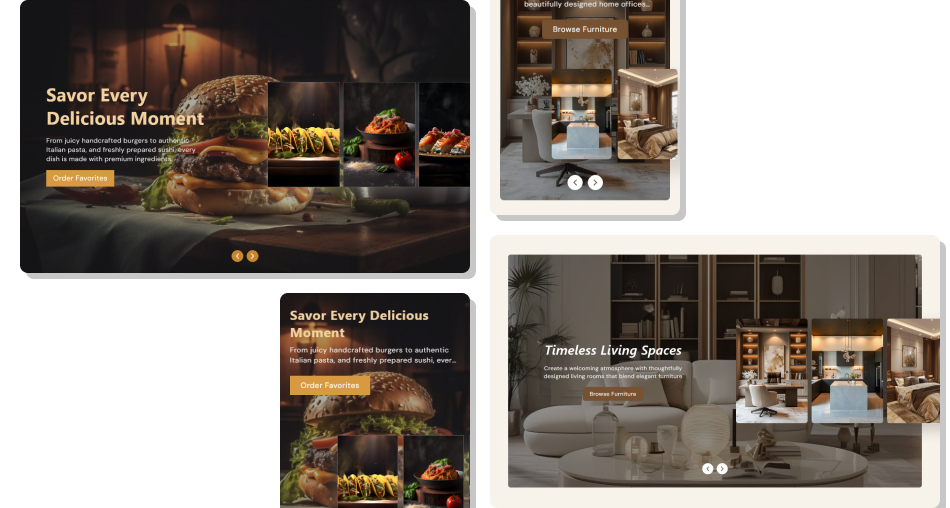
Use active hero imagery, preview cards, animated copy, and custom CTAs to guide shoppers through featured campaigns and offers.
Combine a dominant hero image with visible upcoming slide previewsGive each slide independent messaging, alignment, and CTA stylingAutomate campaign rotation with configurable autoplay timingKeep manual navigation available through previous and next arrowsUse image overlays to improve readability across varied photographyChoose contained or full-width hero presentation for different layoutsAdapt the experience to a purpose-built tall mobile hero format Use high-quality images with a consistent visual direction across slides
Keep headings concise so they stay within the two-line display limit
Use overlays when images need stronger contrast behind slide text
Give each CTA a destination that matches its slide message
Test manual arrows, autoplay timing, and mobile card positions
Use high-quality images with a consistent visual direction across slides
Keep headings concise so they stay within the two-line display limit
Use overlays when images need stronger contrast behind slide text
Give each CTA a destination that matches its slide message
Test manual arrows, autoplay timing, and mobile card positions  Do not place essential details beyond the clamped description length
Do not use wildly different image styles that weaken visual flow
Do not set autoplay so fast that shoppers cannot read each slide
Do not overload every slide with long promotional messaging
Do not rely on preview cards as the only way to explain navigation
Do not place essential details beyond the clamped description length
Do not use wildly different image styles that weaken visual flow
Do not set autoplay so fast that shoppers cannot read each slide
Do not overload every slide with long promotional messaging
Do not rely on preview cards as the only way to explain navigation Yes. Autoplay is optional. When disabled, shoppers can still navigate the slideshow forward and backward using the built-in previous and next arrows.
The autoplay speed setting supports intervals from two to ten seconds. The selected value controls how often the first slide moves to the end of the stack.
Each slide includes an image, heading, rich text, alignment, CTA label and link, outline option, radius, text colors, button colors, hover states, and shadow.
Only the first card in the current stack displays its heading, description, and CTA. Clicking an arrow reorders the cards, making another slide active.
Yes. Every slide has its own button colors, hover colors, outline color, border radius, and shadow settings, plus a separate button label and destination.
Below 768px, the hero uses a tall 9:13 ratio, content moves near the top, preview cards become smaller, and the navigation buttons move closer to the bottom.
No. The schema disables Hero Slideshow Interactive Panels in Shopify header and footer groups, but it can be added to supported page-template section areas.
For Support or any Questions Email Us: [email protected]
Install SectionHub and add the Hero Slideshow Interactive Panels section to your theme in minutes - no coding required.
