Lead With Two High-Impact Collection Stories
Use Hero Slideshow Hover Product Marquee on your homepage to feature two priority collections with expanding imagery, direct CTAs, and animated product marquees that invite exploration.

Create a two-panel Shopify hero with expanding collection imagery, vertical product marquees, hover or tap interactions, direct collection links, and responsive styling.
 Expandable Collection Panels
Vertical Product Marquee
Hover & Tap Interaction
Expandable Collection Panels
Vertical Product Marquee
Hover & Tap Interaction 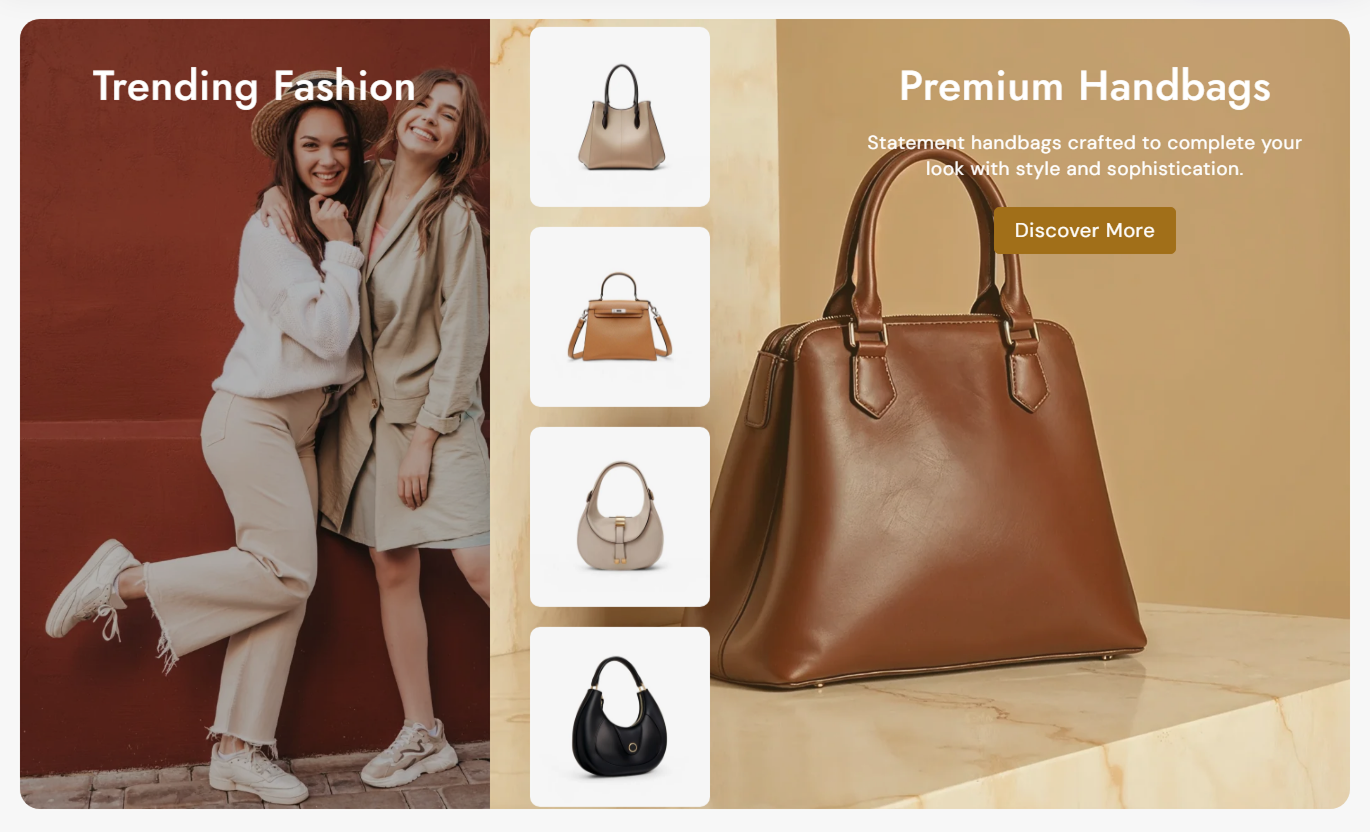



Show two collection panels with expanding hover states, vertical product marquees, direct collection links, responsive tap behavior, and flexible styling.
Use two large collection panels that expand on desktop hover and reveal more supporting content for the active side.

Display product images from each selected collection in a continuous vertical marquee beside the active panel.

Give each panel its own CTA that links directly to the selected collection, with customizable button styling.

Hovering a desktop panel expands it, reveals its description and CTA, activates the marquee, and dims its image.

On mobile, tapping a panel toggles its active state, expands the details, and starts or pauses the matching marquee.

Collections with fewer products repeat their product images, so the vertical marquee stays visually populated.

Control the large center heading, collection text, button sizing, colors, outline style, and desktop font weight.

Choose full-width or contained media, adjust section spacing, and use separate mobile colors and alignments.
Control hero layout, marquee behavior, typography, colors, spacing, width, and the content and styling of each panel.

Applies to the whole section
Edit the main heading, rich text, and vertical placement.
Main Hero ContentChoose Small, Medium, or Large overall media height.
Hero Media HeightSet marquee direction, speed, pause, and image radius.
Marquee ControlsAdjust heading, content, collection, and button text sizes.
Typography ControlsUse outline heading style and set desktop or mobile colors.
Heading Color StyleSet separate desktop and mobile top and bottom padding.
Responsive SpacingChoose full width or define a maximum contained width.
Section Width Setup
Applies to each collection panel
Upload the background image used by this panel.
Panel ImageAdd the panel heading and support rich text.
Panel ContentSelect the collection used for links and marquee products.
Selected CollectionConfigure button style, position, alignment, and colors.
Panel StylingUse this interactive split hero across Shopify pages to promote collections, campaigns, seasonal ranges, or category stories with hover and tap interactions.
Use Hero Slideshow Hover Product Marquee on your homepage to feature two priority collections with expanding imagery, direct CTAs, and animated product marquees that invite exploration.
Feature two important collections in one immersive hero areaUse hover expansion to reveal more details on desktopShow collection products inside animated vertical marqueesLink each panel directly to its selected collection pageKeep mobile interaction simple with tap-to-activate panelsUse the collection templates section to spotlight related ranges, seasonal edits, or adjacent categories with two large visual panels and direct collection links.
Promote complementary categories beside the product gridUse panel imagery to strengthen collection storytellingShow product thumbnails from each selected collectionAdd focused CTAs for quick category-to-category navigationKeep supporting copy hidden until the panel is activatedUse the hero on product templates to guide shoppers toward complementary collections or broader categories with expanding panels and animated product imagery.
Connect a product with related collection destinationsUse collection imagery to broaden product discoveryShow marquee products as supporting visual contextAdd concise panel copy and a direct collection CTAPreserve mobile usability with tap-based activationUse Hero Slideshow Hover Product Marquee on landing pages to compare or promote two campaign collections with expandable panels, vertical product marquees, and strong visual messaging.
Create a focused campaign around two collection choicesUse large imagery for editorial landing-page impactAnimate collection products inside vertical marqueesCustomize each panel's text, overlay, and CTA stylingAdapt desktop hover behavior into mobile tap interactionTurn two collection destinations into an interactive hero with expanding panels, product marquees, responsive activation, and customizable visual styling.
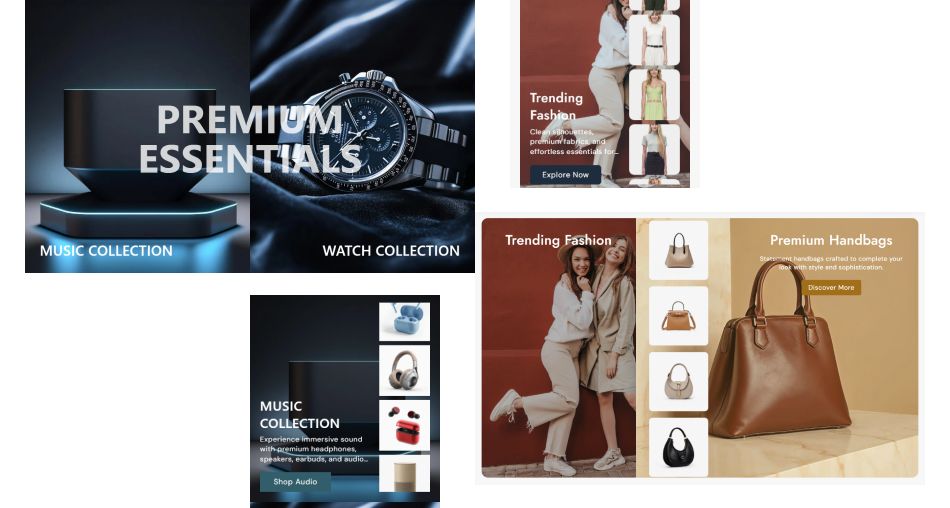
Combine two collection panels, animated product marquees, direct CTAs, and responsive activation for focused storefront browsing.
Present two collection destinations inside one immersive heroExpand active panels to reveal more descriptive contentShow product imagery from selected collections in vertical marqueesLink each panel directly to its associated collection pageUse desktop hover and mobile tap as device-appropriate interactionsCustomize overlays, typography, CTA colors, and alignment per panelChoose full-width or contained presentation for different templates Use two related or clearly contrasting collections for the hero
Choose strong panel images that remain readable under overlays
Keep collection headings concise for the three-line title limit
Test desktop hover and mobile tap behavior before publishing
Use marquee speed settings that keep product images easy to scan
Use two related or clearly contrasting collections for the hero
Choose strong panel images that remain readable under overlays
Keep collection headings concise for the three-line title limit
Test desktop hover and mobile tap behavior before publishing
Use marquee speed settings that keep product images easy to scan  Do not add more than two Slide blocks because the schema limits them
Do not rely on hidden hover details for essential mobile information
Do not select empty collections if marquee product images are needed
Do not use overly fast marquee motion that distracts from the CTA
Do not overload each panel with long descriptions or button text
Do not add more than two Slide blocks because the schema limits them
Do not rely on hidden hover details for essential mobile information
Do not select empty collections if marquee product images are needed
Do not use overly fast marquee motion that distracts from the CTA
Do not overload each panel with long descriptions or button text The schema allows exactly up to two Slide blocks. The layout is built as a two-panel hero, with the second block receiving the opposite-side panel styling.
The hovered panel expands, its details open, its overlay appears, the central heading fades, and the panel's product marquee begins to run.
On mobile, tapping a panel toggles its active state. The active panel expands, reveals its details and marquee, and other panel marquees are paused.
The marquee uses up to ten products from the selected collection and links each product image to its product page. Empty collections show placeholders.
When a collection has fewer than ten products, the code repeats its available product set several times to keep the vertical marquee visually populated.
Yes. Each block controls its button style and colors, panel text colors, overlay settings, vertical position, and separate desktop and mobile alignment.
Yes. The section includes a Heading Outline option for desktop, as well as heading color, font weight, size, and position, plus a separate mobile heading color.
No. The schemaDataProvider / library conventions, explicitly`no`.
For Support or any Questions Email Us: [email protected]
Install SectionHub and add the Hero Slideshow Hover Product Marquee section to your theme in minutes - no coding required.
