Create a Strong Visual First Impression
Use the slideshow as a prominent homepage section to introduce your brand, showcase featured collections, highlight new arrivals, or direct visitors toward important store pages.

Create an engaging visual slideshow section that combines large images, supporting content, slide numbers, headings, descriptions, and clickable links. Showcase products, collections, campaigns, services, or brand stories with a responsive and interactive layout.
 2.0 Compatible
Responsive Design
Interactive Slideshow
2.0 Compatible
Responsive Design
Interactive Slideshow 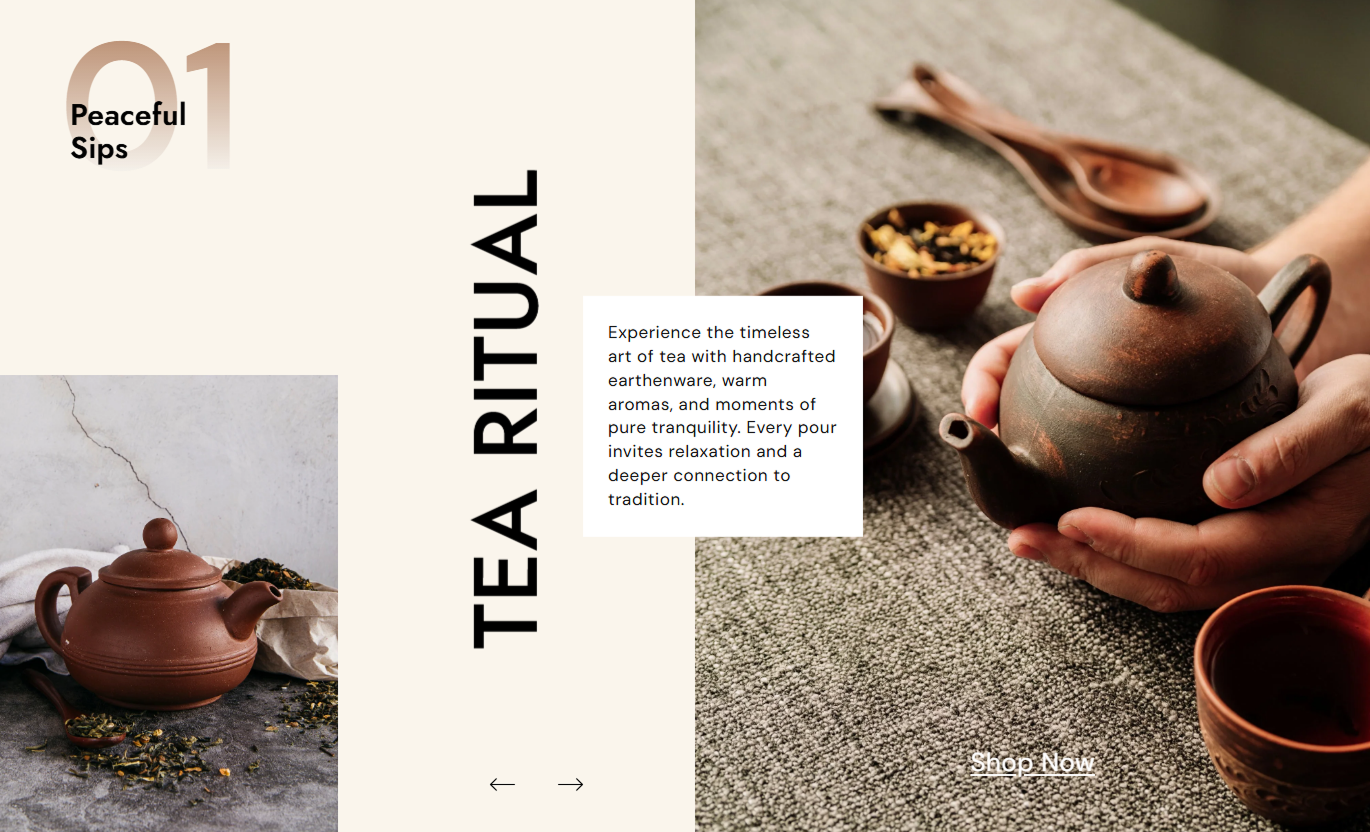


Create visually rich slideshow experiences with multiple images, custom text, navigation arrows, slide counters, clickable links, flexible colors, animations, and responsive layouts.

Add separate left and right images to create a visually balanced slideshow layout.

Display multiple content blocks in a smooth, interactive slider with one slide visible at a time.

Use a smooth fade transition when moving between slides for a polished visual experience.

Display automatic slide numbers such as 01, 02, and 03 to help visitors understand their position in the slideshow.

Add a subheading, main heading, description, images, and clickable link to every slide.

The slideshow automatically adapts its layout for desktop, tablet, and mobile devices.

Apply image and CTA animations when a slide becomes active to create a more dynamic presentation.

The section changes its layout on mobile by hiding secondary content and adjusting the sizes of images, headings, counters, and navigation elements.
Control the typography, colors, spacing, navigation, and individual slide content from the Shopify theme editor.

Applies to the whole section
Set the size of the slide counter numbers.
Counter SizeSet the font size of the slide subheading.
SubheadingSet the font size of the main slide heading.
HeadingSet the font size of the slide description content.
ContentSet the font size of the slide link or CTA.
Link TextSet the overall section background color.
Background ColorSet the color of the previous and next navigation arrows.
Arrow ColorSet the size of the navigation arrows.
Arrow Size
Applies to each slide
Add the small supporting text displayed above the main heading.
SubheadingAdd the main heading displayed vertically within the slide.
HeadingAdd supporting rich text content to the slide.
ContentAdd the image displayed in the left portion of the slide.
Left ImageAdd the main image displayed on the right side of the slide.
Right ImageAdd the text displayed for the slide CTA.
Link TextChoose the page or destination linked to the slide CTA.
LinkUse the Hero Slideshow Dual Image section to combine large visual content with supporting text and clickable links. It works well for showcasing products, collections, campaigns, services, brand stories, and important store content.
Use the slideshow as a prominent homepage section to introduce your brand, showcase featured collections, highlight new arrivals, or direct visitors toward important store pages.
Create a strong visual first impressionShowcase featured collectionsHighlight new arrivalsSupport brand storytellingGuide visitors to important pagesUse multiple slides to showcase collection highlights, featured products, related categories, or seasonal selections, and encourage shoppers to explore more of your store.
Highlight featured categoriesShowcase collection highlightsSupport product discoveryPromote seasonal selectionsEncourage deeper browsingUse the slideshow to present supporting product visuals, related products, complementary collections, or additional brand content alongside the main product experience.
Add additional visual contextShowcase related productsHighlight complementary collectionsPromote other store contentSupport product discoveryCombine multiple visual slides with headings, descriptions, and clickable links to create an engaging campaign, promotional, launch, or storytelling experience.
Capture visitor attentionHighlight campaignsPromote special offersShowcase products or servicesCreate interactive contentCombine large images, supporting text, slide counters, and clickable CTAs to create a visually engaging slideshow that helps visitors discover products, collections, campaigns, and important store content.
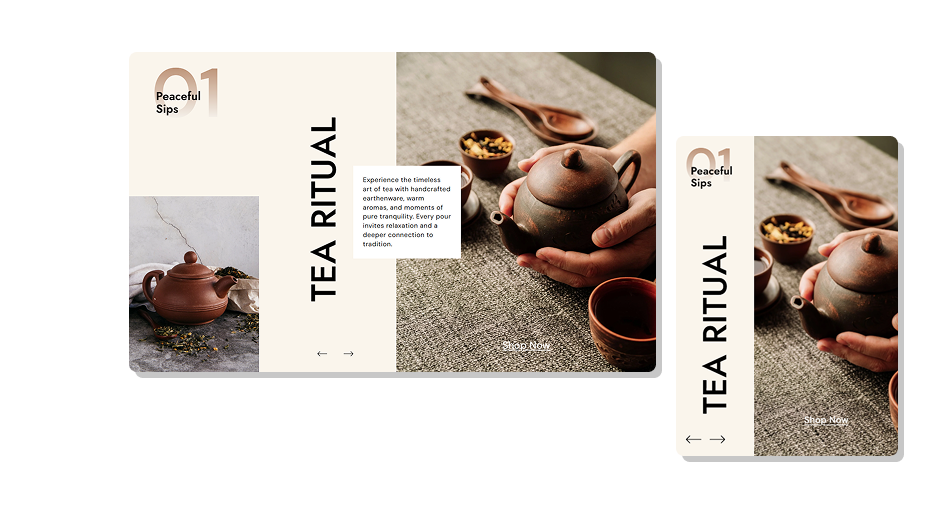
Use dual-image layouts, custom typography, flexible colors, smooth transitions, navigation controls, and responsive settings to create a slideshow that fits your store's visual identity.
Combine multiple images with slide contentShowcase multiple visual highlightsAdd clickable links to slidesDisplay automatic slide countersAdd custom headings and subheadingsUse smooth fade transitionsCustomize navigation arrowsCreate responsive desktop and mobile layoutsHighlight products and collectionsSupport brand storytelling Use high-quality images
Keep left and right images visually consistent
Use clear and concise headings
Keep slide descriptions short and focused
Use relevant links for every CTA
Maintain a consistent visual style across slides
Use contrasting text and background colors
Keep the number of slides focused and purposeful
Use strong imagery that supports your message
Use high-quality images
Keep left and right images visually consistent
Use clear and concise headings
Keep slide descriptions short and focused
Use relevant links for every CTA
Maintain a consistent visual style across slides
Use contrasting text and background colors
Keep the number of slides focused and purposeful
Use strong imagery that supports your message  Use unrelated images across slides
Use low-quality or heavily compressed images
Add very long headings
Overload slides with too much text
Link slides to unrelated pages
Mix inconsistent visual styles
Use poor color contrast
Add unnecessary slides
Use images that distract from the main message
Use unrelated images across slides
Use low-quality or heavily compressed images
Add very long headings
Overload slides with too much text
Link slides to unrelated pages
Mix inconsistent visual styles
Use poor color contrast
Add unnecessary slides
Use images that distract from the main message Yes. You can add multiple slide blocks to the section, supporting up to 9 slides.
Yes. Each slide can have its own Left Image and Right Image.
Yes. Each slide can have its own subheading, heading, rich text content, link text, and link destination.
Yes. Add custom Link Text and Link settings to make each slide clickable through its CTA.
Yes. The counter automatically displays slide numbers such as 01, 02, and 03, and its size and color can be customized.
Yes. Each slide has individual settings for the subheading color, heading color, content color, content background color, and link text color.
Yes. You can customize the arrow color and arrow size from the section settings.
Yes. The slideshow uses a smooth fade transition when moving between slides.
Yes. The section is responsive and includes dedicated mobile styling for images, headings, counters, spacing, and navigation.
Yes. The slideshow is configured to loop through the slides continuously.
Yes. You can separately control the top and bottom padding for both desktop and mobile.
Yes. You can link each slide to products, collections, pages, or any other valid Shopify URL.
Yes. Each slide block has its own content, images, colors, and CTA settings, allowing every slide to have a different design and destination.
For Support or any Questions Email Us: [email protected]
Install SectionHub and add the Hero Slideshow Dual Image section to your theme in minutes - no coding required.
