Make a Strong First Impression
Use a large visual banner to introduce your store, highlight featured products, promote a collection, or communicate a seasonal message.

Create immersive hero banners with parallax images, flexible content positioning, custom overlays, responsive layouts, and clear call-to-action buttons.
 2.0 Compatible
Parallax Hero Banner
No Coding Needed
2.0 Compatible
Parallax Hero Banner
No Coding Needed 
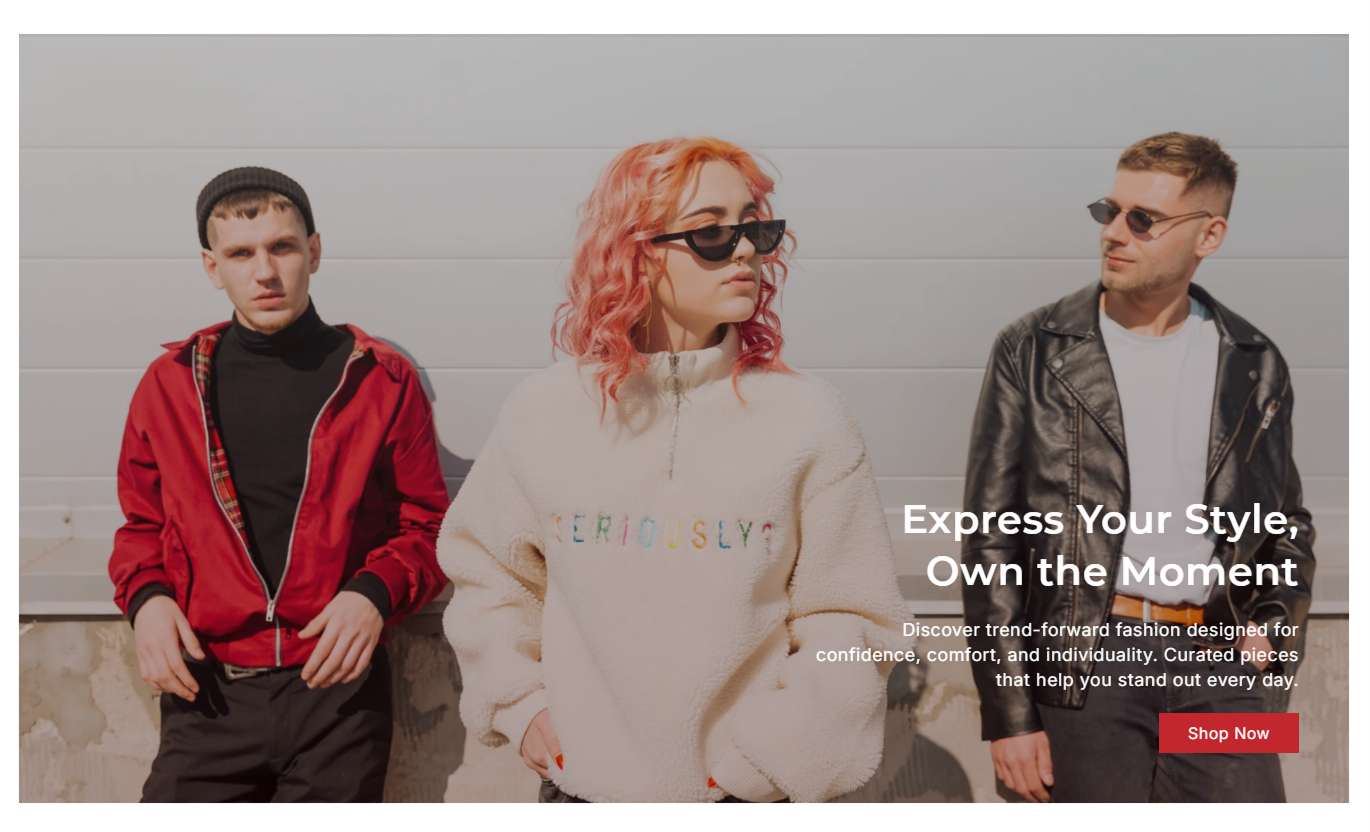
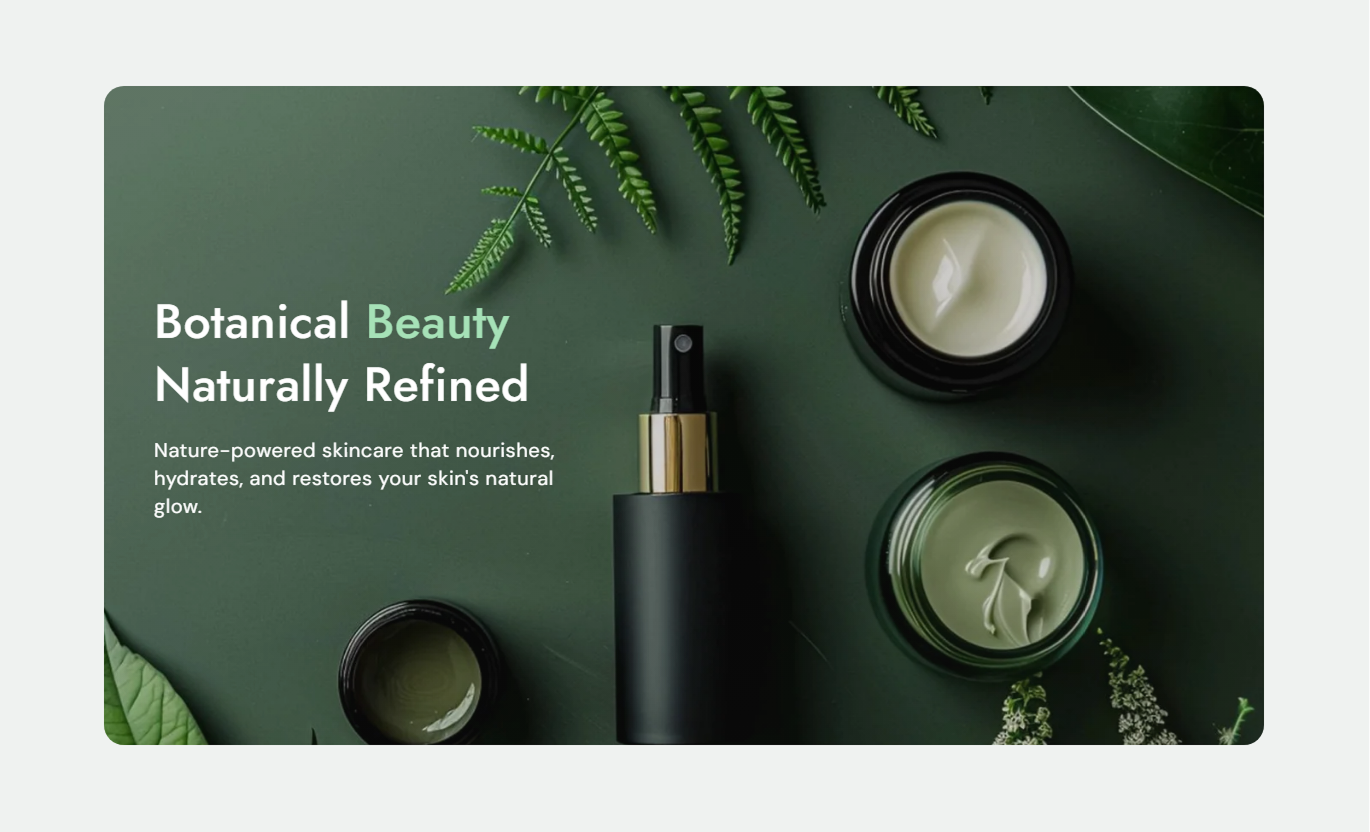


Create impactful hero sections with parallax images, responsive controls, flexible positioning, overlays, typography, and customizable buttons.

Add a full-screen image that creates a smooth parallax-style hero effect.

Use separate images for desktop and mobile screens.

Choose small, medium, or large banner heights for different layouts.

Place your heading, text, and button in nine desktop positions.

Add an overlay and adjust its opacity to improve content visibility.

Add a button with a custom label, link, colors, border, and outline style.

Control the maximum width of the hero content on the desktop.

Create a banner that adapts smoothly across desktop and mobile screens.
Control the banner image, content layout, button, colors, spacing, and responsive display from the theme editor.

Applies to the whole section
Add the main heading displayed over the banner.
HeadingAdd supporting text below the main heading.
ContentChoose the desktop banner image.
Desktop Banner ImageChoose a separate image for mobile devices.
Mobile Banner ImageChoose the overall height of the hero banner.
Banner HeightSet where the content appears on the desktop.
Desktop Content PositionSet where the content appears on mobile.
Mobile Content PositionChoose desktop and mobile text alignment.
Text AlignmentAdjust the content area width on the desktop.
Desktop Content WidthAdd a custom button label and destination link.
Button Label & LinkCustomize the banner overlay and its opacity.
Overlay & OpacityCustomize heading, content, and background colors.
Section Color SettingsSet the section spacing for desktop and mobile.
Section SpacingSet the maximum width or make the section full width.
Section WidthUse the parallax hero banner wherever you want to create a strong visual introduction and guide shoppers toward an important action.
Use a large visual banner to introduce your store, highlight featured products, promote a collection, or communicate a seasonal message.
Highlight featured productsPromote new collectionsSupport seasonal campaignsGuide shoppers to key pagesIntroduce a collection with a strong banner that sets the tone and gives shoppers a clear reason to explore the products below.
Introduce collectionsHighlight seasonal rangesPromote special offersImprove visual presentationUse a visual banner to promote complementary products, special campaigns, brand stories, or important shopping messages.
Promote related productsHighlight special offersShare brand messagingEncourage further browsingBuild dedicated landing pages for launches, promotions, events, and campaigns with a visually engaging hero banner and clear CTA.
Support product launchesPromote campaignsCreate focused experiencesGuide visitors to key actionsCombine strong visuals with flexible content controls to create hero banners that capture attention and help shoppers take the next step.
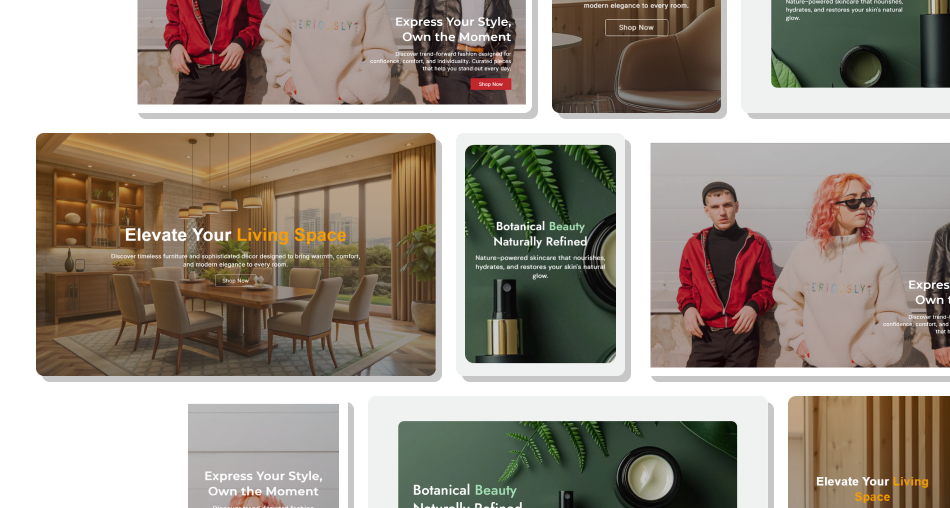
Use striking visuals, layered movement, flexible content positioning, and clear CTAs to create a hero section that adds depth to your storefront.
Create visually engaging hero sectionsAdd immersive banner imageryAdd subtle parallax movementUse separate desktop and mobile imagesPosition content where it works bestImprove CTA visibility with overlaysMatch the banner to your store brandingCreate responsive experiences across devices Use high-quality banner images
Keep hero copy short and clear
Choose images that support your message
Use readable text over images
Add one clear CTA
Use a mobile-friendly image
Use high-quality banner images
Keep hero copy short and clear
Choose images that support your message
Use readable text over images
Add one clear CTA
Use a mobile-friendly image  Use low-quality or blurry images
Add too much text
Use weak contrast between text and image
Add multiple competing CTAs
Ignore the mobile layout
Use distracting background images
Use low-quality or blurry images
Add too much text
Use weak contrast between text and image
Add multiple competing CTAs
Ignore the mobile layout
Use distracting background images Yes. You can select separate desktop and mobile images so the banner looks better across different screen sizes.
Yes. Choose a small, medium, or large banner height in the theme editor.
Yes. You can position the content in nine different locations on desktop and choose top, center, or bottom positioning on mobile.
Yes. You can set separate text alignment options for desktop and mobile.
Yes. Add a button label and link to direct shoppers to a collection, product, page, or other destination.
Yes. Enable the outline button option and customize its appearance using the available color settings.
Yes. You can add a custom overlay and adjust its opacity to help improve text visibility over the banner image.
Yes. You can customize the heading, bold heading text, and content colors from the theme editor.
Yes. Set the desktop content width to control how wide the text area appears over the banner.
Yes. The section includes separate controls for mobile image, content position, text alignment, font, and spacing to improve the mobile experience.
For Support or any Questions Email Us: [email protected]
Install SectionHub and add the Hero Banner Parallax section to your theme in minutes - no coding required.
