Create an Editorial Homepage Story
Use staggered image cards to introduce collections, brand stories, categories, or featured content, creating a stronger visual rhythm throughout your homepage.

Showcase products, collections, campaigns, or brand stories in a staggered image grid with supporting text, optional links, and responsive Shopify layouts.
 Staggered Image Grid
Linked Content Cards
Responsive Layout
Staggered Image Grid
Linked Content Cards
Responsive Layout 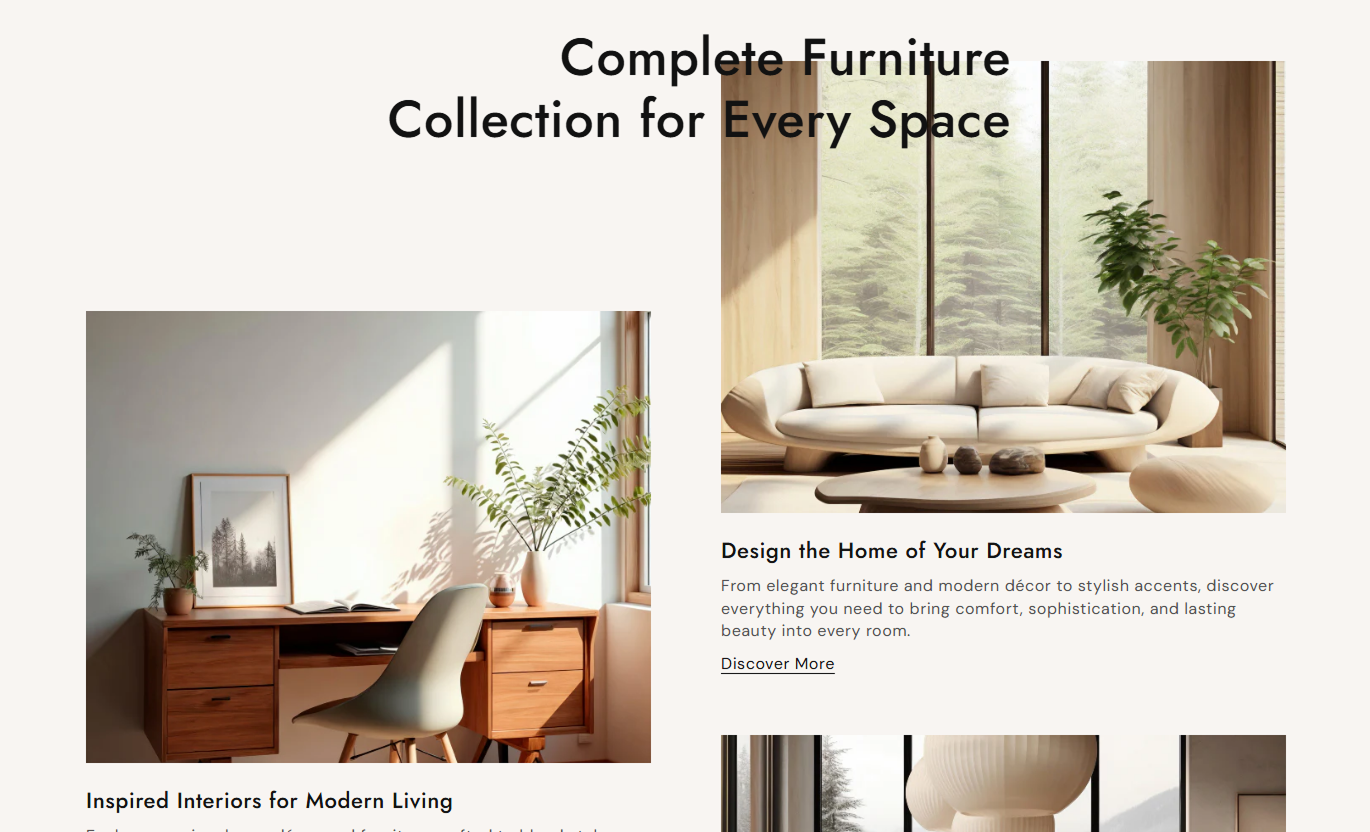
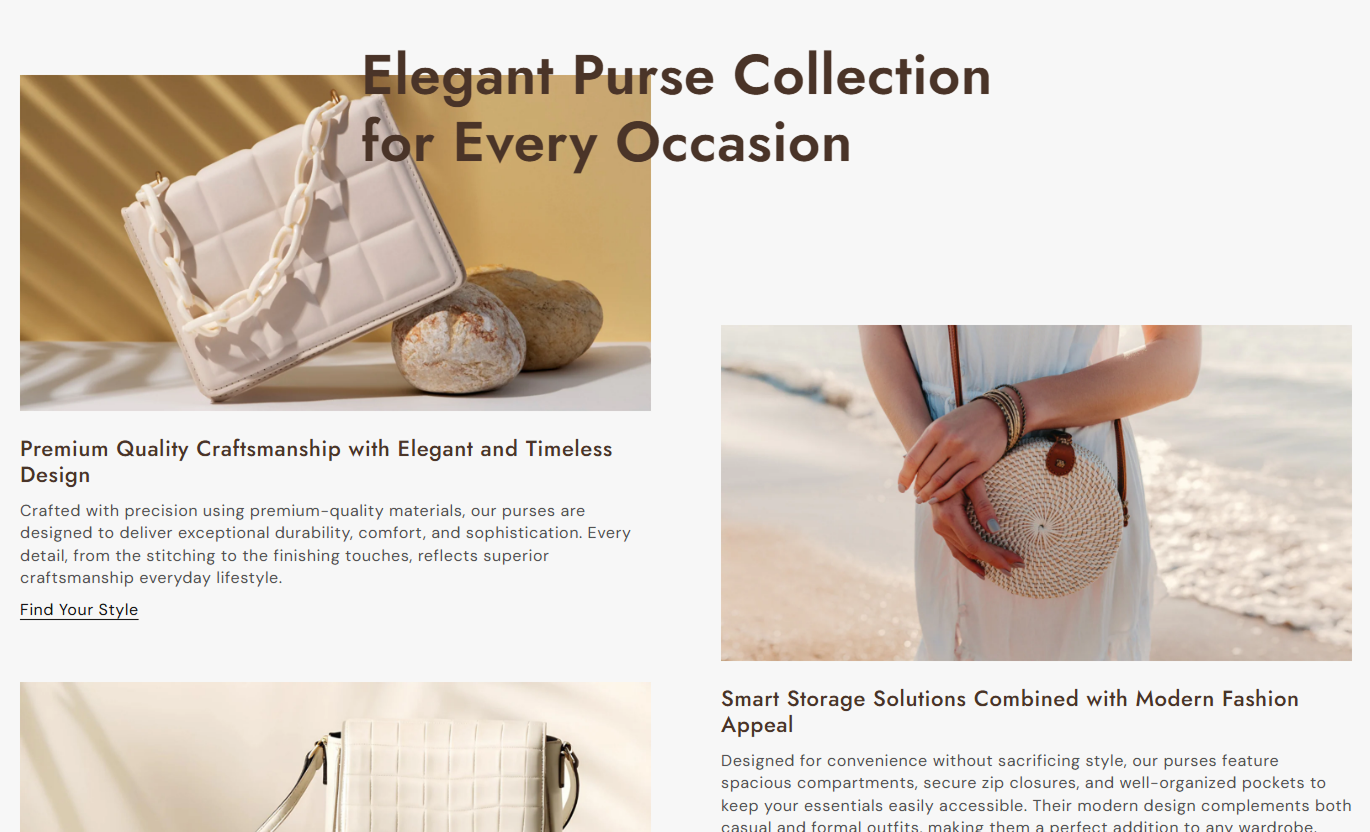


Create a distinctive staggered image grid with headings, rich text, links, image sizing, alignment controls, and responsive styling for Shopify pages.

Display image cards in an offset two-column desktop layout that creates a more editorial and visually dynamic presentation.

Change the starting direction of the staggered desktop layout to better suit the composition of the surrounding page content.

Add a heading and rich text to every image card so each visual can communicate its own message, story, or category information.

Add a custom link label and destination below each card to guide shoppers toward a relevant product, collection, page, or campaign.

Choose Small, Medium, Large, or Auto image proportions to match portrait, square, landscape, or naturally sized visual assets.

Control the main section heading alignment separately on desktop and mobile, and set the alignment for individual card content.

Adjust the size of the main heading, card heading, content, and link text to create a clear visual hierarchy throughout the section.

The staggered desktop layout switches to a clean single-column structure on mobile, keeping every image and message easy to browse.
Control grid direction, image proportions, typography, alignment, colors, spacing, and responsive section width from the theme editor.

Applies to the whole section
Add the main heading displayed above the image grid.
Section HeadingChoose the font weight of the main section heading.
Heading Font WeightSet the heading alignment for desktop screens.
Desktop Heading AlignSet a separate heading alignment for mobile screens.
Mobile Heading AlignReverse the direction of the staggered desktop grid.
Reverse Grid DirectionChoose Small, Medium, Large, or Auto image height.
Image HeightSet the alignment used for content inside individual image cards.
Card Content AlignmentAdjust the corner rounding applied to card images.
Image Border RadiusControl typography sizes, text colors, spacing, and background styling.
Style ControlsChoose a full-width layout or set a custom maximum section width.
Section Width
Applies to each image card
Choose the main visual displayed inside the card.
ImageAdd the title displayed below the image.
Card HeadingAdd supporting rich text for the individual card.
Card ContentAdd the clickable text displayed below the card content.
Link LabelChoose the destination used by the text link.
LinkUse this editorial image grid to tell visual stories, introduce collections, highlight products, or organize campaign content across key Shopify pages.
Use staggered image cards to introduce collections, brand stories, categories, or featured content, creating a stronger visual rhythm throughout your homepage.
Create a more editorial look than a standard card gridFeature multiple collections without using a product sliderCombine strong photography with short supporting storiesGuide visitors using clear text links below each cardBreak up traditional homepage layouts with visual varietyUse the staggered grid to highlight subcategories, seasonal edits, related collections, or collection stories before or after the main product listing.
Introduce related categories through larger visual contentAdd context around seasonal or curated collectionsGive shoppers additional paths beyond the product gridUse rich text to explain each collection or categoryCreate stronger visual separation around merchandising areasUse image cards to present related collections, complementary products, materials, care stories, or other useful content around the primary product information.
Connect shoppers with complementary store destinationsPresent materials or product stories in a visual formatAdd supporting content without crowding product detailsUse clear links to guide shoppers toward related pagesCreate an editorial transition between product sectionsUse staggered visuals, supporting copy, and custom links to organize campaign themes, featured categories, launches, or editorial content within one section.
Give campaigns a more distinctive editorial presentationSeparate campaign ideas into individual visual storiesLink each story directly to its relevant destinationControl image proportions to match campaign photographyUse the reverse direction to vary the campaign compositionCreate a visually distinctive content section that combines staggered imagery, supporting copy, and clear links to help shoppers discover more of your store.
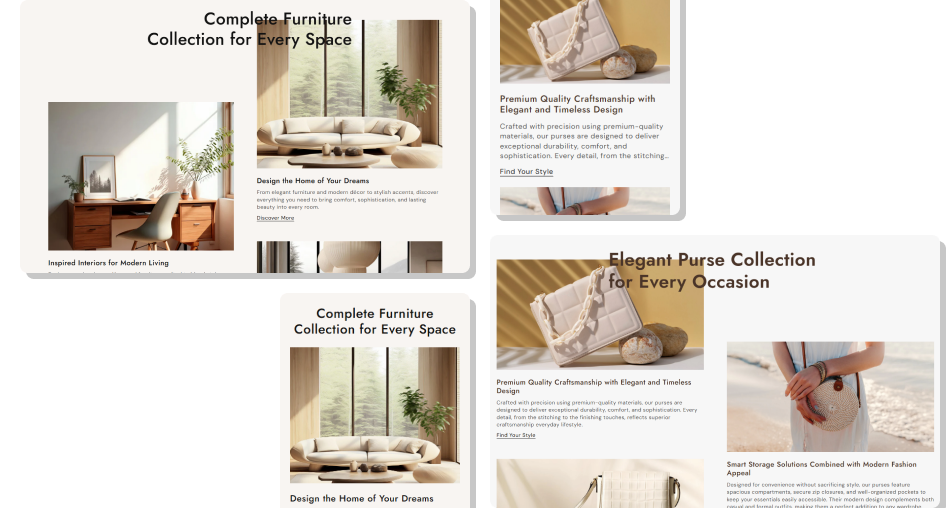
Pair large images with useful copy and individual links to create a flexible storytelling section that also supports store navigation.
Create visual variety beyond standard equal-height card gridsPresent multiple store stories within one organized sectionPair images with meaningful text instead of visuals aloneGive every card its own optional destination and link labelAdjust image ratios to suit different photography stylesControl desktop and mobile heading alignment independentlyKeep the staggered layout easy to browse on mobile screens Use strong images that work well at larger display sizes
Keep card descriptions focused to maintain visual balance
Choose image proportions that suit your photography style
Use clear link labels that explain where shoppers will go
Keep related cards connected by one visual or content theme
Use strong images that work well at larger display sizes
Keep card descriptions focused to maintain visual balance
Choose image proportions that suit your photography style
Use clear link labels that explain where shoppers will go
Keep related cards connected by one visual or content theme  Don't mix unrelated photography without a clear visual theme
Don't add long paragraphs that make card heights feel uneven
Don't use vague link labels that hide the destination purpose
Don't choose random image proportions for every visual asset
Don't overload the section with content better suited elsewhere
Don't mix unrelated photography without a clear visual theme
Don't add long paragraphs that make card heights feel uneven
Don't use vague link labels that hide the destination purpose
Don't choose random image proportions for every visual asset
Don't overload the section with content better suited elsewhere You can add up to four image grid blocks. Each block supports its own image, heading, rich text content, link label, and destination.
The section uses a two-column layout with cards offset vertically to create a layered editorial appearance instead of a standard grid.
Yes. Enable Reverse Grid Direction to change the direction in which the two-column desktop layout begins and flows across the section.
You can choose Small, Medium, Large, or Auto. These settings provide different image proportions or preserve the image's natural height.
Yes. Every block has a Link Label and Link setting. The text link appears when both a label and a destination have been added.
Yes. Desktop and mobile heading alignment have separate controls, allowing you to adjust the section presentation for each screen size.
On mobile, the staggered offsets are removed and each card becomes full width, creating a clean single-column layout that is easier to browse.
For Support or any Questions Email Us: [email protected]
Install SectionHub and add the Flexible Image Grid Showcase section to your theme in minutes - no coding required.
