Highlight Your Product Benefits Visually
Use the section on your homepage to introduce key product benefits, materials, features, or brand highlights, centered on a strong central image.

Present four important features around a central image with numbered callouts, flexible positioning, responsive layouts, and separate desktop and mobile controls.
 Numbered Feature Layout
Image-Based Showcase
Responsive Design
Numbered Feature Layout
Image-Based Showcase
Responsive Design 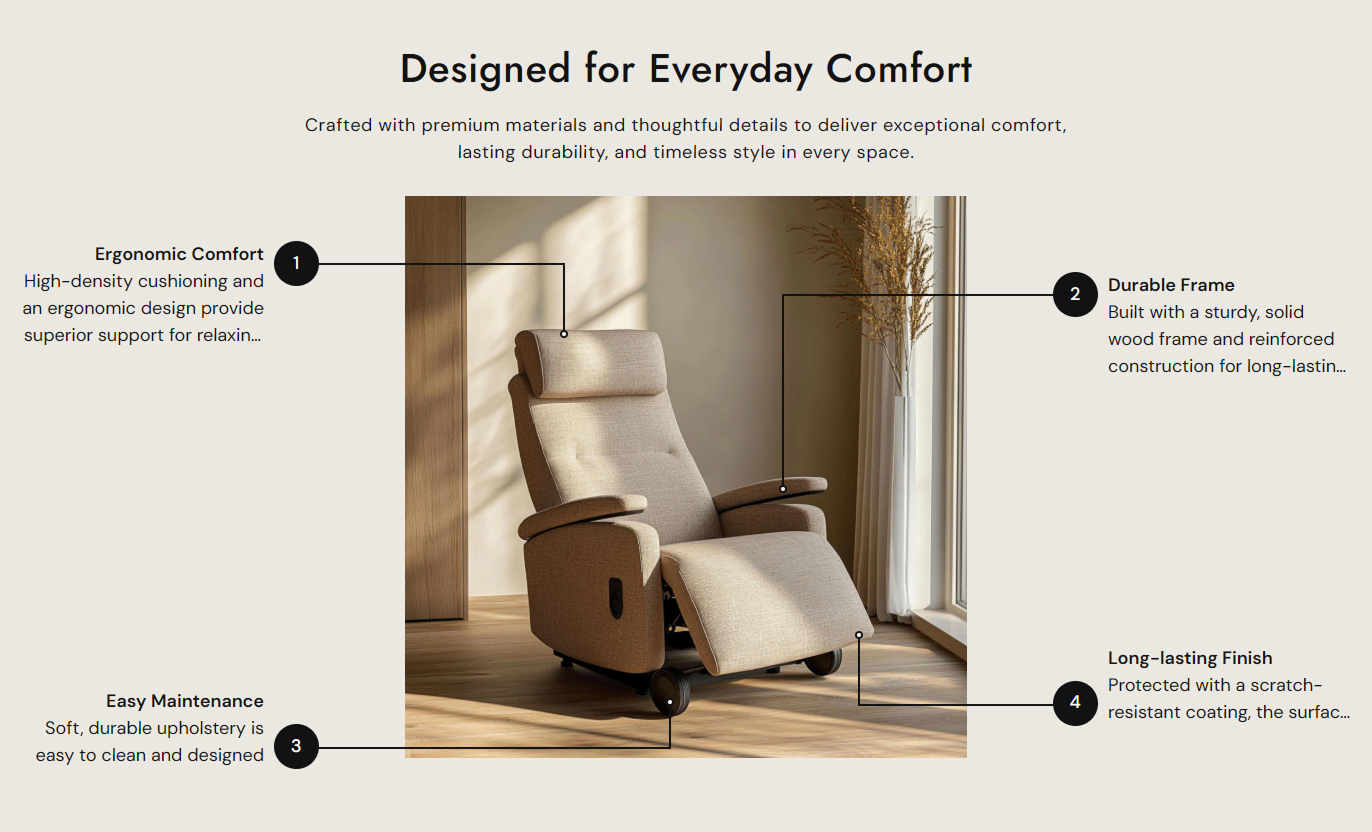
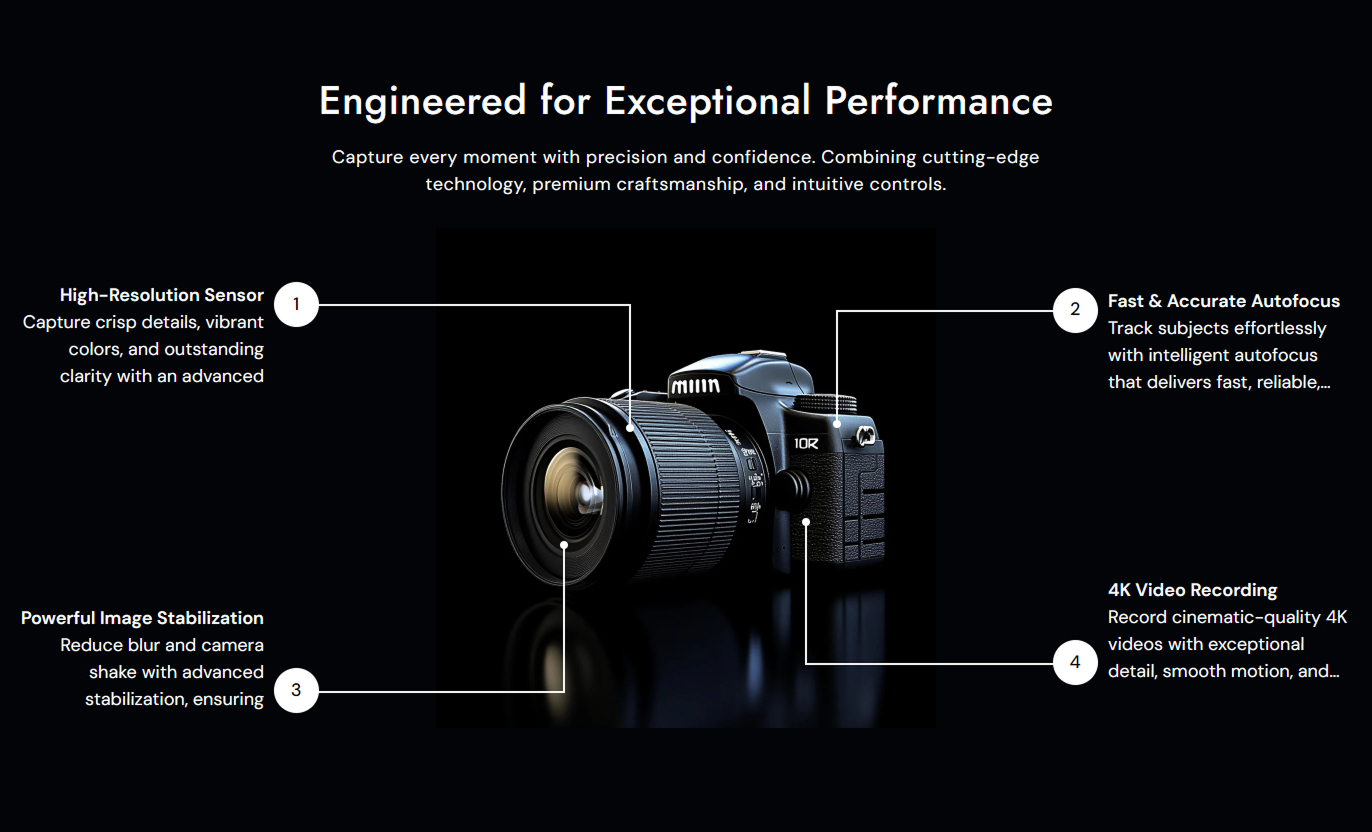
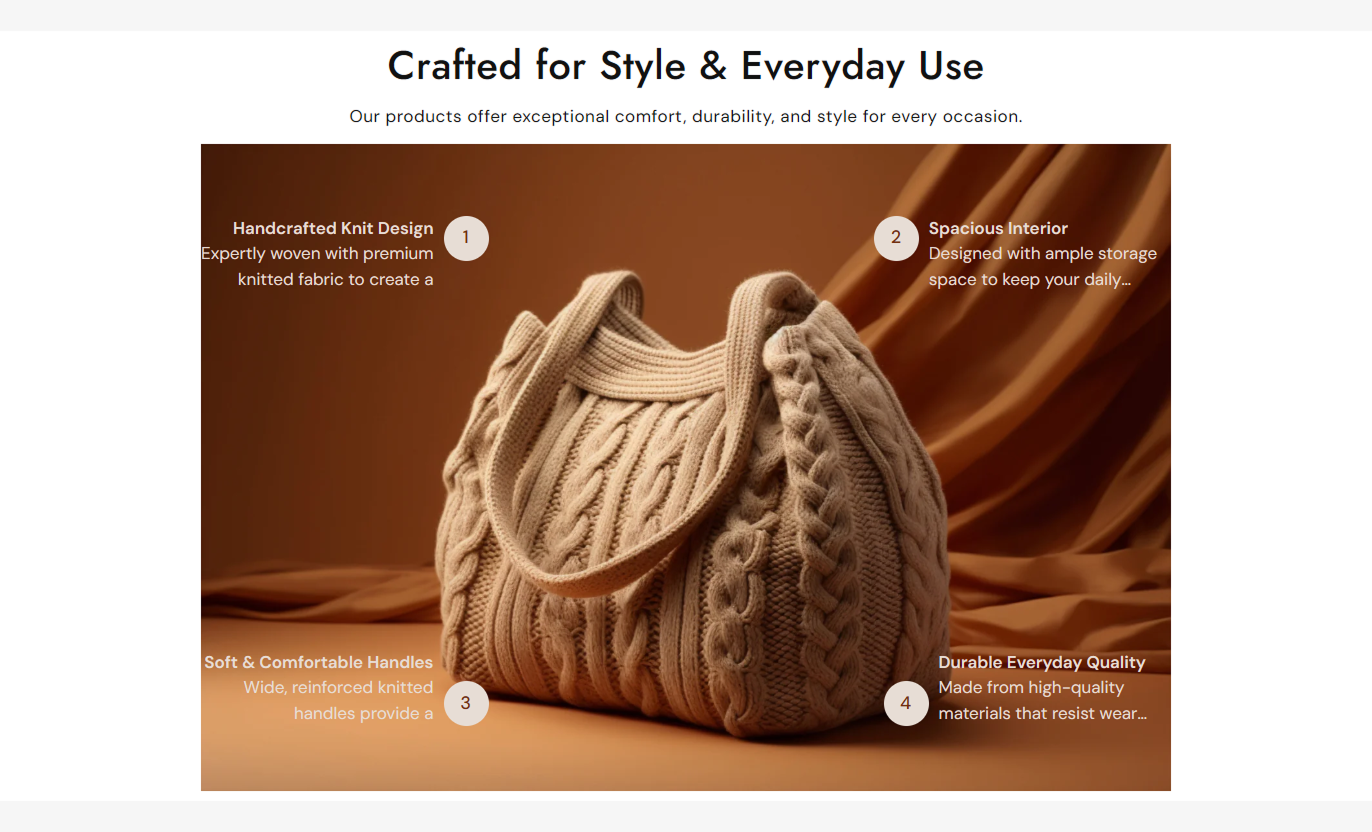


Use a central image with up to four numbered feature points to explain product benefits, important details, or key selling points.

Add a main image that visually supports the feature points and explains your product or offer.

Use separate images for desktop and mobile to keep the feature layout clear across screen sizes.

Add up to four feature blocks positioned around the main image for easy visual reference.

Display numbered points with visual connector lines that link each feature to the image area.

Add bold feature headings with supporting text to explain each highlighted benefit or detail.

Adjust the vertical position, width, height, and spacing of individual feature callouts.

Choose Small, Medium, Large, or Auto image height based on your content and layout.

Feature callouts automatically switch to a simpler stacked layout for smaller screens.
Control the image, feature callouts, typography, colors, spacing, and section width from the Shopify theme editor.

Applies to the whole section
Main heading displayed above the feature image.
HeadingSupporting text displayed below the heading.
ContentChoose how the section heading and content are aligned.
Text AlignmentUpload the main image used for the desktop layout.
Desktop ImageUpload an alternative image for mobile devices.
Mobile ImageChoose the displayed image height for the feature area.
Image HeightSet the heading font size for the section.
Heading Font SizeSet the supporting content font size.
Content Font SizeChoose the section background color.
Background ColorSet the color of the main section heading.
Heading ColorSet the color of the supporting section content.
Content ColorSet the spacing around the feature image area.
Feature Box PaddingControl the top and bottom spacing on the desktop.
Desktop PaddingControl the top and bottom spacing on mobile.
Mobile PaddingMake the section span the available page width.
Full WidthSet the maximum width when full width is disabled.
Section Width
Applies to each feature callout
Add the heading and supporting text for the feature.
Feature ContentMove the feature vertically around the image.
Vertical PositionSet the maximum width of the feature text.
Max WidthControl the connector line height for the feature.
Max HeightLimit how many text lines are displayed.
Content LineAdd spacing to the left side of the feature block.
Left PaddingAdd spacing to the right side of the feature block.
Right PaddingUse Features with Numbered Callouts to explain important product details, benefits, or selling points with visual callouts that connect directly to a central image.
Use the section on your homepage to introduce key product benefits, materials, features, or brand highlights, centered on a strong central image.
Explain key product benefits at a glanceCreate a strong visual product introductionHighlight important selling pointsKeep benefit information easy to scanSupport visual brand storytellingAdd the section to collection pages when shoppers need extra context about a product range, materials, features, or qualities shared across products.
Explain collection-wide product qualitiesHighlight important product characteristicsSupport faster product understandingAdd useful context beside collection contentMake collection pages more informativeUse numbered callouts to explain product features, materials, construction details, design elements, or other information shoppers should notice.
Highlight key product specificationsExplain important design detailsDraw attention to product benefitsSupport informed shopping decisionsAdd context without long paragraphsUse the section on campaign and landing pages to present a product or offer with four focused callouts that guide visitors through the most important details.
Create a focused campaign presentationHighlight the strongest product featuresGuide visitors through visual detailsKeep landing page content organizedStrengthen product-focused storytellingGive shoppers a clear visual explanation of important product benefits while keeping feature information organized around a central image.
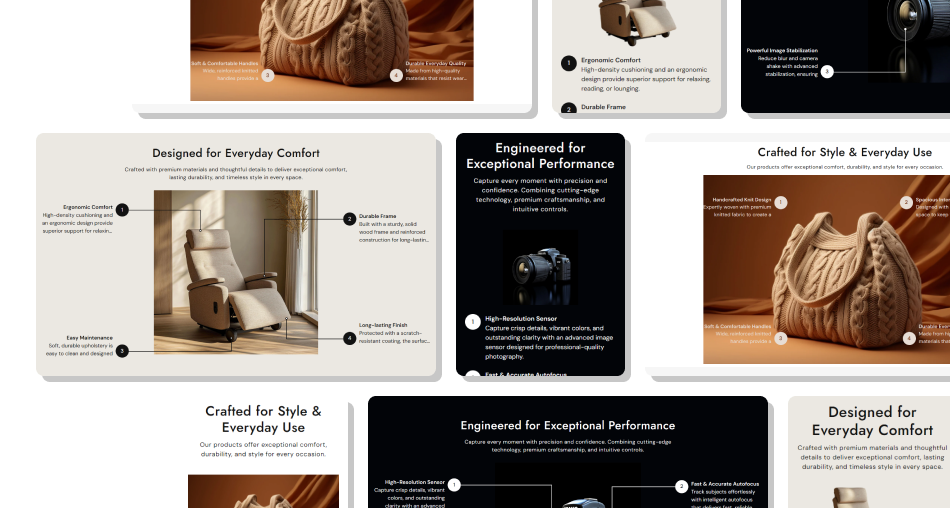
Use numbered callouts to connect useful product information with a central image and make important details easier to understand.
Make key product information easier to scanConnect feature descriptions with a visual image.Highlight up to four important selling pointsCreate a structured and organized feature layout.Use separate images for desktop and mobileAdjust feature placement for different designs.Keep feature content responsive on mobile Use a clear image that supports the featured content
Keep each feature focused on one important product detail
Use short headings so numbered callouts remain easy to scan
Position callouts carefully around the main image
Use a separate mobile image when the desktop layout needs it
Use a clear image that supports the featured content
Keep each feature focused on one important product detail
Use short headings so numbered callouts remain easy to scan
Position callouts carefully around the main image
Use a separate mobile image when the desktop layout needs it  Use busy images that make feature callouts hard to read
Add long paragraphs that overwhelm the feature layout
Place unrelated information in the numbered callouts
Crowd all four feature points into one small area
Ignore mobile spacing and image proportions
Use busy images that make feature callouts hard to read
Add long paragraphs that overwhelm the feature layout
Place unrelated information in the numbered callouts
Crowd all four feature points into one small area
Ignore mobile spacing and image proportions Yes. You can add up to four feature blocks, each with its own numbered position and supporting content.
Yes. The section supports separate desktop and mobile images, helping you create a better layout for each screen size.
You can add up to four feature blocks. Each block displays a numbered marker with its own feature content.
Yes. Each feature block has controls for vertical position, maximum width, connector height, and left or right padding.
Yes. Choose Small, Medium, Large, or Auto to control how the main feature image is displayed.
On mobile, the numbered feature points switch to a stacked layout and connector lines are hidden for easier reading.
Yes. You can customize the section background, heading, content, feature text, number background, and number text colors.
Yes. Enable Full Width in the section settings, or use a custom maximum width when the contained layout is preferred.
For Support or any Questions Email Us: [email protected]
Install SectionHub and add the Features with Numbered Callouts section to your theme in minutes - no coding required.
